
GlazeWM is a tiling window manager for macOS and Windows inspired by i3wm.
docs: update readme with cheatsheet and new config options
Lars Berger6c939af64ac0
diff --git a/CONTRIBUTING.md b/CONTRIBUTING.mdnew file mode 100644index 00000000..5062df81--- /dev/null+++ b/CONTRIBUTING.md@@ -0,0 +1,15 @@+# Contributing to GlazeWM++### Installing Rust++Rust **nightly** is currently used. [`rustup`](https://rustup.rs/) is the recommended way to set up the Rust toolchain.++### Development++To start the project in development mode:++```shell+# `cargo build` will build both the watcher + wm binaries.+# `cargo run` will run the default binary, which is configured to be the wm.+cargo build && cargo run+```diff --git a/README.md b/README.mdindex 6a9cf376..1b6ced45 100644--- a/README.md+++ b/README.md@@ -1,177 +1,180 @@-# GlazeWM · [](https://github.com/glzr-io/glazewm/pulls) [](https://github.com/glzr-io/GlazeWM/blob/master/LICENSE.md) [](https://discord.gg/ud6z3qjRvM)+<div align="center">+ <img src="./resources/logo.svg" width="230" alt="GlazeWM logo" />+ <br>+ <br>-GlazeWM is a tiling window manager for Windows inspired by i3 and Polybar.+> V3 is finally out - check out the changelog [here](https://github.com/glzr-io/GlazeWM/releases) 🔥-Why use a tiling window manager? A tiling WM lets you easily organize windows and adjust their layout on the fly by using keyboard-driven commands.+# GlazeWM-- Simple YAML configuration-- Multi-monitor support-- Customizable bar window-- Customizable rules for specific windows-- Easy one-click installation--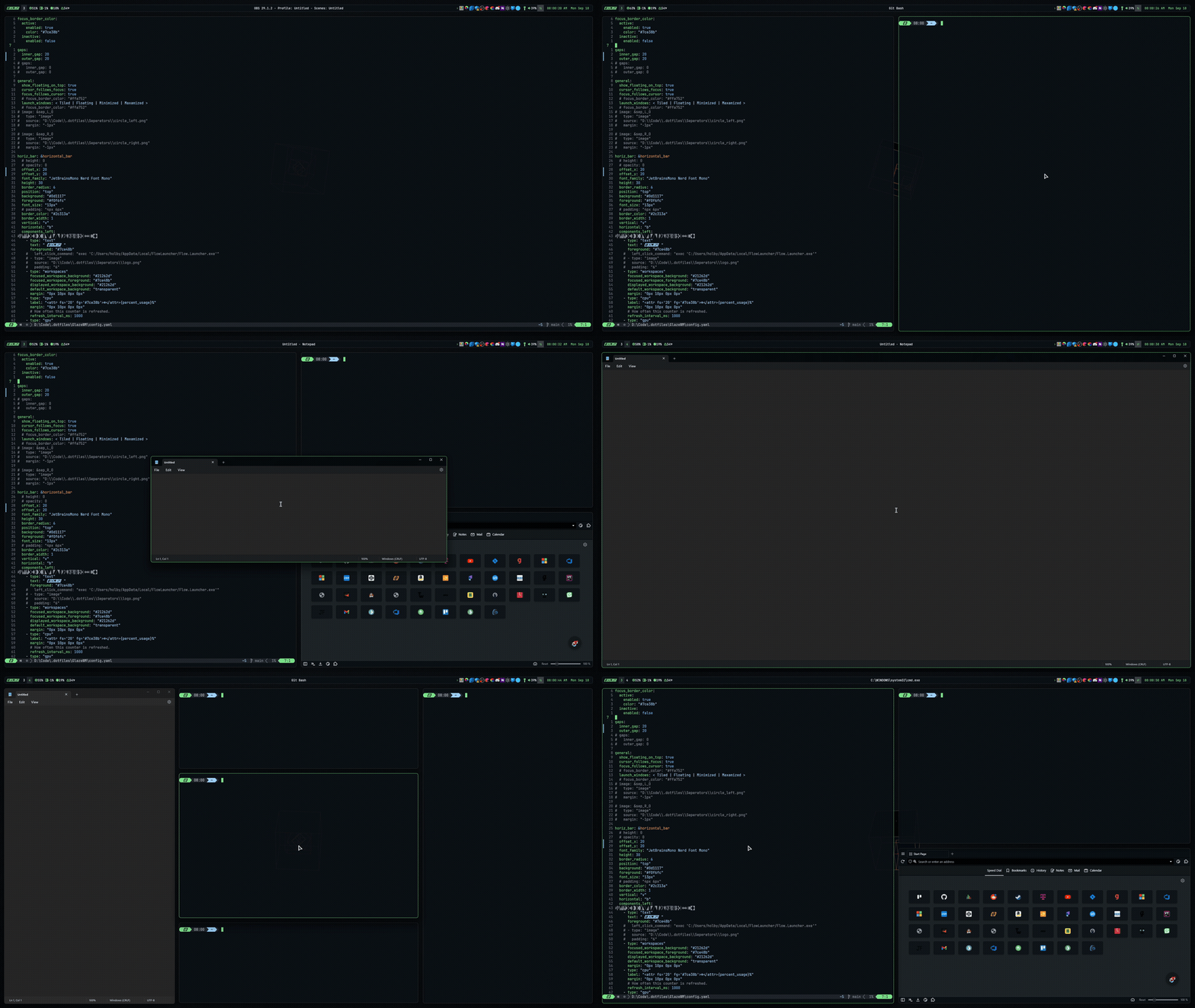--<p align="center"><i>Showcase GIF by <a href="https://github.com/HolbyFPV">@HolbyFPV</a></i></p>--Under the hood, GlazeWM adds functionality to the built-in window manager and uses the Windows API via P/Invoke to position windows.--# Table of Contents--- [Download](#download)-- [Roadmap](#roadmap)-- [Configuration](#configuration)-- [Available Commands](#available-commands)-- [Known Issues](#known-issues)-- [Contributing](#contributing)--# Download--- [Direct download](#direct-download)-- [Winget](#winget)-- [Scoop](#scoop)-- [Build from source](#build-from-source)+**A tiling window manager for Windows inspired by i3wm.**-## Direct download+[![Discord invite][discord-badge]][discord-link]+[![Downloads][downloads-badge]][downloads-link]+[![Good first issues][issues-badge]][issues-link]-The latest runnable executable can be downloaded via [releases](https://github.com/glzr-io/GlazeWM/releases). No installation necessary, simply run the `.exe` file.+GlazeWM lets you easily organize windows and adjust their layout on the fly by using keyboard-driven commands.-## Winget+[Installation](#installation) •+[Default keybindings](#default-keybindings) •+[Config documentation](#config-docs) •+[FAQ](#faq) •+[Contributing ↗](https://github.com/glzr-io/glazewm/blob/main/CONTRIBUTING.md)-GlazeWM can be downloaded via Winget package manager:+</div>-```sh-winget install GlazeWM-```--Winget installs portable packages in `%LOCALAPPDATA%\Microsoft\Winget\Packages\` by default. This can be overrided with the flag `--location \path\to\folder`.+-## Scoop+### 🌟 Key features-GlazeWM can be download via Scoop in the [Extras](https://github.com/ScoopInstaller/Extras) bucket:--```powershell-scoop bucket add extras # Ensure bucket is added first-scoop install glazewm-```+- Simple YAML configuration+- Multi-monitor support+- Customizable rules for specific windows+- Easy one-click installation+- Integration with [Zebar](https://github.com/glzr-io/zebar) as a status bar-## Build from source+## Installation-Alternatively, to build from source, use the following .NET CLI command:+**The latest version of GlazeWM is downloadable via [releases](https://github.com/glzr-io/GlazeWM/releases).** Zebar can optionally be installed as well via a checkbox in the install.-```sh-dotnet publish ./GlazeWM.App/GlazeWM.App.csproj --configuration=Release --runtime=win-x64 --output=. --self-contained -p:PublishSingleFile=true -p:IncludeAllContentForSelfExtract=true-```+Scoop and Winget are currently not supported. If you instead want to build from source, refer to the+[contributing guide](https://github.com/glzr-io/glazewm/blob/main/CONTRIBUTING.md).-To build for other runtimes than Windows x64, see [here](https://docs.microsoft.com/en-us/dotnet/core/rid-catalog#windows-rids).+## Default keybindings-# Roadmap+On the first launch of GlazeWM, a default configuration can optionally be generated.-- Improve handling of fullscreen and maximized windows.-- More bar components.+Below is a cheatsheet of all available commands and their default keybindings.-[📋 Full roadmap](https://github.com/users/lars-berger/projects/2/views/1)+-# Configuration+## Config documentation-- [General](#general)-- [Keybindings](#keybindings)-- [Focus Window Border](#focus-window-border)-- [Gap Configuration](#gap-configuration)-- [Workspaces](#workspaces)-- [Bar Configuration](#bar-configuration)--The configuration file for GlazeWM can be found at `C:\Users\<YOUR_USER>\.glaze-wm\config.yaml`. If this file doesn't exist, the [default config](https://github.com/glzr-io/GlazeWM/blob/master/GlazeWM.App/Resources/sample-config.yaml) can optionally be generated on launch.+The [default config](https://github.com/glzr-io/glazewm/blob/main/resources/sample-config.yaml) file is generated at `%userprofile%\.glzr\glazewm\config.yaml`.To use a different config file location, you can launch the GlazeWM executable with the CLI argument `--config="..."`, like so:```sh-./GlazeWM.exe --config="C:\<PATH_TO_CONFIG>\config.yaml"+./glazewm.exe --config="C:\<PATH_TO_CONFIG>\config.yaml"```-## General+### Config: General```yamlgeneral:+ # Commands to run when the WM has started (e.g. to run a script or launch+ # another application).+ startup_commands: []+# Whether to automatically focus windows underneath the cursor.focus_follows_cursor: false- # Whether to jump the cursor between windows focused by the WM.- cursor_follows_focus: false-- # Whether to switch back and forth between the previously focused workspace- # when focusing the current workspace.- toggle_workspace_on_refocus: true+ # Whether to switch back and forth between the previously focused+ # workspace when focusing the current workspace.+ toggle_workspace_on_refocus: false- # Whether to show floating windows as always on top.- show_floating_on_top: false-- # Amount to move floating windows by (eg. when using `alt+<hjkl>` on a floating window)- floating_window_move_amount: "5%"-- # Whether to globally enable/disable window transition animations (on minimize, close,- # etc). Set to 'unchanged' to make no setting changes.- window_animations: "unchanged"+ cursor_jump:+ # Whether to automatically move the cursor on the specified trigger.+ enabled: true- # Whether to center new floating windows (default is true)- center_new_floating_windows: true+ # Trigger for cursor jump:+ # - 'monitor_focus': Jump when focus changes between monitors.+ # - 'window_focus': Jump when focus changes between windows.+ trigger: "monitor_focus"```-## Keybindings+### Config: Keybindings-The available keybindings can be customized via the `keybindings` property in the config file. A keybinding consists of one or more key combinations and one or more commands to run when pressed.+The available keyboard shortcuts can be customized via the `keybindings` option. A keybinding consists of one or more key combinations and one or more commands to run when pressed.-A full list of keys that can be used for keybindings can be found [here](https://docs.microsoft.com/en-us/dotnet/api/system.windows.forms.keys?view=windowsdesktop-5.0#fields). Numbers can be used in keybindings with and without a `D` prefix (eg. either `D1` or `1` works).--It's recommended to use the alt key for keybindings. The windows key is unfortunately a pain to remap, since certain keybindings (eg. `LWin+L`) are reserved by the OS.+It's recommended to use the alt key for keybindings. The Windows key is unfortunately a pain to remap, since certain keybindings (e.g. `lwin+l`) are reserved by the OS.```yamlkeybindings:- # Command to run.- - command: "focus workspace 1"+ # Command(s) to run.+ - commands: ["focus --workspace 1"]- # Key combination to trigger the keybinding.- binding: "Alt+1"+ # Key combination(s) to trigger the keybinding.+ bindings: ["alt+1"]- # To run multiple commands in a sequence, use the `commands` property (eg. to move a window to a+ # Multiple commands can be run in a sequence (e.g. to move a window to a# workspace + focus workspace).- - commands: ["move to workspace 1", "focus workspace 1"]- binding: "Alt+Shift+1"-- - command: "focus left"- # To have multiple key combinations that can trigger a command, use the `bindings` property.- bindings: ["Alt+H", "Alt+Left"]-```--### Default keybindings--Keybindings with <kbd>Alt</kbd> pressed:----Keybindings with <kbd>Alt</kbd>+<kbd>Shift</kbd> pressed:----Apart from the `Alt+Shift+E` binding for exiting GlazeWM, it's also possibly to safely exit via the system tray icon.--## Focus Window Border configuration--The focused and unfocused window border color can be configured via the `focus_borders` property.--_Requires minimum of Windows 11 Build 22000.51._--```yaml-focus_borders:- active:- enabled: true- color: "#ff0000"- inactive:- enabled: false- color: "#0000ff"+ - commands: ["move --workspace 1", "focus --workspace 1"]+ bindings: ["alt+shift+1"]```-## Gap configuration+**Full list of keys that can be used for keybindings:**++<details>+<summary>Keys list</summary>++| Key | Description |+| --------------------- | ------------------------------------------------------------------ |+| `a` - `z` | Alphabetical letter keys |+| `0` - `9` | Number keys |+| `numpad0` - `numpad9` | Numerical keypad keys |+| `f1` - `f24` | Function keys |+| `shift` | Either left or right SHIFT key |+| `lshift` | The left SHIFT key |+| `rshift` | The right SHIFT key |+| `control` | Either left or right CTRL key |+| `lctrl` | The left CTRL key |+| `rctrl` | The right CTRL key |+| `alt` | Either left or right ALT key |+| `lalt` | The left ALT key |+| `ralt` | The right ALT key |+| `lwin` | The left ⊞ Windows logo key |+| `rwin` | The right ⊞ Windows logo key |+| `space` | The spacebar key |+| `escape` | The ESCAPE key |+| `back` | The BACKSPACE key |+| `tab` | The TAB key |+| `enter` | The ENTER key |+| `left` | The ← arrow key |+| `right` | The → arrow key |+| `up` | The ↑ arrow key |+| `down` | The ↓ arrow key |+| `num_lock` | The NUM LOCK key |+| `scroll_lock` | The SCROLL LOCK key |+| `caps_lock` | The CAPS LOCK key |+| `page_up` | The PAGE UP key |+| `page_down` | The PAGE DOWN key |+| `insert` | The INSERT key |+| `delete` | The DELETE key |+| `end` | The END key |+| `home` | The HOME key |+| `print_screen` | The PRINT SCREEN key |+| `multiply` | The `*` key (only on numpad) |+| `add` | The `+` key (only on numpad) |+| `subtract` | The `-` key (only on numpad) |+| `decimal` | The DEL key (only on numpad) |+| `divide` | The `/` key (only on numpad) |+| `volume_up` | The volume up key |+| `volume_down` | The volume down key |+| `volume_mute` | The volume mute key |+| `media_next_track` | The media next track key |+| `media_prev_track` | The media prev track key |+| `media_stop` | The media stop key |+| `media_play_pause` | The media play/pause key |+| `oem_semicolon` | The `;`/`:` key on a US standard keyboard (varies by keyboard) |+| `oem_question` | The `/`/`?` key on a US standard keyboard (varies by keyboard) |+| `oem_tilde` | The `` ` ``/`~` key on a US standard keyboard (varies by keyboard) |+| `oem_open_brackets` | The `[`/`{` key on a US standard keyboard (varies by keyboard) |+| `oem_pipe` | The `\`/`\|` key on a US standard keyboard (varies by keyboard) |+| `oem_close_brackets` | The `]`/`}` key on a US standard keyboard (varies by keyboard) |+| `oem_quotes` | The `'`/`"` key on a US standard keyboard (varies by keyboard) |+| `oem_plus` | The `=`/`+` key on a US standard keyboard (varies by keyboard) |+| `oem_comma` | The `,`/`<` key on a US standard keyboard (varies by keyboard) |+| `oem_minus` | The `-`/`_` key on a US standard keyboard (varies by keyboard) |+| `oem_period` | The `.`/`>` key on a US standard keyboard (varies by keyboard) |++</details>++If a key is not in the list above, it is likely still supported if you use it's character in a keybinding (e.g. `alt+å` for the Norwegian Å character).++> German and US international keyboards treat the right-side alt key differently than normal. For these keyboard layouts, use `ralt+ctrl` instead of `ralt` to bind the right-side alt key.++### Config: GapsThe gaps between windows can be changed via the `gaps` property in the config file. Inner and outer gaps are set separately.@@ -180,471 +183,145 @@ gaps:# Gap between adjacent windows.inner_gap: "20px"- # Gap between windows and the screen edge. See "Shorthand properties" for more info.- outer_gap: "20px 0 20px 0"+ # Gap between windows and the screen edge.+ outer_gap:+ top: "20px"+ right: "20px"+ bottom: "20px"+ left: "20px"```-## Workspaces configuration+### Config: WorkspacesWorkspaces need to be predefined via the `workspaces` property in the config file. A workspace is automatically assigned to each monitor on startup.```yamlworkspaces:- # Uniquely identifies the workspace and is used as the label for the workspace in the bar if+ # This is the unique ID for the workspace. It's used in keybinding+ # commands, and is also the label shown in 3rd-party apps (e.g. Zebar) if# `display_name` is not provided.- name: "1"- # Optional override for the workspace label in the bar. Does not need to be unique.+ # Optional override for the workspace label used in 3rd-party apps.+ # Does not need to be unique.display_name: "Work"- # Optionally force the workspace on a specific monitor if it exists. Use the monitor's number- # as shown in the Windows display settings (eg. 1, 2, 3...).- bind_to_monitor: 1+ # Optionally force the workspace on a specific monitor if it exists.+ # 0 is your leftmost screen, 1 is the next one to the right, and so on.+ bind_to_monitor: 0# Optionally prevent workspace from being deactivated when empty.keep_alive: false```-## Bar configuration+### Config: Window effects-- [Bar Component configuration](#bar-component-configuration)-- [Bar Components](#bar-components)+Visual effects can be applied to windows via the `window_effects` option. Currently, colored borders are the only effect available with more to come in the future.-The appearance of the bar can be changed via the `bar` property in the config file.+> Note: Window effects are exclusive to Windows 11.```yaml-bar:- # The option to enable/disable the bar.- enabled: true-- # Height of the bar in pixels.- height: "30px"-- # The position of the bar on the screen. Can be either "top" or "bottom".- position: "top"-- # Whether to show the bar above other windows- always_on_top: false-- # Opacity value between 0.0 and 1.0.- opacity: 1.0-- # Background color of the bar.- background: "#101010"-- # Default font color. Can be overriden by setting `foreground` in a component's config.- foreground: "white"-- # Default font family. Can be overriden by setting `font_family` in a component's config.- font_family: "Segoe UI"-- # Default font size. Can be overriden by setting `font_size` in a component's config.- font_size: "13px"-- # Default font weight. Typically ranges from 100 to 950, where a higher value is thicker. Can- # be overriden by setting `font_weight` in a component's config.- font_weight: "400"-- # Horizontal and vertical borders in pixels. Borders are inside the dimensions of the bar and do- # not affect bar height. See "Shorthand properties" for more info.- border_width: "0"-- # Color of the border.- border_color: "blue"-- # Horizontal and vertical spacing between components within the bar and the edges of the bar. See- # "Shorthand properties" for more info.- padding: "4px 6px 4px 6px"-- # Separator between components within the bar. `label` is used for each section- # of the bar unless `label_{left,center,right}` is explictly set, in which case- # they are preferred over default.- component_separator:- label: " | "-- # Components to display on the left side of the bar.- components_left:- - type: "workspaces"-- # Components to display on the right side of the bar.- components_right:- - type: "clock"+window_effects:+ # Visual effects to apply to the focused window.+ focused_window:+ # Highlight the window with a colored border.+ border:+ enabled: true+ color: "#0000ff"++ # Visual effects to apply to non-focused windows.+ other_windows:+ border:+ enabled: false+ color: "#d3d3d3"```-### Bar Component configuration+### Config: Window behavior-The appearance of bar components can also be customized. The following properties can change the styling of a component, regardless of the component type.+The `window_behavior` config option exists to customize the states that a window can be in (`tiling`, `floating`, `minimized`, and `fullscreen`).```yaml-# Type of component to display. See "Bar Components" for all available components.-type: <COMPONENT_TYPE>--# Horizontal and vertical margins. See "Shorthand properties" for more info.-margin: "0 10px 0 0"--# Horizontal and vertical padding. See "Shorthand properties" for more info.-padding: "0"--# Opacity value between 0.0 and 1.0.-opacity: 1.0--# Background color of the component.-background: "#101010"--# Font color used within the component.-foreground: "white"--# Font family used within the component.-font_family: "Segoe UI"--# Font size used within the component.-font_size: "13px"--# Font weight used within the component. Typically ranges from 100 to 950, where a higher value is-# thicker.-font_weight: "400"--# Horizontal and vertical borders in pixels. Borders are inside the dimensions of the component.-# See "Shorthand properties" for more info.-border_width: "0"--# Color of the border.-border_color: "blue"+window_behavior:+ # New windows are created in this state whenever possible.+ # Allowed values: 'tiling', 'floating'.+ initial_state: "tiling"++ # Sets the default options for when a new window is created. This also+ # changes the defaults for when the state change commands, like+ # `set-floating`, are used without any flags.+ state_defaults:+ floating:+ # Whether to center floating windows by default.+ centered: true++ # Whether to show floating windows as always on top.+ shown_on_top: false++ fullscreen:+ # Maximize the window if possible. If the window doesn't have a+ # maximize button, then it'll be fullscreen'ed normally instead.+ maximized: false```-### Shorthand properties--Properties related to the edges of the bar or a component, like `padding`, `margin`, and `border_width`, use a 1-to-4 value syntax. This is the same convention that's common in CSS.--Using the example of padding:--- When one value is specified, it applies the same padding to all four sides.-- When two values are specified, the first padding applies to the top and bottom, the second to the left and right.-- When three values are specified, the first padding applies to the top, the second to the right and left, the third to the bottom.-- When four values are specified, the paddings apply to the top, right, bottom, and left in that order (clockwise).--### Bar components--- [Clock](#bar-component-clock)-- [Battery](#bar-component-battery)-- [CPU Usage](#bar-component-cpu-usage)-- [GPU Usage](#bar-component-gpu-usage)-- [Memory Usage](#bar-component-memory-usage)-- [Network](#bar-component-network)-- [Volume](#bar-component-volume)-- [Text File](#bar-component-text-file)-- [Weather](#bar-component-weather)-- [Image](#bar-component-image)-- [System Tray](#bar-component-system-tray)-- [Music](#bar-component-music)--#### Bar component: Clock--The text shown in the clock component is specified via `time_formatting`. The supported time format specifiers are defined by [.NET's time/date string formatting](https://learn.microsoft.com/en-us/dotnet/standard/base-types/custom-date-and-time-format-strings).--Additionally supported format specifiers:+### Config: Binding modes-| Specifier | Description | Example |-| --------- | ------------------- | ------------------------------------------------ |-| "w" | Week of year: 1..53 | 'HH:mm dd.MM.yyyy (ww)' => 13:05 21.12.2022 (51) |-| "ww" | Week of year 01..53 | 'HH:mm dd.MM.yyyy (ww)' => 13:05 02.01.2022 (02) |+Binding modes are used to modify keybindings while GlazeWM is running.-**Example usage:**+A binding mode can be enabled with `wm-enable-binding-mode --name <NAME>` and disabled with `wm-disable-binding-mode --name <NAME>`.```yaml-- type: "clock"- time_formatting: "hh:mm tt ddd MMM d"+binding_modes:+ # When enabled, the focused window can be resized via arrow keys or HJKL.+ - name: "resize"+ keybindings:+ - commands: ["resize --width -2%"]+ bindings: ["h", "left"]+ - commands: ["resize --width +2%"]+ bindings: ["l", "right"]+ - commands: ["resize --height +2%"]+ bindings: ["k", "up"]+ - commands: ["resize --height -2%"]+ bindings: ["j", "down"]+ # Press enter/escape to return to default keybindings.+ - commands: ["wm-disable-binding-mode --name resize"]+ bindings: ["escape", "enter"]```-#### Bar component: Battery+## FAQ-The battery component displays the system's battery level in percent.-There are three labels available that can be customized:+**Q: How do I run GlazeWM on startup?**-- `label_draining`: used when the system is draining battery power(i.e. not charging).-- `label_power_saver`: used when the system is on power saving mode.-- `label_charging`: used when the system is connected to power.-`{battery_level}` is a variable which is replaced by the actual battery level when the label is displayed.+Create a shortcut for the executable by right-clicking on it -> `Create shortcut`. Put the shortcut in your startup folder, which you can get to by entering `shell:startup` in the top bar in File Explorer.-**Example usage:**+**Q: How can I create `<insert layout>`?**-```yaml-- type: "battery"- label_draining: "{battery_level}% remaining"- label_power_saver: "{battery_level}% (power saver)"- label_charging: "{battery_level}% (charging)"-```--#### Bar component: CPU Usage+You can create custom layouts by changing the tiling direction with `alt+v`. This changes where the next window is placed _in relation to the current window_. If the current window's direction is horizontal, the new window will be placed to the right of it. If it is vertical, it will be placed below it. This also applies when moving windows; the tiling direction of the stationary window will affect where the moved window will be placed.-Displays the current CPU usage.--```yaml-- type: "cpu"- label: "CPU: {percent_usage}%"- # How often this counter is refreshed.- refresh_interval_ms: 1000-```+Community-made scripts like [ParasiteDelta/GlaAlt](https://github.com/ParasiteDelta/GlaAlt) and [burgr033/GlazeWM-autotiling-python](https://github.com/burgr033/GlazeWM-autotiling-python) can be used to automatically change the tiling direction. Native support for automatic layouts isn't _currently_ supported.-#### Bar component: GPU Usage+**Q: How do I create a rule for `<insert application>`?**-This component has high CPU requirement (compared to others); due to no efficient way to pull data from Windows API. Avoid using low refresh intervals.--```yaml-- type: "gpu"- label: "GPU: {percent_usage}%"- # How often this counter is refreshed.- refresh_interval_ms: 1000-```--#### Bar component: Memory Usage--Displays the current Memory usage.--```yaml-- type: "memory"- label: "RAM: {percent_usage}%"- # How often this counter is refreshed.- refresh_interval_ms: 1000-```--#### Bar component: Network--Displays the type and signal strength of the active network connection.--```yaml-- type: "network"- label_no_internet: "NC"- label_ethernet: "Eth"- label_wifi_strength_0: "WiFi: 0%"- label_wifi_strength_25: "WiFi: 25%"- label_wifi_strength_50: "WiFi: 50%"- label_wifi_strength_75: "WiFi: 75%"- label_wifi_strength_100: "WiFi: 100%"-```--#### Bar component: Volume--Displays volume level.--```yaml-- type: "volume"- label_low: "🔊{volume_level}%"- label_medium: "🔊{volume_level}%"- label_high: "🔊{volume_level}%"- label_mute: "🔊{volume_level}%"-```--#### Bar component: Text File--For displaying any content without a native integrated widget; updates in real time.--```yaml-- type: "text file"- # Path to file.- file_path: "PATH_HERE"-```--#### Bar component: Weather--Uses Open-Meteo API, refreshes every hour.--```yaml-- type: "weather"- latitude: 40.6892- longitude: 74.0445- label: "{temperature_celsius}°C"- label_sun: "☀️ {temperature_celsius}°C"- label_moon: "🌙 {temperature_celsius}°C"- label_cloud_moon: "🌙☁️ {temperature_celsius}°C"- label_cloud_sun: "⛅ {temperature_celsius}°C"- label_cloud_moon_rain: "🌙🌧️ {temperature_celsius}°C"- label_cloud_sun_rain: "🌦️ {temperature_celsius}°C"- label_cloud_rain: "🌧️ {temperature_celsius}°C"- label_snow_flake: "❄️ {temperature_celsius}°C"- label_thunderstorm: "⚡ {temperature_celsius}°C"- label_cloud: "☁️ {temperature_celsius}°C"-```--#### Bar component: Image--Supports `.png` and `.jpg` formats.--```yaml-- type: "image"- source: "C:\\Folder\\AnotherFolder\\image.png"-```--#### Bar component: System Tray--Use `Alt+Click` to pin and un-pin an icon.--```yaml-- type: "system tray"- label_expand_text: "<"- label_collapse_text: ">"-```--#### Bar component: Music--Displays currently playing music.--```yaml-- type: "music"- label_not_playing: ""- label_paused: "{song_title} - {artist_name}"- label_playing: "{song_title} - {artist_name} ▶"- max_title_length: 20- max_artist_length: 20-```--## Mixing font properties within a label--Font family, font weight, font size, and foreground color can be changed within parts of a label. This means that icons and text fonts can be used together in a label. To customize a part of the label, wrap it in an <attr> tag:--```yaml-bar:- components_left:- - type: "cpu"- # Change font family (ie. ff) to Comic Sans for part of the label:- label: "<attr ff='Comic Sans'>CPU:</attr> {percent_usage}%"-- - type: "battery"- # Show an icon by using an icon font:- label_draining: "<attr ff='Material Icons'></attr> {battery_level}%"- # Multiple attributes can be changed at once:- label_charging: "{battery_level}% <attr ff='Arial' fg='#228B22' fw='400' fs='13px'>(charging)</attr>"-```--## Icons in Bar Components--It's common to use icons as the `label` in bar components by assigning a font family that contains glyphs. A popular option is [Nerd Font](https://www.nerdfonts.com/font-downloads) which comes with a [cheat sheet](https://www.nerdfonts.com/cheat-sheet) for easily finding a desired glyph.--### Contributing New Bar Components--[Guide Available Here](./docs/contributing-new-components.md)--## Window rules--Commands can be run when a window is initially launched. This can be used to assign an app to a specific workspace or to always start an app in floating mode.--Multiple matching criteria can be used together to target a window more precisely. Regex syntax can also be used by wrapping the pattern with `/` (eg. `/notepad|chrome/`)+To match a specific application, you need a command to execute and either the window's process name, title or class name. For example, if you use Flow-Launcher and want to make the settings window float, you can do the following:```yamlwindow_rules:- # Command to run. Use `commands` to specify an array of commands to run in sequence.- - command: "move to workspace 2"-- # Process name to match exactly.- match_process_name: "chrome"-- # Window title to match exactly.- match_title: "/.*/"-- # Class name to match exactly.- match_class_name: "Chrome_WidgetWin_1"-- # To prevent the WM from managing an app, use the "ignore" command.- - command: "ignore"- match_process_name: "notepad"-```--# Available commands--- focus \<left | right | up | down>-- focus workspace \<prev | next | recent>-- focus workspace \<workspace name>-- move \<left | right | up | down>-- move to workspace \<workspace name>-- resize \<height | width> \<amount in px | amount in %> (eg. `resize height 3%` or `resize width 20px`)-- resize borders [\<shorthand property>](#shorthand-properties) (eg. `resize borders 0px -7px -7px -7px`)-- set \<floating | tiling | minimized | maximized>-- set \<width | height> \<amount in px | amount in %> (eg. `set height 30%` or `set width 200px`)-- toggle \<floating | maximized>-- focus mode toggle-- tiling direction <vertical | horizontal | toggle>-- exit wm-- reload config-- close-- exec \<process name | path to executable> (eg. `exec chrome` or `exec 'C:/Program Files/Google/Chrome/Application/chrome'`)-- ignore--# Known issues--- [Blurry buttons in bar window](#blurry-buttons-in-bar-window)-- [Binding the right-side Alt key `RMenu` on certain keyboard layouts](#binding-the-right-side-alt-key-rmenu-on-certain-keyboard-layouts)-- [How to remap `LWin`](#how-to-remap-lwin)--## Blurry buttons in bar window--An app called "Sonic Studio", which is installed by default on ASUS ROG machines can cause rendering issues with WPF apps. This can be resolved by disabling `NahimicService` in Windows Services Manager.--## Binding the right-side Alt key `RMenu` on certain keyboard layouts--Most keyboard layouts treat the right-side <kbd>Alt</kbd> key the same as the left, while others (eg. US International and German) treat it as <kbd>AltGr</kbd> and generate both <kbd>Ctrl</kbd> and <kbd>Alt</kbd> when it is pressed. For these keyboard layouts, keybindings with the <kbd>AltGr</kbd> key need to specify both `RMenu` and `Control` (eg. `RMenu+Control+A`).--## How to remap `LWin`--Example:--Run the following autohotkey v1 script as administrator-+ - command: "set-floating"+ match:+ - window_process: { equals: "Flow.Launcher" }+ title: { equals: "Settings" }```-; https://superuser.com/a/1819950/881662---#InstallKeybdHook---; Disable win + l key locking (This line must come before any hotkey assignments in the .ahk file)---RegWrite, REG_DWORD, HKEY_CURRENT_USER, Software\Microsoft\Windows\CurrentVersion\Policies\System, DisableLockWorkstation, 1--; Optional: Remap winKey + <someKey> here:+Programs like Winlister or AutoHotkey's Window Spy can be useful for getting info about a window.+**Q: How can I ignore GlazeWM's keybindings when `<insert application>` is focused?**-#space::return-#s::return+The `ignore` window rule can be used to prevent GlazeWM from interacting with a specific window. When an ignored window is in focus, all keybindings are disabled.-#h::-Send, ^{F9} ; It's important to chose some random intermediary hotkey, I choose ctrl + F9-return--#j::-Send, ^{F10}-return--#k::-Send, ^{F11}-return--#l::-Send, ^{F12}-return--;CTRL+WIN+L-^F12::-RegWrite, REG_DWORD, HKEY_CURRENT_USER, Software\Microsoft\Windows\CurrentVersion\Policies\System, DisableLockWorkstation, 0-DllCall("LockWorkStation")-;after locking workstation force a reload of this script which effectively disables Win + L locking the computer again-Reload-```--Next, amend the keybindings section in config.yaml:--```-keybindings:- # Shift focus in a given direction.- - command: "focus left"- bindings: ["Ctrl+F9"] ; Notice I am using the intermediary hotkeys here- - command: "focus right"- bindings: ["Ctrl+F12"]- - command: "focus up"- bindings: ["Ctrl+F11"]- - command: "focus down"- bindings: ["Ctrl+F10"]-```+In the default config, there's also the keybinding `alt+shift+p` that disables all other keybindings until `alt+shift+p` is pressed again.-That's it, now you can use `LWin + l` to focus right and `LWin + h` to focus left, etc.+[discord-badge]: https://img.shields.io/discord/1041662798196908052.svg?logo=discord&colorB=7289DA+[discord-link]: https://discord.gg/ud6z3qjRvM+[downloads-badge]: https://img.shields.io/github/downloads/glzr-io/glazewm/total?logo=github&logoColor=white+[downloads-link]: https://github.com/glzr-io/glazewm/releases+[issues-badge]: https://img.shields.io/badge/good_first_issues-7057ff+[issues-link]: https://github.com/users/lars-berger/projects/2/views/1?sliceBy%5Bvalue%5D=good+first+issuediff --git a/resources/cheatsheet.png b/resources/cheatsheet.pngnew file mode 100644index 00000000..a8bb17d2Binary files /dev/null and b/resources/cheatsheet.png differdiff --git a/resources/logo.svg b/resources/logo.svgnew file mode 100644index 00000000..5a2a56ce--- /dev/null+++ b/resources/logo.svg@@ -0,0 +1,23 @@+<svg width="542" height="94" viewBox="0 0 542 94" fill="none" xmlns="http://www.w3.org/2000/svg">+ <path+ d="M151.681 6.91473C156.848 6.91473 161.424 7.72176 165.409 9.3358C169.468 10.8765 173.232 13.1141 176.701 16.0488L168.177 24.8527C165.446 22.7984 162.863 21.2944 160.427 20.3407C158.065 19.3869 155.372 18.91 152.346 18.91C146.515 18.91 141.792 21.2211 138.175 25.8431C134.633 30.3918 132.861 37.3616 132.861 46.7524C132.861 56.6568 134.227 63.7733 136.957 68.1019C139.762 72.3571 144.08 74.4847 149.91 74.4847C154.117 74.4847 157.918 73.5676 161.313 71.7335V53.1352H150.574L148.914 41.36H177.144V78.8866C173.158 81.3077 168.841 83.2152 164.191 84.6092C159.615 85.9298 154.966 86.5901 150.242 86.5901C138.95 86.5901 130.389 83.2152 124.558 76.4656C118.728 69.7159 115.812 59.7748 115.812 46.6423C115.812 38.352 117.399 31.1988 120.573 25.1828C123.746 19.1668 128.027 14.6181 133.415 11.5368C138.876 8.45541 144.965 6.91473 151.681 6.91473ZM201.568 86.5901C196.771 86.5901 193.044 85.2328 190.387 82.5182C187.73 79.7303 186.402 75.8053 186.402 70.743V3.28312L202.122 1.52234V70.3028C202.122 72.8706 203.192 74.1545 205.332 74.1545C206.513 74.1545 207.547 73.9344 208.432 73.4942L211.643 84.6092C208.617 85.9298 205.259 86.5901 201.568 86.5901ZM260.687 68.6521C260.687 70.9264 261.019 72.6139 261.683 73.7143C262.347 74.7415 263.454 75.5118 265.004 76.0254L261.683 86.37C258.214 86.0765 255.373 85.2695 253.159 83.9489C251.018 82.6283 249.358 80.5741 248.177 77.7861C244.339 83.6554 238.471 86.5901 230.575 86.5901C224.745 86.5901 220.095 84.9393 216.626 81.6379C213.231 78.263 211.534 73.8978 211.534 68.542C211.534 62.1592 213.859 57.2804 218.508 53.9056C223.158 50.5307 229.837 48.8433 238.545 48.8433H245.298V45.982C245.298 42.3871 244.487 39.8927 242.863 38.4987C241.239 37.1048 238.545 36.4078 234.781 36.4078C230.648 36.4078 225.483 37.4349 219.283 39.4892L215.741 29.0345C223.047 26.1733 230.28 24.7426 237.438 24.7426C245.409 24.7426 251.277 26.4667 255.041 29.9149C258.805 33.2898 260.687 38.352 260.687 45.1017V68.6521ZM234.892 75.3651C239.32 75.3651 242.789 73.2008 245.298 68.8722V57.7573H240.095C231.608 57.7573 227.365 60.912 227.365 67.2215C227.365 69.7893 227.992 71.8068 229.247 73.2741C230.575 74.6681 232.456 75.3651 234.892 75.3651ZM312.705 26.5034V37.6183L285.139 72.7239H313.258L311.708 84.8293H267.094V73.6043L294.66 38.4987H269.419V26.5034H312.705ZM368.754 54.3458C368.754 55.0794 368.644 57.097 368.422 60.3984H331.779C332.295 65.6808 333.734 69.4224 336.096 71.6234C338.458 73.8244 341.668 74.9249 345.728 74.9249C348.237 74.9249 350.599 74.5214 352.813 73.7143C355.027 72.9073 357.425 71.6234 360.009 69.8626L366.54 78.6665C359.972 83.9489 352.554 86.5901 344.288 86.5901C335.063 86.5901 327.978 83.8388 323.033 78.3364C318.088 72.834 315.615 65.3873 315.615 55.9965C315.615 50.0539 316.649 44.7348 318.715 40.0394C320.855 35.2706 323.918 31.529 327.904 28.8144C331.963 26.0999 336.76 24.7426 342.296 24.7426C350.635 24.7426 357.13 27.3471 361.78 32.5561C366.43 37.7651 368.754 45.0283 368.754 54.3458ZM353.145 49.9438C353.145 40.2595 349.639 35.4174 342.628 35.4174C339.38 35.4174 336.834 36.6279 334.989 39.049C333.218 41.3967 332.148 45.2484 331.779 50.6041H353.145V49.9438ZM460.728 8.67551L447.333 84.8293H426.188L415.56 25.2929L404.379 84.8293H383.787L370.503 8.67551H386.777L395.522 72.2837L407.146 8.67551H424.306L435.487 72.2837L445.34 8.67551H460.728ZM541.3 84.8293H525.358L523.697 53.9056C523.181 44.6615 522.922 36.8113 522.922 30.3551C522.922 26.9069 522.959 24.4125 523.033 22.8718L510.08 76.6857H494.692L480.854 22.7618C481.149 27.2371 481.297 32.2626 481.297 37.8384C481.297 43.7811 481.149 49.2468 480.854 54.2357L479.193 84.8293H463.362L469.34 8.67551H490.043L502.663 61.1688L514.509 8.67551H535.432L541.3 84.8293Z"+ fill="black" />+ <mask id="mask0_1190_10405" style="mask-type:alpha" maskUnits="userSpaceOnUse" x="0" y="4"+ width="88" height="89">+ <path+ d="M78.417 4.99509H9.22553C4.13041 4.99509 0 9.10096 0 14.1658V82.9463C0 88.0112 4.13041 92.117 9.22553 92.117H78.417C83.5121 92.117 87.6426 88.0112 87.6426 82.9463V14.1658C87.6426 9.10096 83.5121 4.99509 78.417 4.99509Z"+ fill="#D9D9D9" />+ </mask>+ <g mask="url(#mask0_1190_10405)">+ <path d="M0 4.99509H39.2085V32.5073C39.2085 33.7735 38.1759 34.7999 36.9021 34.7999H0V4.99509Z"+ fill="#FB5141" />+ <path d="M0 41.678H36.9021C38.1759 41.678 39.2085 42.7044 39.2085 43.9707V92.117H0V41.678Z"+ fill="#94D2BD" />+ <path+ d="M46.125 64.6048C46.125 63.3386 47.1576 62.3121 48.4314 62.3121H87.6399V92.117H46.125V64.6048Z"+ fill="#005F73" />+ <path+ d="M46.125 4.99509H87.6399V55.4341H48.4314C47.1576 55.4341 46.125 54.4076 46.125 53.1414V4.99509Z"+ fill="#FFBD41" />+ </g>+</svg>