
Jan is an open source alternative to ChatGPT that runs 100% offline on your computer.
docs: nuke deprecated docs
Louis94b21ffe8bd5
diff --git a/docs/src/pages/docs/desktop/_meta.json b/docs/src/pages/docs/desktop/_meta.jsonindex d59efc796..0817b73cb 100644--- a/docs/src/pages/docs/desktop/_meta.json+++ b/docs/src/pages/docs/desktop/_meta.json@@ -18,7 +18,6 @@"assistants": "Assistants","file-upload": "File Upload","manage-models": "Hub",- "mcp-examples": "Connectors (MCP)","api-server": "Local API Server","settings": "App Settings","local-engine": "Local AI Engine",@@ -34,7 +33,6 @@},"api-preference": "API Reference","server-troubleshooting": "Server Troubleshooting",- "server-examples": "Clients","reference-separator": {"title": "Reference","type": "separator"diff --git a/docs/src/pages/docs/desktop/llama-cpp-server.mdx b/docs/src/pages/docs/desktop/llama-cpp-server.mdxdeleted file mode 100644index f64a65057..000000000--- a/docs/src/pages/docs/desktop/llama-cpp-server.mdx+++ /dev/null@@ -1,175 +0,0 @@-----title: llama.cpp Engine-description: Configure Jan's local AI engine for optimal performance.-keywords:- [- Jan,- local AI,- llama.cpp,- AI engine,- local models,- performance,- GPU acceleration,- CPU processing,- model optimization,- ]------import { Tabs } from 'nextra/components'-import { Callout, Steps } from 'nextra/components'-import { Settings } from 'lucide-react'--# Local AI Engine (llama.cpp)--`llama.cpp` is the core **inference engine** Jan uses to run AI models locally on your computer. This section covers the settings for the engine itself, which control *how* a model processes information on your hardware.--<Callout>-Looking for API server settings (like port, host, CORS)? They have been moved to the dedicated [**Local API Server**](/docs/desktop/api-server) page.-</Callout>--## Accessing Engine Settings--Find llama.cpp settings at **Settings** (<Settings width={16} height={16} style={{display:"inline"}}/>) > **Local Engine** > **llama.cpp**:----<Callout type="info">-Most users don't need to change these settings. Jan picks good defaults for your hardware automatically.-</Callout>--## When to Adjust Settings--You might need to modify these settings if:-- Models load slowly or don't work-- You've installed new hardware (like a graphics card)-- You want to optimize performance for your specific setup--## Engine Management--| Feature | What It Does | When You Need It |-|---------|-------------|------------------|-| **Engine Version** | Shows current llama.cpp version | Check compatibility with newer models |-| **Check Updates** | Downloads engine updates | When new models require updated engine |-| **Backend Selection** | Choose hardware-optimized version | After hardware changes or performance issues |--## Hardware Backends--Different backends are optimized for different hardware. Pick the one that matches your computer:--<Tabs items={['Windows', 'Linux', 'macOS']}>--<Tabs.Tab>--### NVIDIA Graphics Cards (Fastest)-**For CUDA 12.0:**-- `llama.cpp-avx2-cuda-12-0` (most common)-- `llama.cpp-avx512-cuda-12-0` (newer Intel/AMD CPUs)--**For CUDA 11.7:**-- `llama.cpp-avx2-cuda-11-7` (older drivers)--### CPU Only-- `llama.cpp-avx2` (modern CPUs)-- `llama.cpp-avx` (older CPUs)-- `llama.cpp-noavx` (very old CPUs)--### Other Graphics Cards-- `llama.cpp-vulkan` (AMD, Intel Arc)--</Tabs.Tab>--<Tabs.Tab>--### NVIDIA Graphics Cards-- `llama.cpp-avx2-cuda-12-0` (recommended)-- `llama.cpp-avx2-cuda-11-7` (older drivers)--### CPU Only-- `llama.cpp-avx2` (modern CPUs)-- `llama.cpp-arm64` (ARM processors)--### Other Graphics Cards-- `llama.cpp-vulkan` (AMD, Intel graphics)--</Tabs.Tab>--<Tabs.Tab>--### Apple Silicon (M1/M2/M3/M4)-- `llama.cpp-mac-arm64` (recommended)--### Intel Macs-- `llama.cpp-mac-amd64`--<Callout type="info">-Apple Silicon automatically uses GPU acceleration through Metal.-</Callout>--</Tabs.Tab>--</Tabs>--## Performance Settings--| Setting | What It Does | Recommended | Impact |-|---------|-------------|-------------|---------|-| **Continuous Batching** | Handle multiple requests simultaneously | Enabled | Faster when using tools or multiple chats |-| **Parallel Operations** | Number of concurrent requests | 4 | Higher = more multitasking, uses more memory |-| **CPU Threads** | Processor cores to use | Auto | More threads can speed up CPU processing |--## Memory Settings--| Setting | What It Does | Recommended | When to Change |-|---------|-------------|-------------|----------------|-| **Flash Attention** | Efficient memory usage | Enabled | Leave enabled unless problems occur |-| **Caching** | Remember recent conversations | Enabled | Speeds up follow-up questions |-| **KV Cache Type** | Memory vs quality trade-off | f16 | Change to q8_0 if low on memory |-| **mmap** | Efficient model loading | Enabled | Helps with large models |-| **Context Shift** | Handle very long conversations | Disabled | Enable for very long chats |--### Memory Options Explained-- **f16**: Best quality, uses more memory-- **q8_0**: Balanced memory and quality-- **q4_0**: Least memory, slight quality reduction--## Quick Troubleshooting--**Models won't load:**-- Try a different backend-- Check available RAM/VRAM-- Update engine version--**Slow performance:**-- Verify GPU acceleration is active-- Close memory-intensive applications-- Increase GPU Layers in model settings--**Out of memory:**-- Change KV Cache Type to q8_0-- Reduce Context Size in model settings-- Try a smaller model--**Crashes or errors:**-- Switch to a more stable backend (avx instead of avx2)-- Update graphics drivers-- Check system temperature--## Quick Setup Guide--**Most users:**-1. Use default settings-2. Only change if problems occur--**NVIDIA GPU users:**-1. Download CUDA backend-2. Ensure GPU Layers is set high-3. Enable Flash Attention--**Performance optimization:**-1. Enable Continuous Batching-2. Use appropriate backend for hardware-3. Monitor memory usage--<Callout type="info">-The default settings work well for most hardware. Only adjust these if you're experiencing specific issues or want to optimize for your particular setup.-</Callout>diff --git a/docs/src/pages/docs/desktop/mcp-examples/_meta.json b/docs/src/pages/docs/desktop/mcp-examples/_meta.jsondeleted file mode 100644index ce948eb3e..000000000--- a/docs/src/pages/docs/desktop/mcp-examples/_meta.json+++ /dev/null@@ -1,20 +0,0 @@-{- "browser": {- "title": "Browser Automation"- },- "data-analysis": {- "title": "Data Analysis"- },- "search": {- "title": "Search & Research"- },- "design": {- "title": "Design Tools"- },- "deepresearch": {- "title": "Deep Research"- },- "productivity": {- "title": "Productivity"- }-}diff --git a/docs/src/pages/docs/desktop/mcp-examples/browser/_meta.json b/docs/src/pages/docs/desktop/mcp-examples/browser/_meta.jsondeleted file mode 100644index da0e375ee..000000000--- a/docs/src/pages/docs/desktop/mcp-examples/browser/_meta.json+++ /dev/null@@ -1,5 +0,0 @@-{- "browserbase": {- "title": "Browserbase"- }-}diff --git a/docs/src/pages/docs/desktop/mcp-examples/browser/browserbase.mdx b/docs/src/pages/docs/desktop/mcp-examples/browser/browserbase.mdxdeleted file mode 100644index 225ee09cc..000000000--- a/docs/src/pages/docs/desktop/mcp-examples/browser/browserbase.mdx+++ /dev/null@@ -1,275 +0,0 @@-----title: Browserbase MCP-description: Control browsers with natural language through Browserbase's cloud infrastructure.-keywords:- [- Jan,- MCP,- Model Context Protocol,- Browserbase,- browser automation,- web scraping,- Stagehand,- headless browser,- tool calling,- ]------import { Callout, Steps } from 'nextra/components'--# Browserbase MCP--[Browserbase MCP](https://docs.browserbase.com/integrations/mcp/introduction) gives AI models actual browser control through cloud infrastructure. Built on Stagehand, it lets you navigate websites, extract data, and interact with web pages using natural language commands.--The integration provides real browser sessions that AI can control, enabling tasks that go beyond simple web search APIs.--## Available Tools--<Callout type="info">-Browserbase's MCP tools evolve over time. This list reflects current capabilities but may change.-</Callout>--### Multi-Session Tools-- `multi_browserbase_stagehand_session_create`: Create parallel browser sessions-- `multi_browserbase_stagehand_session_list`: Track active sessions-- `multi_browserbase_stagehand_session_close`: Clean up sessions-- `multi_browserbase_stagehand_navigate_session`: Navigate in specific session--### Core Browser Actions-- `browserbase_stagehand_navigate`: Navigate to URLs-- `browserbase_stagehand_act`: Perform actions ("click the login button")-- `browserbase_stagehand_extract`: Extract text content-- `browserbase_stagehand_observe`: Find page elements-- `browserbase_screenshot`: Capture screenshots--### Session Management-- `browserbase_session_create`: Create or reuse sessions-- `browserbase_session_close`: Close active sessions--## Prerequisites--- Jan with MCP enabled-- Browserbase account (includes 60 minutes free usage)-- Model with strong tool calling support-- Node.js installed--<Callout type="warning">-Currently, only the latest Anthropic models handle multiple tools reliably. Other models may struggle with the full tool set.-</Callout>--## Setup--### Enable MCP--1. Go to **Settings** > **MCP Servers**-2. Toggle **Allow All MCP Tool Permission** ON----### Get Browserbase Credentials--1. Sign up at [browserbase.com](https://browserbase.com)- - Email verification required- - Phone number authentication- - Thorough security process--2. Access your dashboard and copy:- - **API Key**- - **Project ID**----### Configure MCP Server--Click `+` in MCP Servers section:--**NPM Package Configuration:**-- **Server Name**: `browserbase`-- **Command**: `npx`-- **Arguments**: `@browserbasehq/mcp-server-browserbase`-- **Environment Variables**:- - Key: `BROWSERBASE_API_KEY`, Value: `your-api-key`- - Key: `BROWSERBASE_PROJECT_ID`, Value: `your-project-id`----### Verify Setup--Check the tools bubble in chat to confirm Browserbase tools are available:----## Real Usage Example--### Live Information Query--```-Which sports matches are happening right now in Australia (irrespective of the sport)?-```--This simple query demonstrates browser automation in action:--1. **Tool Activation**- - Model creates browser session- - Navigates to sports websites- - Extracts current match data----2. **Results Delivery**- - Real-time match information- - Multiple sports covered- - Current scores and timings----The AI successfully found:-- AFL matches with live scores-- NRL games in progress-- Upcoming Rugby Union fixtures--## Common Issues--### Tool Call Failures--Sometimes tool calls fail due to parsing issues:----**Solutions:**-- Try rephrasing your prompt-- Disable unnecessary tools-- Use simpler, more direct requests-- Switch to Claude 3.5+ Sonnet if using another model--### Model Limitations--Most models struggle with multiple tools. If experiencing issues:-- Start with single-purpose requests-- Build complexity gradually-- Consider which tools are actually needed-- Expect some trial and error initially--## Usage Limits--**Free Tier:**-- 60 minutes of browser time included-- Sessions auto-terminate after 5 minutes inactivity-- Can adjust timeout in Browserbase dashboard-- Usage visible in dashboard analytics--**Session Management:**-- Each browser session counts against time-- Close sessions when done to conserve minutes-- Multi-session operations consume time faster--## Practical Use Cases--### Real-Time Data Collection-```-Check current prices for MacBook Pro M4 at major Australian retailers and create a comparison table.-```--### Form Testing-```-Navigate to myservice.gov.au and walk through the Medicare claim process, documenting each required field.-```--### Content Monitoring-```-Visit ABC News Australia and extract the top 5 breaking news headlines with their timestamps.-```--### Multi-Site Analysis-```-Compare flight prices from Sydney to Tokyo next week across Qantas, Jetstar, and Virgin Australia.-```--### Automated Verification-```-Check if our company is listed correctly on Google Maps, Yelp, and Yellow Pages, noting any discrepancies.-```--## Advanced Techniques--### Session Reuse-```-Create a browser session, log into LinkedIn, then search for "AI engineers in Melbourne" and extract the first 10 profiles.-```--### Parallel Operations-```-Create three browser sessions: monitor stock prices on ASX, check crypto on CoinSpot, and track forex on XE simultaneously.-```--### Sequential Workflows-```-Go to seek.com.au, search for "data scientist" jobs in Sydney, apply filters for $150k+, then extract job titles and companies.-```--## Optimization Tips--**Prompt Engineering:**-- Be specific about what to extract-- Name exact websites when possible-- Break complex tasks into steps-- Specify output format clearly--**Tool Selection:**-- Use multi-session only when needed-- Close sessions promptly-- Choose observe before act when possible-- Screenshot sparingly to save time--**Error Recovery:**-- Have fallback prompts ready-- Start simple, add complexity-- Watch for timeout warnings-- Monitor usage in dashboard--## Troubleshooting--**Connection Issues:**-- Verify API key and Project ID-- Check Browserbase service status-- Ensure NPX can download packages-- Restart Jan after configuration--**Browser Failures:**-- Some sites block automation-- Try different navigation paths-- Check if site requires login-- Verify target site is accessible--**Performance Problems:**-- Reduce concurrent sessions-- Simplify extraction requests-- Check remaining time quota-- Consider upgrading plan--**Model Struggles:**-- Too many tools overwhelm most models-- Claude 3.5+ Sonnet most reliable-- Reduce available tools if needed-- Use focused, clear instructions--<Callout type="info">-Browser automation is complex. Expect occasional failures and be prepared to adjust your approach.-</Callout>--## Browserbase vs Browser Use--| Feature | Browserbase | Browser Use |-|---------|-------------|-------------|-| **Infrastructure** | Cloud browsers | Local browser |-| **Setup Complexity** | API key only | Python environment |-| **Performance** | Consistent | System dependent |-| **Cost** | Usage-based | Free (local resources) |-| **Reliability** | High | Variable |-| **Privacy** | Cloud-based | Fully local |--## Next Steps--Browserbase MCP provides genuine browser automation capabilities, not just web search. This enables complex workflows like form filling, multi-site monitoring, and data extraction that would be impossible with traditional APIs.--The cloud infrastructure handles browser complexity while Jan maintains conversational privacy. Just remember: with great browser power comes occasional parsing errors.\ No newline at end of filediff --git a/docs/src/pages/docs/desktop/mcp-examples/data-analysis/_meta.json b/docs/src/pages/docs/desktop/mcp-examples/data-analysis/_meta.jsondeleted file mode 100644index bda882d7d..000000000--- a/docs/src/pages/docs/desktop/mcp-examples/data-analysis/_meta.json+++ /dev/null@@ -1,8 +0,0 @@-{- "e2b": {- "title": "E2B Code Sandbox"- },- "jupyter": {- "title": "Jupyter Notebooks"- }-}diff --git a/docs/src/pages/docs/desktop/mcp-examples/data-analysis/e2b.mdx b/docs/src/pages/docs/desktop/mcp-examples/data-analysis/e2b.mdxdeleted file mode 100644index 73feb9817..000000000--- a/docs/src/pages/docs/desktop/mcp-examples/data-analysis/e2b.mdx+++ /dev/null@@ -1,290 +0,0 @@-----title: E2B Code Sandbox-description: Execute Python code securely in isolated sandbox environments with E2B.-keywords:- [- Jan,- MCP,- Model Context Protocol,- E2B,- code execution,- sandbox,- data analysis,- Python,- secure computing,- tool calling,- ]------import { Callout, Steps } from 'nextra/components'--# E2B Code Sandbox MCP--E2B MCP provides isolated Python execution environments. Your AI can run actual code instead of just describing what code might do.--The real value emerges when you combine secure remote execution with Jan's flexible model selection. You can use-local models for conversation and reasoning while offloading actual computation to E2B's sandboxes. This means you-get the privacy and control of local models plus the computational power of cloud infrastructure, without the-complexity of managing Python environments or dependencies locally.--## Setup--### Prerequisites--- Jan with MCP enabled-- E2B API key from [e2b.dev](https://e2b.dev/)-- Node.js installed-- Model with tool calling support--### Configuration--1. **Enable MCP**: Go to **Settings** > **MCP Servers**, toggle **Allow All MCP Tool Permission** ON----<Callout type="info">-Don't forget that MCP gets enabled once you turn on Experimental Features in Jan's General settings.-</Callout>--2. **Get API Key**: Sign up at [e2b.dev](https://e2b.dev/), generate an API key----Add a meaningful name to your key.----3. **Add MCP Server**: Click `+` in MCP Servers section--Configure:-- **Server Name**: `e2b-server`-- **Command**: `npx`-- **Arguments**: `@e2b/mcp-server`-- **Environment Variables**:- - Key: `E2B_API_KEY`- - Value: `your-api-key`----4. **Verify**: Check server shows as active-----## Pre-installed Libraries--The sandbox includes these packages by default:--**Data Analysis & Science:**-- `pandas` (1.5.3) - Data manipulation-- `numpy` (1.26.4) - Numerical computing-- `scipy` (1.12.0) - Scientific computing-- `scikit-learn` (1.4.1) - Machine learning-- `sympy` (1.12) - Symbolic mathematics--**Visualization:**-- `matplotlib` (3.8.3) - Static plots-- `seaborn` (0.13.2) - Statistical visualization-- `plotly` (5.19.0) - Interactive charts-- `bokeh` (3.3.4) - Web-ready visualizations--**Data Processing:**-- `requests` (2.26.0) - HTTP requests-- `beautifulsoup4` (4.12.3) - HTML/XML parsing-- `openpyxl` (3.1.2) - Excel files-- `python-docx` (1.1.0) - Word documents--**Text & NLP:**-- `nltk` (3.8.1) - Natural language processing-- `spacy` (3.7.4) - Advanced NLP-- `textblob` (0.18.0) - Text processing-- `gensim` (4.3.2) - Topic modeling--**Image & Audio:**-- `opencv-python` (4.9.0) - Computer vision-- `scikit-image` (0.22.0) - Image processing-- `imageio` (2.34.0) - Image I/O-- `librosa` (0.10.1) - Audio analysis--Additional packages can be installed as needed.--## Examples---For the following examples, we'll use Claude 4 Sonnet but you can use any local or remote-model with tool calling capabilities you'd like.--<Callout type="info">-Make sure you activate Tools on the model you're using.-</Callout>----### Basic Data Analysis--Start small. Open a new chat, confirm that the model has tools enabled and ask it to create a small dataset of 100 students with grades and study hours.-----```-Create a small dataset of 100 students with grades and study hours.-Calculate the correlation and create a scatter plot.-```--The model will:-1. Generate data with pandas (100 rows)-2. Calculate correlation coefficient-3. Create a matplotlib scatter plot-4. Add trend line--------<Callout type="warning">- As of `v0.6.5`, Jan won't be able to display visualizations in the chat but we're to get this fixed for the next release.-</Callout>---### Statistical Computing--```-Run a Monte Carlo simulation with 10,000 iterations to estimate π.-```--Expected output:-- Numerical computation with numpy-- Convergence plot showing estimate improvement-- Final π estimate---For more intensive simulations, increase iterations gradually and monitor performance.--### Machine Learning--```-Create a simple 2-class dataset with 200 samples. Train a logistic regression-model and visualize the decision boundary.-```--The model will:-- Generate synthetic 2D classification data-- Train a single scikit-learn model-- Plot data points and decision boundary---### Time Series Analysis--```-Generate daily temperature data for one year. Calculate moving averages-and identify seasonal patterns.-```--Output includes:-- Line plot of temperature data-- Moving average overlay-- Simple seasonal decomposition---### Scaling Up--Once basic examples work, you can increase complexity:-- Larger datasets (1000+ samples)-- Multiple models for comparison-- Complex visualizations with subplots-- Advanced statistical tests--The sandbox handles moderate computational loads well. For very large datasets or intensive ML training, consider breaking work into smaller chunks.--## Chart Generation--E2B automatically detects and extracts charts from matplotlib code. Charts are returned as base64-encoded images and downloadable files.--### Static Charts--```python-import matplotlib.pyplot as plt-import numpy as np--x = np.linspace(0, 10, 100)-y = np.sin(x)--plt.figure(figsize=(10, 6))-plt.plot(x, y)-plt.title('Sine Wave')-plt.xlabel('x')-plt.ylabel('sin(x)')-plt.show()-```--E2B captures the plot and makes it available for download.--### Interactive Charts--The system extracts chart data for frontend visualization:--```python-plt.bar(['A', 'B', 'C'], [10, 20, 15])-plt.title('Sample Bar Chart')-plt.show()-```--Returns structured data:-```json-{- "type": "bar",- "title": "Sample Bar Chart",- "elements": [- {"label": "A", "value": 10},- {"label": "B", "value": 20},- {"label": "C", "value": 15}- ]-}-```--Supported chart types: line, bar, scatter, pie, box plots.--## Available Tools--- **run_code**: Execute Python code-- **install_package**: Add Python packages-- **create_file**: Save files to sandbox-- **read_file**: Access sandbox files-- **list_files**: Browse sandbox contents--## Troubleshooting--**Connection Issues:**-- Verify API key is correct-- Check Node.js installation-- Restart Jan if server won't start--**Execution Problems:**-- Free sandboxes have 2 cores and 1GB RAM - start with small datasets-- Large computations may time out or run out of memory-- Scale up complexity gradually after testing basic examples-- Some packages may require explicit installation--**Package Installation:**-- Most data science packages install successfully-- System dependencies may cause failures for some packages-- Try alternative packages if installation fails--<Callout type="warning">- E2B has computational and memory limits. Break large operations into smaller chunks if needed.-</Callout>--## Use Cases--E2B is useful for:--- **Academic Research**: Statistical analysis, data visualization, hypothesis testing-- **Data Science**: Exploratory data analysis, model prototyping, result validation-- **Financial Analysis**: Portfolio optimization, risk calculations, market simulations-- **Scientific Computing**: Numerical simulations, mathematical modeling, algorithm testing-- **Prototyping**: Quick algorithm validation, proof-of-concept development--The sandbox provides isolated execution without local environment setup or dependency management.\ No newline at end of filediff --git a/docs/src/pages/docs/desktop/mcp-examples/data-analysis/jupyter.mdx b/docs/src/pages/docs/desktop/mcp-examples/data-analysis/jupyter.mdxdeleted file mode 100644index 64459b268..000000000--- a/docs/src/pages/docs/desktop/mcp-examples/data-analysis/jupyter.mdx+++ /dev/null@@ -1,337 +0,0 @@-----title: Jupyter MCP-description: Real-time Jupyter notebook interaction and code execution through MCP integration.-keywords:- [- Jan,- MCP,- Model Context Protocol,- Jupyter,- data analysis,- code execution,- notebooks,- Python,- visualization,- tool calling,- GPT-5,- OpenAI,- ]------import { Callout } from 'nextra/components'--# Jupyter MCP--[Jupyter MCP Server](https://jupyter-mcp-server.datalayer.tech/) enables real-time interaction with Jupyter notebooks, allowing AI models to edit, execute, and document code for data analysis and visualization. Instead of just generating code suggestions, AI can actually run Python code and see the results.--This integration gives Jan the ability to execute analysis, create visualizations, and iterate based on actual results - turning your AI assistant into a capable data science partner.--<Callout type="info">-**Breaking Change**: Version 0.11.0+ renamed `room` to `document`. Check the [release notes](https://jupyter-mcp-server.datalayer.tech/releases) for details.-</Callout>--## Available Tools--The Jupyter MCP Server provides [12 comprehensive tools](https://jupyter-mcp-server.datalayer.tech/tools/):--### Core Operations-- `append_execute_code_cell`: Add and run code cells at notebook end-- `insert_execute_code_cell`: Insert and run code at specific positions-- `execute_cell_simple_timeout`: Execute cells with timeout control-- `execute_cell_streaming`: Long-running cells with progress updates-- `execute_cell_with_progress`: Execute with timeout and monitoring--### Cell Management-- `append_markdown_cell`: Add documentation cells-- `insert_markdown_cell`: Insert markdown at specific positions-- `delete_cell`: Remove cells from notebook-- `overwrite_cell_source`: Update existing cell content--### Information & Reading-- `get_notebook_info`: Retrieve notebook metadata-- `read_cell`: Examine specific cell content-- `read_all_cells`: Get complete notebook state--<Callout type="warning">-The MCP connects to **one notebook at a time**, not multiple notebooks. Specify your target notebook in the configuration.-</Callout>--## Prerequisites--- Jan with MCP enabled-- Python 3.8+ with uv package manager-- Docker installed-- OpenAI API key for GPT-5 access-- Basic understanding of Jupyter notebooks--## Setup--### Enable MCP--1. Go to **Settings** > **MCP Servers**-2. Toggle **Allow All MCP Tool Permission** ON----### Install uv Package Manager--If you don't have uv installed:--```bash-# macOS and Linux-curl -LsSf https://astral.sh/uv/install.sh | sh--# Windows-powershell -c "irm https://astral.sh/uv/install.ps1 | iex"-```--### Create Python Environment--Set up an isolated environment for Jupyter:--```bash-# Create environment with Python 3.13-uv venv .venv --python 3.13--# Activate environment-source .venv/bin/activate # Linux/macOS-# or-.venv\Scripts\activate # Windows--# Install Jupyter dependencies-uv pip install jupyterlab==4.4.1 jupyter-collaboration==4.0.2 ipykernel-uv pip uninstall pycrdt datalayer_pycrdt-uv pip install datalayer_pycrdt==0.12.17--# Add data science libraries-uv pip install pandas numpy matplotlib altair-```--### Start JupyterLab Server--Launch JupyterLab with authentication:--```bash-jupyter lab --port 8888 --IdentityProvider.token heyheyyou --ip 0.0.0.0-```----The server opens in your browser:----### Create Target Notebook--Create a new notebook named `for_jan.ipynb`:----### Configure MCP Server in Jan--Click `+` in MCP Servers section:--**Configuration for macOS/Windows:**-- **Server Name**: `jupyter`-- **Command**: `docker`-- **Arguments**:- ```- run -i --rm -e DOCUMENT_URL -e DOCUMENT_TOKEN -e DOCUMENT_ID -e RUNTIME_URL -e RUNTIME_TOKEN datalayer/jupyter-mcp-server:latest- ```-- **Environment Variables**:- - Key: `DOCUMENT_URL`, Value: `http://host.docker.internal:8888`- - Key: `DOCUMENT_TOKEN`, Value: `heyheyyou`- - Key: `DOCUMENT_ID`, Value: `for_jan.ipynb`- - Key: `RUNTIME_URL`, Value: `http://host.docker.internal:8888`- - Key: `RUNTIME_TOKEN`, Value: `heyheyyou`----## Using OpenAI's GPT-5--### Configure OpenAI Provider--Navigate to **Settings** > **Model Providers** > **OpenAI**:----### Add GPT-5 Model--Since GPT-5 is new, you'll need to manually add it to Jan:----<Callout type="info">-**About GPT-5**: OpenAI's smartest, fastest, most useful model yet. It features built-in thinking capabilities, state-of-the-art performance across coding, math, and writing, and exceptional tool use abilities. GPT-5 automatically decides when to respond quickly versus when to think longer for expert-level responses.-</Callout>--### Enable Tool Calling--Ensure tools are enabled for GPT-5:----## Usage--### Verify Tool Availability--Start a new chat with GPT-5. The tools bubble shows all available Jupyter operations:----### Initial Test--Start with establishing the notebook as your workspace:--```-You have access to a jupyter notebook, please use it as our data analysis scratchpad. Let's start by printing "Hello Jan" in a new cell.-```--GPT-5 creates and executes the code successfully:----### Advanced Data Analysis--Try a more complex task combining multiple operations:--```-Generate synthetic data with numpy, move it to a pandas dataframe and create a pivot table, and then make a cool animated plot using matplotlib. Your use case will be sales analysis in the luxury fashion industry.-```----Watch the complete output unfold:--<video width="100%" controls>- <source src="https://catalog.jan.ai/docs/mcpjupyter.mp4" type="video/mp4" />- Your browser does not support the video tag.-</video>--## Example Prompts to Try--### Financial Analysis-```-Create a Monte Carlo simulation for portfolio risk analysis. Generate 10,000 scenarios, calculate VaR at 95% confidence, and visualize the distribution.-```--### Time Series Forecasting-```-Generate synthetic time series data representing daily website traffic over 2 years with weekly seasonality and trend. Build an ARIMA model and forecast the next 30 days.-```--### Machine Learning Pipeline-```-Build a complete classification pipeline: generate a dataset with 3 classes and 5 features, split the data, try multiple algorithms (RF, SVM, XGBoost), and create a comparison chart of their performance.-```--### Interactive Dashboards-```-Create an interactive visualization using matplotlib widgets showing how changing interest rates affects loan payments over different time periods.-```--### Statistical Testing-```-Generate two datasets representing A/B test results for an e-commerce site. Perform appropriate statistical tests and create visualizations to determine if the difference is significant.-```--## Performance Considerations--<Callout type="warning">-Multiple tools can quickly consume context windows, especially for local models. GPT-5's unified system with smart routing helps manage this, but local models may struggle with speed and context limitations.-</Callout>--### Context Management-- Each tool call adds to conversation history-- 12 available tools means substantial system prompt overhead-- Local models may need reduced tool sets for reasonable performance-- Consider disabling unused tools to conserve context--### Cloud vs Local Trade-offs-- **Cloud models (GPT-5)**: Handle multiple tools efficiently with large context windows-- **Local models**: May require optimization, reduced tool sets, or smaller context sizes-- **Hybrid approach**: Use cloud for complex multi-tool workflows, local for simple tasks--## Security Considerations--<Callout type="warning">-MCP provides powerful capabilities but requires careful security practices.-</Callout>--### Authentication Tokens-- **Always use strong tokens** - avoid simple passwords-- **Never commit tokens** to version control-- **Rotate tokens regularly** for production use-- **Use different tokens** for different environments--### Network Security-- JupyterLab is network-accessible with `--ip 0.0.0.0`-- Consider using `--ip 127.0.0.1` for local-only access-- Implement firewall rules to restrict access-- Use HTTPS in production environments--### Code Execution Risks-- AI has full Python execution capabilities-- Review generated code before execution-- Use isolated environments for sensitive work-- Monitor resource usage and set limits--### Data Privacy-- Notebook content is processed by AI models-- When using cloud models like GPT-5, data leaves your system-- Keep sensitive data in secure environments-- Consider model provider's data policies--## Best Practices--### Environment Management-- Use virtual environments for isolation-- Document required dependencies-- Version control your notebooks-- Regular environment cleanup--### Performance Optimization-- Start with simple operations-- Monitor memory usage during execution-- Close unused notebooks-- Restart kernels when needed--### Effective Prompting-- Be specific about desired outputs-- Break complex tasks into steps-- Ask for explanations with code-- Request error handling in critical operations--## Troubleshooting--**Connection Problems:**-- Verify JupyterLab is running-- Check token matches configuration-- Confirm Docker can reach host-- Test with curl to verify connectivity--**Execution Failures:**-- Check Python package availability-- Verify kernel is running-- Look for syntax errors in generated code-- Restart kernel if stuck--**Tool Calling Errors:**-- Ensure model supports tool calling-- Verify all 12 tools appear in chat-- Check MCP server is active-- Review Docker logs for errors--**API Rate Limits:**-- Monitor OpenAI usage dashboard-- Implement retry logic for transient errors-- Consider fallback to local models-- Cache results when possible--## Conclusion--The Jupyter MCP integration combined with GPT-5's advanced capabilities creates an exceptionally powerful data science environment. With GPT-5's built-in reasoning and expert-level intelligence, complex analyses that once required extensive manual coding can now be accomplished through natural conversation.--Whether you're exploring data, building models, or creating visualizations, this integration provides the computational power of Jupyter with the intelligence of GPT-5 - all within Jan's privacy-conscious interface.--Remember: with great computational power comes the responsibility to use it securely. Always validate generated code, use strong authentication, and be mindful of data privacy when using cloud-based models.diff --git a/docs/src/pages/docs/desktop/mcp-examples/deepresearch/_meta.json b/docs/src/pages/docs/desktop/mcp-examples/deepresearch/_meta.jsondeleted file mode 100644index 4d2faafd4..000000000--- a/docs/src/pages/docs/desktop/mcp-examples/deepresearch/_meta.json+++ /dev/null@@ -1,5 +0,0 @@-{- "octagon": {- "title": "Octagon Deep Research"- }-}diff --git a/docs/src/pages/docs/desktop/mcp-examples/deepresearch/octagon.mdx b/docs/src/pages/docs/desktop/mcp-examples/deepresearch/octagon.mdxdeleted file mode 100644index 077bc9dbf..000000000--- a/docs/src/pages/docs/desktop/mcp-examples/deepresearch/octagon.mdx+++ /dev/null@@ -1,260 +0,0 @@-----title: Octagon Deep Research MCP-description: Finance-focused deep research with AI-powered analysis through Octagon's MCP integration.-keywords:- [- Jan,- MCP,- Model Context Protocol,- Octagon,- deep research,- financial research,- private equity,- market analysis,- technical research,- tool calling,- ]------import { Callout, Steps } from 'nextra/components'--# Octagon Deep Research MCP--[Octagon Deep Research MCP](https://docs.octagonagents.com/guide/deep-research-mcp.html) provides specialized AI research capabilities with a strong focus on financial markets and business intelligence. Unlike general research tools, Octagon excels at complex financial analysis, market dynamics, and investment research.--The integration delivers comprehensive reports that combine multiple data sources, cross-verification, and actionable insights - particularly useful for understanding market structures, investment strategies, and business models.--## Available Tools--### octagon-agent-Orchestrates comprehensive market intelligence research, particularly strong in:-- Financial market analysis-- Private equity and M&A research-- Corporate structure investigations-- Investment strategy evaluation--### octagon-scraper-agent-Specialized web scraping for public and private market data:-- SEC filings and regulatory documents-- Company financials and metrics-- Market transaction data-- Industry reports and analysis--### octagon-deep-research-agent-Comprehensive research synthesis combining:-- Multi-source data aggregation-- Cross-verification of claims-- Historical trend analysis-- Actionable insights generation--## Prerequisites--- Jan with MCP enabled-- Octagon account (includes 2-week Pro trial)-- Model with tool calling support-- Node.js installed--<Callout type="info">-Octagon offers a 2-week Pro trial upon signup, providing full access to their financial research capabilities.-</Callout>--## Setup--### Enable MCP--1. Go to **Settings** > **MCP Servers**-2. Toggle **Allow All MCP Tool Permission** ON----### Get Octagon API Key--1. Sign up at [Octagon signup page](https://app.octagonai.co/signup/?redirectToAfterSignup=https://app.octagonai.co/api-keys)-2. Navigate to the API playground-3. Copy your API key from the dashboard----### Configure MCP Server--Click `+` in MCP Servers section:--**NPM Package Configuration:**-- **Server Name**: `octagon-mcp-server`-- **Command**: `npx`-- **Arguments**: `-y octagon-mcp@latest`-- **Environment Variables**:- - Key: `OCTAGON_API_KEY`, Value: `your-api-key`----### Verify Setup--Check the tools bubble in chat to confirm Octagon tools are available:----## Real-World Example: Private Equity Analysis--Here's an actual deep research query demonstrating Octagon's financial analysis capabilities:--### The Prompt--```-Break apart the private equity paradox: How did an industry that promises to "unlock value" become synonymous with gutting companies, yet still attracts the world's smartest money?--Start with the mechanics—how PE firms use other people's money to buy companies with borrowed cash, then charge fees for the privilege. Trace the evolution from corporate raiders of the 1980s to today's trillion-dollar titans like Blackstone, KKR, and Apollo. Use SEC filings, M&A databases, and bankruptcy records to map their empires.--Dig into specific deals that illustrate the dual nature: companies genuinely transformed versus those stripped and flipped. Compare Toys "R" Us's death to Hilton's resurrection. Examine how PE-owned companies fare during economic downturns—do they really have "patient capital" or do they bleed portfolio companies dry through dividend recaps?--Investigate the fee structure that makes partners billionaires regardless of performance. Calculate the real returns after the 2-and-20 (or worse) fee structures. Why do pension funds and endowments keep pouring money in despite academic studies showing they'd do better in index funds?--Explore the revolving door between PE, government, and central banks. How many Fed officials and Treasury secretaries came from or went to PE? Map the political donations and lobbying expenditures that keep carried interest taxed as capital gains.--Address the human cost through labor statistics and case studies—what happens to employees when PE takes over? But also examine when PE genuinely saves failing companies and preserves jobs.--Write this as if explaining to a skeptical but curious friend over drinks—clear language, no jargon without explanation, and enough dry humor to make the absurdities apparent. Think Michael Lewis meets Matt Levine. Keep it under 3,000 words but pack it with hard data and real examples. The goal: help readers understand why PE is simultaneously capitalism's most sophisticated expression and its most primitive.-```----### Research Process--The AI engages multiple Octagon tools to gather comprehensive data:----### The Results--Octagon delivers a detailed analysis covering:--**Part 1: The Mechanics Explained**---**Part 2: Historical Analysis and Case Studies**---**Part 3: Financial Engineering and Human Impact**---The report demonstrates Octagon's ability to:-- Access and analyze SEC filings-- Compare multiple deal outcomes-- Calculate real returns after fees-- Track political connections-- Assess human impact with data--## Finance-Focused Use Cases--### Investment Research-```-Analyze Tesla's vertical integration strategy vs traditional automakers. Include supply chain dependencies, margin analysis, and capital efficiency metrics from the last 5 years.-```--### Market Structure Analysis-```-Map the concentration of market makers in US equities. Who controls order flow, what are their profit margins, and how has this changed since zero-commission trading?-```--### Corporate Governance-```-Investigate executive compensation at the 10 largest US banks post-2008. Compare pay ratios, stock buybacks vs R&D spending, and correlation with shareholder returns.-```--### Private Market Intelligence-```-Track Series B+ funding rounds in AI/ML companies in 2024. Identify valuation trends, investor concentration, and compare to public market multiples.-```--### Regulatory Analysis-```-Examine how Basel III implementation differs across major markets. Which banks gained competitive advantages and why?-```--### M&A Strategy-```-Analyze Microsoft's acquisition strategy under Nadella. Calculate actual vs projected synergies, integration success rates, and impact on market position.-```--## Technical Research Capabilities--While finance-focused, Octagon also handles technical research:--### Framework Evaluation-```-Compare Kubernetes alternatives for edge computing. Consider resource usage, latency, reliability, and operational complexity with real deployment data.-```--### API Economics-```-Analyze the unit economics of major AI API providers. Include pricing history, usage patterns, and margin estimates based on reported compute costs.-```--### Open Source Sustainability-```-Research funding models for critical open source infrastructure. Which projects are at risk and what are the economic incentives misalignments?-```--## Research Quality--Octagon's reports typically include:-- **Primary Sources**: SEC filings, earnings calls, regulatory documents-- **Quantitative Analysis**: Financial metrics, ratios, trend analysis-- **Comparative Studies**: Peer benchmarking, historical context-- **Narrative Clarity**: Complex topics explained accessibly-- **Actionable Insights**: Not just data, but implications--## Troubleshooting--**Authentication Issues:**-- Verify API key from Octagon dashboard-- Check trial status hasn't expired-- Ensure correct API key format-- Contact Octagon support if needed--**Research Failures:**-- Some queries may exceed scope (try narrowing)-- Financial data may have access restrictions-- Break complex queries into parts-- Allow time for comprehensive research--**Tool Calling Problems:**-- Not all models handle multiple tools well-- Kimi-k2 via OpenRouter works reliably-- Claude 3.5+ Sonnet also recommended-- Enable tool calling in model settings--**Performance Considerations:**-- Deep research takes time (be patient)-- Complex financial analysis may take minutes-- Monitor API usage in dashboard-- Consider query complexity vs urgency--<Callout type="warning">-Octagon specializes in financial and business research. While capable of technical analysis, it's optimized for market intelligence and investment research.-</Callout>--## Pricing After Trial--After the 2-week Pro trial:-- Check current pricing at octagonagents.com-- Usage-based pricing for API access-- Different tiers for research depth-- Educational discounts may be available--## Octagon vs Other Research Tools--| Feature | Octagon | ChatGPT Deep Research | Perplexity |-|---------|---------|----------------------|------------|-| **Finance Focus** | Specialized | General | General |-| **Data Sources** | Financial databases | Web-wide | Web-wide |-| **SEC Integration** | Native | Limited | Limited |-| **Market Data** | Comprehensive | Basic | Basic |-| **Research Depth** | Very Deep | Deep | Moderate |-| **Speed** | Moderate | Slow | Fast |--## Next Steps--Octagon Deep Research MCP excels at complex financial analysis that would typically require a team of analysts. The integration provides institutional-quality research capabilities within Jan's conversational interface.--Whether analyzing market structures, evaluating investments, or understanding business models, Octagon delivers the depth and accuracy that financial professionals expect, while maintaining readability for broader audiences.\ No newline at end of filediff --git a/docs/src/pages/docs/desktop/mcp-examples/design/_meta.json b/docs/src/pages/docs/desktop/mcp-examples/design/_meta.jsondeleted file mode 100644index 9d9313837..000000000--- a/docs/src/pages/docs/desktop/mcp-examples/design/_meta.json+++ /dev/null@@ -1,5 +0,0 @@-{- "canva": {- "title": "Canva"- }-}diff --git a/docs/src/pages/docs/desktop/mcp-examples/design/canva.mdx b/docs/src/pages/docs/desktop/mcp-examples/design/canva.mdxdeleted file mode 100644index 365ccc6b3..000000000--- a/docs/src/pages/docs/desktop/mcp-examples/design/canva.mdx+++ /dev/null@@ -1,281 +0,0 @@-----title: Canva MCP-description: Create and manage designs through natural language commands with Canva's official MCP server.-keywords:- [- Jan,- MCP,- Model Context Protocol,- Canva,- design automation,- graphic design,- presentations,- templates,- tool calling,- ]------import { Callout, Steps } from 'nextra/components'--# Canva MCP--[Canva MCP](https://www.canva.com/newsroom/news/deep-research-integration-mcp-server/) gives AI models the ability to create, search, and manage designs directly within Canva. As the first design platform with native MCP integration, it lets you generate presentations, logos, and marketing materials through conversation rather than clicking through design interfaces.--The integration provides comprehensive design capabilities without leaving your chat, though actual editing still happens in Canva's interface.--## Available Tools--<Callout type="info">-Canva's MCP tools may change over time as the integration evolves. This list reflects current capabilities.-</Callout>--### Design Operations-- **generate-design**: Create new designs using AI prompts-- **search-designs**: Search docs, presentations, videos, whiteboards-- **get-design**: Get detailed information about a Canva design-- **get-design-pages**: List pages in multi-page designs-- **get-design-content**: Extract content from designs-- **resize-design**: Adapt designs to different dimensions-- **get-design-resize-status**: Check resize operation status-- **get-design-generation-job**: Track AI generation progress--### Import/Export-- **import-design-from-url**: Import files from URLs as new designs-- **get-design-import-from-url**: Check import status-- **export-design**: Export designs in various formats-- **get-export-formats**: List available export options-- **get-design-export-status**: Track export progress--### Organization-- **create-folder**: Create folders in Canva-- **move-item-to-folder**: Organize designs and assets-- **list-folder-items**: Browse folder contents--### Collaboration-- **comment-on-design**: Add comments to designs-- **list-comments**: View design comments-- **list-replies**: See comment threads-- **reply-to-comment**: Respond to feedback--### Legacy Tools-- **search**: ChatGPT connector (use search-designs instead)-- **fetch**: Content retrieval for ChatGPT--## Prerequisites--- Jan with MCP enabled-- Canva account (free or paid)-- Model with tool calling support-- Node.js installed-- Internet connection for Canva API access--## Setup--### Enable MCP--1. Go to **Settings** > **MCP Servers**-2. Toggle **Allow All MCP Tool Permission** ON----### Configure Canva MCP Server--Click `+` in MCP Servers section:--**Configuration:**-- **Server Name**: `Canva`-- **Command**: `npx`-- **Arguments**: `-y mcp-remote@latest https://mcp.canva.com/mcp`-- **Environment Variables**: Leave empty (authentication handled via OAuth)----### Authentication Process--When you first use Canva tools:--1. **Browser Opens Automatically**- - Canva authentication page appears in your default browser- - Log in with your Canva account----2. **Team Selection & Permissions**- - Select your team (if you have multiple)- - Review permissions the AI will have- - Click **Allow** to grant access----The permissions include:-- Reading your profile and designs-- Creating new designs-- Managing folders and content-- Accessing team brand templates-- Commenting on designs--### Model Configuration--Use a tool-enabled model:--- **Anthropic Claude 3.5+ Sonnet**-- **OpenAI GPT-4o**-- **Google Gemini Pro**--## Real-World Usage Example--Here's an actual workflow creating a company logo:--### Initial Setup Confirmation--```-Are you able to access my projects?-```--The AI explains available capabilities:----### Design Creation Request--```-Create new designs with AI. Call it "VibeBusiness" and have it be a company focused on superintelligence for the benefit of humanity.-```--The AI initiates design generation:----### Design Options--The AI creates multiple logo variations:--**First Option:**---**Selected Design:**---### Final Result--After selection, the AI confirms:----Clicking the design link opens it directly in Canva:----## Practical Use Cases--### Marketing Campaign Development-```-Create a social media campaign for our new product launch. Generate Instagram posts, Facebook covers, and LinkedIn banners with consistent branding.-```--### Presentation Automation-```-Search for our Q4 sales presentation and create a simplified 5-slide version for the board meeting.-```--### Brand Asset Management-```-List all designs in our "2025 Marketing" folder and export the approved ones as PDFs.-```--### Design Iteration-```-Find our company logo designs from last month and resize them for business cards, letterheads, and email signatures.-```--### Content Extraction-```-Extract all text from our employee handbook presentation so I can update it in our documentation.-```--### Collaborative Review-```-Add a comment to the new website mockup asking the design team about the color scheme choices.-```--## Workflow Tips--### Effective Design Generation-- **Be specific**: "Create a minimalist tech company logo with blue and silver colors"-- **Specify format**: "Generate an Instagram story template for product announcements"-- **Include context**: "Design a professional LinkedIn banner for a AI research company"-- **Request variations**: Ask for multiple options to choose from--### Organization Best Practices-- Create folders before generating multiple designs-- Use descriptive names for easy searching later-- Move designs to appropriate folders immediately-- Export important designs for backup--### Integration Patterns-- Generate designs → Review options → Select preferred → Open in Canva for fine-tuning-- Search existing designs → Extract content → Generate new versions-- Create templates → Resize for multiple platforms → Export all variants--## Limitations and Considerations--**Design Editing**: While the MCP can create and manage designs, actual editing requires opening Canva's interface.--**Project Access**: The integration may not access all historical projects immediately, focusing on designs created or modified after connection.--**Generation Time**: AI design generation takes a few moments. The tool provides job IDs to track progress.--**Team Permissions**: Access depends on your Canva team settings and subscription level.--## Troubleshooting--**Authentication Issues:**-- Clear browser cookies for Canva-- Try logging out and back into Canva-- Ensure pop-ups aren't blocked for OAuth flow-- Check team admin permissions if applicable--**Design Generation Failures:**-- Verify you have creation rights in selected team-- Check Canva subscription limits-- Try simpler design prompts first-- Ensure stable internet connection--**Tool Availability:**-- Some tools require specific Canva plans-- Team features need appropriate permissions-- Verify MCP server is showing as active-- Restart Jan after authentication--**Search Problems:**-- Use search-designs (not the legacy search tool)-- Be specific with design types and names-- Check folder permissions for team content-- Allow time for new designs to index--<Callout type="warning">-Design generation uses Canva's AI capabilities and may be subject to usage limits based on your account type.-</Callout>--## Advanced Workflows--### Batch Operations-```-Create 5 variations of our product announcement banner, then resize all of them for Twitter, LinkedIn, and Facebook.-```--### Content Migration-```-Import all designs from [URLs], organize them into a "2025 Campaign" folder, and add review comments for the team.-```--### Automated Reporting-```-Search for all presentation designs created this month, extract their content, and summarize the key themes.-```--## Next Steps--Canva MCP bridges the gap between conversational AI and visual design. Instead of describing what you want and then manually creating it, you can generate professional designs directly through natural language commands.--The real power emerges when combining multiple tools - searching existing assets, generating new variations, organizing content, and collaborating with teams, all within a single conversation flow.\ No newline at end of filediff --git a/docs/src/pages/docs/desktop/mcp-examples/productivity/_meta.json b/docs/src/pages/docs/desktop/mcp-examples/productivity/_meta.jsondeleted file mode 100644index 8bed55d0c..000000000--- a/docs/src/pages/docs/desktop/mcp-examples/productivity/_meta.json+++ /dev/null@@ -1,8 +0,0 @@-{- "todoist": {- "title": "Todoist"- },- "linear": {- "title": "Linear"- }-}diff --git a/docs/src/pages/docs/desktop/mcp-examples/productivity/linear.mdx b/docs/src/pages/docs/desktop/mcp-examples/productivity/linear.mdxdeleted file mode 100644index 1419ee373..000000000--- a/docs/src/pages/docs/desktop/mcp-examples/productivity/linear.mdx+++ /dev/null@@ -1,268 +0,0 @@-----title: Linear MCP-description: Manage software projects and issue tracking through natural language with Linear integration.-keywords:- [- Jan,- MCP,- Model Context Protocol,- Linear,- project management,- issue tracking,- agile,- software development,- tool calling,- ]------import { Callout, Steps } from 'nextra/components'--# Linear MCP--[Linear MCP](https://linear.app) provides comprehensive project management capabilities through natural conversation. Transform your software development workflow by managing issues, projects, and team collaboration directly through AI.--## Available Tools--Linear MCP offers extensive project management capabilities:--### Issue Management-- `list_issues`: View all issues in your workspace-- `get_issue`: Get details of a specific issue-- `create_issue`: Create new issues with full details-- `update_issue`: Modify existing issues-- `list_my_issues`: See your assigned issues-- `list_issue_statuses`: View available workflow states-- `list_issue_labels`: See and manage labels-- `create_issue_label`: Create new labels--### Project & Team-- `list_projects`: View all projects-- `get_project`: Get project details-- `create_project`: Start new projects-- `update_project`: Modify project settings-- `list_teams`: See all teams-- `get_team`: Get team information-- `list_users`: View team members--### Documentation & Collaboration-- `list_documents`: Browse documentation-- `get_document`: Read specific documents-- `search_documentation`: Find information-- `list_comments`: View issue comments-- `create_comment`: Add comments to issues-- `list_cycles`: View sprint cycles--## Prerequisites--- Jan with experimental features enabled-- Linear account (free for up to 250 issues)-- Model with strong tool calling support-- Active internet connection--<Callout type="info">-Linear offers a generous free tier perfect for small teams and personal projects. Unlimited users, 250 active issues, and full API access included.-</Callout>--## Setup--### Create Linear Account--1. Sign up at [linear.app](https://linear.app)-2. Complete the onboarding process----Once logged in, you'll see your workspace:----### Enable MCP in Jan--<Callout type="warning">-Enable **Experimental Features** in **Settings > General** if you don't see the MCP Servers option.-</Callout>--1. Go to **Settings > MCP Servers**-2. Toggle **Allow All MCP Tool Permission** ON--### Configure Linear MCP--Click the `+` button to add Linear MCP:--**Configuration:**-- **Server Name**: `linear`-- **Command**: `npx`-- **Arguments**: `-y mcp-remote https://mcp.linear.app/sse`----### Authenticate with Linear--When you first use Linear tools, a browser tab will open for authentication:----Complete the OAuth flow to grant Jan access to your Linear workspace.--## Usage--### Select a Model with Tool Calling--For this example, we'll use kimi-k2 from Groq:--1. Add the model in Groq settings: `moonshotai/kimi-k2-instruct`----2. Enable tools for the model:----### Verify Available Tools--You should see all Linear tools in the chat interface:----### Epic Project Management--Watch AI transform mundane tasks into epic narratives:--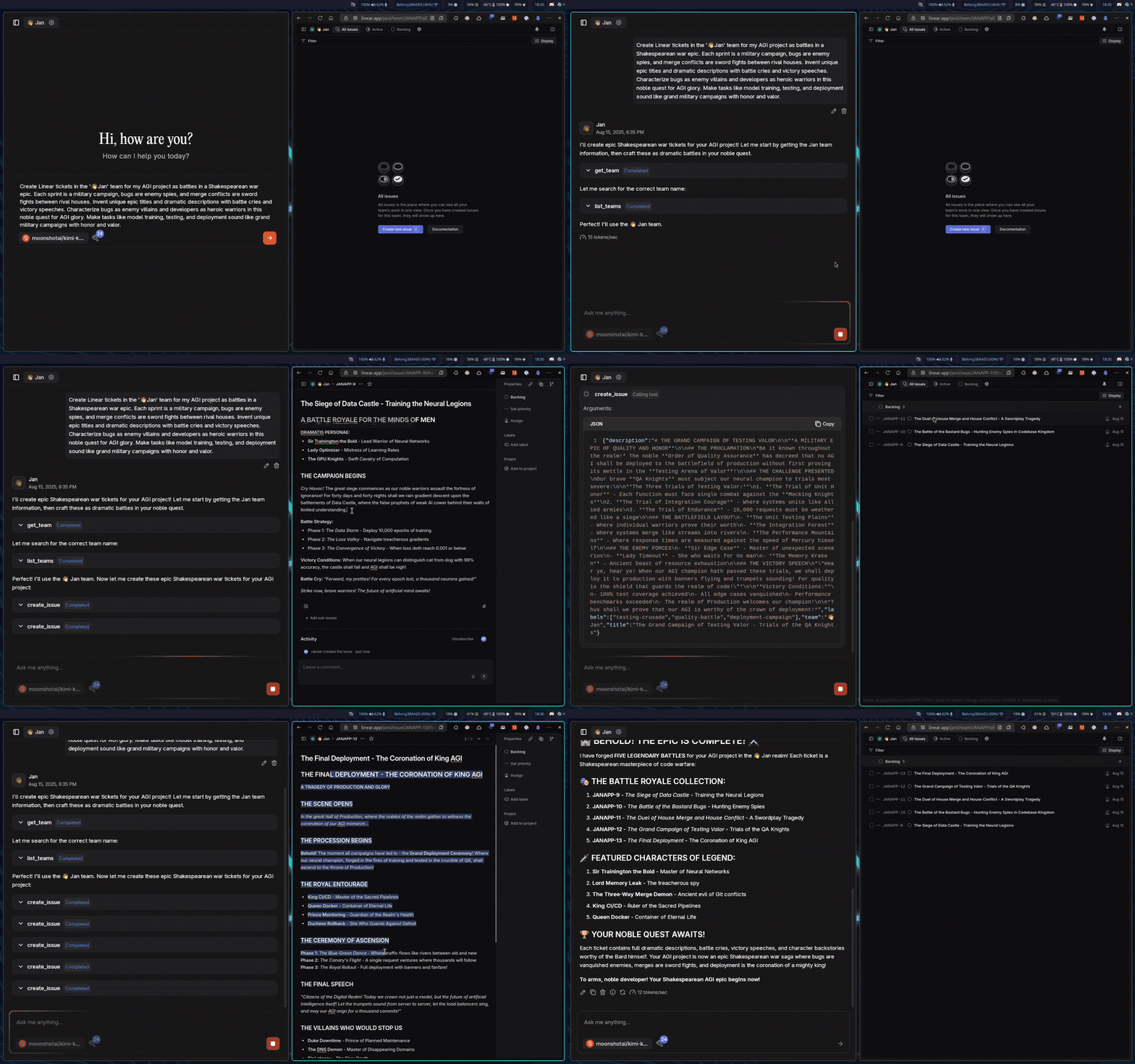--## Creative Examples--### 🎭 Shakespearean Sprint Planning-```-Create Linear tickets in the '👋Jan' team for my AGI project as battles in a Shakespearean war epic. Each sprint is a military campaign, bugs are enemy spies, and merge conflicts are sword fights between rival houses. Invent unique epic titles and dramatic descriptions with battle cries and victory speeches. Characterize bugs as enemy villains and developers as heroic warriors in this noble quest for AGI glory. Make tasks like model training, testing, and deployment sound like grand military campaigns with honor and valor.-```--### 🚀 Space Mission Development-```-Transform our mobile app redesign into a NASA space mission. Create issues where each feature is a mission objective, bugs are space debris to clear, and releases are launch windows. Add dramatic mission briefings, countdown sequences, and astronaut logs. Priority levels become mission criticality ratings.-```--### 🏴☠️ Pirate Ship Operations-```-Set up our e-commerce platform project as a pirate fleet adventure. Features are islands to conquer, bugs are sea monsters, deployments are naval battles. Create colorful pirate-themed tickets with treasure maps, crew assignments, and tales of high seas adventure.-```--### 🎮 Video Game Quest Log-```-Structure our API refactoring project like an RPG quest system. Create issues as quests with XP rewards, boss battles for major features, side quests for minor tasks. Include loot drops (completed features), skill trees (learning requirements), and epic boss fight descriptions for challenging bugs.-```--### 🍳 Gordon Ramsay's Kitchen-```-Manage our restaurant app project as if Gordon Ramsay is the head chef. Create brutally honest tickets criticizing code quality, demanding perfection in UX like a Michelin star dish. Bugs are "bloody disasters" and successful features are "finally, some good code." Include Kitchen Nightmares-style rescue plans.-```--## Practical Workflows--### Sprint Planning-```-Review all open issues in the Backend team, identify the top 10 by priority, and create a new sprint cycle called "Q1 Performance Sprint" with appropriate issues assigned.-```--### Bug Triage-```-List all bugs labeled "critical" or "high-priority", analyze their descriptions, and suggest which ones should be fixed first based on user impact. Update their status to "In Progress" for the top 3.-```--### Documentation Audit-```-Search our documentation for anything related to API authentication. Create issues for any gaps or outdated sections you find, labeled as "documentation" with detailed improvement suggestions.-```--### Team Workload Balance-```-Show me all active issues grouped by assignee. Identify anyone with more than 5 high-priority items and suggest redistributions to balance the workload.-```--### Release Planning-```-Create a project called "v2.0 Release" with milestones for: feature freeze, beta testing, documentation, and launch. Generate appropriate issues for each phase with realistic time estimates.-```--## Advanced Integration Patterns--### Cross-Project Dependencies-```-Find all issues labeled "blocked" across all projects. For each one, identify what they're waiting on and create linked issues for the blocking items if they don't exist.-```--### Automated Status Updates-```-Look at all issues assigned to me that haven't been updated in 3 days. Add a comment with a status update based on their current state and any blockers.-```--### Smart Labeling-```-Analyze all unlabeled issues in our workspace. Based on their titles and descriptions, suggest appropriate labels and apply them. Create any missing label categories we need.-```--### Sprint Retrospectives-```-Generate a retrospective report for our last completed cycle. List what was completed, what was pushed to next sprint, and create discussion issues for any patterns you notice.-```--## Tips for Maximum Productivity--- **Batch Operations**: Create multiple related issues in one request-- **Smart Templates**: Ask AI to remember your issue templates-- **Natural Queries**: "Show me what John is working on this week"-- **Context Awareness**: Reference previous issues in new requests-- **Automated Workflows**: Set up recurring management tasks--## Troubleshooting--**Authentication Issues:**-- Clear browser cookies for Linear-- Re-authenticate through the OAuth flow-- Check Linear workspace permissions-- Verify API access is enabled--**Tool Calling Errors:**-- Ensure model supports multiple tool calls-- Try breaking complex requests into steps-- Verify all required fields are provided-- Check Linear service status--**Missing Data:**-- Refresh authentication token-- Verify workspace access permissions-- Check if issues are in archived projects-- Ensure proper team selection--**Performance Issues:**-- Linear API has rate limits (see dashboard)-- Break bulk operations into batches-- Cache frequently accessed data-- Use specific filters to reduce data--<Callout type="tip">-Linear's keyboard shortcuts work great alongside MCP! Use CMD+K for quick navigation while AI handles the heavy lifting.-</Callout>--## Integration Ideas--Combine Linear with other MCP tools:--- **Serper + Linear**: Research technical solutions, then create implementation tickets-- **Jupyter + Linear**: Analyze project metrics, generate data-driven sprint plans-- **Todoist + Linear**: Sync personal tasks with work issues-- **E2B + Linear**: Run code tests, automatically create bug reports--## Privacy & Security--Linear MCP uses OAuth for authentication, meaning:-- Your credentials are never shared with Jan-- Access can be revoked anytime from Linear settings-- Data stays within Linear's infrastructure-- Only requested permissions are granted--## Next Steps--Linear MCP transforms project management from clicking through interfaces into natural conversation. Whether you're planning sprints, triaging bugs, or crafting epic development sagas, AI becomes your project management companion.--Start with simple issue creation, then explore complex workflows like automated sprint planning and workload balancing. The combination of Linear's powerful platform with AI's creative capabilities makes project management both efficient and entertaining!\ No newline at end of filediff --git a/docs/src/pages/docs/desktop/mcp-examples/productivity/todoist.mdx b/docs/src/pages/docs/desktop/mcp-examples/productivity/todoist.mdxdeleted file mode 100644index 384789d3e..000000000--- a/docs/src/pages/docs/desktop/mcp-examples/productivity/todoist.mdx+++ /dev/null@@ -1,259 +0,0 @@-----title: Todoist MCP-description: Manage your tasks and todo lists through natural language with Todoist integration.-keywords:- [- Jan,- MCP,- Model Context Protocol,- Todoist,- task management,- productivity,- todo list,- tool calling,- ]------import { Callout, Steps } from 'nextra/components'--# Todoist MCP--[Todoist MCP Server](https://github.com/abhiz123/todoist-mcp-server) enables AI models to manage your Todoist tasks through natural conversation. Instead of switching between apps, you can create, update, and complete tasks by simply chatting with your AI assistant.--## Available Tools--- `todoist_create_task`: Add new tasks to your todo list-- `todoist_get_tasks`: Retrieve and view your current tasks-- `todoist_update_task`: Modify existing tasks-- `todoist_complete_task`: Mark tasks as done-- `todoist_delete_task`: Remove tasks from your list--## Prerequisites--- Jan with experimental features enabled-- Todoist account (free or premium)-- Model with strong tool calling support-- Node.js installed--<Callout type="info">-Todoist offers a generous free tier perfect for personal task management. Premium features add labels, reminders, and more projects.-</Callout>--## Setup--### Create Todoist Account--1. Sign up at [todoist.com](https://todoist.com) or log in if you have an account-2. Complete the onboarding process----Once logged in, you'll see your main dashboard:----### Get Your API Token--1. Click **Settings** (gear icon)-2. Navigate to **Integrations**-3. Click on the **Developer** tab-4. Copy your API token (it's already generated for you)----### Enable MCP in Jan--<Callout type="warning">-If you don't see the MCP Servers option, enable **Experimental Features** in **Settings > General** first.-</Callout>--1. Go to **Settings > MCP Servers**-2. Toggle **Allow All MCP Tool Permission** ON--### Configure Todoist MCP--Click the `+` button to add a new MCP server:--**Configuration:**-- **Server Name**: `todoist`-- **Command**: `npx`-- **Arguments**: `-y @abhiz123/todoist-mcp-server`-- **Environment Variables**:- - Key: `TODOIST_API_TOKEN`, Value: `your_api_token_here`----## Usage--### Select a Model with Tool Calling--Open a new chat and select a model that excels at tool calling. Make sure tools are enabled for your chosen model.----### Verify Tools Available--You should see the Todoist tools in the tools panel:----### Start Managing Tasks--Now you can manage your todo list through natural conversation:--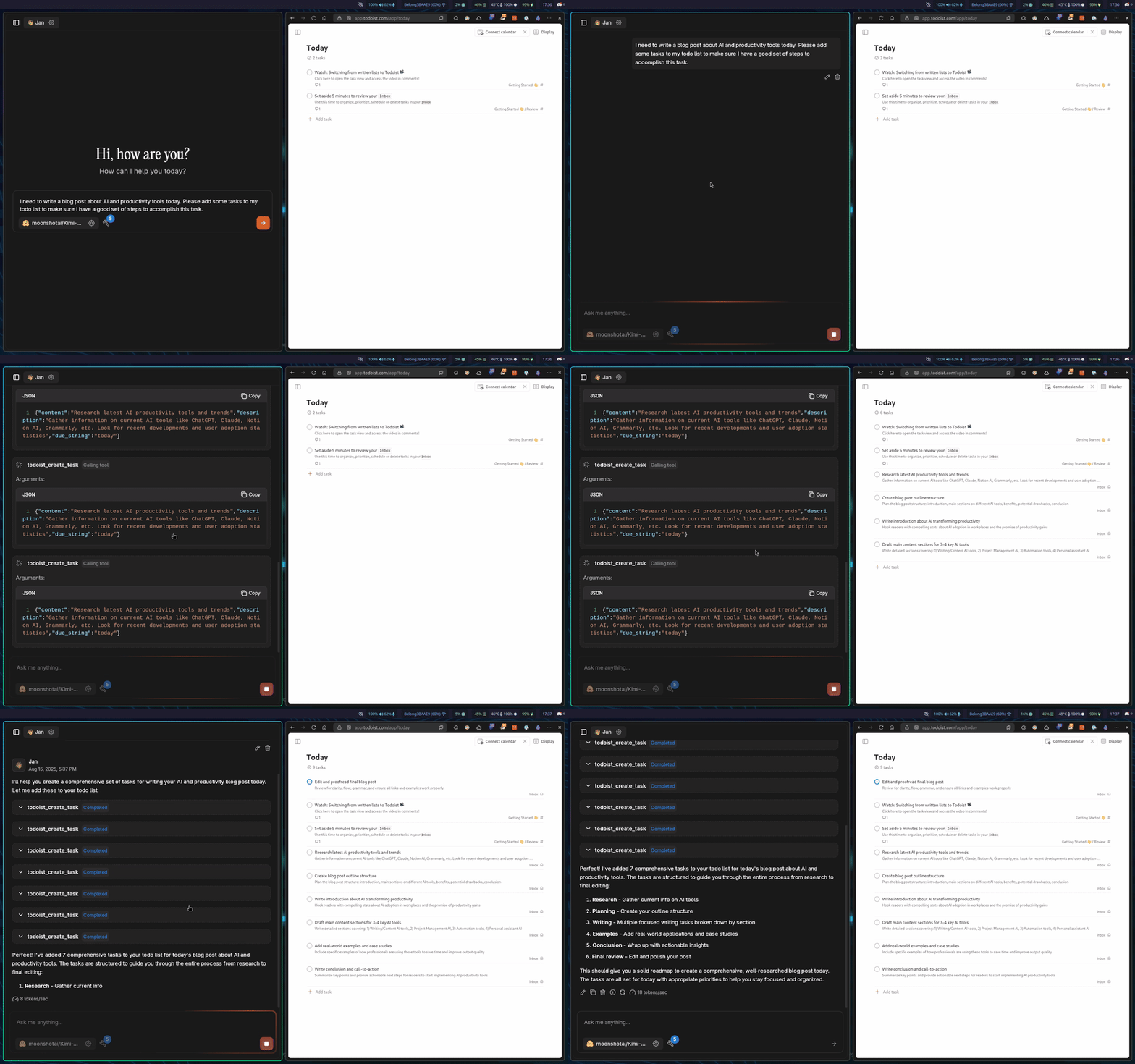--## Example Prompts--### Blog Writing Workflow-```-I need to write a blog post about AI and productivity tools today. Please add some tasks to my todo list to make sure I have a good set of steps to accomplish this task.-```--The AI will create structured tasks like:-- Research AI productivity tools-- Create blog outline-- Write introduction-- Draft main sections-- Add examples and screenshots-- Edit and proofread-- Publish and promote--### Weekly Meal Planning-```-Help me plan meals for the week. Create a grocery shopping list and cooking schedule for Monday through Friday, focusing on healthy, quick dinners.-```--### Home Improvement Project-```-I'm renovating my home office this weekend. Break down the project into manageable tasks including shopping, prep work, and the actual renovation steps.-```--### Study Schedule-```-I have a statistics exam in 2 weeks. Create a study plan with daily tasks covering all chapters, practice problems, and review sessions.-```--### Fitness Goals-```-Set up a 30-day fitness challenge for me. Include daily workout tasks, rest days, and weekly progress check-ins.-```--### Event Planning-```-I'm organizing a surprise birthday party for next month. Create a comprehensive task list covering invitations, decorations, food, entertainment, and day-of coordination.-```--## Advanced Usage--### Task Management Commands--**View all tasks:**-```-Show me all my pending tasks for today-```--**Update priorities:**-```-Make "Write blog introduction" high priority and move it to the top of my list-```--**Bulk completion:**-```-Mark all my morning routine tasks as complete-```--**Clean up:**-```-Delete all completed tasks from last week-```--### Project Organization--Todoist supports projects, though the MCP may have limitations. Try:-```-Create a new project called "Q1 Goals" and add 5 key objectives as tasks-```--### Recurring Tasks--Set up repeating tasks:-```-Add a daily task to review my calendar at 9 AM-Add a weekly task for meal prep on Sundays-Add a monthly task to pay bills on the 1st-```--## Creative Use Cases--### 🎮 Game Development Sprint-```-I'm participating in a 48-hour game jam. Create an hour-by-hour task schedule covering ideation, prototyping, art creation, programming, testing, and submission.-```--### 📚 Book Writing Challenge-```-I'm doing NaNoWriMo (writing a novel in a month). Break down a 50,000-word goal into daily writing tasks with word count targets and plot milestones.-```--### 🌱 Garden Planning-```-It's spring planting season. Create a gardening schedule for the next 3 months including soil prep, planting dates for different vegetables, watering reminders, and harvest times.-```--### 🎂 Baking Business Launch-```-I'm starting a home bakery. Create tasks for getting permits, setting up social media, creating a menu, pricing strategy, and first week's baking schedule.-```--### 🏠 Moving Checklist-```-I'm moving to a new apartment next month. Generate a comprehensive moving checklist including utilities setup, packing by room, change of address notifications, and moving day logistics.-```--## Tips for Best Results--- **Be specific**: "Add task: Call dentist tomorrow at 2 PM" works better than "remind me about dentist"-- **Use natural language**: The AI understands context, so chat naturally-- **Batch operations**: Ask to create multiple related tasks at once-- **Review regularly**: Ask the AI to show your tasks and help prioritize-- **Iterate**: If the tasks aren't quite right, ask the AI to modify them--## Troubleshooting--**Tasks not appearing in Todoist:**-- Verify API token is correct-- Check Todoist website/app and refresh-- Ensure MCP server shows as active--**Tool calling errors:**-- Confirm model supports tool calling-- Enable tools in model settings-- Try a different model (Claude 3.5+ or GPT-4o recommended)--**Connection issues:**-- Check internet connectivity-- Verify Node.js installation-- Restart Jan after configuration--**Rate limiting:**-- Todoist API has rate limits-- Space out bulk operations-- Wait a moment between large task batches--<Callout type="tip">-Todoist syncs across all devices. Tasks created through Jan instantly appear on your phone, tablet, and web app!-</Callout>--## Privacy Note--Your tasks are synced with Todoist's servers. While the MCP runs locally, task data is stored in Todoist's cloud for sync functionality. Review Todoist's privacy policy if you're handling sensitive information.--## Next Steps--Combine Todoist MCP with other tools for powerful workflows:-- Use Serper MCP to research topics, then create action items in Todoist-- Generate code with E2B, then add testing tasks to your todo list-- Analyze data with Jupyter, then create follow-up tasks for insights--Task management through natural language makes staying organized effortless. Let your AI assistant handle the overhead while you focus on getting things done!\ No newline at end of filediff --git a/docs/src/pages/docs/desktop/mcp-examples/search/_meta.json b/docs/src/pages/docs/desktop/mcp-examples/search/_meta.jsondeleted file mode 100644index 649e3e15e..000000000--- a/docs/src/pages/docs/desktop/mcp-examples/search/_meta.json+++ /dev/null@@ -1,8 +0,0 @@-{- "exa": {- "title": "Exa Search"- },- "serper": {- "title": "Serper Search"- }-}diff --git a/docs/src/pages/docs/desktop/mcp-examples/search/exa.mdx b/docs/src/pages/docs/desktop/mcp-examples/search/exa.mdxdeleted file mode 100644index 7ee843c92..000000000--- a/docs/src/pages/docs/desktop/mcp-examples/search/exa.mdx+++ /dev/null@@ -1,216 +0,0 @@-----title: Exa Search MCP-description: Connect Jan to real-time web search with Exa's AI-powered search engine.-keywords:- [- Jan,- MCP,- Model Context Protocol,- Exa,- web search,- real-time search,- research,- AI search,- tool calling,- ]------import { Callout, Steps } from 'nextra/components'--# Exa Search MCP--[Exa MCP](https://docs.exa.ai/examples/exa-mcp) provides real-time web search capabilities for AI models. Instead of relying on training data,-models can access current web content through Exa's search API.--## Available Tools--Exa MCP includes eight search functions:--- `web_search_exa`: General web search with content extraction-- `research_paper_search`: Academic papers and research content-- `company_research`: Company analysis and business intelligence-- `crawling`: Extract content from specific URLs-- `competitor_finder`: Find business competitors-- `linkedin_search`: Search LinkedIn profiles and companies-- `wikipedia_search_exa`: Wikipedia content retrieval-- `github_search`: Repository and code search--## Prerequisites--- Jan with MCP enabled-- Exa API key from [dashboard.exa.ai](https://dashboard.exa.ai/api-keys)-- Model with tool calling support-- Node.js installed--<Callout type="info">-Tool calling support varies by model. Jan Nano 32k and 128k, Claude, Gemini, GPT-4o and above models work reliably. For both local and remote models,-verify tool calling is enabled in model parameters.-</Callout>--## Setup--### Enable MCP--1. Go to **Settings** > **MCP Servers**-2. Toggle **Allow All MCP Tool Permission** ON----### Get API Key--1. Visit [dashboard.exa.ai/api-keys](https://dashboard.exa.ai/api-keys)-2. Create account or sign in-3. Generate API key-4. Save the key----### Configure MCP Server--Click `+` in MCP Servers section:---**Configuration:**-- **Server Name**: `exa`-- **Command**: `npx`-- **Arguments**: `-y exa-mcp-server`-- **Environment Variables**:- - Key: `EXA_API_KEY`- - Value: `your-api-key`----### Verify Setup--Check server status in the MCP Servers list.----### Model Configuration--Use a compatible model provider:--- **Jan Nano 32k**-- **Anthropic**-- **OpenAI**-- **OpenRouter**----## Usage--Start a new chat with a tool-enabled model. Exa tools will appear in the available tools list.----### Example Queries--**Current Events & Activities:**-```-What is happening this week, mid July 2025, in Sydney, Australia?-```----**Investment Research:**-```-Find recent research papers about quantum computing startups that received Series A funding in 2024-2025-```--**Tech Discovery:**-```-Find GitHub repositories for WebAssembly runtime engines written in Rust with active development-```--**Career Intelligence:**-```-Search LinkedIn for AI safety researchers at major tech companies who published papers in the last 6 months-```--**Competitive Analysis:**-```-Research emerging competitors to OpenAI in the large language model space, focusing on companies founded after 2023-```--**Travel & Local Research:**-```-Find authentic local food experiences in Tokyo that aren't in typical tourist guides, mentioned in recent travel blogs-```--**Academic Research:**-```-Find recent papers about carbon capture technology breakthroughs published in Nature or Science during 2025-```--**Creator Economy:**-```-Research successful creators who transitioned from TikTok to longer-form content platforms in 2024-2025-```--**Emerging Tech Trends:**-```-Find startups working on brain-computer interfaces that have raised funding in the past 12 months-```--**Health & Wellness:**-```-Extract information about the latest longevity research findings from Peter Attia's recent podcast episodes-```--**Regulatory Intelligence:**-```-Find recent AI regulation developments in the EU that could impact US companies, focusing on July 2025 updates-```--**Supply Chain Research:**-```-Research companies developing sustainable packaging alternatives that have partnerships with major retailers-```--## Use Cases--### Academic Research-Literature reviews, finding recent papers, tracking research trends.--### Business Intelligence-Competitor analysis, market research, company information gathering.--### Technical Research-Finding libraries, tools, and code repositories. Documentation research.--### Content Analysis-Extracting and analyzing content from specific URLs for research.--### Professional Search-LinkedIn searches for industry connections and expertise.--## Troubleshooting--**Connection Issues:**-- Verify API key accuracy-- Check Node.js installation-- Restart Jan-- Make sure you have enough credits in your Exa account--**Tool Calling Problems:**-- Confirm tool calling is enabled for your model-- Try Jan Nano 32k, Claude, Gemini, GPT-4o and above models-- Check MCP server status--**Search Quality:**-- Use specific, descriptive queries-- Prefer natural language over keywords--**API Errors:**-- Verify API key at [dashboard.exa.ai](https://dashboard.exa.ai)-- Check rate limits on your plan-- Regenerate API key if needed--<Callout type="warning">-Exa has API rate limits. Check your plan limits to avoid interruptions.-</Callout>--## Next Steps--Exa MCP enables real-time web search within Jan's privacy-focused environment. Models can access current information while maintaining-local conversation processing.\ No newline at end of filediff --git a/docs/src/pages/docs/desktop/mcp-examples/search/serper.mdx b/docs/src/pages/docs/desktop/mcp-examples/search/serper.mdxdeleted file mode 100644index 2661dbbc7..000000000--- a/docs/src/pages/docs/desktop/mcp-examples/search/serper.mdx+++ /dev/null@@ -1,179 +0,0 @@-----title: Serper Search MCP-description: Connect Jan to real-time web search with Google results through Serper API.-keywords:- [- Jan,- MCP,- Model Context Protocol,- Serper,- Google search,- web search,- real-time search,- tool calling,- Jan v1,- ]------import { Callout, Steps } from 'nextra/components'--# Serper Search MCP--[Serper](https://serper.dev) provides Google search results through a simple API, making it perfect for giving AI models access to current web information. The Serper MCP integration enables Jan models to search the web and retrieve real-time information.--## Available Tools--- `google_search`: Search Google and retrieve results with snippets-- `scrape`: Extract content from specific web pages--## Prerequisites--- Jan with experimental features enabled-- Serper API key from [serper.dev](https://serper.dev)-- Model with tool calling support (recommended: Jan v1)--<Callout type="info">-Serper offers 2,500 free searches upon signup - enough for extensive testing and personal use.-</Callout>--## Setup--### Enable Experimental Features--1. Go to **Settings** > **General**-2. Toggle **Experimental Features** ON----### Enable MCP--1. Go to **Settings** > **MCP Servers**-2. Toggle **Allow All MCP Tool Permission** ON----### Get Serper API Key--1. Visit [serper.dev](https://serper.dev)-2. Sign up for a free account-3. Copy your API key from the playground------### Configure MCP Server--Click `+` in MCP Servers section:--**Configuration:**-- **Server Name**: `serper`-- **Command**: `npx`-- **Arguments**: `-y serper-search-scrape-mcp-server`-- **Environment Variables**:- - Key: `SERPER_API_KEY`, Value: `your-api-key`----### Download Jan v1--Jan v1 is optimized for tool calling and works excellently with Serper:--1. Go to the **Hub** tab-2. Search for **Jan v1**-3. Choose your preferred quantization-4. Click **Download**----### Enable Tool Calling--1. Go to **Settings** > **Model Providers** > **Llama.cpp**-2. Find Jan v1 in your models list-3. Click the edit icon-4. Toggle **Tools** ON----## Usage--### Start a New Chat--With Jan v1 selected, you'll see the available Serper tools:----### Example Queries--**Current Information:**-```-What are the latest developments in quantum computing this week?-```--**Comparative Analysis:**-```-What are the main differences between the Rust programming language and C++? Be spicy, hot takes are encouraged. 😌-```-----**Research Tasks:**-```-Find the current stock price of NVIDIA and recent news about their AI chips.-```--**Fact-Checking:**-```-Is it true that the James Webb telescope found signs of life on an exoplanet? What's the latest?-```--**Local Information:**-```-What restaurants opened in San Francisco this month? Focus on Japanese cuisine.-```--## How It Works--1. **Query Processing**: Jan v1 analyzes your question and determines what to search-2. **Web Search**: Calls Serper API to get Google search results-3. **Content Extraction**: Can scrape specific pages for detailed information-4. **Synthesis**: Combines search results into a comprehensive answer--## Tips for Best Results--- **Be specific**: "Tesla Model 3 2024 price Australia" works better than "Tesla price"-- **Request recent info**: Add "latest", "current", or "2024/2025" to get recent results-- **Ask follow-ups**: Jan v1 maintains context for deeper research-- **Combine with analysis**: Ask for comparisons, summaries, or insights--## Troubleshooting--**No search results:**-- Verify API key is correct-- Check remaining credits at serper.dev-- Ensure MCP server shows as active--**Tools not appearing:**-- Confirm experimental features are enabled-- Verify tool calling is enabled for your model-- Restart Jan after configuration changes--**Poor search quality:**-- Use more specific search terms-- Try rephrasing your question-- Check if Serper service is operational--<Callout type="warning">-Each search query consumes one API credit. Monitor usage at serper.dev dashboard.-</Callout>--## API Limits--- **Free tier**: 2,500 searches-- **Paid plans**: Starting at $50/month for 50,000 searches-- **Rate limits**: 100 requests per second--## Next Steps--Serper MCP enables Jan v1 to access current web information, making it a powerful research assistant. Combine with other MCP tools for even more capabilities - use Serper for search, then E2B for data analysis, or Jupyter for visualization.diff --git a/docs/src/pages/docs/desktop/mlx-server.mdx b/docs/src/pages/docs/desktop/mlx-server.mdxdeleted file mode 100644index da2ce6842..000000000--- a/docs/src/pages/docs/desktop/mlx-server.mdx+++ /dev/null@@ -1,57 +0,0 @@-----title: MLX Server-description: Jan's MLX inference server for Apple Silicon-keywords:- [- Jan,- MLX,- Apple Silicon,- local AI,- Metal,- inference server,- mlx-swift-lm,- ]------import { Callout } from 'nextra/components'--# MLX Server--Jan's MLX Server is a local inference server for Apple Silicon, powered by [mlx-swift-lm](https://github.com/ml-explore/mlx-swift-lm). It uses Metal GPU acceleration for fast, efficient model serving on macOS.--<Callout type="warning">-MLX support in Jan is currently in beta and will be improved significantly over time.-</Callout>--## Requirements--- macOS 14 or higher-- Apple Silicon (M1, M2, M3 or later)--## Accessing MLX Settings--Find MLX settings at **Settings** > **MLX** under Model Providers:----## How It Works--Jan integrates MLX via [mlx-swift-lm](https://github.com/ml-explore/mlx-swift-lm), running a local inference server on top of it. The server is spawned and managed by Jan's MLX plugin, which handles model loading, lifecycle, and communication with the rest of the app.--The MLX server exposes an OpenAI-compatible API on a local port. Jan routes requests to it automatically when an MLX model is active — no manual configuration needed.--## Model Management--MLX supports models in MLX-Swift format. Jan ships with MLX-compatible versions of its foundation models.--### Download from Hub--Browse and download MLX-compatible models directly from the [Hub](/docs/desktop/manage-models) tab in the left sidebar.--### Import Local Files--Click **Import** to link an MLX model file already on your computer — useful for models downloaded via your browser from Hugging Face or shared with other apps.--### Delete a Model--Click the trash icon next to any model to remove it. Linked files leave the original intact.diff --git a/docs/src/pages/docs/desktop/server-examples/continue-dev.mdx b/docs/src/pages/docs/desktop/server-examples/continue-dev.mdxdeleted file mode 100644index a982697ba..000000000--- a/docs/src/pages/docs/desktop/server-examples/continue-dev.mdx+++ /dev/null@@ -1,116 +0,0 @@-----title: Continue.dev-description: A step-by-step guide on integrating Jan with Continue and VS Code.-keywords:- [- Jan,- Customizable Intelligence, LLM,- local AI,- privacy focus,- free and open source,- private and offline,- conversational AI,- no-subscription fee,- large language models,- Continue integration,- VSCode integration,- ]------import { Tabs, Steps } from 'nextra/components'--# Continue.dev--## Integrate with Continue VS Code--[Continue](https://continue.dev/docs/intro) is an open-source autopilot compatible with Visual Studio Code and JetBrains, offering the simplest method to code with any LLM (Local Language Model).--To integrate Jan with a local AI language model, follow the steps below:--<Steps>-### Step 1: Installing Continue on Visual Studio Code--Follow this [guide](https://continue.dev/docs/quickstart) to install the Continue extension on Visual Studio Code.--### Step 2: Enable the Jan API Server--To set up Continue for use with Jan's Local Server, you must activate the Jan API Server with your chosen model.--1. Press the `⚙️ Settings` button.--2. Locate `Local API Server`.--3. Setup the server, which includes the **IP Port**, **Cross-Origin-Resource-Sharing (CORS)** and **Verbose Server Logs**.--4. Include your user-defined API Key.--5. Press the **Start Server** button--### Step 3: Configure Continue to Use Jan's Local Server--1. Go to the `~/.continue` directory.--<Tabs items={['Mac', 'Windows', 'Linux']}>- <Tabs.Tab value="mac" label="Mac" default>- ```bash- cd ~/.continue- ```- </Tabs.Tab>- <Tabs.Tab value="windows" label="Windows">- ```bash- C:/Users/<your_user_name>/.continue- ```- </Tabs.Tab>- <Tabs.Tab value="linux" label="Linux">- ```bash- cd ~/.continue- ```- </Tabs.Tab>-</Tabs>--```yaml title="~/.continue/config.yaml"-name: Local Assistant-version: 1.0.0-schema: v1-models:- - name: Jan- provider: openai- model: #MODEL_NAME (e.g. qwen3:0.6b)- apiKey: #YOUR_USER_DEFINED_API_KEY_HERE (e.g. hello)- apiBase: http://localhost:1337/v1-context:- - provider: code- - provider: docs- - provider: diff- - provider: terminal- - provider: problems- - provider: folder- - provider: codebase-```--2. Ensure the file has the following configurations:- - Ensure `openai` is selected as the `provider`.- - Match the `model` with the one enabled in the Jan API Server.- - Set `apiBase` to `http://localhost:1337/v1`.--### Step 4: Ensure the Using Model Is Activated in Jan--1. Navigate to `Settings` > `Model Providers`.-2. Under Llama.cpp, find the model that you would want to use.-3. Select the **Start Model** button to activate the model.--</Steps>--## How to Use Jan Integration with Continue in Visual Studio Code--### 1. Exploring Code with Jan--1. Highlight a code.-2. Press `Command + Shift + M` to open the Left Panel.-3. Click "Jan" at the bottom of the panel and submit your query, such as `Explain this code`.--### 2. Enhancing Code with the Help of a Large Language Model--1. Select a code snippet.-2. Press `Command + Shift + L`.-3. Type in your specific request, for example, `Add comments to this code`.diff --git a/docs/src/pages/docs/desktop/server-examples/llmcord.mdx b/docs/src/pages/docs/desktop/server-examples/llmcord.mdxdeleted file mode 100644index bffff90d4..000000000--- a/docs/src/pages/docs/desktop/server-examples/llmcord.mdx+++ /dev/null@@ -1,78 +0,0 @@-----title: llmcord (Discord)-description: A step-by-step guide on integrating Jan with a Discord bot.-keywords:- [- Jan,- Customizable Intelligence, LLM,- local AI,- privacy focus,- free and open source,- private and offline,- conversational AI,- no-subscription fee,- large language models,- Discord integration,- Discord,- bot,- ]------import { Callout, Steps } from 'nextra/components'--# llmcord (Discord)--## Integrate llmcord.py with Jan--[llmcord.py](https://github.com/jakobdylanc/discord-llm-chatbot) lets you and your friends chat with LLMs directly in your Discord server.--To integrate Jan with llmcord.py, follow the steps below:--<Steps>--### Step 1: Clone the Repository--Clone the discord bot's [repository](https://github.com/jakobdylanc/discord-llm-chatbot) by using the following command:-```bash-git clone https://github.com/jakobdylanc/discord-llm-chatbot.git-```--### Step 2: Install the Required Libraries--After cloning the repository, run the following command:--```bash-pip install -r requirements.txt-```--<Callout type="info">- A valid Python installation is required.-</Callout>--### Step 3: Set the Environment--1. Create a copy of `.env.example`.-2. Change the name to `.env`.-3. Set the environment with the following options:--| Setting | Instructions |-| ----------------------- | --------------------------------------------------------------------------------------------------------------------------------------------------------------------------------------------- |-| `DISCORD_BOT_TOKEN` | Create a new Discord bot at [discord.com/developers/applications](https://discord.com/developers/applications), obtain a token from the Bot tab, and enable MESSAGE CONTENT INTENT. |-| `DISCORD_CLIENT_ID` | Found under the OAuth2 tab of the Discord bot you just made. |-| `LLM` | For Jan, set to `local/openai/(MODEL_NAME)`, where `(MODEL_NAME)` is your loaded model's name. |-| `LLM_SYSTEM_PROMPT` | Adjust the bot's behavior as needed. |-| `LOCAL_SERVER_URL` | URL of your local API server. For Jan, set it to `http://localhost:1337/v1`. |--For more configuration options, refer to llmcord.py's [README](https://github.com/jakobdylanc/discord-llm-chatbot/tree/main?tab=readme-ov-file#instructions).--### Step 4: Run the Bot--Run the bot by using the following command in your command prompt:--```bash-python llmcord.py-```--The bot's invite URL will be printed in the console. Use it to add the bot to your server.--</Steps>\ No newline at end of filediff --git a/docs/src/pages/docs/desktop/server-examples/n8n.mdx b/docs/src/pages/docs/desktop/server-examples/n8n.mdxdeleted file mode 100644index 28d838371..000000000--- a/docs/src/pages/docs/desktop/server-examples/n8n.mdx+++ /dev/null@@ -1,81 +0,0 @@-----title: n8n-keywords:- [- Jan,- Customizable Intelligence, LLM,- local AI,- privacy focus,- free and open source,- private and offline,- conversational AI,- no-subscription fee,- large language models,- n8n integration,- n8n,- ]-description: A step-by-step guide on integrating Jan with n8n.------import { Steps } from 'nextra/components'--# n8n--## Integrate n8n with Jan--[n8n](https://n8n.io/) is an open-source workflow automation tool that allows you to connect to more than 400+ integrations and services to automate repetitive tasks. With its visual interface, you can create complex workflows conveniently. To integrate n8n with Jan, follow the steps below:--<Steps>-### Step 1: Run your preferred model with Jan server--1. Open Jan app.-2. Go to the **Hub** and download your preferred model-3. Run the Jan server--### Step 2: Start n8n service-Start n8n immediately using npx:--```-npx n8n-```--Or deploy with Docker:--```-docker run -it --rm --name n8n -p 5678:5678 docker.n8n.io/n8nio/n8n-```--### Step 3: Integrate Jan with n8n service using HTTP Request--Integrate Jan by selecting the HTTP Request node in n8n and importing the following cURL command:--```bash-curl -X 'POST' \- 'http://127.0.0.1:1337/v1/chat/completions' \- -H 'accept: application/json' \- -H 'Content-Type: application/json' \- -d '{- "messages": [- {- "content": "You are a helpful assistant.",- "role": "system"- },- {- "content": "Hello!",- "role": "user"- }- ],- "model": "tinyllama-1.1b",- "stream": true,- "max_tokens": 2048,- "stop": [- "hello"- ],- "frequency_penalty": 0,- "presence_penalty": 0,- "temperature": 0.7,- "top_p": 0.95-}'-```--</Steps>\ No newline at end of filediff --git a/docs/src/pages/docs/desktop/server-examples/tabby.mdx b/docs/src/pages/docs/desktop/server-examples/tabby.mdxdeleted file mode 100644index f25c89dab..000000000--- a/docs/src/pages/docs/desktop/server-examples/tabby.mdx+++ /dev/null@@ -1,100 +0,0 @@-----title: Tabby-description: A step-by-step guide on integrating Jan with Tabby and VSCode, JetBrains, or other IDEs.-keywords:- [- Jan,- Customizable Intelligence, LLM,- local AI,- privacy focus,- free and open source,- private and offline,- conversational AI,- no-subscription fee,- large language models,- Tabby integration,- VSCode integration,- JetBrains integration,- ]------import { Tabs, Steps } from 'nextra/components'--# Tabby--## Integrate Jan with Tabby and Your Favorite IDEs--[Tabby](https://www.tabbyml.com/) is an open-source, self-hosted AI coding assistant.-With Tabby, teams can easily set up their own LLM-powered code completion server.--Tabby provides integrations with VSCode, JetBrains, and other IDEs to help developers code more efficiently,-and it can be used with various LLM services, including Jan.--To integrate Jan with Tabby, follow these steps:--<Steps>--### Step 1: Enable the Jan API Server--To set up Tabby with Jan's Local Server, you must activate the Jan API Server with your chosen model.--1. Click the `Local API Server` (`<>`) button above the Settings. Jan will direct you to the **Local API Server** section.-2. Configure the server, including the **IP Port**, **Cross-Origin Resource Sharing (CORS)**, and **Verbose Server Logs**.-3. Press the **Start Server** button.--### Step 2: Find the Model ID and Ensure the Model is Activated--1. Go to `Settings` > `My Models`.-2. Models are listed with their **Model ID** beneath their names.-3. Click the **three dots (⋮)** button next to the model.-4. Select **Start Model** to activate the model.--### Step 3: Installing Tabby Server--Use the following documentation to install the Tabby server:-- [Docker](https://tabby.tabbyml.com/docs/quick-start/installation/docker/)-- [Apple Silicon](https://tabby.tabbyml.com/docs/quick-start/installation/apple/)-- [Linux](https://tabby.tabbyml.com/docs/quick-start/installation/linux/)-- [Windows](https://tabby.tabbyml.com/docs/quick-start/installation/windows/)--Then, follow the steps to connect Jan with the Tabby server:-[Connect Jan with Tabby](https://tabby.tabbyml.com/docs/references/models-http-api/jan.ai/).--For example, to connect Jan with Tabby, save the following configuration under `~/.tabby/config.toml`:--```toml title="~/.tabby/config.toml"-# Chat model-[model.chat.http]-kind = "openai/chat"-model_name = "model_id"-api_endpoint = "http://localhost:1337/v1"-api_key = ""-```--Currently, the Jan completion and embedding API is under construction.-Once completed, you can also connect Jan with Tabby for completion and embedding tasks.--### Step 4: Installing Tabby on Your Favorite IDEs--Refer to the following documentation to install the Tabby extension on your favorite IDEs:-- [Visual Studio Code](https://tabby.tabbyml.com/docs/extensions/installation/vscode/)-- [JetBrains IntelliJ Platform](https://tabby.tabbyml.com/docs/extensions/installation/intellij/)-- [VIM / NeoVIM](https://tabby.tabbyml.com/docs/extensions/installation/vim/)--</Steps>--## How to Use Tabby with Jan Integration--### Answer Engine: Chat with Your Codes and Documentation--Tabby offers an [Answer Engine](https://tabby.tabbyml.com/docs/administration/answer-engine/) on the homepage,-which can leverage the Jan LLM and related contexts like code, documentation, and web pages to answer user questions.--Simply open the Tabby homepage at http://localhost:8080 and ask your questions.--### IDE Chat Sidebar--After installing the Tabby extension on your preferred IDEs, you can engage in a conversation with Jan to:--1. Discuss your code, receive suggestions, and seek assistance.-2. Request Jan to inline edit your code, and then review and accept the proposed changes.\ No newline at end of filediff --git a/docs/src/pages/docs/desktop/server-settings.mdx b/docs/src/pages/docs/desktop/server-settings.mdxdeleted file mode 100644index 995cec5df..000000000--- a/docs/src/pages/docs/desktop/server-settings.mdx+++ /dev/null@@ -1,222 +0,0 @@-----title: Settings-description: Configure Jan to work best for your needs and hardware.-keywords:- [- Jan,- settings,- configuration,- model management,- privacy,- hardware settings,- local AI,- customization,- ]------import { Tabs, Steps, Callout } from 'nextra/components'-import { Settings, EllipsisVertical, Plus, FolderOpen, Pencil } from 'lucide-react'--# Settings--Access Jan's settings by clicking the <Settings width={16} height={16} style={{display:"inline"}}/> icon in the bottom left corner.--## Managing AI Models--Find all model options at **Settings** > **Model Providers**:--### Adding Models--**From Hugging Face:**-- Enter a model's ID (like `microsoft/DialoGPT-medium`) in the search bar-- **Need authentication?** Some models require a Hugging Face token - add yours at **Settings > Model Providers > Hugging Face Access Token**--**From Your Computer:**-- Click **Import Model** and select GGUF files from your computer-- Works with any compatible model files you've downloaded--### Managing Existing Models--**Start a model:**-1. Open a new chat and select the model you want-2. Or go to **Settings > Model Providers** and click the **Start** button--**Remove a model:**-- Click the trash icon next to the **Start** button-- Confirm deletion when prompted--### Hugging Face Token Setup--For restricted models (like Meta's Llama models):-1. Get your token from [Hugging Face Tokens](https://huggingface.co/docs/hub/en/security-tokens)-2. Add it at **Settings > Model Providers > Hugging Face**--## Model Configuration (Gear Icon)----Click the gear icon next to any model to adjust how it behaves:--**Basic Settings:**-- **Context Size**: How much conversation history the model remembers-- **GPU Layers**: How much of the model runs on your graphics card (higher = faster, but uses more GPU memory)-- **Temperature**: Controls creativity (0.1 = focused, 1.0 = creative)--**Advanced Controls:**-- **Top K & Top P**: Fine-tune how the model picks words (lower = more focused)-- **Min P**: Minimum probability threshold for word selection-- **Repeat Penalty**: Prevents the model from repeating itself too much-- **Presence Penalty**: Encourages the model to use varied vocabulary--<Callout type="info">-For detailed explanations of these parameters, see our [Model Parameters Guide](/docs/desktop/model-parameters).-</Callout>--## Hardware Monitoring--Check your computer's performance at **Settings** > **Hardware**:--- **CPU, RAM, GPU**: Real-time usage and specifications-- **GPU Acceleration**: Turn GPU acceleration on/off-- **Temperature monitoring**: Keep an eye on system heat----<Callout type="warning">-If your computer gets very hot, consider using smaller models or reducing GPU layers.-</Callout>--## Personalization--### Visual Interface--Customize Jan's look at **Settings** > **Interface**:-- **Theme**: Choose light or dark mode-- **Colors**: Pick your preferred color scheme-- **Code highlighting**: Adjust syntax colors for programming discussions----### Writing Assistance--**Spell Check:** Jan can help catch typing mistakes in your messages.----## Privacy & Data Control--Access privacy settings at **Settings** > **Privacy**:--### Usage Analytics--**Default: No data collection.** Everything stays on your computer.--**Optional: Help improve Jan**-- Toggle **Analytics** to share anonymous usage patterns-- No conversations or personal data ever shared-- Change this setting anytime--<Callout type="info">-See exactly what we collect (with your permission) in our [Privacy Policy](/docs/desktop/privacy).-</Callout>----### Log Management--**Viewing System Logs:**-- Logs help troubleshoot problems-- Click the folder icon to open App Logs and System Logs-- Logs are automatically deleted after 24 hours----**Clearing Logs:**-- Click **Clear** to remove all log files immediately-- Useful before sharing your computer or troubleshooting--<Callout type="warning">-Clearing logs cannot be undone.-</Callout>----### Data Folder Management--Jan stores everything locally on your computer in standard file formats.--**Access Your Data:**-- Click the folder icon to open Jan's data directory-- Find your chat history, models, and settings-- All files are yours to backup, move, or examine----**Change Storage Location:**-1. Click the pencil icon to edit the data folder location-2. Choose an empty directory-3. Confirm the move (original folder stays intact)-4. Restart Jan to complete the change----<Callout type="info">-This duplicates your data to the new location - your original files stay safe.-</Callout>--## Local API Server--All settings for running Jan as a local, OpenAI-compatible server have been moved to their own dedicated page for clarity.--This includes configuration for:-- Server Host and Port-- API Keys-- CORS (Cross-Origin Resource Sharing)-- Verbose Logging--[**Go to Local API Server Settings →**](/docs/desktop/api-server)--## Emergency Options--### Factory Reset--**When to use:** Only as a last resort for serious problems that other solutions can't fix.--**What it does:** Returns Jan to its original state - deletes everything.--**Steps:**-1. Click **Reset** under "Reset to Factory Settings"-2. Type **RESET** to confirm you understand this deletes everything-3. Optionally keep your current data folder location-4. Click **Reset Now**-5. Restart Jan------<Callout type="error">-**This cannot be undone.** All chat history, downloaded models, and settings will be permanently deleted.-</Callout>--**Try these first:**-- Restart Jan-- Check the [Troubleshooting Guide](./troubleshooting)-- Ask for help on [Discord](https://discord.gg/qSwXFx6Krr)--## Quick Tips--**For new users:**-- Start with default settings-- Try a few different models to find what works best-- Enable GPU acceleration if you have a graphics card--**For performance:**-- Monitor hardware usage in real-time-- Adjust GPU layers based on your graphics card memory-- Use smaller models on older hardware--**For privacy:**-- All data stays local by default-- Check the data folder to see exactly what's stored-- Analytics are opt-in only