
🤯 LobeHub - Super-Agents on Your Team. Add super-agents to the chats your team already uses.They take on work by themselves and get better every week.
TypeScript agentagent-collaborationagent-harnessloop-engineeringmcppersonal-assistantproactive-agentskillssuper-agenttask-management
---
title: Connect LobeHub to Discord
description: >-
Learn how to create a Discord bot and connect it to your LobeHub agent as a
message channel, allowing your AI assistant to interact with users directly in
Discord servers and direct messages.
tags:
- Discord
- Message Channels
- Bot Setup
- Integration
---
# Connect LobeHub to Discord
By connecting a Discord channel to your LobeHub agent, users can interact with the AI assistant directly through Discord server channels and direct messages.
## Prerequisites
- A LobeHub account with an active subscription
- A Discord account with **Manage Server** permission on the target server
## Step 1: Create a Discord Application and Bot
<Steps>
### Go to the Discord Developer Portal
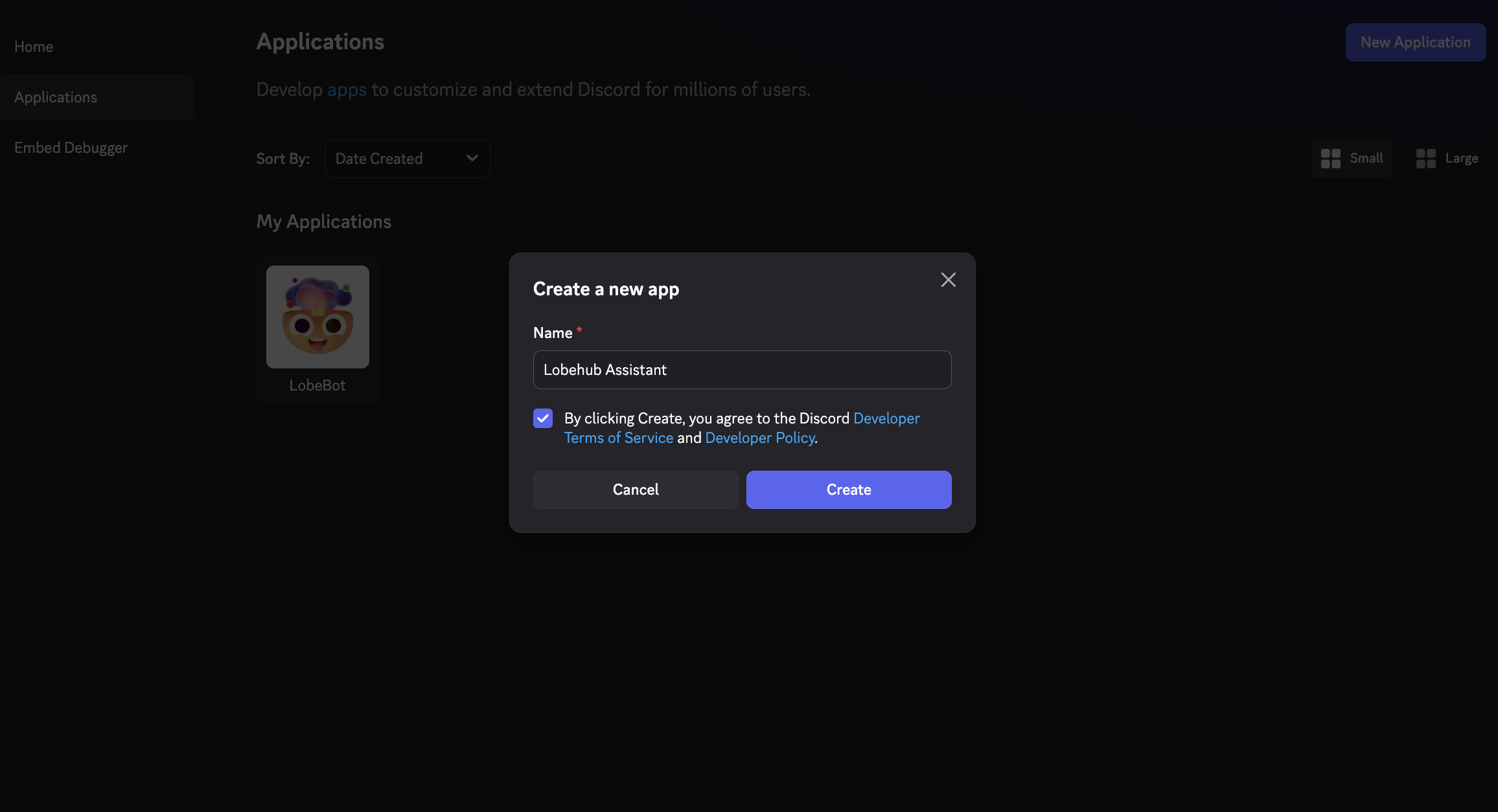
Visit the [Discord Developer Portal](https://discord.com/developers/applications) and click **New Application**. Give your application a name (e.g., "LobeHub Assistant") and click **Create**.
### Create a Bot
In the left sidebar, click **Bot**. Customize the bot's username and avatar as needed.
### Enable Privileged Gateway Intents
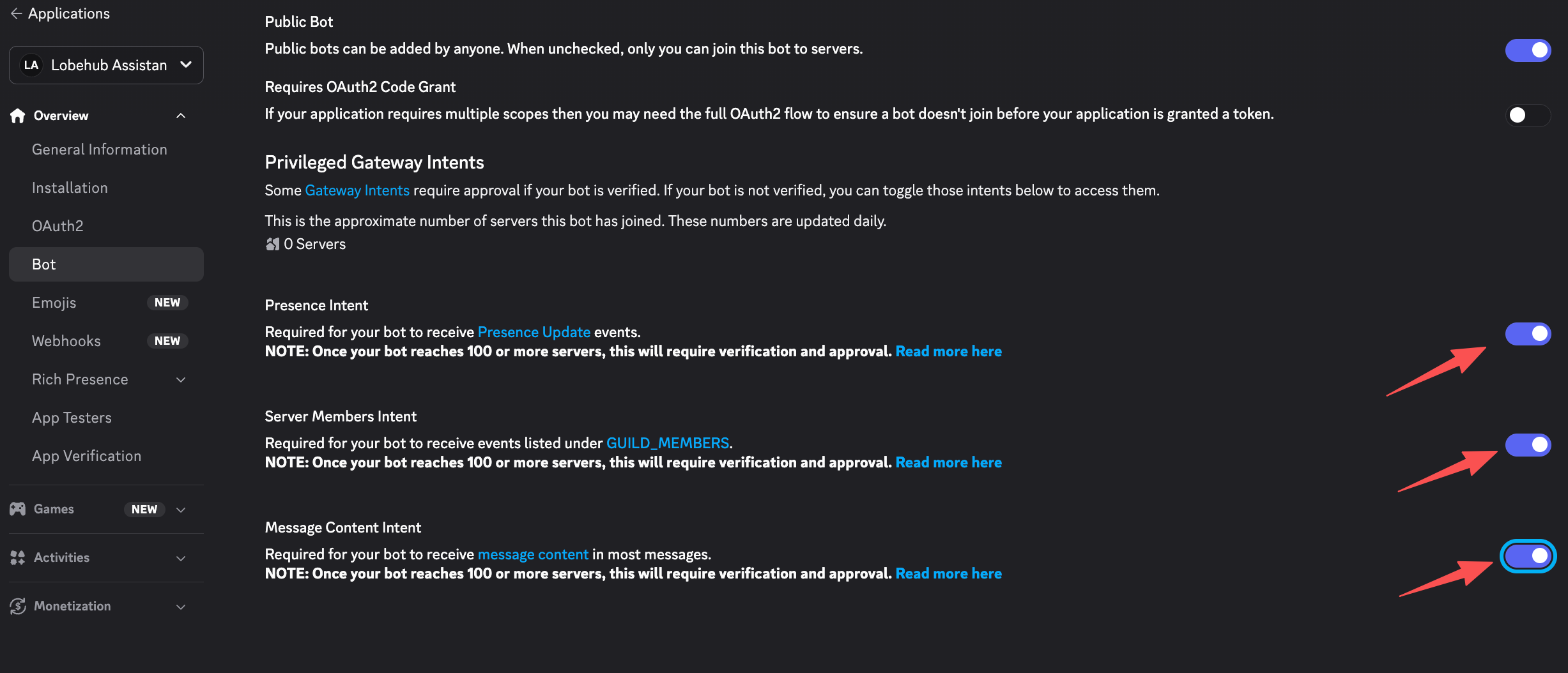
On the Bot settings page, scroll down to **Privileged Gateway Intents** and enable:
- **Message Content Intent** — Required for the bot to read message content
The current integration does not require **Server Members Intent** or **Presence Intent**.
Click **Save Changes**.
### Copy the Bot Token
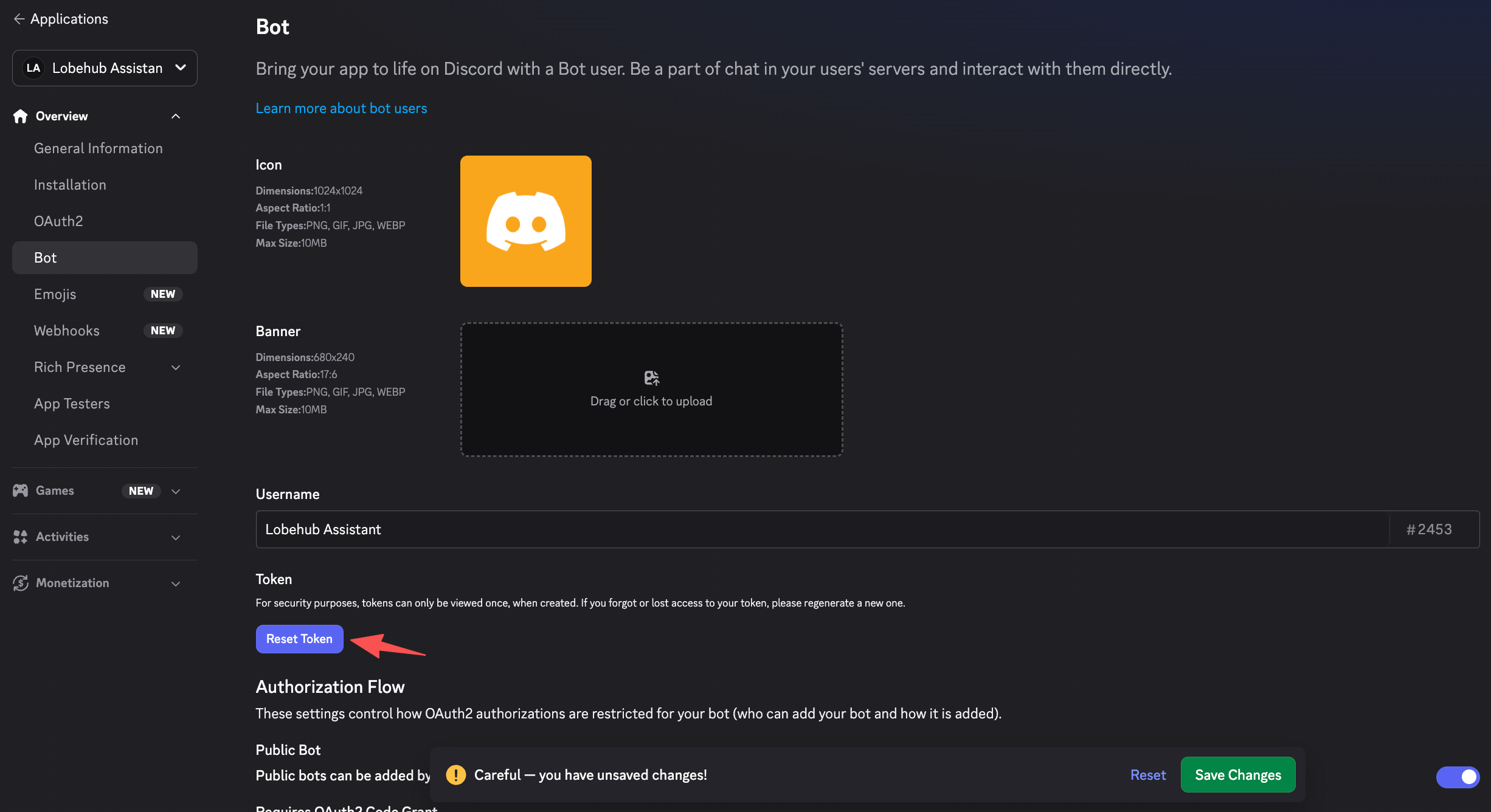
On the **Bot** page, click **Reset Token** to generate your bot token. Copy and save it securely.
> **Important:** Treat your bot token like a password. Never share it publicly or commit it to version control.
### Copy the Application ID and Public Key
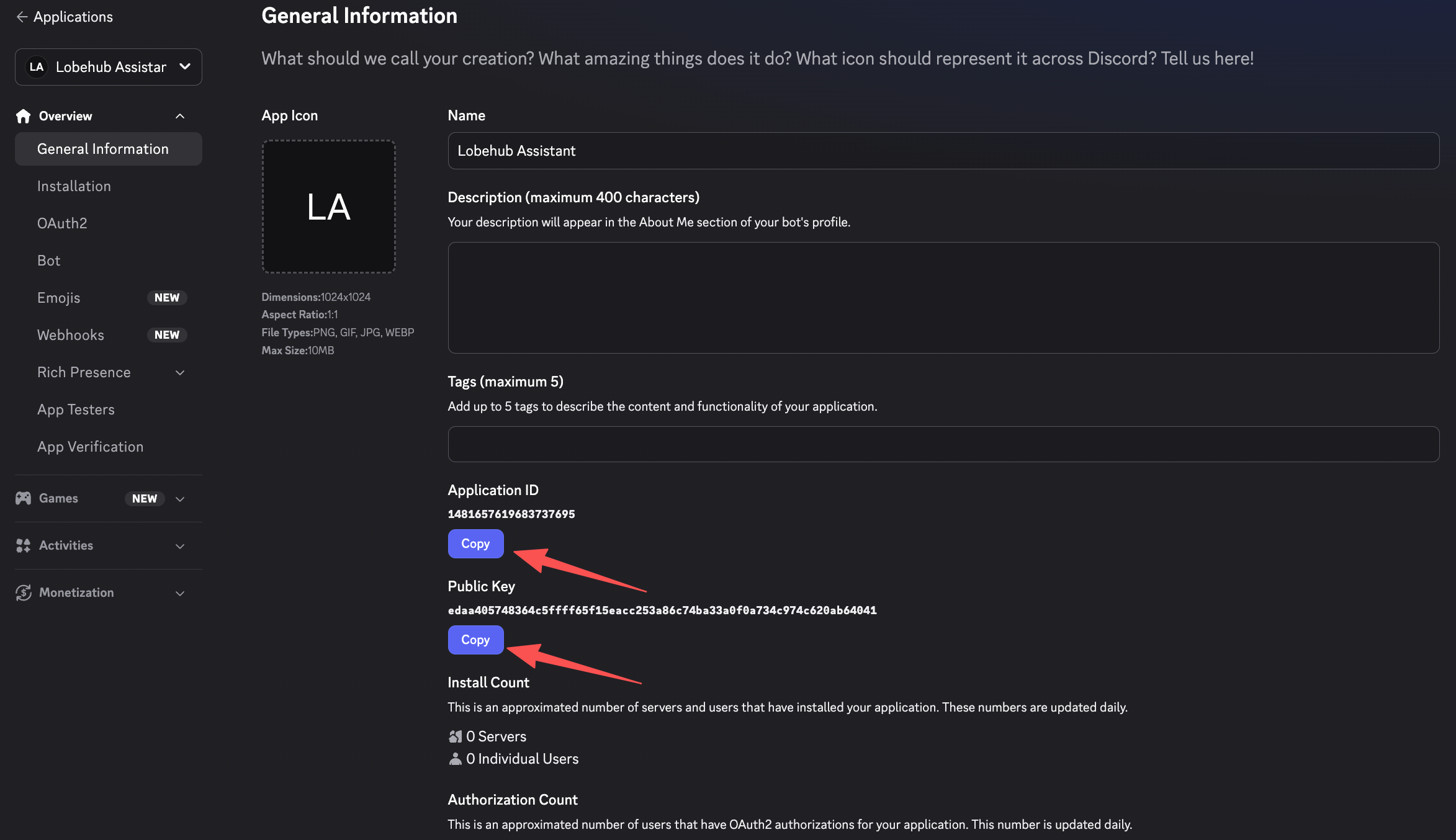
Go to **General Information** in the left sidebar. Copy and save:
- **Application ID**
- **Public Key**
You will need all three values (Bot Token, Application ID, Public Key) in the next step.
</Steps>
## Step 2: Configure Discord in LobeHub
<Steps>
### Open Channel Settings
In LobeHub, navigate to your agent's settings, then select the **Channels** tab. Click **Discord** from the platform list.
### Fill in the Credentials
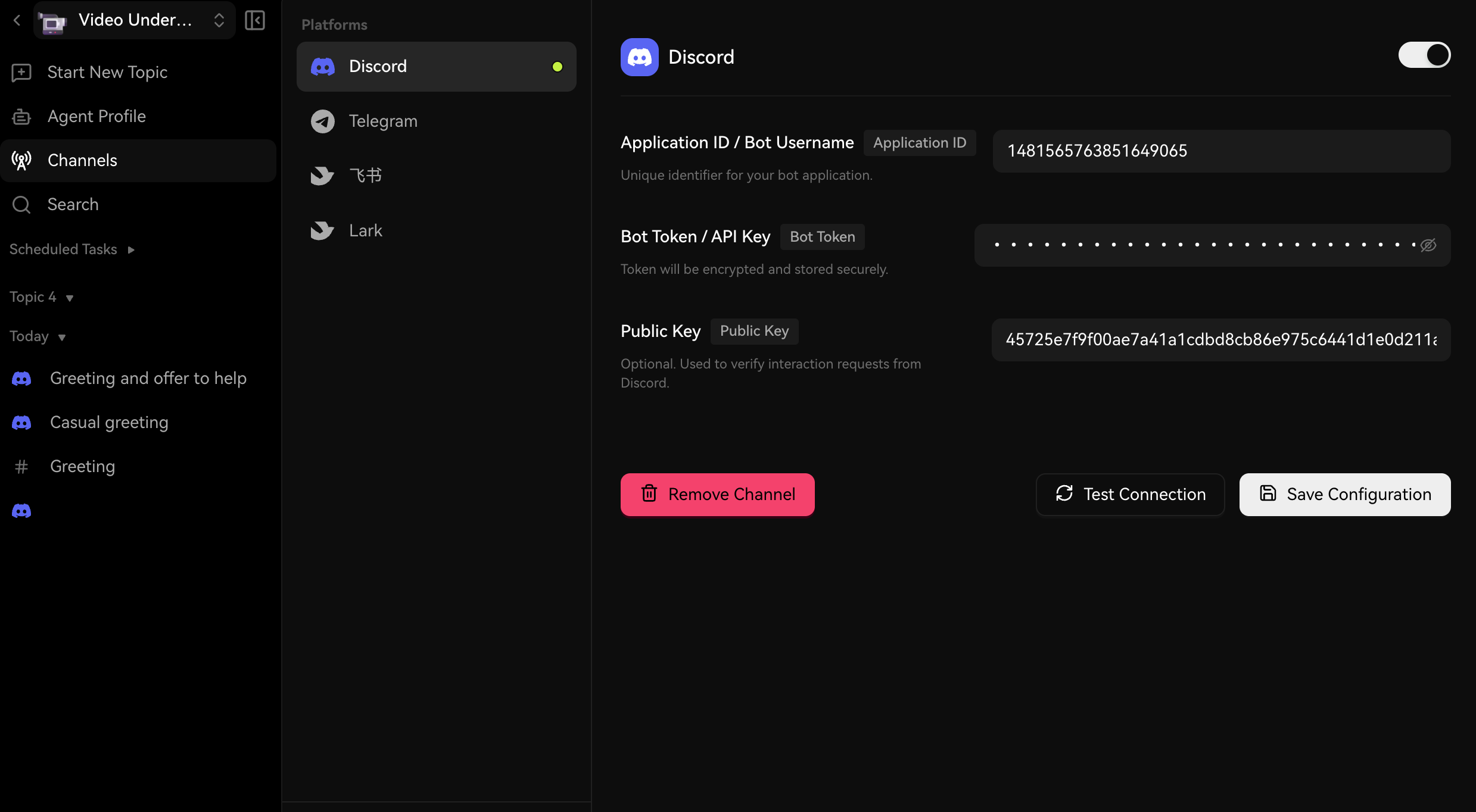
Enter the following fields:
- **Application ID** — The Application ID from your Discord app's General Information page
- **Bot Token** — The bot token you generated earlier
- **Public Key** — The Public Key from your Discord app, used for interaction verification
Your token will be encrypted and stored securely.
### Save Configuration
Click **Save Configuration**. Your credentials will be saved and LobeHub will start listening for Discord events.
</Steps>
## Step 3: Invite the Bot to Your Server
The bot can only receive messages from a server it has been added to, so do this before testing the connection. Saving the configuration in LobeHub does not add the bot to any server.
<Steps>
### Generate an Invite URL
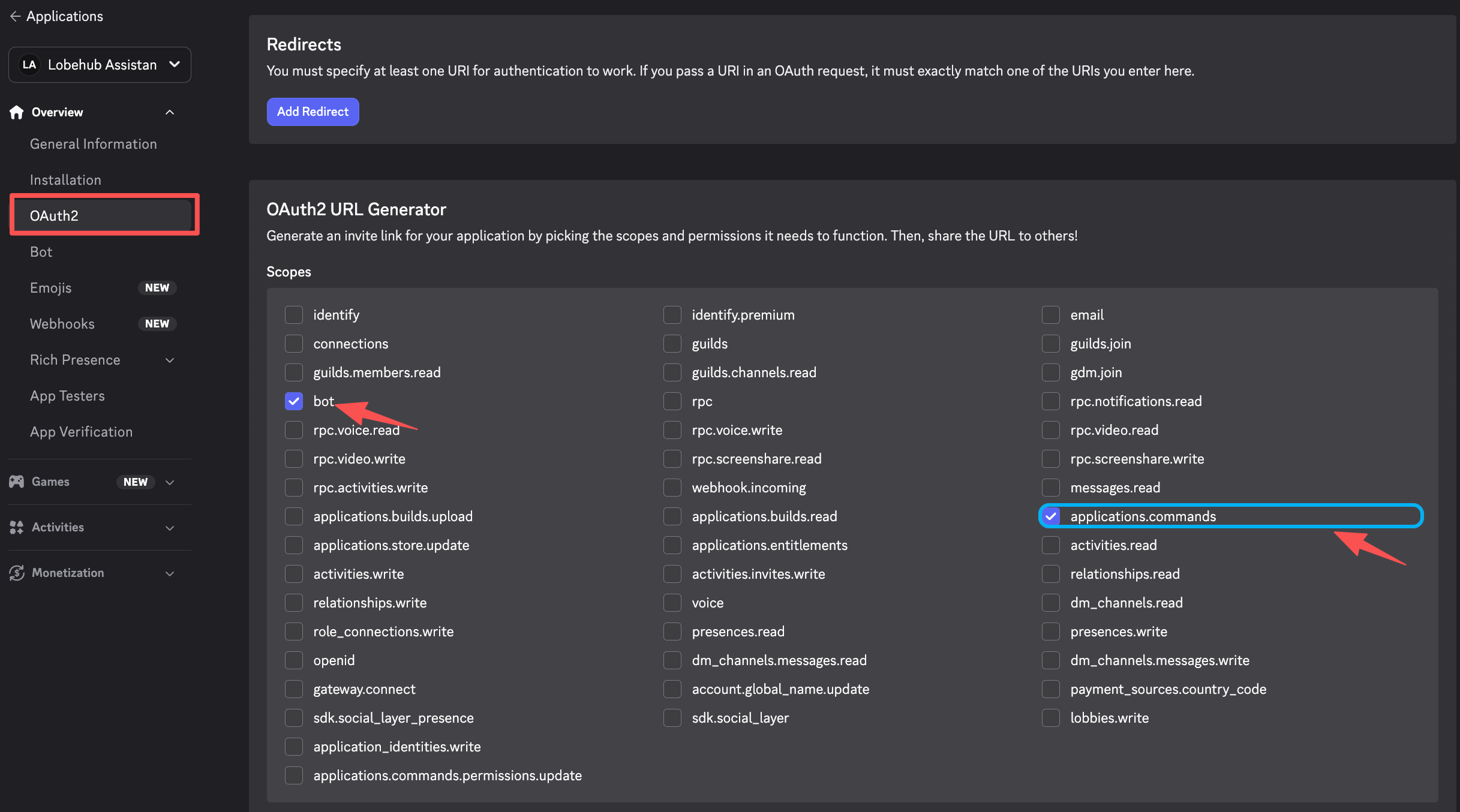
In the Discord Developer Portal, go to **OAuth2** → **URL Generator**. Select the following scopes:
- `bot`
- `applications.commands`
Under **Bot Permissions**, select:
- View Channels
- Read Message History
- Send Messages
- Create Public Threads
- Send Messages in Threads
- Embed Links
- Attach Files
- Add Reactions (optional)
### Authorize the Bot
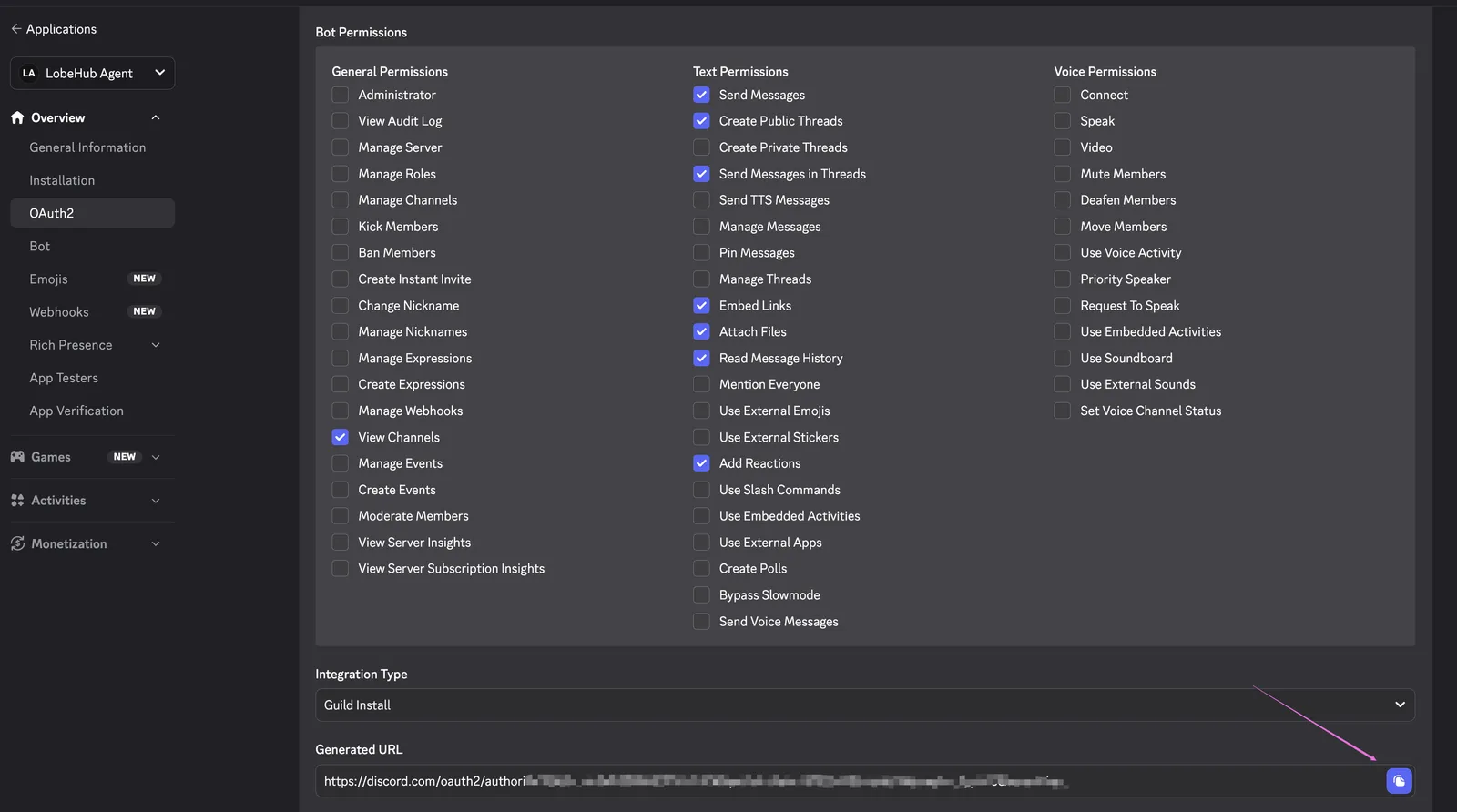
Copy the generated URL, open it in your browser, select the server you want to add the bot to, and click **Authorize**.
> **Private channels need explicit access.** Server-level authorization only grants the bot category/server defaults. If a channel is marked **Private Channel**, Discord ignores the bot's server-wide role and the bot won't receive any events there — including @mentions — until you open the channel's **Settings → Permissions** and add the bot (or a role it has) under **Members and roles**, with at least **View Channel**, **Send Messages**, **Read Message History** and **Send Messages in Threads** allowed. You can also click **Sync Now** to make the channel inherit its category's permissions.
</Steps>
## Step 4: Test the Connection
Back in LobeHub's channel settings for Discord, click **Test Connection**. It checks that:
- the bot token is valid;
- the Application ID belongs to the same app as the bot token;
- **Message Content Intent** is turned on;
- the bot has been added to at least one server.
Then @mention your bot in a server channel on Discord to confirm it responds. Test Connection cannot see channel-level permissions, so if the bot answers in one channel but not another, see the private channel note in Step 3.
## Step 5: Set Your Platform Identity (Recommended)
Two optional fields under **Advanced Settings** carry a lot of weight in day-to-day use — fill them in once and most surprises go away.
### Your Platform User ID
This is your own Discord user ID, used by:
- **Pairing approval** — required when **DM Policy** is set to **Pairing**, since `/approve <code>` is the owner's command and the runtime checks the sender against this ID.
- **AI tools push** — lets the agent reach you proactively (reminders, notifications) by mapping its internal user reference to your Discord account.
- **Anti-lockout** — auto-trusted by **Allowed Users**, so scoping the bot to friends won't accidentally lock you out.
To get it: in Discord, open **User Settings → Advanced** and turn on **Developer Mode**. Then right-click your own username anywhere in Discord and choose **Copy User ID**. Paste the numeric ID into **Your Platform User ID** in LobeHub's Advanced Settings.
### Default Server
The Discord guild ID the bot's AI tools should default to when you ask it to "list channels", "send to #announcements", or anything else that needs a server context without naming one explicitly. Doesn't affect access control — that's **Group Policy**'s job.
To get it: with **Developer Mode** on, right-click the server name in your server list and choose **Copy Server ID**. Paste it into **Default Server** in LobeHub's Advanced Settings.
## Access Policies
LobeHub gates inbound traffic with three layered settings, all under **Advanced Settings** and all defaulting to permissive.
### Allowed User IDs (global)
A *global* user-level gate. When populated, **only** the listed users can interact with the bot — DM, group @mention, threads, all of it — regardless of DM Policy / Group Policy mode. Empty means "no user-level filter; let per-scope policies decide". Right-click a user → **Copy User ID** (Developer Mode must be enabled in **Settings → Advanced**) to grab an ID.
DMs from non-allowlisted users get a "you aren't authorized" notice. Group @mentions from non-allowlisted users get the same kind of notice posted **inside the auto-created reply thread** Discord makes for the @-mention — the parent channel stays quiet.
### DM Policy
Controls 1:1 direct messages.
- **Open (default)** — Anyone who shares a server with the bot can DM it (subject to the global allowlist when set).
- **Allowlist** — DMs require the sender to be in **Allowed User IDs**. Differs from `Open` only when the list is empty: `Allowlist` fails closed (no DMs), `Open` still lets anyone DM.
- **Pairing** — Same gate as `Allowlist`, but a non-listed sender receives a one-time pairing code instead of a flat rejection. Approve via `/approve <code>` and the applicant is auto-appended to **Allowed User IDs**. Requires **Your Platform User ID** to be set (the runtime checks the `/approve` sender against it) and a configured Redis backend.
- **Disabled** — The bot ignores all DMs. Senders get a one-line notice pointing them at @mentioning the bot in a shared channel instead.
> Discord bots can be reached by anyone in any shared server, so consider populating **Allowed User IDs**, switching DM Policy to **Pairing** for self-service approval, or **Disabled** if your bot is meant to be private.
### Group Policy
Controls @mentions in server channels and threads.
- **Open (default)** — Respond to @mentions anywhere the bot can read.
- **Allowlist** — Respond only in channels listed in **Allowed Channel IDs**. Right-click a channel → **Copy Channel ID** to grab one.
- **Disabled** — Ignore all server traffic; the bot only responds to DMs.
> The two policies are independent. You can run a DM-only bot with `groupPolicy=disabled`, a channel-only bot with `dmPolicy=disabled`, or scope both with allowlists.
See the [Channels overview](/docs/usage/channels/overview#direct-message-policy) for cross-platform details.
## Configuration Reference
| Field | Required | Description |
| ----------------------- | -------- | ------------------------------------------------------------------------------------------------- |
| **Application ID** | Yes | Your Discord application's ID |
| **Bot Token** | Yes | Authentication token for your Discord bot |
| **Public Key** | Yes | Used to verify interaction requests from Discord |
| **Allowed User IDs** | No | Comma- or whitespace-separated Discord user IDs. Global gate — applies to DMs and group @mentions |
| **DM Policy** | No | `open` (default), `allowlist`, `pairing`, or `disabled` — who is allowed to DM the bot |
| **Group Policy** | No | `open` (default), `allowlist`, or `disabled` — where the bot responds to @mentions |
| **Allowed Channel IDs** | No | Comma- or whitespace-separated Discord channel IDs. Used when Group Policy is Allowlist |
## Troubleshooting
- **Bot not responding in server:** Confirm the bot has been invited to the server with the correct permissions, and Message Content Intent is enabled. If **Group Policy** is `Disabled` or `Allowlist`, double-check the channel is in **Allowed Channel IDs**. If **Allowed User IDs** is set, the sender's user ID must be in it.
- **@mention doesn't reach the bot in one specific channel:** The channel is likely a **Private Channel**. Discord drops every event for users/bots not explicitly listed in that channel's permissions, no matter what server-wide role they have. Open the channel's **Settings → Permissions**, click **Add members or roles**, and add the bot (or a role it has). Alternatively click **Sync Now** to inherit the parent category's permissions. A quick visual check: if the bot's name renders without an underline/link styling when you type `@<botname>`, Discord thinks it has no access to that channel.
- **Bot not responding to DMs:** Open **Advanced Settings** and confirm **DM Policy** is not set to `Disabled`. If **Allowed User IDs** is set, make sure the sender's Discord user ID is in it.
- **Test Connection says the bot isn't in any server:** You haven't finished Step 3. Open the invite link, pick the server, and click **Authorize**, then test again.
- **Test Connection says Message Content Intent is off:** In the Developer Portal, open **Bot → Privileged Gateway Intents**, turn on **Message Content Intent**, and click **Save Changes**.
- **Test Connection says the Application ID doesn't match the bot token:** The two values come from different apps. Copy the Application ID from **General Information** and the token from **Bot** of the same app.
- **Test Connection failed for another reason:** Double-check the Application ID, Bot Token, and Public Key are correct.