
The modern link attribution platform. Loved by world-class engineering teams at Twilio, Zillow, Jobber, Vercel, Raycast, and more.
TypeScript clickhousemysqlnextjsopen-sourceplanetscaleprismatailwindcsstinybirdtypescriptupstashvercel
This guide will walk you through the process of integrating Dub with Google Tag Manager (GTM).
Step 1: Create a New Tag
First, navigate to your Google Tag Manager account and create a new tag:
- Click on Tags in the left sidebar
- Click the New button
- Select Custom HTML as the tag type
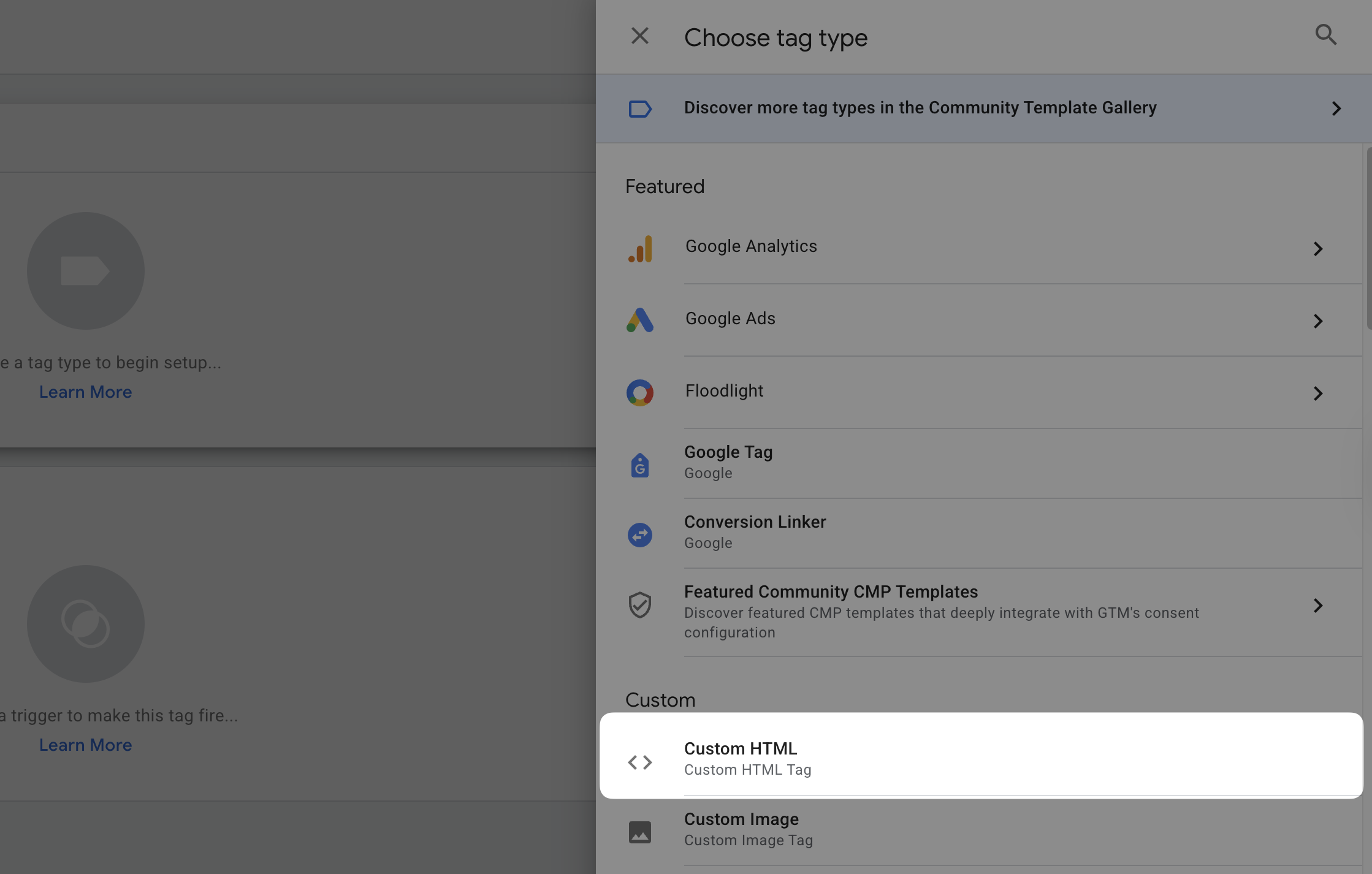
Step 2: Add the Dub client-side script
In the Custom HTML section, you’ll need to add the Dub client-side script. Copy and paste the following code into the HTML field:
<script>
  (function (c, n) {
    c[n] =
      c[n] ||
      function () {
        (c[n].q = c[n].q || []).push(arguments);
      };
    var methods = ["trackClick", "trackLead", "trackSale"];
    for (var i = 0; i < methods.length; i++) {
      (function (method) {
        c[n][method] = function () {
          var args = Array.prototype.slice.call(arguments);
          args.unshift(method);
          c[n].apply(null, args);
        };
      })(methods[i]);
    }
    var s = document.createElement("script");
    s.defer = 1;
    s.src = "https://www.dubcdn.com/analytics/script.js";
    document.head.appendChild(s);
  })(window, "dubAnalytics");
</script>
Step 3: Configure the Trigger
To ensure the analytics script loads on all pages:
- Click on the Triggering section
- Select All Pages as the trigger type
- This will make the tag fire on every page load
Step 4: Save and Publish
- Name your tag Dub Analytics
- Click Save to store your changes
- Click Submit to create a new version
- Finally, click Publish to activate the tag on your website