
The modern link attribution platform. Loved by world-class engineering teams at Twilio, Zillow, Jobber, Vercel, Raycast, and more.
TypeScript clickhousemysqlnextjsopen-sourceplanetscaleprismatailwindcsstinybirdtypescriptupstashvercel
Add Segment lead and sale tracking guides
Kiran K2cb964542e1f
diff --git a/apps/web/guides/segment-track-lead.md b/apps/web/guides/segment-track-lead.mdindex 30404ce4c5..270a6f33df 100644--- a/apps/web/guides/segment-track-lead.md+++ b/apps/web/guides/segment-track-lead.md@@ -1 +1,72 @@-TODO\ No newline at end of file+Configuring Segment to track lead events when a new user signs up.++## Step 1: Add Dub (Actions) destination++Head to [Segment Dub (Actions)](https://app.segment.com/goto-my-workspace/destinations/catalog/actions-dub) and add the destination to your Segment workspace.++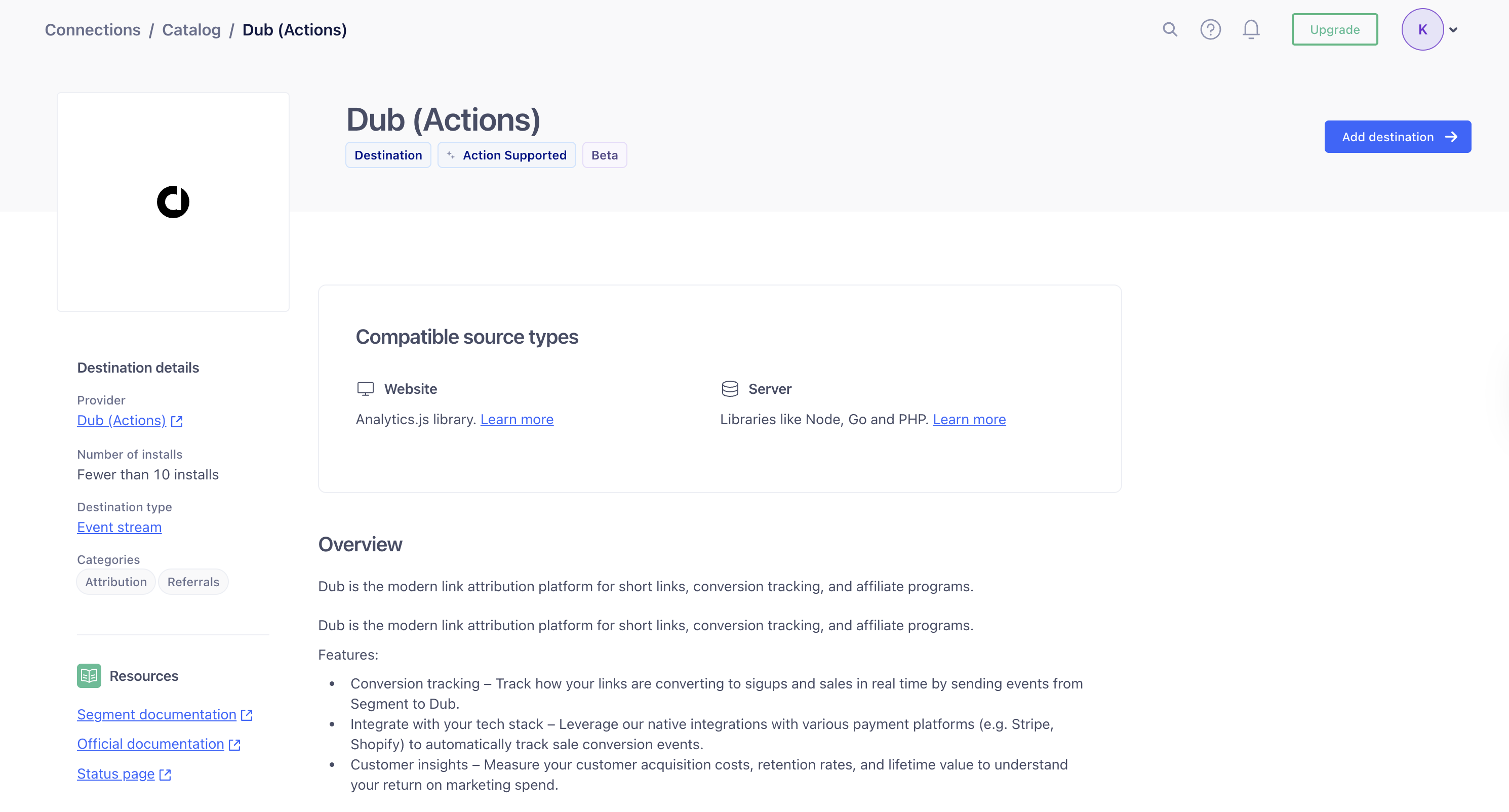++## Step 2: Configure Dub API Key++In the Dub (Actions) destination settings, fill out the following fields:++- **Name:** Enter a name to help you identify this destination in Segment.+- **API Key:** Enter your Dub API key. You can find this in the [Dub Dashboard](https://app.dub.co/settings/tokens).+- **Enable Destination:** Toggle this on to allow Segment to send data to Dub.++Once completed, click **Save Changes**.++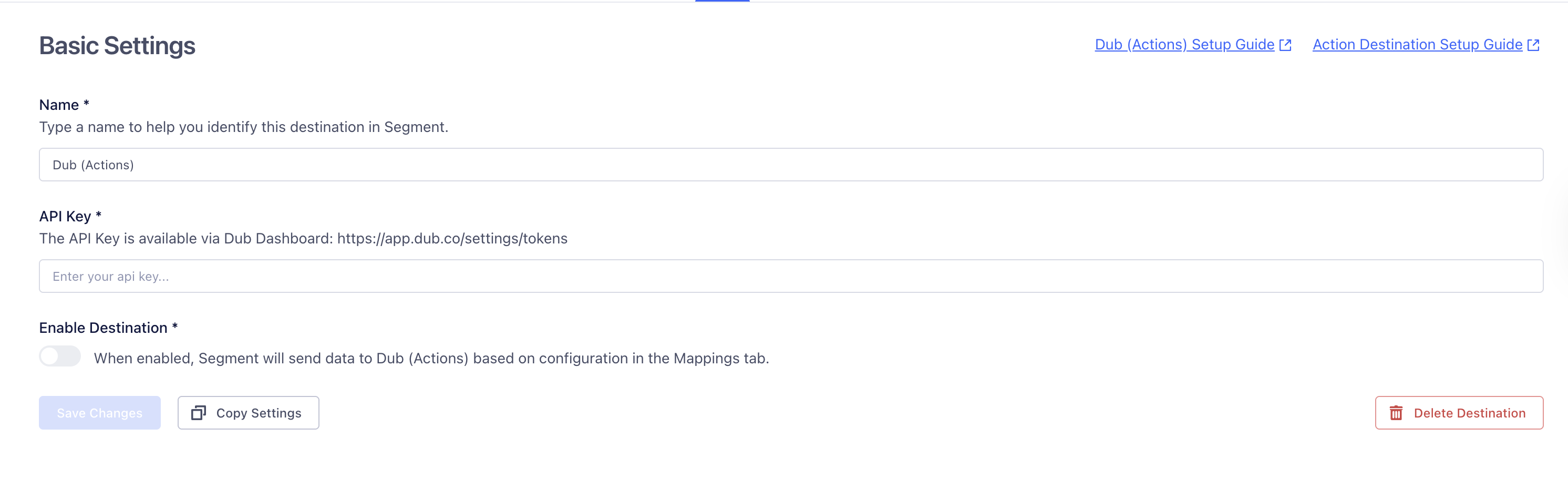++## Step 3: Add Mapping++Next, you’ll choose the **Track a lead** action from the list of available actions.++By default, this action is configured to send lead data to Dub when the **Event Name** is **Sign Up**.++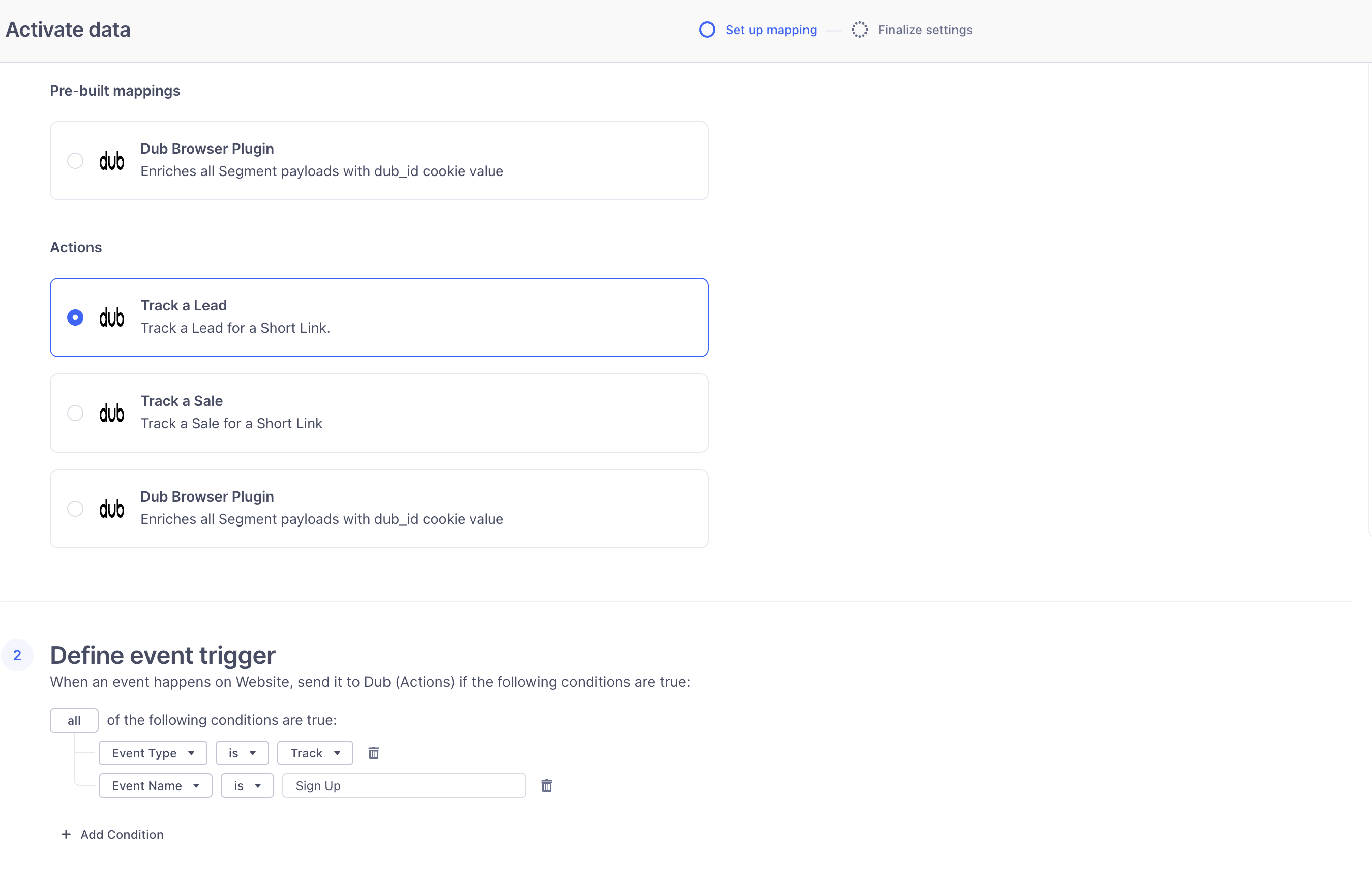++Below the selected action, you’ll see the mapping for that action.++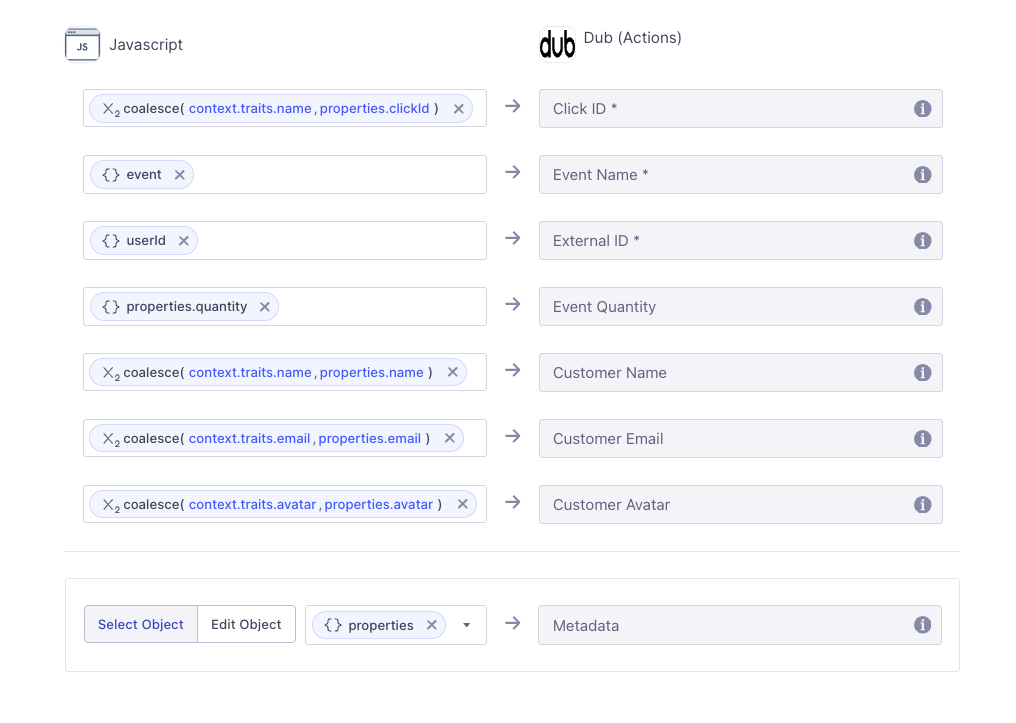++You can customize the trigger and mapping to fit the specific needs of your application.++Finally, click **Next** and then **Save and enable** to add the mapping to the destination.++## Step 4: Send lead events to Dub++On the server side, you’ll use the `@segment/analytics-node` SDK to send lead events to Segment.++Make sure to include relevant user traits such as `name`, `email`, and `clickId` in the payload.++You’ll also need to ensure that the `clickId` field is properly mapped in your Segment Actions destination so that it’s forwarded correctly to Dub.++```javascript+import { Analytics } from "@segment/analytics-node";++const segment = new Analytics({+ writeKey: "<YOUR_SEGMENT_WRITE_KEY>",+});++const cookieStore = await cookies();+const clickId = cookieStore.get("dub_id")?.value;++segment.track({+ userId: id,+ event: "Sign Up",+ context: {+ traits: {+ name,+ email,+ avatar,+ clickId,+ },+ },+ integrations: {+ All: true,+ },+});+```++Once the event is tracked, Segment will forward the lead data to Dub based on the mappings you’ve configured.diff --git a/apps/web/guides/segment-track-sale.md b/apps/web/guides/segment-track-sale.mdindex 30404ce4c5..575655652f 100644--- a/apps/web/guides/segment-track-sale.md+++ b/apps/web/guides/segment-track-sale.md@@ -1 +1,67 @@-TODO\ No newline at end of file+Configuring Segment to track sale events when a user purchases your product or service.++If you’ve already set up the Dub (Actions) destination, you can skip the first two steps and jump straight to the **Add Mapping** section.++## Step 1: Add Dub (Actions) destination++Head to [Segment Dub (Actions)](https://app.segment.com/goto-my-workspace/destinations/catalog/actions-dub) and add the destination to your Segment workspace.++++## Step 2: Configure Dub API Key++In the Dub (Actions) destination settings, fill out the following fields:++- **Name:** Enter a name to help you identify this destination in Segment.+- **API Key:** Enter your Dub API key. You can find this in the [Dub Dashboard](https://app.dub.co/settings/tokens).+- **Enable Destination:** Toggle this on to allow Segment to send data to Dub.++Once completed, click **Save Changes**.++++## Step 3: Add Mapping++Next, you’ll choose the **Track a sale** action from the list of available actions.++By default, this action is configured to send sale data to Dub when the **Event Name** is **Order Completed**.++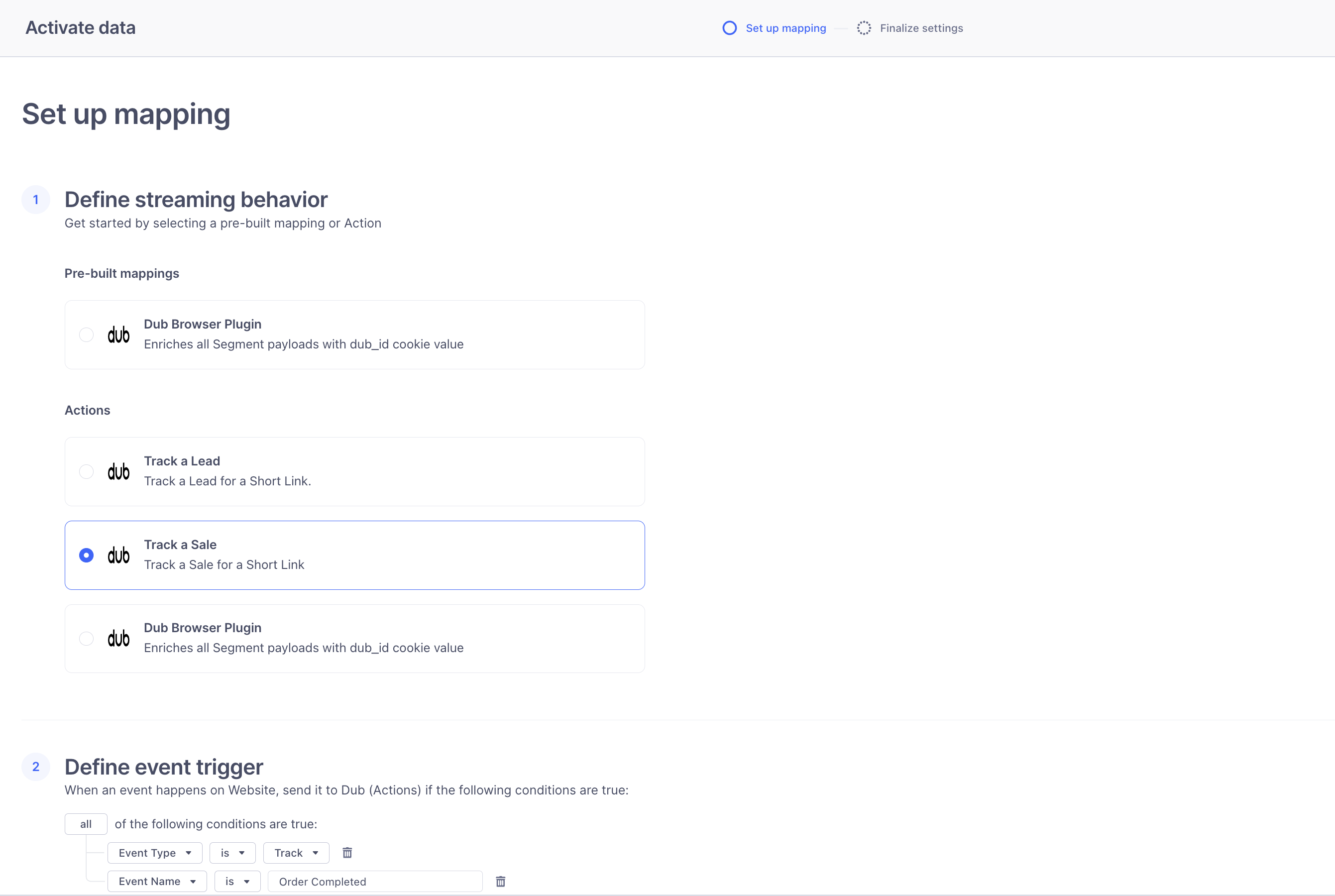++Below the selected action, you’ll see the mapping for that action.++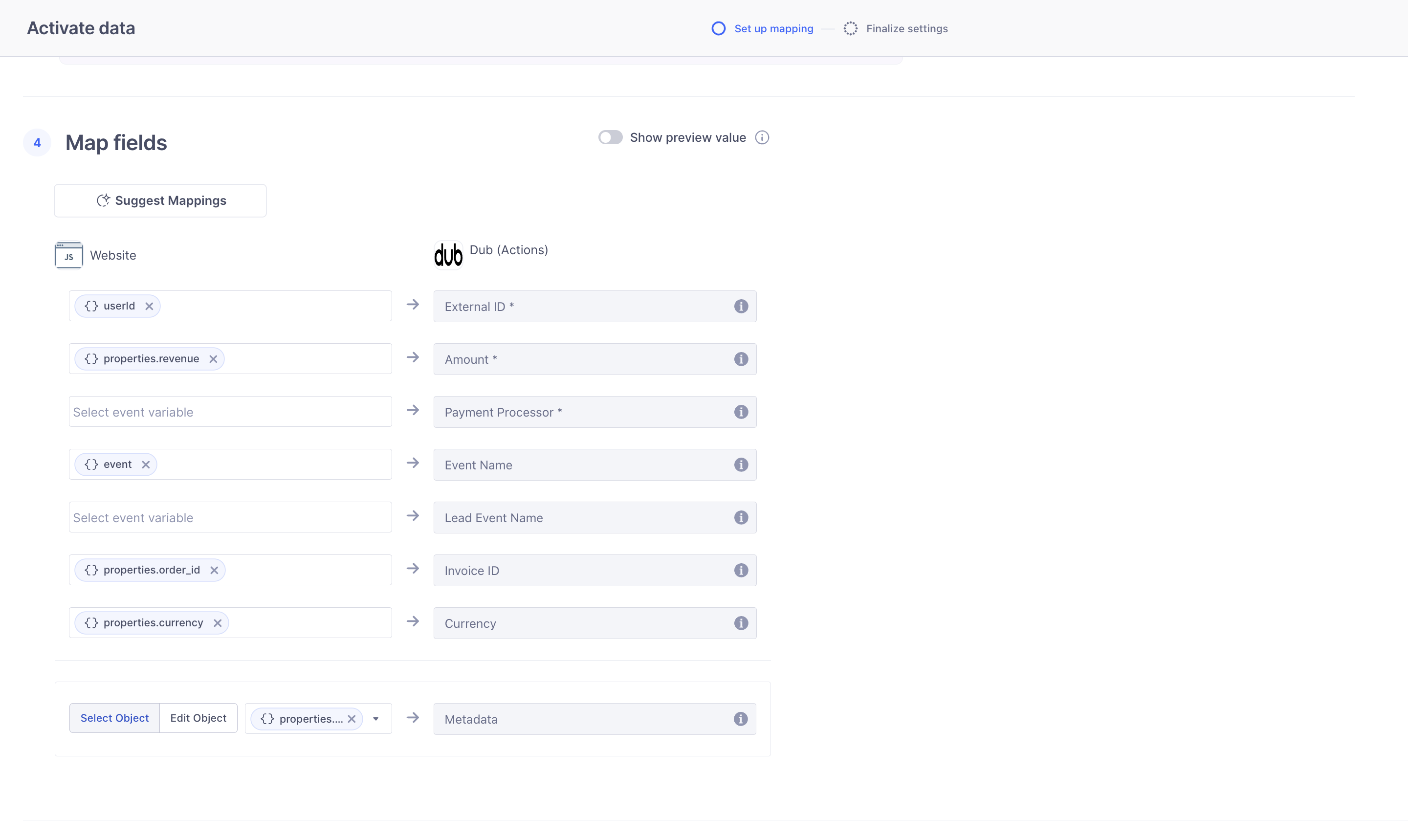++You can customize the trigger and mapping to fit the specific needs of your application.++Finally, click **Next** and then **Save and enable** to add the mapping to the destination.++## Step 4: Send sale events to Dub++On the server side, you’ll use the `@segment/analytics-node` SDK to send sale events to Segment.++Make sure to include relevant properties such as `userId`, `payment_processor`, `order_id`, `currency`, and `revenue` in the payload.++```javascript+import { Analytics } from "@segment/analytics-node";++const segment = new Analytics({+ writeKey: "<YOUR_SEGMENT_WRITE_KEY>",+});++segment.track({+ userId: id,+ event: "Order Completed",+ properties: {+ payment_processor: "stripe",+ order_id: "ORD_123",+ currency: "USD",+ revenue: 1000,+ },+ integrations: {+ All: true,+ },+});+```++Once the event is tracked, Segment will forward the sale data to Dub based on the mappings you’ve configured.diff --git a/apps/web/ui/guides/integrations.ts b/apps/web/ui/guides/integrations.tsindex 318260024c..ebd4046935 100644--- a/apps/web/ui/guides/integrations.ts+++ b/apps/web/ui/guides/integrations.ts@@ -141,6 +141,13 @@ export const guides: IntegrationGuide[] = [icon: Appwrite,url: "https://dub.co/docs/conversions/leads/appwrite",},+ {+ type: "track-lead",+ key: "segment-track-lead",+ title: "Segment",+ icon: Segment,+ url: "https://dub.co/docs/conversions/leads/segment",+ },{type: "track-lead",key: "manual-track-lead",@@ -149,13 +156,6 @@ export const guides: IntegrationGuide[] = [icon: CodeEditor,url: "https://dub.co/docs/conversions/leads/introduction",},- {- type: "track-lead",- key: "segment-track-lead",- title: "Segment",- icon: Segment,- url: "https://dub.co/docs/conversions/leads/segment",- },// Track Sales{@@ -186,6 +186,13 @@ export const guides: IntegrationGuide[] = [icon: Stripe,url: "https://dub.co/docs/conversions/sales/stripe#option-3%3A-using-stripe-customers",},+ {+ type: "track-sale",+ key: "segment-track-sale",+ title: "Segment",+ icon: Segment,+ url: "https://dub.co/docs/conversions/sales/segment",+ },{type: "track-sale",key: "manual-track-sale",@@ -194,11 +201,4 @@ export const guides: IntegrationGuide[] = [icon: CodeEditor,url: "https://dub.co/docs/conversions/sales/introduction",},- {- type: "track-sale",- key: "segment-track-sale",- title: "Segment",- icon: Segment,- url: "https://dub.co/docs/conversions/sales/segment",- },];