
The modern link attribution platform. Loved by world-class engineering teams at Twilio, Zillow, Jobber, Vercel, Raycast, and more.
TypeScript clickhousemysqlnextjsopen-sourceplanetscaleprismatailwindcsstinybirdtypescriptupstashvercel
Split GTM guide into lead and sale tracking docs
Kiran Kf13689a7f81f
diff --git a/apps/web/guides/gtm-track-lead.md b/apps/web/guides/gtm-track-lead.mdnew file mode 100644index 0000000000..2a4d617112--- /dev/null+++ b/apps/web/guides/gtm-track-lead.md@@ -0,0 +1,75 @@+Configure Google Tag Manager to track lead events when a new user signs up.++To track lead conversion events with Google Tag Manager, you'll need to set up a server container and configure a custom client to handle Dub conversion events.++## Step 1: Set up Server Container++In Google Tag Manager, you'll need to use an existing server container or create a new one. Server containers are the foundation for server-side tracking and allow you to process events before they reach their final destinations.++- If you already have a server container set up, you can use that+- If not, create a new server container in your GTM workspace++## Step 2: Import Dub GTM Server Client Template++Add a new Client Template using the import option:++1. In your server container, go to **Client Templates** → **New**+2. Click **Import** and upload the [Dub GTM Server Client template](https://github.com/dubinc/gtm-server-client-template)++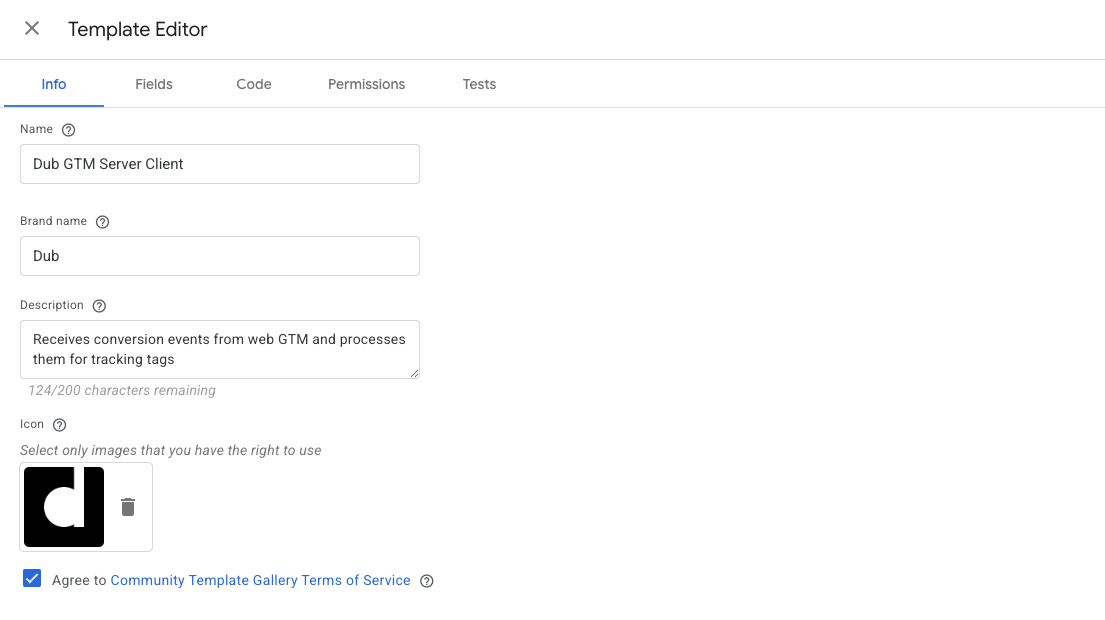++## Step 3: Create Dub Server Client++Next, create a new Client using the imported template:++1. In your server container, go to **Clients** → **New**+2. Select the **Dub GTM Server Client** template from **Custom**+3. Name the client "Dub Server Client" (or any descriptive name)+4. Set the **Request Path** to `/dub/track`+5. Optionally enable debug logging for troubleshooting++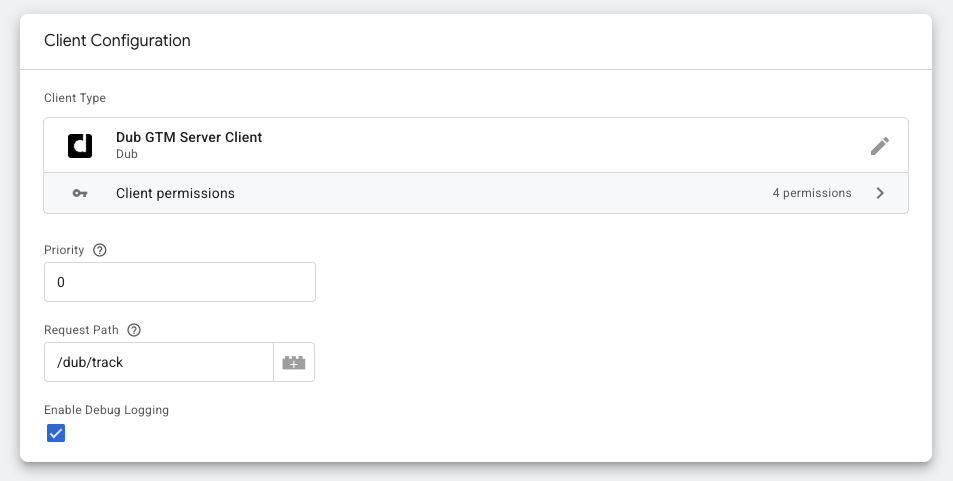++> Clients in GTM Server are adapters that act as bridges between the software running on a user's device and your server container. They receive requests and transform them into events that can be processed by tags.++## Step 4: Import Dub GTM Server Tag Template++Next, import the Dub GTM Server Tag template to handle lead tracking:++1. In your server container, go to **Tags** → **New**+2. Click **Import** and upload the [Dub GTM Server Tag template](https://github.com/dubinc/gtm-server-tag-template)+3. This template is specifically designed to send conversion events directly to Dub++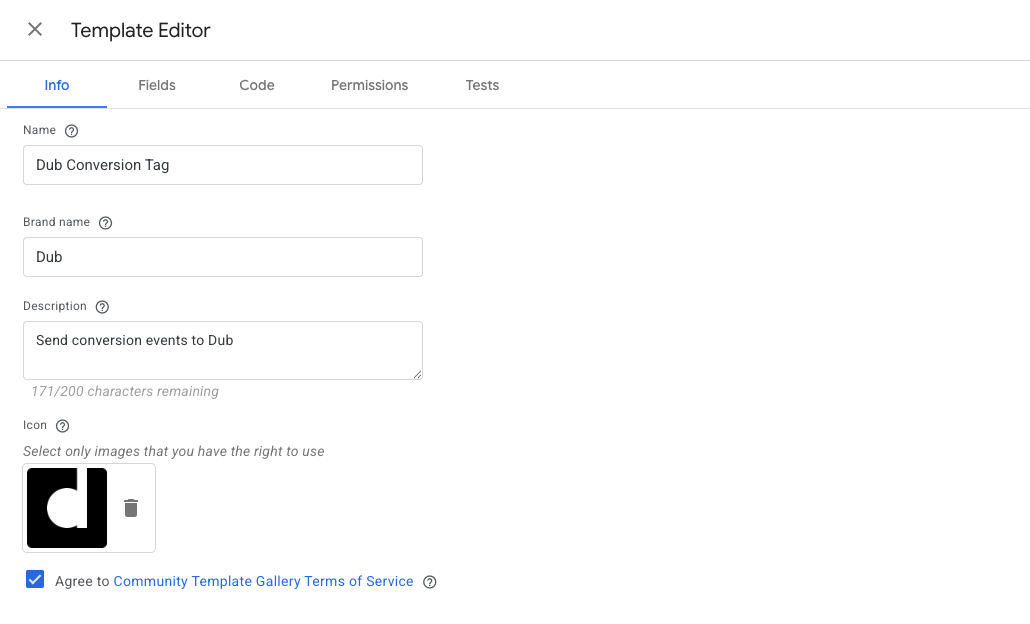++## Step 5: Add Lead Tracking Tag++Next, create a new tag for lead tracking with proper mapping:++1. In your server container, go to **Tags** → **New**+2. Select the **Dub Conversion Tag** template from **Custom**+3. Name the tag "Dub Lead Tracking" (or any descriptive name)+4. Configure the tag settings:++- **Dub API Key**: Enter your [Dub API key](https://dub.co/docs/api-reference/tokens) (starts with `dub_`)+- **Event**: Select "Track lead"+- **Click ID**: Map to the `clickId` from the Dub Server Client event data+- **Customer External ID**: Map to the `customerExternalId` from the event data+- **Event Name**: Map to the `eventName` from the event data (e.g., "Sign Up")+- **Customer Name**: Map to the `customerName` from the event data+- **Customer Email**: Map to the `customerEmail` from the event data+- **Customer Avatar**: Map to the `customerAvatar` from the event data (optional)+- **Event Quantity**: Map to the `eventQuantity` from the event data (default: 1)+- **Mode**: Set to "async" for non-blocking requests++5. **Triggering**: Configure when the tag should fire:++- Click **Triggering** in the tag configuration+- Click **+** to add a new trigger+- Select **Custom Event** as the trigger type+- Set the **Event Name** to match the event name from the Dub Server Client. Default is `dub_conversion`+- Add a condition to filter for lead events:+ - **Variable**: Select a variable that contains the event type+ - **Operator**: Equals+ - **Value**: "Sign Up"+- Name the trigger "Dub Lead Event Trigger" and save itdiff --git a/apps/web/guides/gtm-track-sale.md b/apps/web/guides/gtm-track-sale.mdnew file mode 100644index 0000000000..f1742eb0dc--- /dev/null+++ b/apps/web/guides/gtm-track-sale.md@@ -0,0 +1,77 @@+Configure Google Tag Manager to track events when a user purchases your product or service.++To track sales conversion events with Google Tag Manager, you'll need to set up a server container and configure a custom client to handle Dub conversion events.++## Step 1: Set up Server Container++In Google Tag Manager, you'll need to use an existing server container or create a new one. Server containers are the foundation for server-side tracking and allow you to process events before they reach their final destinations.++- If you already have a server container set up, you can use that+- If not, create a new server container in your GTM workspace++## Step 2: Import Dub GTM Server Client Template++> If you've already set up the Dub GTM Server Client for lead tracking, you can skip step #2, #3 and #4++Add a new Client Template using the import option:++1. In your server container, go to **Client Templates** → **New**+2. Click **Import** and upload the [Dub GTM Server Client template](https://github.com/dubinc/gtm-server-client-template)++++## Step 3: Create Dub Server Client++Next, create a new Client using the imported template:++1. In your server container, go to **Clients** → **New**+2. Select the **Dub GTM Server Client** template from **Custom**+3. Name the client "Dub Server Client" (or any descriptive name)+4. Set the **Request Path** to `/dub/track`+5. Optionally enable debug logging for troubleshooting++++> Clients in GTM Server are adapters that act as bridges between the software running on a user's device and your server container. They receive requests and transform them into events that can be processed by tags.++## Step 4: Import Dub GTM Server Tag Template++Next, import the Dub GTM Server Tag template to handle lead tracking:++1. In your server container, go to **Tags** → **New**+2. Click **Import** and upload the [Dub GTM Server Tag template](https://github.com/dubinc/gtm-server-tag-template)+3. This template is specifically designed to send conversion events directly to Dub++++## Step 5: Add Sales Tracking Tag++Next, create a new tag for sales tracking with proper mapping:++1. In your server container, go to **Tags** → **New**+2. Select the **Dub Conversion Tag** template from **Custom**+3. Name the tag "Dub Sales Tracking" (or any descriptive name)+4. Configure the tag settings:++- **Dub API Key**: Enter your [Dub API key](https://dub.co/docs/api-reference/tokens) (starts with `dub_`)+- **Event**: Select "Track sale"+- **Customer External ID**: Map to the `customerExternalId` from the event data+- **Amount**: Map to the `amount` from the event data (in cents)+- **Currency**: Map to the `currency` from the event data (e.g., "usd")+- **Event Name**: Map to the `eventName` from the event data (e.g., "Purchase")+- **Payment Processor**: Map to the `paymentProcessor` from the event data (e.g., "stripe")+- **Invoice ID**: Map to the `invoiceId` from the event data (optional)+- **Lead Event Name**: Map to the `leadEventName` from the event data (optional)+- **Metadata**: Map to the `metadata` from the event data (optional)++5. **Triggering**: Configure when the tag should fire:++- Click **Triggering** in the tag configuration+- Click **+** to add a new trigger+- Select **Custom Event** as the trigger type+- Set the **Event Name** to match the event name from the Dub Server Client. Default is `dub_conversion`+- Add a condition to filter for sales events:+ - **Variable**: Select a variable that contains the event type+ - **Operator**: Equals+ - **Value**: "Purchase"+- Name the trigger "Dub Sales Event Trigger" and save itdiff --git a/apps/web/guides/gtm.md b/apps/web/guides/gtm.mddeleted file mode 100644index e69de29bb2..0000000000