
💚 End-to-end encrypted cloud for everything.
Dart 2faandroidauthye2eeencryptionend-to-end-encryptionfluttergolanggoogle-photosgoogle-photos-alternativeiosopensourcephotosprivacyprivacy-toolstypescriptzero-knowledge
Update Locker help for 1.0.10
AmanRajSinghMourya6d0caa64b5ee
diff --git a/docs/docs/locker/faq/index.md b/docs/docs/locker/faq/index.mdindex e7c1c3ec4f..3d61dc5357 100644--- a/docs/docs/locker/faq/index.md+++ b/docs/docs/locker/faq/index.md@@ -70,6 +70,7 @@ Jump to a category:### General- [What types of information can I store?](/locker/faq/information-types#locker-what-types)+- [Do I need to fill in every field?](/locker/faq/information-types#locker-required-fields)- [Can I create custom item types?](/locker/faq/information-types#locker-custom-types)- [Can I edit an item after creating it?](/locker/faq/information-types#locker-edit-document)diff --git a/docs/docs/locker/faq/information-types.md b/docs/docs/locker/faq/information-types.mdindex 74624edce4..7a2ae8da77 100644--- a/docs/docs/locker/faq/information-types.md+++ b/docs/docs/locker/faq/information-types.md@@ -20,6 +20,10 @@ Ente Locker supports four item types:Learn more about [Item Types](/locker/features/information-types/).+### Do I need to fill in every field? {#locker-required-fields}++No. A Note needs content, a Thing needs a name, and a Secret needs an account name. You can leave the other fields blank and add them later by editing the item. If you leave a Note's title blank, Locker generates one from its content.+### Can I create custom item types? {#locker-custom-types}Currently, Locker supports only the four built-in item types. Custom types are not available.@@ -62,7 +66,7 @@ Open Apple Photos, choose the photo, open the share sheet, and select Ente LockeIn the Locker mobile app on Android or iOS, tap the camera button on the home screen. Point the camera at a page and use automatic or manual capture to add one or more pages.-Review the pages, adjust the crop or rotation if needed, and tap **Save to Ente**. Locker combines the pages into a PDF and lets you choose the collections to upload it to.+Review the pages, adjust the crop or rotation, or retake individual pages if needed. Then tap **Save to Ente**. Locker combines the pages into a PDF and lets you choose the collections to upload it to.For detailed steps, see [Document](/locker/features/information-types/documents#scanning-a-document).diff --git a/docs/docs/locker/features/information-types/account-credentials.md b/docs/docs/locker/features/information-types/account-credentials.mdindex b02c032828..8a740e235f 100644--- a/docs/docs/locker/features/information-types/account-credentials.md+++ b/docs/docs/locker/features/information-types/account-credentials.md@@ -9,9 +9,9 @@ Secrets let you securely store login information for websites and services. Keep## What you can store-- **Name**: A recognizable name for the account (e.g., "Gmail", "Bank Account")-- **Username**: Your login identifier (username or email)-- **Password**: Your account password+- **Name**: A recognizable name for the account (required; e.g., "Gmail", "Bank Account")+- **Username**: Your login identifier (optional; username or email)+- **Password**: Your account password (optional)- **Notes**: Additional information about the account (optional)## Creating a secret@@ -28,13 +28,15 @@ Secrets let you securely store login information for websites and services. Keep2. Tap the **+** button3. Select **Secret**4. Fill in the fields:- - **Name**: A recognizable name (e.g., "Gmail", "Bank Account")- - **Username**: Your username or email for the account- - **Password**: Your password+ - **Name**: A recognizable name (required; e.g., "Gmail", "Bank Account")+ - **Username**: Your username or email for the account (optional)+ - **Password**: Your password (optional)- **Notes**: Any additional details (optional)5. Select one or more collections6. Tap **Save**+You can save a Secret with just its name and add the username, password or notes later by editing it.+## Features### Password visibilitydiff --git a/docs/docs/locker/features/information-types/documents.md b/docs/docs/locker/features/information-types/documents.mdindex 8a3b624b45..11db393843 100644--- a/docs/docs/locker/features/information-types/documents.md+++ b/docs/docs/locker/features/information-types/documents.md@@ -33,13 +33,15 @@ Document scanning is available in the Locker mobile app on Android and iOS.1. Tap the camera button on the home screen2. Point the camera at the page. Keep **Auto** enabled for automatic capture, or switch to **Manual** and tap the shutter button3. Repeat for any additional pages, then tap the check-mark button-4. Review the scan. You can adjust the crop, rotate or delete pages, add another page, and rename the PDF+4. Review the scan. You can adjust the crop, rotate or delete pages, retake a page, add another page, and rename the PDF5. Tap **Save to Ente**6. Select one or more collections, or leave them unselected to save to **Uncategorized**7. Tap **Save**Locker combines all scanned pages into one PDF before uploading it.+To retake a page, select it in the review screen and tap the retake icon. Capture the page again to replace it without rescanning the other pages.+## Uploading an existing file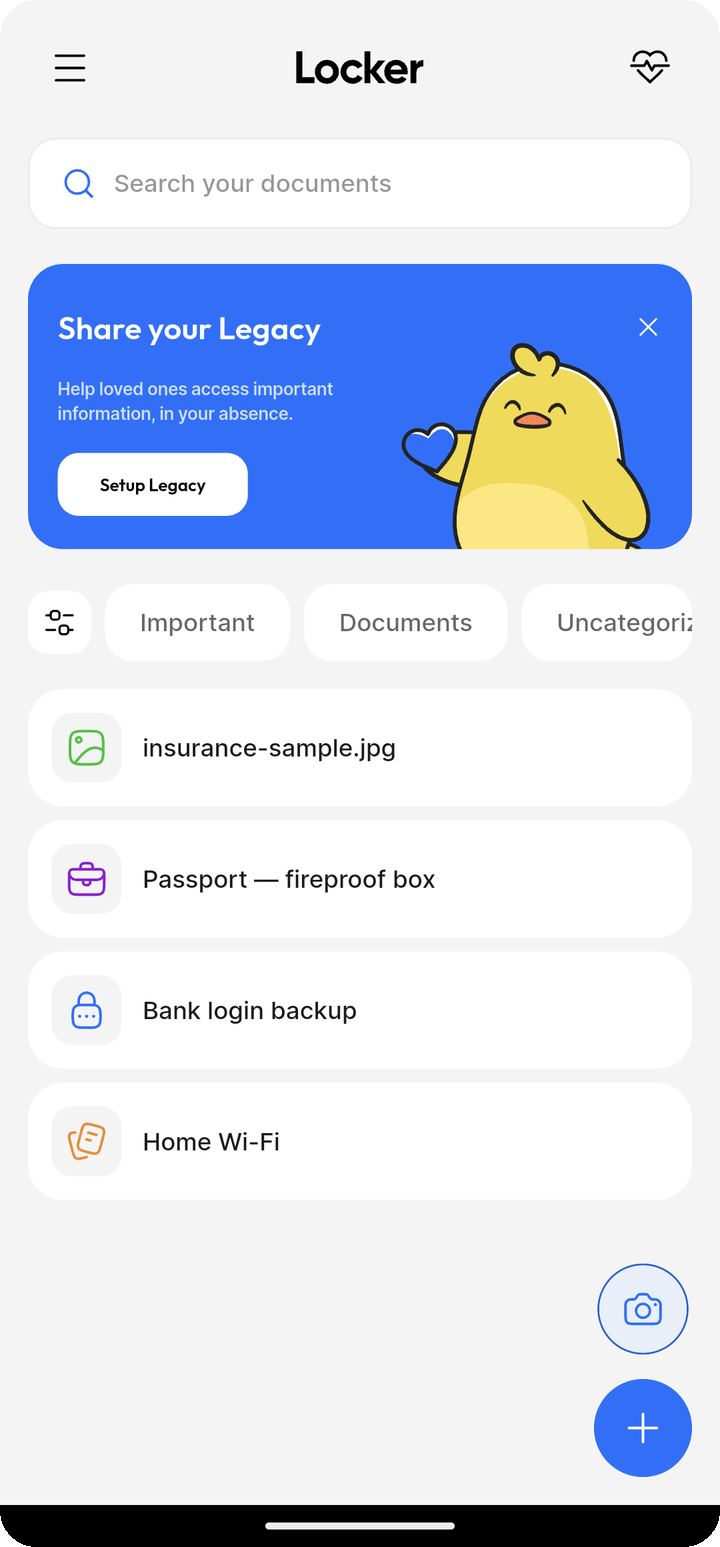{width=320px}@@ -48,8 +50,20 @@ Locker combines all scanned pages into one PDF before uploading it.2. Tap the **+** button3. Select **File**4. Choose one or more files from your device-5. Select one or more collections, or leave them unselected to save to **Uncategorized**-6. Tap **Save**+5. To rename a file before uploading, tap the pencil icon beside its name, enter a new name, and tap **Save**+6. Select one or more collections, or leave them unselected to save to **Uncategorized**+7. Tap **Save** to upload++Renaming a file here changes its name in Locker. The original file on your device keeps its name, and Locker keeps the file extension, such as `.pdf`.++### Sharing files into Locker on Android++1. In another app, select one or more files+2. Tap **Share** and choose **Ente Locker**+3. Review the files and choose the collections to save them to, or leave collections unselected to use **Uncategorized**+4. Tap **Save**++Locker warns you if repeated files or files it cannot read are skipped. You can continue uploading the remaining files.## Supported file formatsdiff --git a/docs/docs/locker/features/information-types/personal-notes.md b/docs/docs/locker/features/information-types/personal-notes.mdindex a86ba6d1ca..5948c5d82a 100644--- a/docs/docs/locker/features/information-types/personal-notes.md+++ b/docs/docs/locker/features/information-types/personal-notes.md@@ -29,8 +29,8 @@ Notes let you store any text securely with end-to-end encryption. Use them for s1. Open Ente Locker2. Tap the **+** button3. Select **Note**-4. Enter a title for your note-5. Write your note content in the text field+4. Enter a title, or leave it blank to generate one from your note+5. Write your note content in the text field. Content is required6. Select one or more collections7. Tap **Save**diff --git a/docs/docs/locker/features/information-types/physical-records.md b/docs/docs/locker/features/information-types/physical-records.mdindex 8d51f9b0f1..1e13c4fa9b 100644--- a/docs/docs/locker/features/information-types/physical-records.md+++ b/docs/docs/locker/features/information-types/physical-records.md@@ -32,12 +32,14 @@ Things help you remember where important physical documents are stored. Track th2. Tap the **+** button3. Select **Thing**4. Fill in the fields:- - **Name**: Document name (e.g., "Passport", "House Deed")- - **Location**: Where it's stored (e.g., "Home safe, top drawer")+ - **Name**: Document name (required; e.g., "Passport", "House Deed")+ - **Location**: Where it's stored (optional; e.g., "Home safe, top drawer")- **Notes**: Any other relevant information (optional)5. Select one or more collections6. Tap **Save**+You can save a Thing with just its name and add the location or notes later by editing it.+## Features### Location trackingdiff --git a/docs/docs/locker/getting-started/family-setup.md b/docs/docs/locker/getting-started/family-setup.mdindex fc3dd5c009..829c2d299f 100644--- a/docs/docs/locker/getting-started/family-setup.md+++ b/docs/docs/locker/getting-started/family-setup.md@@ -112,13 +112,16 @@ Gather your family's important documents and upload them to Locker.### How to upload-1. Use your phone's camera or a scanning app to create clear images or PDFs-2. Open Ente Locker and tap **+**-3. Select **Documents**-4. Choose the scanned file-5. Add a descriptive title (e.g., "John Passport - Expires 2028")-6. Add to the appropriate collection-7. Tap **Save**+To scan paper documents, use the Locker app on Android or iOS.++1. In Locker, tap the camera button on the home screen+2. Scan the pages, then tap the check-mark button to review them+3. Adjust the crop, rotate or retake pages as needed, and give the PDF a descriptive name (e.g., "John Passport - Expires 2028")+4. Tap **Save to Ente**+5. Select the appropriate collection+6. Tap **Save**++For documents already on your device, tap **+**, select **File**, and choose the files to upload. See [Document](/locker/features/information-types/documents) for detailed scanning and upload steps.## Step 4: Share collections with family membersdiff --git a/docs/docs/locker/getting-started/first-document.md b/docs/docs/locker/getting-started/first-document.mdindex ca1dc1c3fa..191a6317a9 100644--- a/docs/docs/locker/getting-started/first-document.md+++ b/docs/docs/locker/getting-started/first-document.md@@ -37,7 +37,7 @@ Document scanning is available in the Locker mobile app on Android and iOS.1. Tap the camera button on the home screen2. Point the camera at a page. Locker can capture it automatically, or you can switch to **Manual** and tap the shutter button3. Scan any additional pages, then tap the check-mark button-4. Review the pages. You can adjust the crop, rotate or delete a page, add another page, and rename the PDF+4. Review the pages. You can adjust the crop, rotate or delete a page, retake a page, add another page, and rename the PDF5. Tap **Save to Ente**6. Leave collections unselected to use **Uncategorized**, or select one or more collections7. Tap **Save**@@ -47,17 +47,18 @@ Document scanning is available in the Locker mobile app on Android and iOS.1. Tap the **+** button2. Select **File**3. Choose one or more files from your device-4. Leave collections unselected to use **Uncategorized**, or select one or more collections-5. Tap **Save**+4. To rename a file before uploading, tap the pencil icon beside its name, enter a new name, and tap **Save**+5. Leave collections unselected to use **Uncategorized**, or select one or more collections+6. Tap **Save** to upload## Example: Adding a secret1. Tap the **+** button2. Select **Secret**3. Fill in the fields:- - **Name**: A name for this entry (e.g., "Bank Account")- - **Username**: Your username or email- - **Password**: Your password+ - **Name**: A name for this entry (required; e.g., "Bank Account")+ - **Username**: Your username or email (optional)+ - **Password**: Your password (optional)- **Notes**: Any additional information (optional)4. Leave collections unselected to use **Uncategorized**. Or select one or more collections to organize this item5. Tap **Save**