
The fastest, litest AI Gateway. Rust core with Python SDK. Call 100+ LLM APIs in OpenAI (or native) format with cost tracking, guardrails, load balancing, and logging [Bedrock, Azure, OpenAI, Anthropic, OpenAI, VertexAI, vLLM, Nvidia NIM]
Python ai-gatewayanthropicazure-openaibedrockgatewaylangchainlitellmllmllm-gatewayllmopsmcp-gatewayopenaiopenai-proxyrustrust-aivertex-ai
UI team soft budget docs
yuneng-jiangf7fbcefd26a6
diff --git a/docs/my-website/docs/proxy/ui_team_soft_budget_alerts.md b/docs/my-website/docs/proxy/ui_team_soft_budget_alerts.mdnew file mode 100644index 00000000000..fd85f00958c--- /dev/null+++ b/docs/my-website/docs/proxy/ui_team_soft_budget_alerts.md@@ -0,0 +1,126 @@+import Image from '@theme/IdealImage';++# Team Soft Budget Alerts++Set a soft budget on a team and get email alerts when spending crosses the threshold — without blocking any requests.++## Overview++A **soft budget** is a spending threshold that triggers email notifications when exceeded, but **does not block requests**. This is different from a hard budget (`max_budget`), which rejects requests once the limit is reached.++<Image img={require('../../img/ui_team_soft_budget_alerts.png')} />++Team soft budget alerts let you:++- **Get notified early** — receive email alerts when a team's spend crosses the soft budget threshold+- **Keep requests flowing** — unlike hard budgets, soft budgets never block API calls+- **Target specific recipients** — send alerts to specific email addresses (e.g. team leads, finance), not just the team members+- **Work without global alerting** — team soft budget alerts are sent via email independently of Slack or other global alerting configuration++:::info Automatically active+Team soft budget alerts are **automatically active** once you configure a soft budget and at least one alerting email on a team. No additional proxy configuration or restart is needed — alerts are checked on every request.+:::++## How It Works++On every API request made with a key belonging to a team, the proxy checks:++1. Does the team have a `soft_budget` set?+2. Is the team's current `spend` >= the `soft_budget`?+3. Are there any emails configured in `soft_budget_alerting_emails`?++If all three conditions are met, an email alert is sent to the configured recipients. Alerts are **deduplicated** so the same alert is only sent once within a 24-hour window.++## How to Set Up Team Soft Budget Alerts++### 1. Navigate to the Admin UI++Go to the Admin UI (e.g. `http://localhost:4000/ui` or your `PROXY_BASE_URL/ui`).++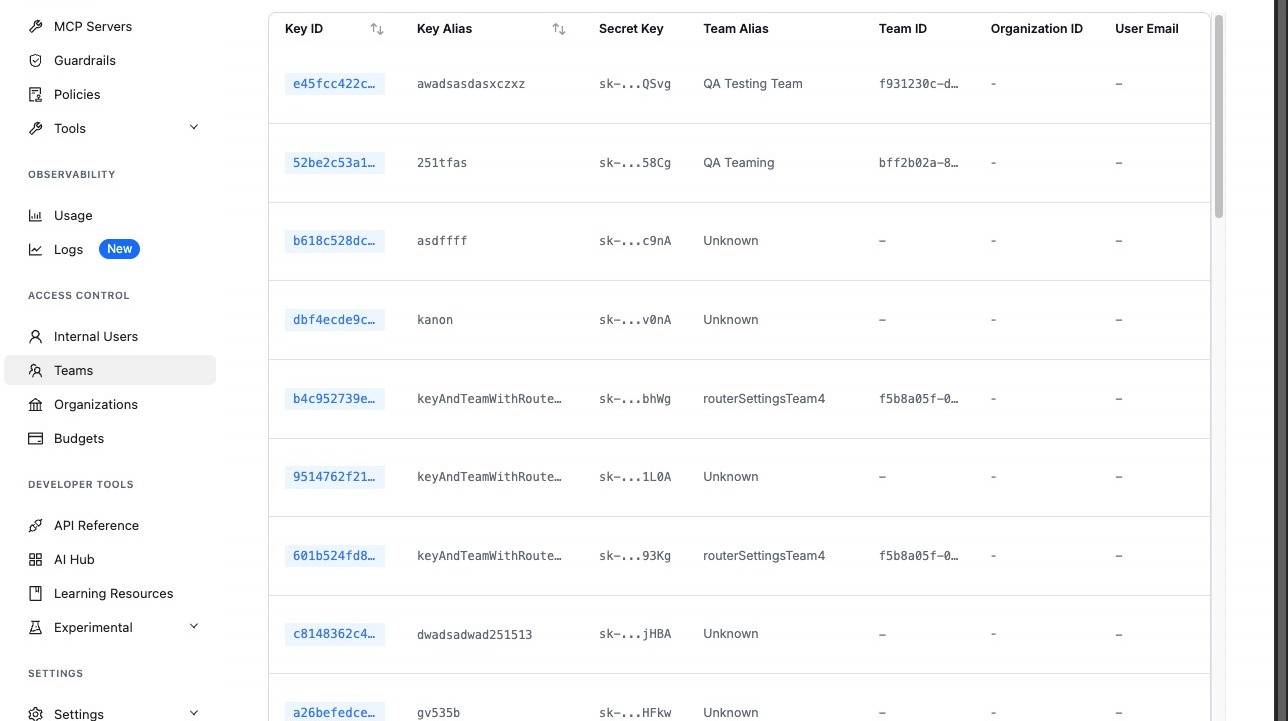++### 2. Go to Teams++Click **Teams** in the sidebar.++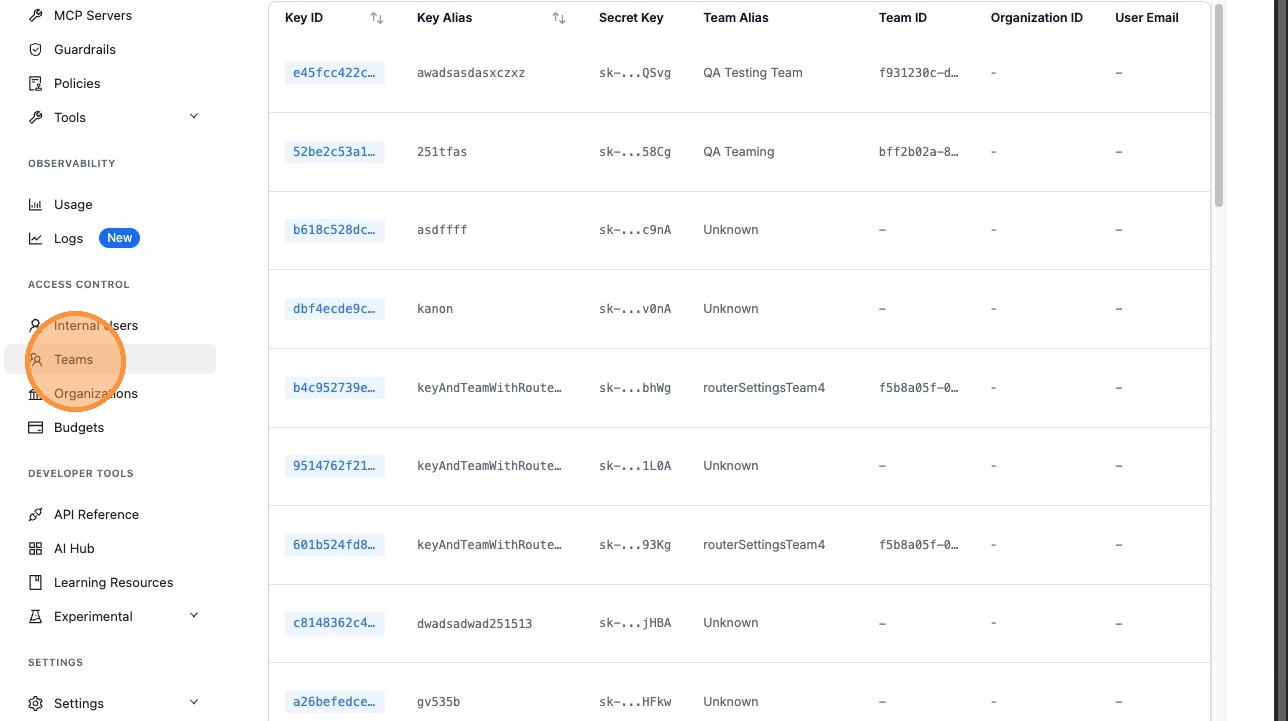++### 3. Select a team++Click on the team you want to configure soft budget alerts for.++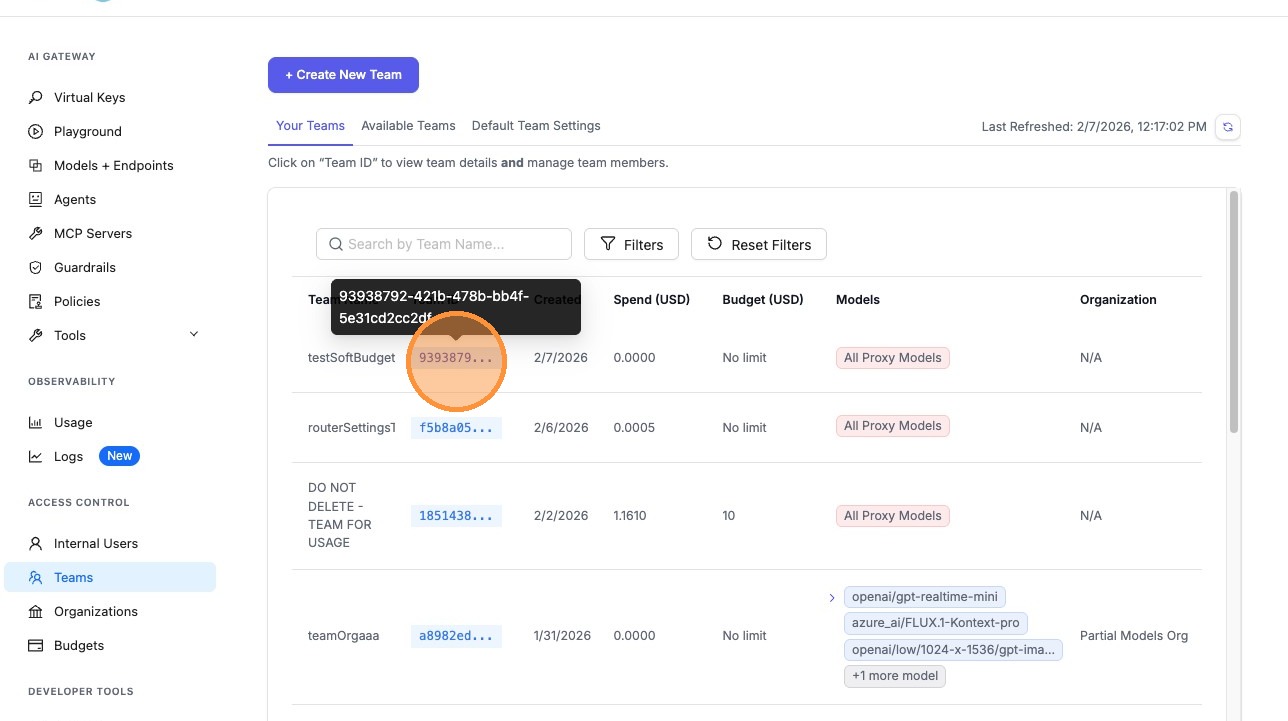++### 4. Open team Settings++Click the **Settings** tab to view the team's configuration.++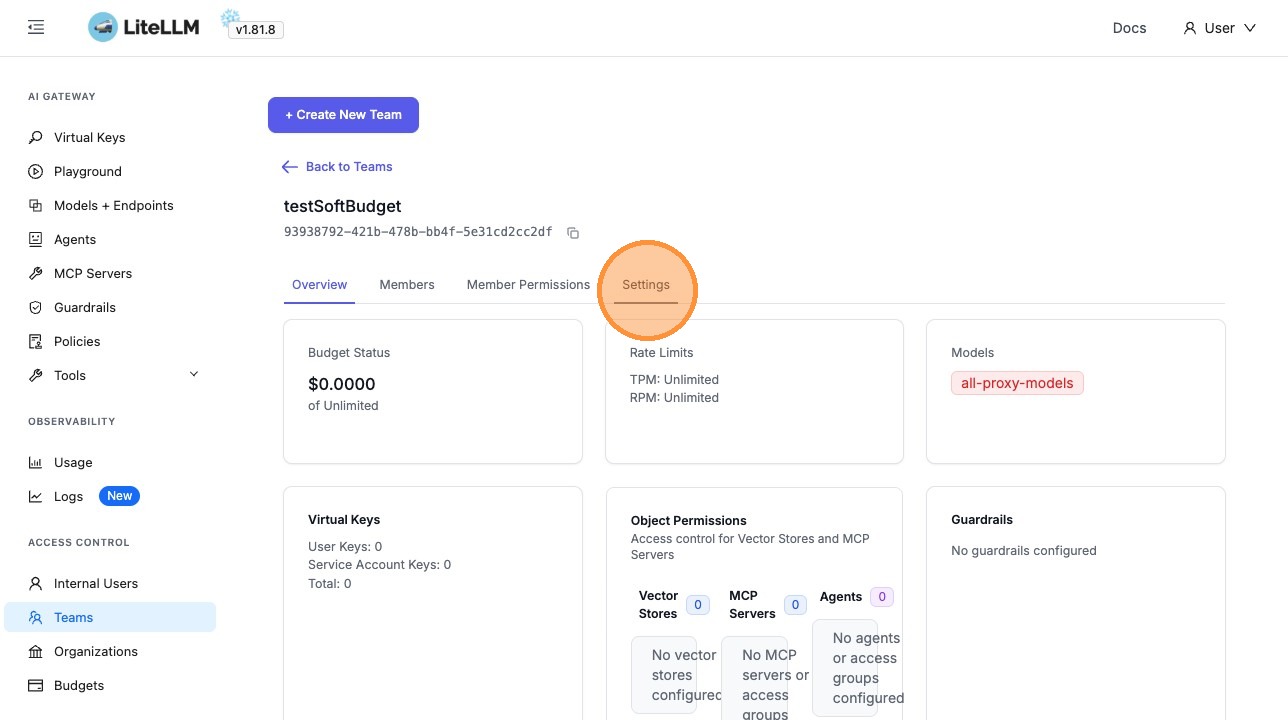++### 5. Edit Settings++Click **Edit Settings** to modify the team's budget configuration.++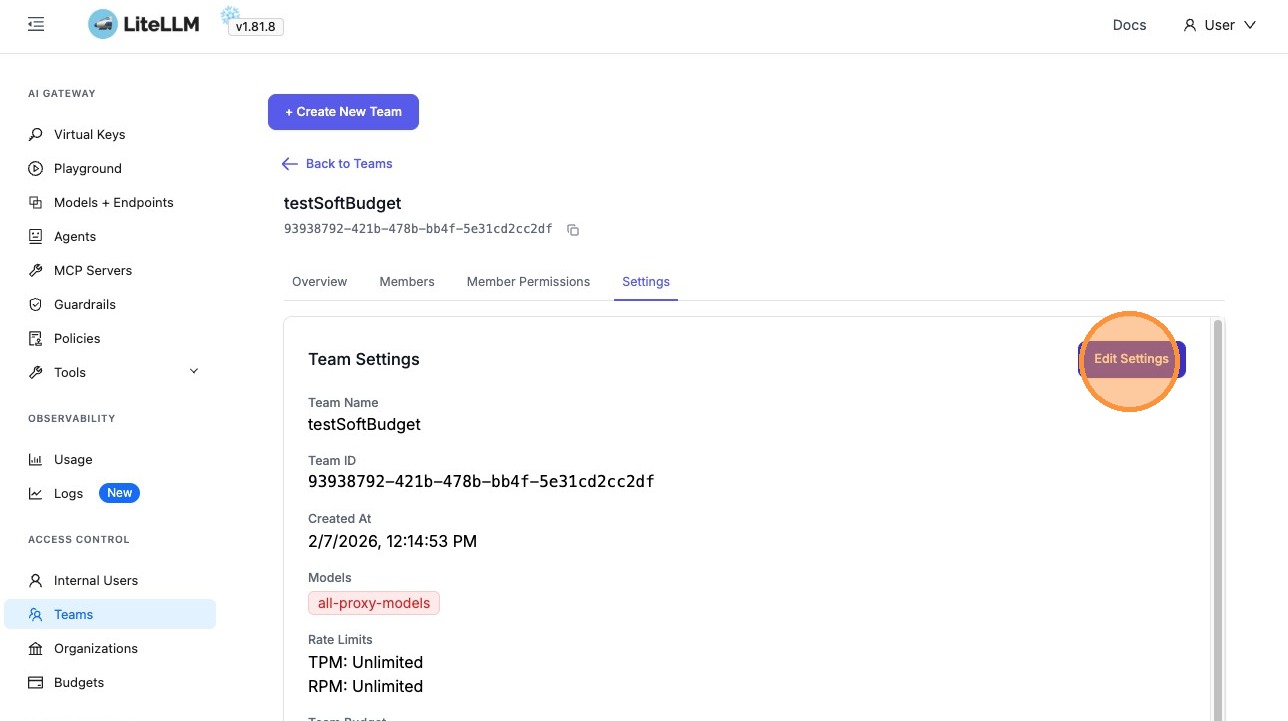++### 6. Set the Soft Budget++Click the **Soft Budget (USD)** field and enter your desired threshold. For example, enter `0.01` for testing or a higher value like `500` for production.++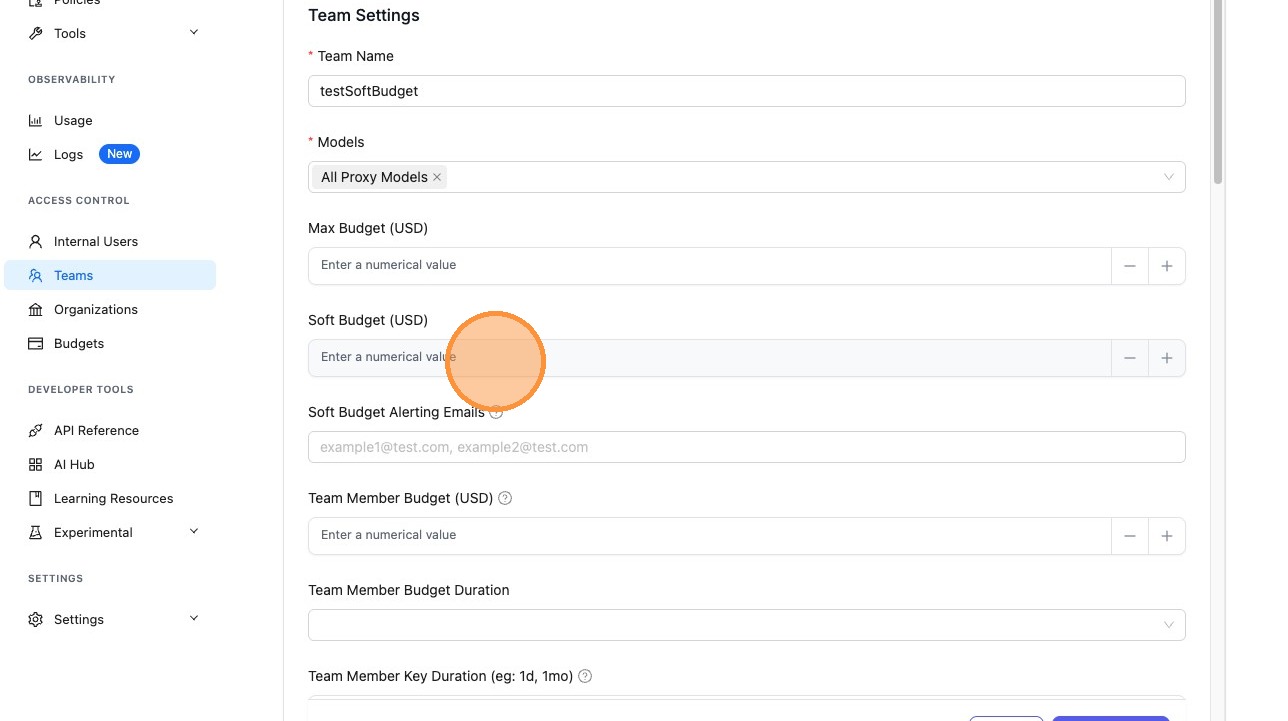++### 7. Add alerting emails++Click the **Soft Budget Alerting Emails** field and enter one or more comma-separated email addresses that should receive the alert.++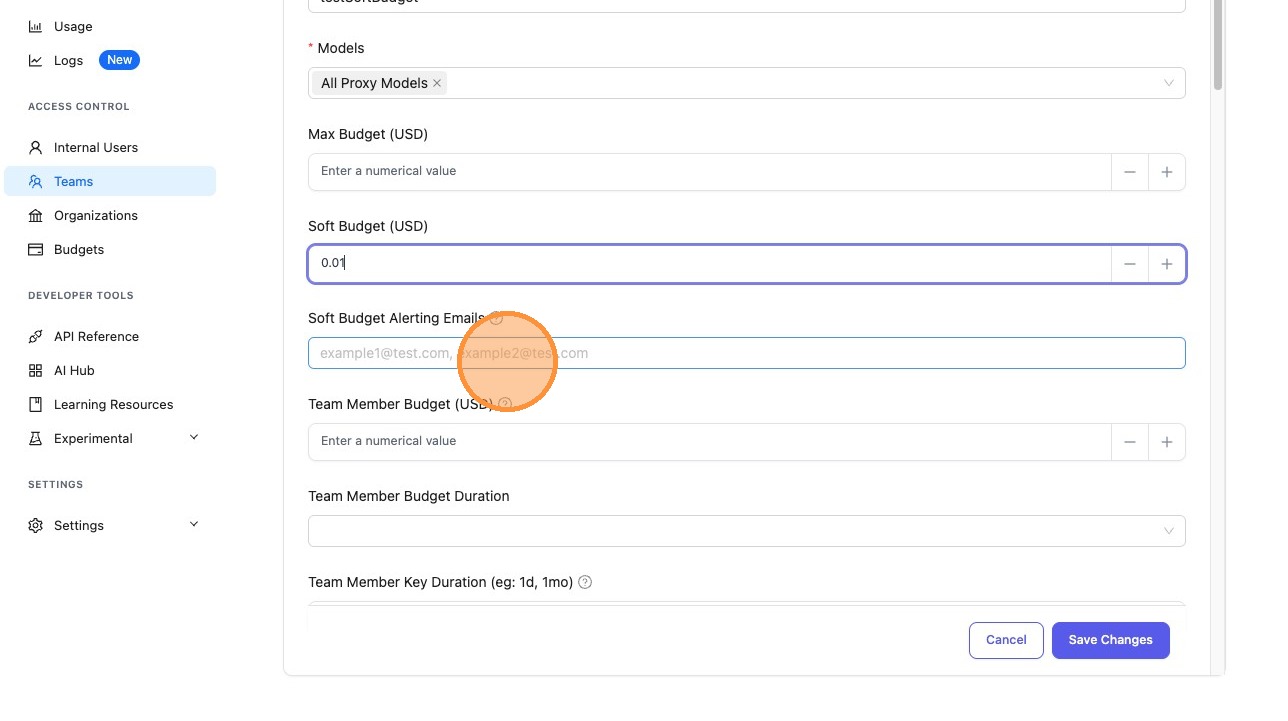++### 8. Save Changes++Click **Save Changes**. The soft budget alert is now active — no proxy restart required.++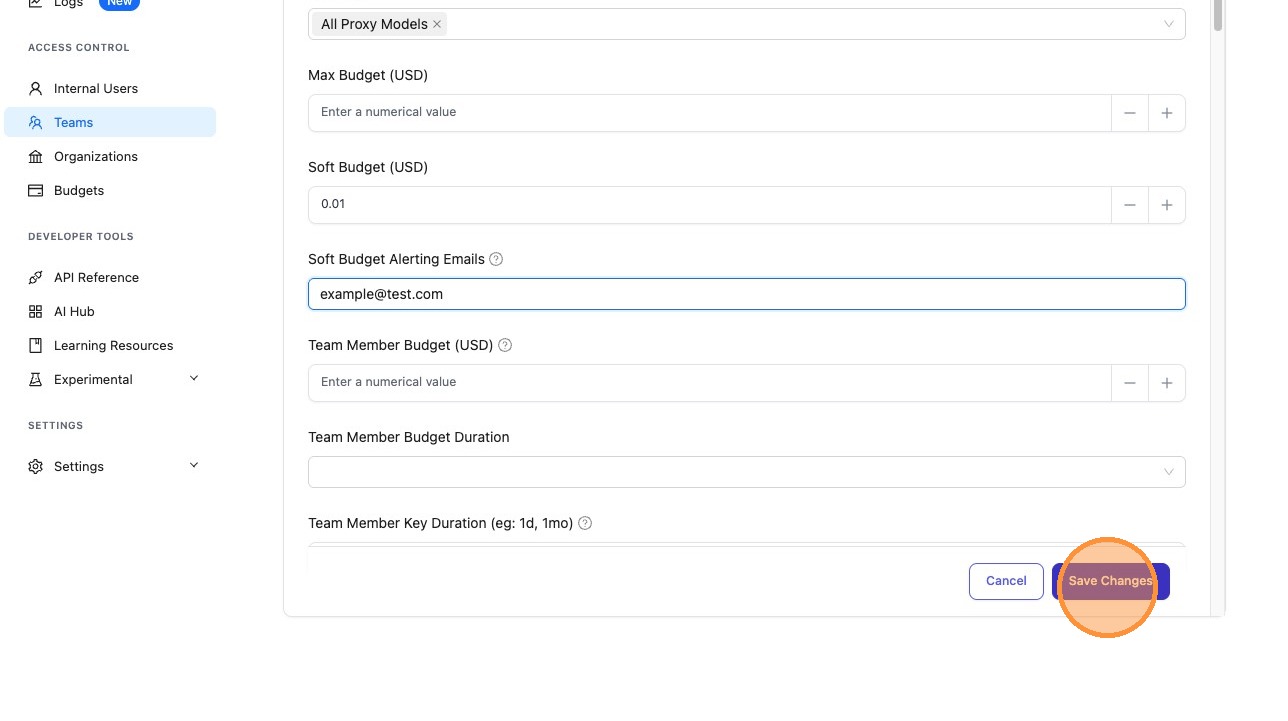++### 9. Verify: email alert received++Once the team's spend crosses the soft budget, an email alert is sent to the configured recipients. Below is an example of the alert email:++<Image img={require('../../img/ui_team_soft_budget_email_example.png')} />++## Settings Reference++| Setting | Description |+| ------------------------------- | --------------------------------------------------------------------------------------------------------------------------------------------- |+| **Soft Budget (USD)** | The spending threshold that triggers an email alert. Requests are **not** blocked when this limit is exceeded. |+| **Soft Budget Alerting Emails** | Comma-separated email addresses that receive the alert when the soft budget is crossed. At least one email is required for alerts to be sent. |++:::tip Soft Budget vs. Max Budget++- **Soft Budget**: Advisory threshold — sends email alerts but does **not** block requests.+- **Max Budget**: Hard limit — blocks requests once the budget is exceeded.++You can set both on the same team to get early warnings (soft) and a hard stop (max).+:::++## API Configuration++You can also configure team soft budgets via the API when creating or updating a team:++```bash+curl -X POST 'http://localhost:4000/team/update' \+ --header 'Authorization: Bearer sk-1234' \+ --header 'Content-Type: application/json' \+ --data '{+ "team_id": "your-team-id",+ "soft_budget": 500.00,+ "metadata": {+ "soft_budget_alerting_emails": ["[email protected]", "[email protected]"]+ }+ }'+```++## Related Documentation++- [Email Notifications](./email.md) – Configure email integrations (Resend, SMTP) for LiteLLM Proxy+- [Alerting](./alerting.md) – Set up Slack and other alerting channels+- [Cost Tracking](./cost_tracking.md) – Track and manage spend across teams, keys, and usersdiff --git a/docs/my-website/img/ui_team_soft_budget_alerts.png b/docs/my-website/img/ui_team_soft_budget_alerts.pngnew file mode 100644index 00000000000..9627b5f1daaBinary files /dev/null and b/docs/my-website/img/ui_team_soft_budget_alerts.png differdiff --git a/docs/my-website/img/ui_team_soft_budget_email_example.png b/docs/my-website/img/ui_team_soft_budget_email_example.pngnew file mode 100644index 00000000000..0cd83487112Binary files /dev/null and b/docs/my-website/img/ui_team_soft_budget_email_example.png differ