
Playwright is a framework for Web Testing and Automation. It allows testing Chromium, Firefox and WebKit with a single API.
TypeScript automationchromechromiume2e-testingelectronend-to-end-testingfirefoxjavascriptplaywrighttesttest-automationtestingtesting-toolswebwebkit
docs: add video on running tests (#31066)
Debbie O'Brien141c6a9c8159
diff --git a/docs/src/getting-started-vscode-js.md b/docs/src/getting-started-vscode-js.mdindex 120914ff14..cf1c8f0844 100644--- a/docs/src/getting-started-vscode-js.md+++ b/docs/src/getting-started-vscode-js.md@@ -45,8 +45,14 @@ The testing sidebar can be opened by clicking on the testing icon in the activitYou can run a single test by clicking the green triangle next to your test block to run your test. Playwright will run through each line of the test and when it finishes you will see a green tick next to your test block as well as the time it took to run the test.+<LiteYouTube+ id="mQmcIBMsc38"+ title="Getting Started with Playwright in VS Code"+/>+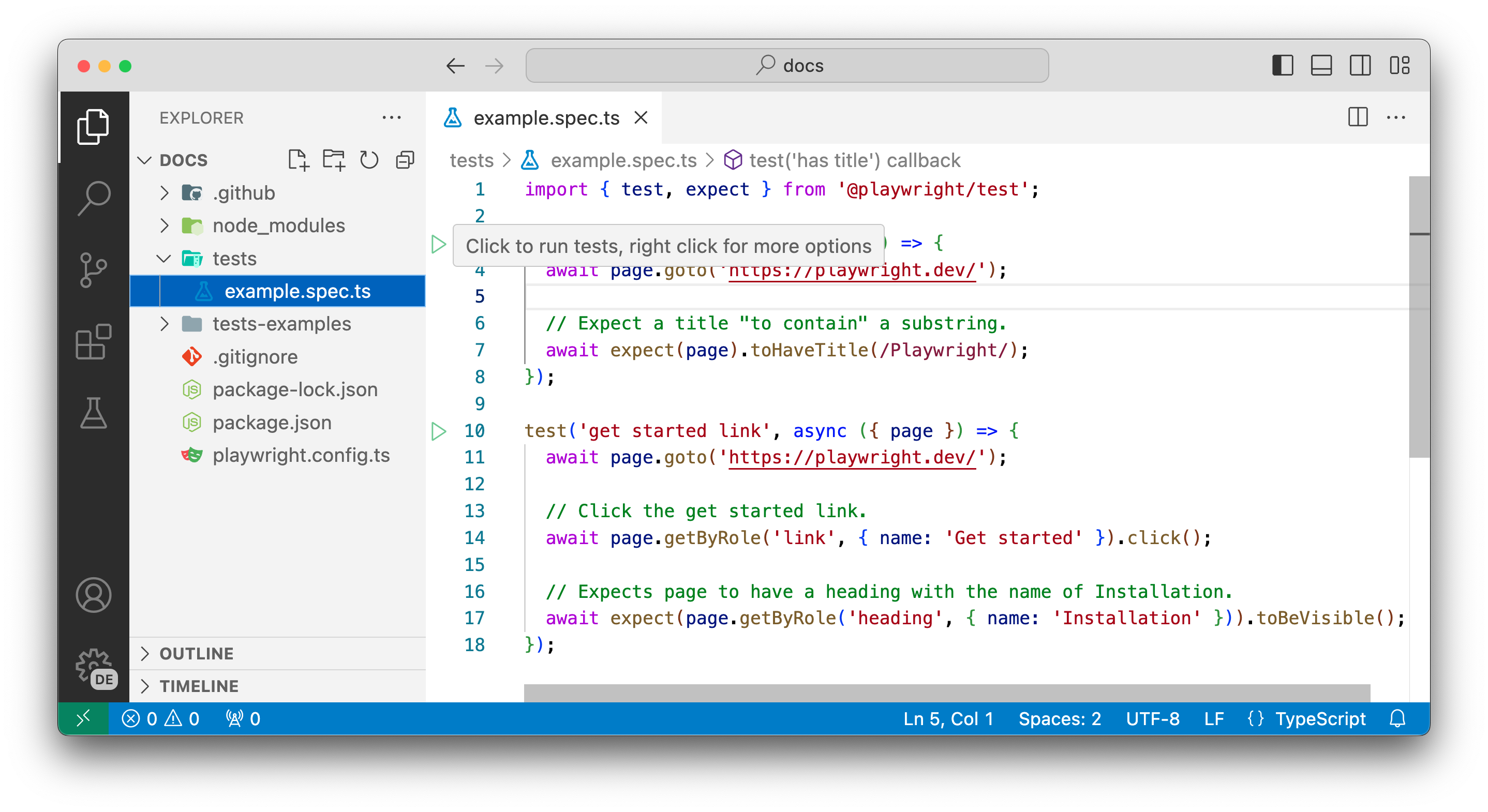+### Run tests and show browsersYou can also run your tests and show the browsers by selecting the option **Show Browsers** in the testing sidebar. Then when you click the green triangle to run your test the browser will open and you will visually see it run through your test. Leave this selected if you want browsers open for all your tests or uncheck it if you prefer your tests to run in headless mode with no browser open.