
Playwright is a framework for Web Testing and Automation. It allows testing Chromium, Firefox and WebKit with a single API.
TypeScript automationchromechromiume2e-testingelectronend-to-end-testingfirefoxjavascriptplaywrighttesttest-automationtestingtesting-toolswebwebkit
fix minor typos in "Getting Started" (#33613)
Jean-François Greffier508021362dd3
diff --git a/docs/src/ci-intro.md b/docs/src/ci-intro.mdindex 9e0ee0eb4f..ed7e2208fc 100644--- a/docs/src/ci-intro.md+++ b/docs/src/ci-intro.md@@ -21,7 +21,7 @@ Playwright tests can be run on any CI provider. This guide covers one way of run## Introduction* langs: python, java, csharp-Playwright tests can be ran on any CI provider. In this section we will cover running tests on GitHub using GitHub actions. If you would like to see how to configure other CI providers check out our detailed doc on Continuous Integration.+Playwright tests can be run on any CI provider. In this section we will cover running tests on GitHub using GitHub actions. If you would like to see how to configure other CI providers check out our detailed doc on Continuous Integration.#### You will learn* langs: python, java, csharpdiff --git a/docs/src/intro-js.md b/docs/src/intro-js.mdindex 8c29641bd9..321629662b 100644--- a/docs/src/intro-js.md+++ b/docs/src/intro-js.md@@ -80,7 +80,7 @@ The `tests` folder contains a basic example test to help you get started with te## Running the Example Test-By default tests will be run on all 3 browsers, chromium, firefox and webkit using 3 workers. This can be configured in the [playwright.config file](./test-configuration.md). Tests are run in headless mode meaning no browser will open up when running the tests. Results of the tests and test logs will be shown in the terminal.+By default tests will be run on all 3 browsers, Chromium, Firefox and WebKit using 3 workers. This can be configured in the [playwright.config file](./test-configuration.md). Tests are run in headless mode meaning no browser will open up when running the tests. Results of the tests and test logs will be shown in the terminal.<TabsdefaultValue="npm"diff --git a/docs/src/running-tests-js.md b/docs/src/running-tests-js.mdindex 71d8b8adb5..4ad9ea9c67 100644--- a/docs/src/running-tests-js.md+++ b/docs/src/running-tests-js.md@@ -33,7 +33,7 @@ npx playwright test --ui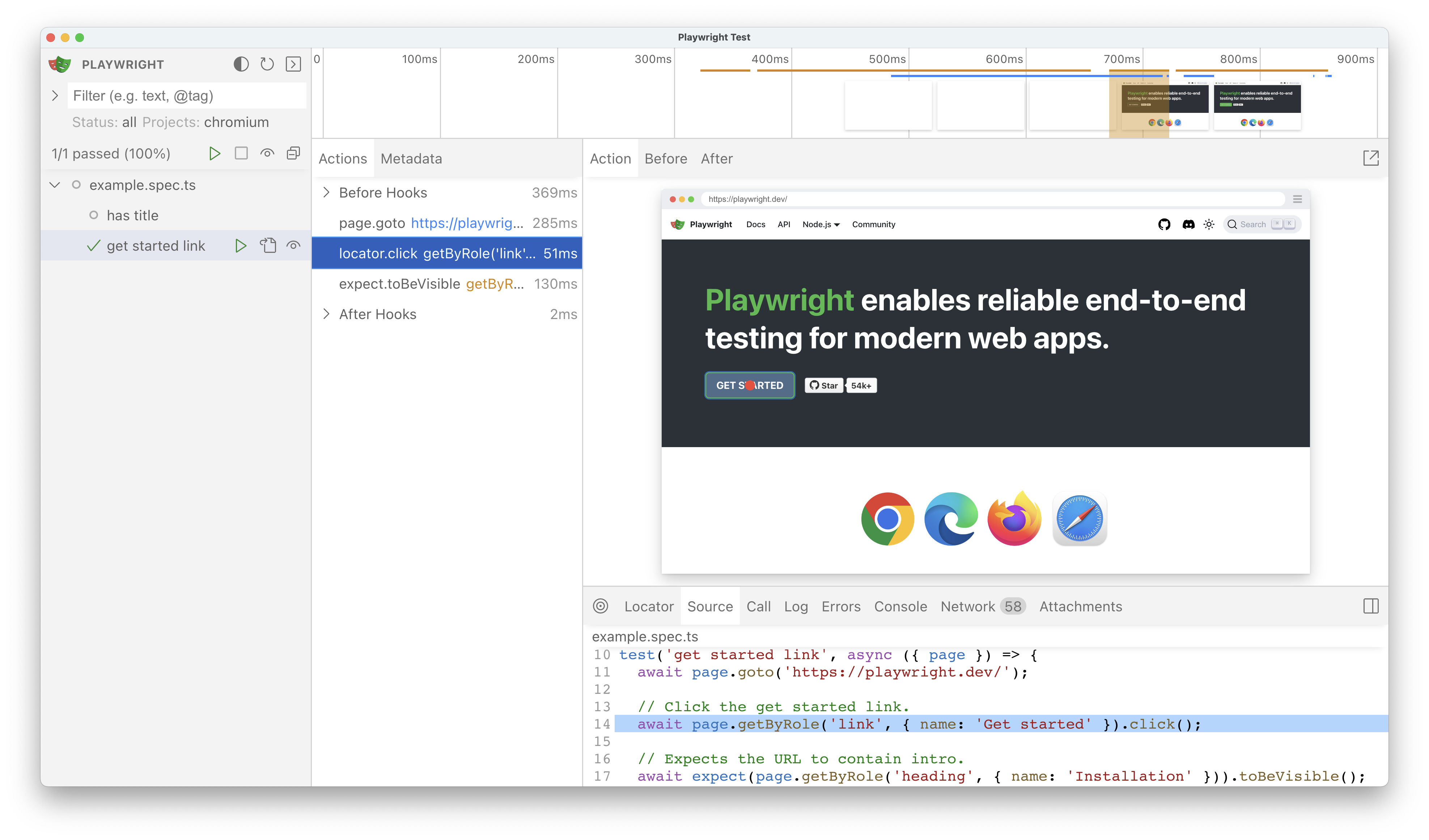-Check out or [detailed guide on UI Mode](./test-ui-mode.md) to learn more about it's features.+Check out or [detailed guide on UI Mode](./test-ui-mode.md) to learn more about its features.### Run tests in headed mode@@ -112,11 +112,11 @@ npx playwright test --ui-While debugging you can use the Pick Locator button to select an element on the page and see the locator that Playwright would use to find that element. You can also edit the locator in the locator playground and see it highlighting live on the Browser window. Use the Copy Locator button to copy the locator to your clipboard and then paste it into you test.+While debugging you can use the Pick Locator button to select an element on the page and see the locator that Playwright would use to find that element. You can also edit the locator in the locator playground and see it highlighting live on the Browser window. Use the Copy Locator button to copy the locator to your clipboard and then paste it into your test.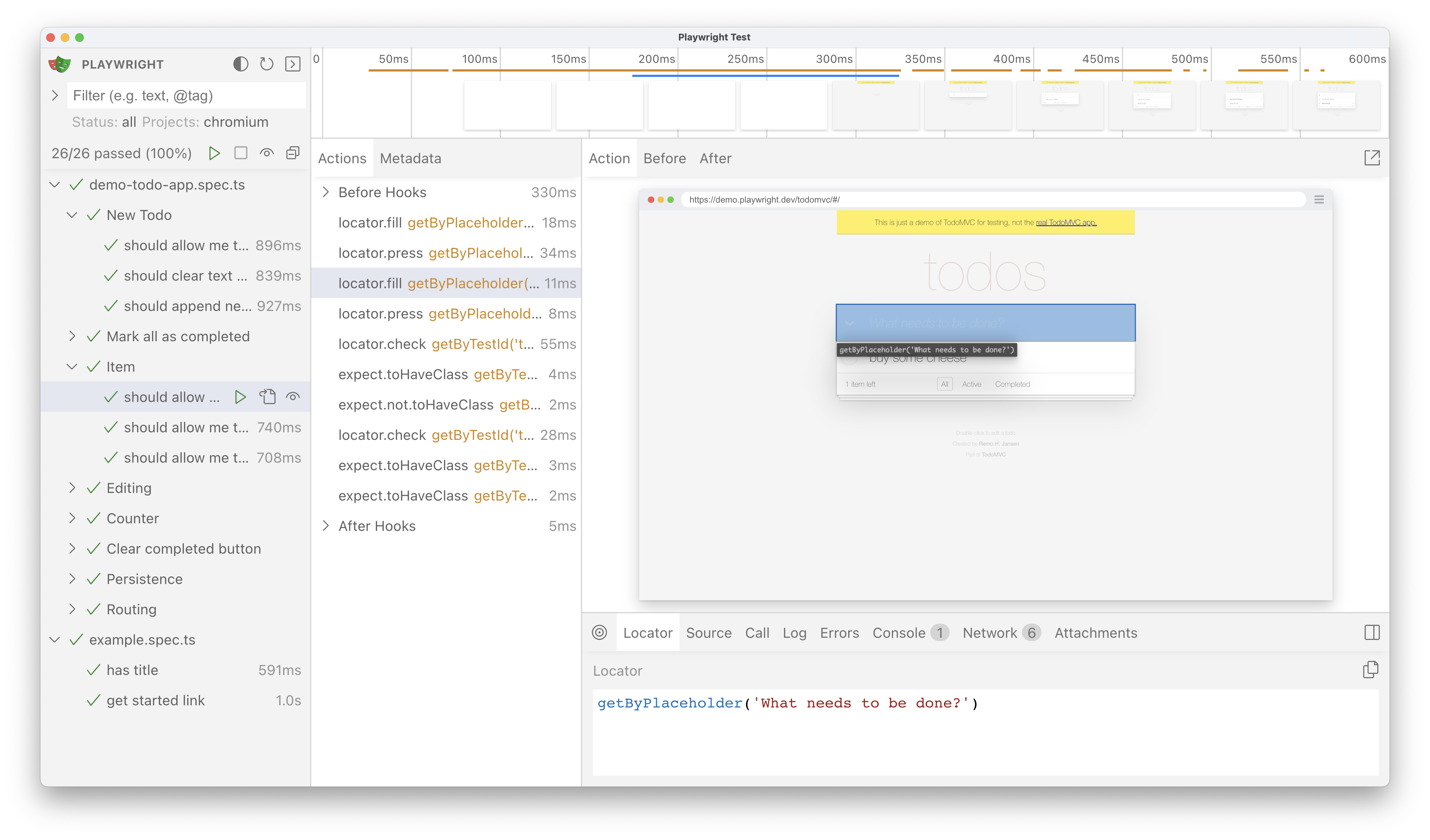-Check out our [detailed guide on UI Mode](./test-ui-mode.md) to learn more about it's features.+Check out our [detailed guide on UI Mode](./test-ui-mode.md) to learn more about its features.### Debug tests with the Playwright Inspectordiff --git a/docs/src/trace-viewer-intro-js.md b/docs/src/trace-viewer-intro-js.mdindex a950689468..3042b3721d 100644--- a/docs/src/trace-viewer-intro-js.md+++ b/docs/src/trace-viewer-intro-js.md@@ -45,7 +45,7 @@ npx playwright test --trace on## Opening the HTML report-The HTML report shows you a report of all your tests that have been ran and on which browsers as well as how long they took. Tests can be filtered by passed tests, failed, flakey or skipped tests. You can also search for a particular test. Clicking on a test will open the detailed view where you can see more information on your tests such as the errors, the test steps and the trace.+The HTML report shows you a report of all your tests that have been run and on which browsers as well as how long they took. Tests can be filtered by passed tests, failed, flaky or skipped tests. You can also search for a particular test. Clicking on a test will open the detailed view where you can see more information on your tests such as the errors, the test steps and the trace.```bashnpx playwright show-report