
RAGFlow is an agent-native database: a Retrieval-Augmented Generation (RAG) engine that grew into context infrastructure.
Go agent-harnessagent-native-databaseagentic-aiagentic-retrievalagentic-searchaiai-agentscontext-enginecontext-engineeringcontext-managementharness-engineeringknowledge-compilationragretrieval-augmented-generationretrieval-harnesssearch-harness
Docs: Removed `/v1` from Ollama base URLs (#10067)
writinwaters5a8bc88147ec
diff --git a/docs/guides/chat/start_chat.md b/docs/guides/chat/start_chat.mdindex c56b0ff6bf..abe7f8a8fc 100644--- a/docs/guides/chat/start_chat.md+++ b/docs/guides/chat/start_chat.md@@ -106,7 +106,7 @@ RAGFlow offers HTTP and Python APIs for you to integrate RAGFlow's capabilitiesYou can use iframe to embed the created chat assistant into a third-party webpage:-1. Before proceeding, you must [acquire an API key](../models/llm_api_key_setup.md); otherwise, an error message would appear.+1. Before proceeding, you must [acquire an API key](../../develop/acquire_ragflow_api_key.md); otherwise, an error message would appear.2. Hover over an intended chat assistant **>** **Edit** to show the **iframe** window: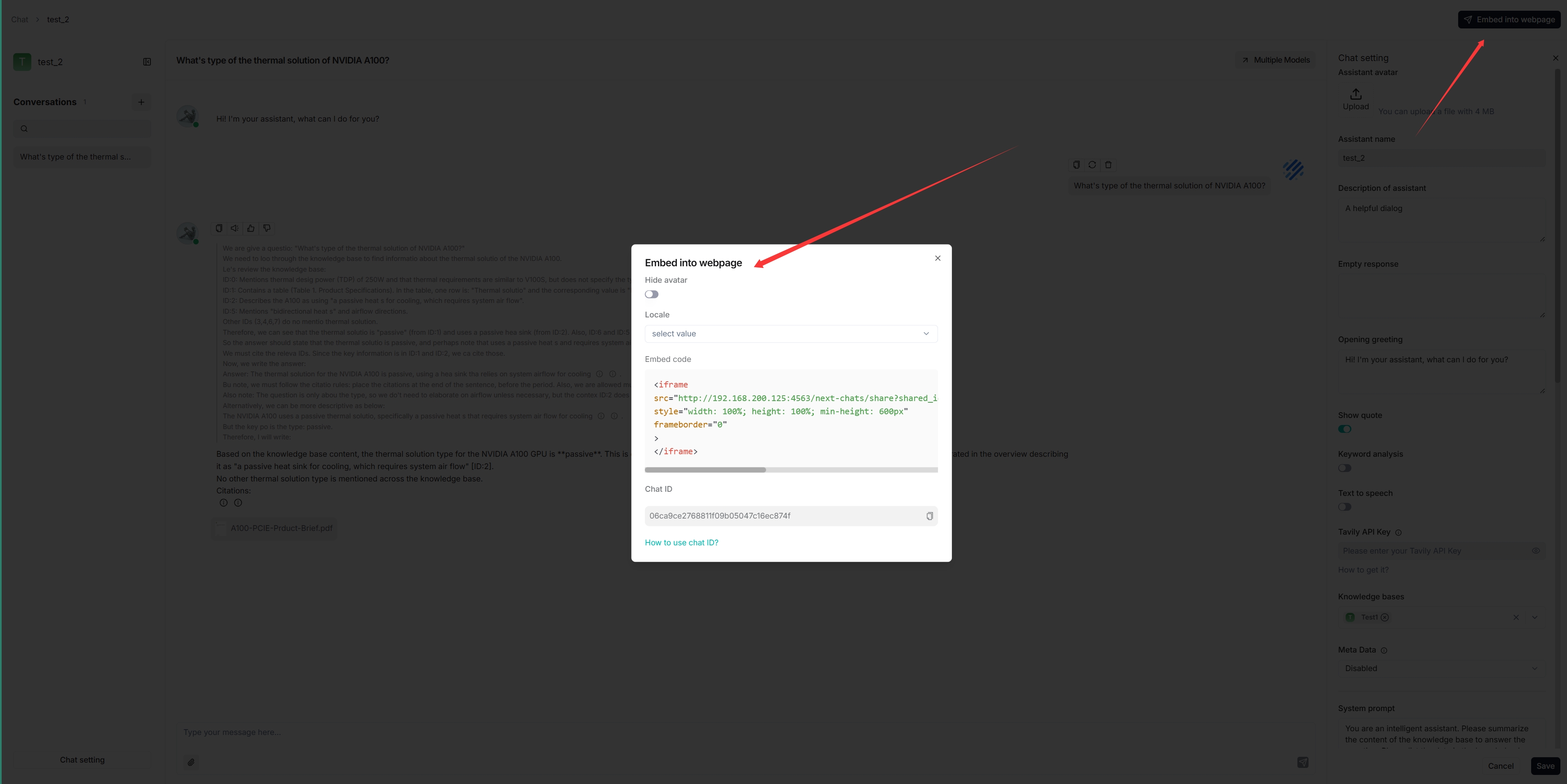diff --git a/docs/guides/models/deploy_local_llm.mdx b/docs/guides/models/deploy_local_llm.mdxindex af75a13247..918e9503cc 100644--- a/docs/guides/models/deploy_local_llm.mdx+++ b/docs/guides/models/deploy_local_llm.mdx@@ -91,7 +91,7 @@ In RAGFlow, click on your logo on the top right of the page **>** **Model providIn the popup window, complete basic settings for Ollama:1. Ensure that your model name and type match those been pulled at step 1 (Deploy Ollama using Docker). For example, (`llama3.2` and `chat`) or (`bge-m3` and `embedding`).-2. In Ollama base URL, put the URL you found in step 2 followed by `/v1`, i.e. `http://host.docker.internal:11434/v1`, `http://localhost:11434/v1` or `http://${IP_OF_OLLAMA_MACHINE}:11434/v1`.+2. Put in the Ollama base URL, i.e. `http://host.docker.internal:11434`, `http://localhost:11434` or `http://${IP_OF_OLLAMA_MACHINE}:11434`.3. OPTIONAL: Switch on the toggle under **Does it support Vision?** if your model includes an image-to-text model.