
A one-of-a-kind resume builder that keeps your privacy in mind. Completely secure, customizable, portable, open-source and free forever. Try it out today!
TypeScript agent-skillsaidsh-pluginhacktoberfestjavascriptmcp-serverreactresume-builderself-hostedtypescript
Create docker.mdx
Amruth Pillai143a123212ff
diff --git a/docs/docs/deployment/docker.mdx b/docs/docs/deployment/docker.mdxnew file mode 100644index 000000000..48d577fdf--- /dev/null+++ b/docs/docs/deployment/docker.mdx@@ -0,0 +1,69 @@+---+sidebar_position: 1+---++# Docker++You should be able to deploy a production-grade instance of this app within 5 minutes by just following this guide. For this example, I'll be creating a new DigitalOcean droplet to illustrate the steps.++1. Create a new droplet instance, preferably Ubuntu 20.04 LTS, with at least 2 GB of RAM. You can skip this step if you already have your own server. These are the settings I went with:++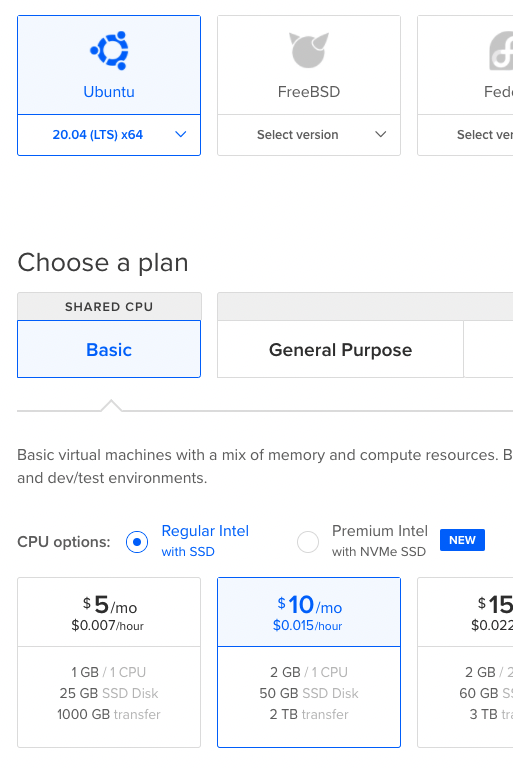++2. SSH into the instance, and update/upgrade dependencies. Then, install `docker` and `docker compose`. You can follow these links for steps on [how to install Docker](https://www.digitalocean.com/community/tutorials/how-to-install-and-use-docker-on-ubuntu-20-04) and [how to install Docker Compose](https://www.digitalocean.com/community/tutorials/how-to-install-and-use-docker-compose-on-ubuntu-20-04) on Ubuntu 20.04 (or any other OS).++Here are all the commands you need, for quick execution:++```bash+sudo apt update && sudo apt upgrade -y++# Install Docker+sudo apt install apt-transport-https ca-certificates curl software-properties-common+sudo curl -fsSL https://download.docker.com/linux/ubuntu/gpg | sudo apt-key add -+sudo add-apt-repository "deb [arch=amd64] https://download.docker.com/linux/ubuntu focal stable"+sudo apt install -y docker-ce++# Verify that Docker is installed+sudo systemctl status docker++# Install Docker Compose+mkdir -p ~/.docker/cli-plugins/+curl -SL https://github.com/docker/compose/releases/download/v2.2.3/docker-compose-linux-x86_64 -o ~/.docker/cli-plugins/docker-compose+chmod +x ~/.docker/cli-plugins/docker-compose+sudo chown $USER /var/run/docker.sock++# Verify that Docker Compose is installed+docker compose version+```++3. Create a new folder to host your app, then create a docker-compose.yml file. The contents of the file can be identical to the one found on the project root.++```bash+mkdir app && cd app+curl -L https://raw.githubusercontent.com/AmruthPillai/Reactive-Resume/main/docker-compose.yml > docker-compose.yml+curl -L https://raw.githubusercontent.com/AmruthPillai/Reactive-Resume/main/.env.example > .env+```++4. Edit the docker-compose.yml file you just pulled in and update the `<SERVER-IP>` placeholders to your server's public IP (or domain, if applicable). Also, update the `.env` file that was just created and change variables such as `PUBLIC_URL`, `PUBLIC_SERVER_URL` etc. For a clear understanding of what each of the environment variables mean, head over to [this section](/source-code/env-vars) of the docs.++To change the default port `80` to something else, say `3000`, just change the properties in docker-compose's traefik service:++```yml+traefik:+ command:+ ...+ - --entrypoints.web.address=:3000+ ports:+ - 3000:3000+```++5. Run the `up` command to check if everything is working as it should.++```+docker compose up+```++<img width="853" alt="Screenshot 2022-03-14 at 10 08 50 AM" src="https://user-images.githubusercontent.com/1134738/158140209-f80eab18-1575-464c-b29d-ac788bd53e93.png">++Now, your application should be running on http://SERVER-IP.+