
YC (S26) | Open Computer History | Continuously record your company computer work, map your workflows, help you find work worth automating, and power your agents' context
Rust agentsagiaiai-memoryaudio-recordingcomputer-visionhermeshermes-agentllmlocal-ailocal-firstmachine-learningmcpmultimodalopenclawprivacyrewindscreen-recordingspeech-to-textycombinator
chore: bunch of docs fix
Louis Beaumont918597745507
diff --git a/content/docs/NOTES.md b/content/docs/NOTES.mdnew file mode 100644index 000000000..97a0276b9--- /dev/null+++ b/content/docs/NOTES.md@@ -0,0 +1,166 @@++# Notes++## Troubleshooting / Product FAQ++Any other issue? [Will solve your problem in less than 15 min](https://cal.com/louis030195/screenpipe) or [mail me](mailto:[email protected])++ <details>+ <summary>Frames not recorded</summary>++ Try a different monitor. `screenpipe --list-monitors` and `screenpipe --monitor-id <monitor id>`++ </details>++ <details>++ <summary>Library not loaded</summary>++ >dyld[60479]: Library not loaded: screenpipe-vision/lib/libscreenpipe_arm64.dylib+ Referenced from: <805CE854-929E-36F6-AC66-9CEBA7A073BC> /Applications/screenpipe.app/Contents/MacOS/screenpipe+ Reason: tried: '/Users/louisbeaumont/.wasmedge/lib/libscreenpipe_arm64.dylib' (no such file), 'screenpipe-vision/lib/libscreenpipe_arm64.dylib' (no such file), '/System/Volumes/Preboot/Cryptexes/OSscreenpipe-vision/lib/libscreenpipe_arm64.dylib' (no such file), 'screenpipe-vision/lib/libscreenpipe_arm64.dylib' (no such file)+Abort trap: 6+>++ i'll investigate this issue now, in the meantime you can do this:++ ```+ brew tap mediar-ai/screenpipe https://github.com/mediar-ai/screenpipe.git+ brew install screenpipe+ ```+++ and then++ ```+ cd+ screenpipe --ocr-engine apple-native+ ```++ </details>++ <details>++ <summary>WindowsCoreError HRESULT</summary>++ Sometimes this happen when computer goes to sleep for long. Just restart. We're going to make it fix itself automatically soon.++ </details>++ <details>++ <summary>Permission error in Windows</summary>++ If you run into this error in your CMD terminal using CLI you should run the terminal as administrator (right click on the icon)++ </details>++ <details>++ <summary>`TESSDATA_PREFIX` error</summary>++ This can happen on Windows.++ - Type "environment" in the search bar of Windows, and click environment variables.+ - Click "new" (the first one).+ - The key will be `TESSDATA_PREFIX` and the value will be the path you installed screenpipe (default is `C:\Users\<your username>\AppData\Local\screenpipe`)++ You can also try our experimental Windows OCR engine by adding `--ocr-engine windows-native` which sould solve the above problem too++ </details>++ <details>++ <summary>Windows Defender</summary>++ Windows can sometimes delete screenpipe app, detected as a virus, this is obviously not a virus, and the code is here, open, you can check.++ You can solve this by going to your Defender settings and classify screenpipe as authorized.++ </details>++ <details>++ <summary>Windows Defender SmartScreen</summary>++ Windows will ask you this because we didn't sign the app yet. Be reassured, it's open source and secure, we have nothing to hide, press run anyway:++ ++ </details>++ <details>+ <summary>I can't install screenpipe</summary>++ Make sure to press control + right click on the `.dmg` file and press open++ <img width="372" alt="Screenshot 2024-07-24 at 16 07 22" src="https://github.com/user-attachments/assets/1b077f0f-0b90-4d40-b61d-ba11c8a8285c">++ Then drag the app to your application folder+ <img width="772" alt="Screenshot 2024-07-24 at 16 07 26" src="https://github.com/user-attachments/assets/452bf468-75b9-41e4-b068-7ac28f4f84be">++ Then again press control + right click on the app in applications and press open YOU NEED TO DO IT TWICE HERE+ <img width="1032" alt="Screenshot 2024-07-24 at 16 07 41" src="https://github.com/user-attachments/assets/3fe31dca-82d5-4edb-9116-62f12624edbd">+ Again you need to do it twice to open it, this won't ask it again in the future+++</details>++<details>+ <summary>I can't open files</summary>++ Sometimes the file is still being written to, so wait a bit and try again.++</details>++<details>+ <summary>All files are 10 KB</summary>++ Some audio files might be small, like when there is no sound at all.+</details>++<details>+ <summary>MacOS Audio does not work</summary>++ Make sure to enable permissions in settings.+ <img width="827" alt="Screenshot 2024-07-24 at 16 08 51" src="https://github.com/user-attachments/assets/799c0834-8d35-476b-80f8-67f94342b891">++ Still does not work? Remove and re-enable the permission: click on screenpipe and click the minus "-" icon:++++ Then restart screenpipe and the dialog of permission should pop again and enable it, restarting screenpipe++</details>++<details>+ <summary>MacOS Screen capture does not work</summary>++ Make sure to enable permissions in settings.+ <img width="827" alt="Screenshot 2024-07-24 at 16 08 51" src="https://github.com/user-attachments/assets/799c0834-8d35-476b-80f8-67f94342b891">++ Still does not work? Remove and re-enable the permission: click on screenpipe and click the minus "-" icon:++++ Then restart screenpipe and the dialog of permission should pop again and enable it, restarting screenpipe++</details>++<details>+ <summary>Where are the files?</summary>++ Windows: Using the CLI, your data should be in C:\Users\YOUR_USER\.screenpipe+ MacOs/Linux: Using the CLI, your data should be in ~/.screenpipe++ Windows: Using the app, you can find the data in C:\Users\AppData\Local\screenpipe+ MacOS: Using the app, you can find the data in ~/Library/Application Support/screenpipe+ Linux: Using the app, you can find the data in ~/.config/screenpipe++</details>++<details>+ <summary>How can I interpret my data more intuitively?</summary>++ We recommend using [TablePlus](https://tableplus.com/) to open the SQLite database located alongside the data.+</details>\ No newline at end of filediff --git a/content/docs/bun.lockb b/content/docs/bun.lockbnew file mode 100755index 000000000..0f41ad6dfBinary files /dev/null and b/content/docs/bun.lockb differdiff --git a/content/docs/pages/_meta.js b/content/docs/pages/_meta.jsindex 24bb6c52c..05f9473f3 100644--- a/content/docs/pages/_meta.js+++ b/content/docs/pages/_meta.js@@ -1,3 +1,3 @@export default {- "index": "Introduction",+ "index": "intro",}\ No newline at end of filediff --git a/content/docs/pages/docs/_meta.js b/content/docs/pages/docs/_meta.jsindex 394897e0c..177fe029a 100644--- a/content/docs/pages/docs/_meta.js+++ b/content/docs/pages/docs/_meta.js@@ -1,11 +1,10 @@// _meta.tsxexport default {- "getting-started": "Getting Started",- "architecture": "Architecture Overview",- "plugins": "Plugins",- "examples": "Examples & Use Cases",- "api-reference": "API Reference",- "troubleshooting": "Troubleshooting",- "contributing": "Contributing",- "faq": "FAQ"+ "getting-started": "getting started",+ "architecture": "architecture overview",+ "plugins": "plugins",+ "examples": "examples & use cases",+ "api-reference": "api reference",+ "contributing": "contributing",+ "faq": "faq"};diff --git a/content/docs/pages/docs/api-reference.mdx b/content/docs/pages/docs/api-reference.mdxindex a13d57714..18373afe3 100644--- a/content/docs/pages/docs/api-reference.mdx+++ b/content/docs/pages/docs/api-reference.mdx@@ -1,53 +1,53 @@import MotionDiv from '../motionDiv'-# API Reference for Screenpipe+# api reference for screenpipe<MotionDiv>-Below is a detailed explanation of the core APIs used in the Screenpipe project along with sample implementations.+below is a detailed explanation of the core apis used in the screenpipe project along with sample implementations.</MotionDiv><MotionDiv delay={0.3}>-## 1. Search API+## 1. search api-- **Endpoint**: `/search`-- **Method**: `GET`-- **Description**: Searches captured data (OCR, audio transcriptions, etc.) stored in Screenpipe’s local database based on filters such as content type, timestamps, app name, and window name.+- **endpoint**: `/search`+- **method**: `get`+- **description**: searches captured data (ocr, audio transcriptions, etc.) stored in screenpipe's local database based on filters such as content type, timestamps, app name, and window name.-### Query Parameters:+### query parameters:-- `q` (string, optional): Search term.-- `content_type` (enum): Type of content to search (OCR, Audio, etc.).-- `limit` (int): Max number of results per page (default: 20).-- `offset` (int): Pagination offset.-- `start_time` (timestamp, optional): Filter by start timestamp.-- `end_time` (timestamp, optional): Filter by end timestamp.-- `app_name` (string, optional): Filter results based on application name.-- `window_name` (string, optional): Filter results based on window name.-- `include_frames` (bool, optional): If true, fetch frame data for OCR content.+- `q` (string, optional): search term.+- `content_type` (enum): type of content to search (ocr, audio, etc.).+- `limit` (int): max number of results per page (default: 20).+- `offset` (int): pagination offset.+- `start_time` (timestamp, optional): filter by start timestamp.+- `end_time` (timestamp, optional): filter by end timestamp.+- `app_name` (string, optional): filter results based on application name.+- `window_name` (string, optional): filter results based on window name.+- `include_frames` (bool, optional): if true, fetch frame data for ocr content.-### Sample Request:+### sample request:```bashcurl "http://localhost:3030/search?q=meeting&content_type=ocr&limit=5&offset=0"```-### Sample Response:+### sample response:```json{"data": [{- "type": "OCR",+ "type": "ocr","content": {"frame_id": 123,- "text": "Meeting notes",- "timestamp": "2024-09-10T12:00:00Z",+ "text": "meeting notes",+ "timestamp": "2024-09-10t12:00:00z","file_path": "/frames/frame123.png",- "app_name": "Google Chrome",- "window_name": "Meeting Room",+ "app_name": "google chrome",+ "window_name": "meeting room","tags": ["meeting", "important"]}}@@ -64,28 +64,28 @@ curl "http://localhost:3030/search?q=meeting&content_type=ocr&limit=5&offset=0"<MotionDiv delay={0.5}>-## 2. List Audio Devices API+## 2. list audio devices api-- **Endpoint**: `/audio/list`-- **Method**: `GET`-- **Description**: Lists all audio input and output devices available on the machine, including default devices.+- **endpoint**: `/audio/list`+- **method**: `get`+- **description**: lists all audio input and output devices available on the machine, including default devices.-### Sample Request:+### sample request:```bashcurl "http://localhost:3030/audio/list"```-### Sample Response:+### sample response:```json[{- "name": "Built-in Microphone",+ "name": "built-in microphone","is_default": true},{- "name": "External Speaker",+ "name": "external speaker","is_default": false}]@@ -95,13 +95,13 @@ curl "http://localhost:3030/audio/list"<MotionDiv delay={0.7}>-## 3. Add Tags to Content API+## 3. add tags to content api-- **Endpoint**: `/tags/:content_type/:id`-- **Method**: `POST`-- **Description**: Adds custom tags to content items based on the content type (audio or vision).+- **endpoint**: `/tags/:content_type/:id`+- **method**: `post`+- **description**: adds custom tags to content items based on the content type (audio or vision).-### Request Body:+### request body:```json{@@ -109,13 +109,13 @@ curl "http://localhost:3030/audio/list"}```-### Sample Request:+### sample request:```bash-curl -X POST "http://localhost:3030/tags/vision/123" -H "Content-Type: application/json" -d '{"tags": ["meeting", "important"]}'+curl -x post "http://localhost:3030/tags/vision/123" -h "content-type: application/json" -d '{"tags": ["meeting", "important"]}'```-### Sample Response:+### sample response:```json{@@ -127,13 +127,13 @@ curl -X POST "http://localhost:3030/tags/vision/123" -H "Content-Type: applicati<MotionDiv delay={0.9}>-## 4. Download Pipe API+## 4. download pipe api-- **Endpoint**: `/pipes/download`-- **Method**: `POST`-- **Description**: Downloads a pipe (plugin) from a specified URL and stores it locally.+- **endpoint**: `/pipes/download`+- **method**: `post`+- **description**: downloads a pipe (plugin) from a specified url and stores it locally.-### Request Body:+### request body:```json{@@ -141,17 +141,17 @@ curl -X POST "http://localhost:3030/tags/vision/123" -H "Content-Type: applicati}```-### Sample Request:+### sample request:```bash-curl -X POST "http://localhost:3030/pipes/download" -H "Content-Type: application/json" -d '{"url": "https://github.com/mediar-ai/screenpipe/tree/main/examples/typescript/pipe-stream-ocr-text"}'+curl -x post "http://localhost:3030/pipes/download" -h "content-type: application/json" -d '{"url": "https://github.com/mediar-ai/screenpipe/tree/main/examples/typescript/pipe-stream-ocr-text"}'```-### Sample Response:+### sample response:```json{- "message": "Pipe pipe-stream-ocr-text downloaded successfully",+ "message": "pipe pipe-stream-ocr-text downloaded successfully","pipe_id": "pipe-stream-ocr-text"}```@@ -160,13 +160,13 @@ curl -X POST "http://localhost:3030/pipes/download" -H "Content-Type: applicatio<MotionDiv delay={1.1}>-## 5. Run Pipe API+## 5. run pipe api-- **Endpoint**: `/pipes/enable`-- **Method**: `POST`-- **Description**: Enables a pipe (plugin) to start processing data.+- **endpoint**: `/pipes/enable`+- **method**: `post`+- **description**: enables a pipe (plugin) to start processing data.-### Request Body:+### request body:```json{@@ -174,17 +174,17 @@ curl -X POST "http://localhost:3030/pipes/download" -H "Content-Type: applicatio}```-### Sample Request:+### sample request:```bash-curl -X POST "http://localhost:3030/pipes/enable" -H "Content-Type: application/json" -d '{"pipe_id": "pipe-stream-ocr-text"}'+curl -x post "http://localhost:3030/pipes/enable" -h "content-type: application/json" -d '{"pipe_id": "pipe-stream-ocr-text"}'```-### Sample Response:+### sample response:```json{- "message": "Pipe pipe-stream-ocr-text started",+ "message": "pipe pipe-stream-ocr-text started","pipe_id": "pipe-stream-ocr-text"}```@@ -193,13 +193,13 @@ curl -X POST "http://localhost:3030/pipes/enable" -H "Content-Type: application/<MotionDiv delay={1.3}>-## 6. Stop Pipe API+## 6. stop pipe api-- **Endpoint**: `/pipes/disable`-- **Method**: `POST`-- **Description**: Disables a pipe to stop processing data.+- **endpoint**: `/pipes/disable`+- **method**: `post`+- **description**: disables a pipe to stop processing data.-### Request Body:+### request body:```json{@@ -207,17 +207,17 @@ curl -X POST "http://localhost:3030/pipes/enable" -H "Content-Type: application/}```-### Sample Request:+### sample request:```bash-curl -X POST "http://localhost:3030/pipes/disable" -H "Content-Type: application/json" -d '{"pipe_id": "pipe-stream-ocr-text"}'+curl -x post "http://localhost:3030/pipes/disable" -h "content-type: application/json" -d '{"pipe_id": "pipe-stream-ocr-text"}'```-### Sample Response:+### sample response:```json{- "message": "Pipe pipe-stream-ocr-text stopped",+ "message": "pipe pipe-stream-ocr-text stopped","pipe_id": "pipe-stream-ocr-text"}```@@ -226,29 +226,29 @@ curl -X POST "http://localhost:3030/pipes/disable" -H "Content-Type: application<MotionDiv delay={1.5}>-## 7. Health Check API+## 7. health check api-- **Endpoint**: `/health`-- **Method**: `GET`-- **Description**: Returns the health status of the system, including the timestamps of the last frame and audio captures, and the overall system status.+- **endpoint**: `/health`+- **method**: `get`+- **description**: returns the health status of the system, including the timestamps of the last frame and audio captures, and the overall system status.-### Sample Request:+### sample request:```bashcurl "http://localhost:3030/health"```-### Sample Response:+### sample response:```json{- "status": "Healthy",- "last_frame_timestamp": "2024-09-10T10:00:00Z",- "last_audio_timestamp": "2024-09-10T10:00:00Z",- "frame_status": "OK",- "audio_status": "OK",- "message": "All systems are functioning normally."+ "status": "healthy",+ "last_frame_timestamp": "2024-09-10t10:00:00z",+ "last_audio_timestamp": "2024-09-10t10:00:00z",+ "frame_status": "ok",+ "audio_status": "ok",+ "message": "all systems are functioning normally."}```-</MotionDiv>+</MotionDiv>\ No newline at end of filediff --git a/content/docs/pages/docs/architecture.mdx b/content/docs/pages/docs/architecture.mdxindex 3edbcbf38..4d65645c7 100644--- a/content/docs/pages/docs/architecture.mdx+++ b/content/docs/pages/docs/architecture.mdx@@ -1,90 +1,25 @@import MotionDiv from '../motionDiv'-# Architecture Overview+# architecture overview<MotionDiv>-The architecture of Screenpipe is designed to handle continuous screen and audio capture, local data storage, and real-time processing. Below is a breakdown of the key components and their roles in the system.-</MotionDiv>--<MotionDiv delay={0.1}>-## Diagram Overview--A visual diagram shows the architecture's flow:--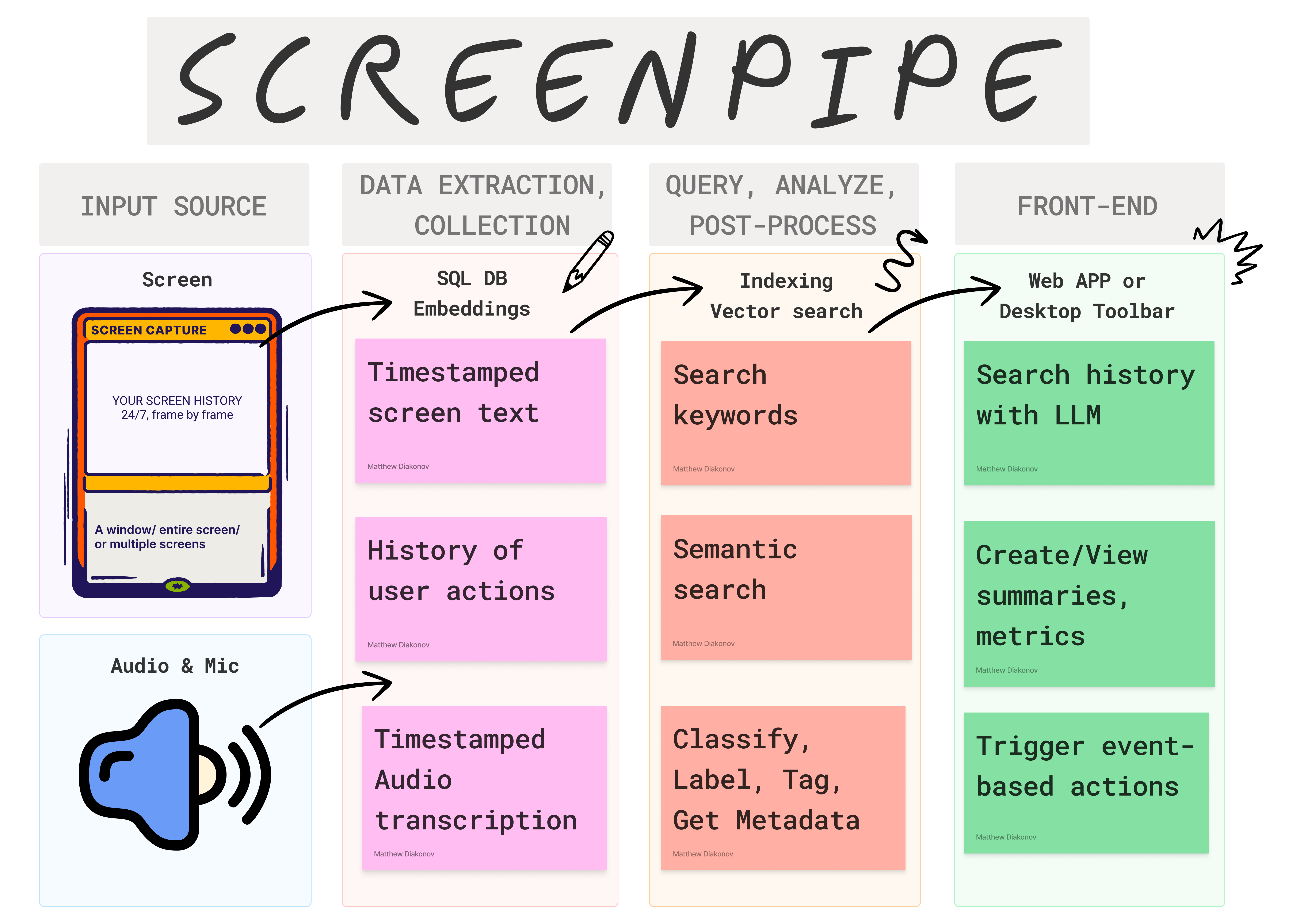--1. **Input**: Screen and audio data.-2. **Processing**: OCR, STT, transcription, multimodal integration.-3. **Storage**: SQLite database.-4. **Plugins**: Custom pipes.-5. **Integrations**: Cloud, AI services.--This modular architecture makes Screenpipe highly adaptable to different use cases, ranging from personal productivity tracking to more advanced business intelligence and analytics.--</MotionDiv>--{/* <MotionDiv delay={0.3}>--## 1. Data Capture Layer--- **Screen Capture**: Captures video frames from the screen in real-time and stores them in the local filesystem for processing. Supports multi-monitor setups, allowing multiple screen captures simultaneously.-- **Audio Capture**: Captures audio from input (e.g., microphone) and output (e.g., speakers). The captured audio is stored locally and can be transcribed using STT engines like Whisper Distil.-- **24/7 Operation**: Screenpipe is designed to capture data continuously, ensuring no important screen or audio events are missed during active sessions.+screenpipe's architecture handles continuous screen and audio capture, local data storage, and real-time processing. here's a breakdown of the key components:</MotionDiv>-<MotionDiv delay={0.5}>--## 2. Data Processing Layer--- **OCR (Optical Character Recognition)**: Applies OCR to captured video frames to extract text. This allows for searching and retrieving specific information from screenshots.-- **Speech-to-Text (STT)**: Converts captured audio into transcriptions. The transcriptions can be used for generating meeting summaries, live captions, or language translations.-- **Multimodal Processing**: Combines screen and audio data to generate rich insights, enabling advanced use cases like summarizing entire meetings, combining both visuals and transcribed audio.--</MotionDiv>--<MotionDiv delay={0.7}>--## 3. Database Layer--- **SQLite Database**: All captured data is stored in a local SQLite database. This includes audio, video frames, transcriptions, and OCR results. The database is structured into different tables to keep audio transcriptions, frame captures, and OCR texts well-organized.-- **API Access**: Screenpipe provides an API to interact with the stored data. Users can query the database, extract data, and manage content using the API via terminal commands or automated scripts.--</MotionDiv>--<MotionDiv delay={0.9}>--## 4. Plugin Management Layer--- **Pipe Store**: The **Pipe Store** acts as a marketplace for plugins (pipes), allowing users to download, install, and share pipes that extend Screenpipe's functionality.-- **Deno Typescript Engine**: Runs custom pipes written in TypeScript directly within the Screenpipe environment. This allows developers to build workflows that process captured data (e.g., custom OCR processing, audio transcription enhancements, etc.).--</MotionDiv>--<MotionDiv delay={1.1}>--## 5. Integration Layer--- **Third-Party Services**: Integrates with various AI tools and services like Ollama, OpenAI, and Deepgram for advanced data processing capabilities. This allows Screenpipe to summarize meetings, improve transcriptions, and perform complex language tasks.-- **Custom Storage & Cloud Options**: Supports integrations with cloud storage options (like AWS S3) for larger datasets or enterprise use cases. Users can offload data to external storage for long-term retention or higher capacity.--</MotionDiv>+<MotionDiv delay={0.1}>+## diagram overview-<MotionDiv delay={1.3}>+-## 6. Security & Privacy Layer+1. **input**: screen and audio data+2. **processing**: ocr, stt, transcription, multimodal integration+3. **storage**: sqlite database+4. **plugins**: custom pipes+5. **integrations**: ollama, deepgram, notion, whatsapp, etc.-- **Local Data Storage**: By default, Screenpipe stores all data locally, ensuring that users maintain complete control over their content.-- **Encryption**: Provides encryption features to secure captured data, especially sensitive information from screen captures and audio transcriptions.-- **PII Removal**: Automatically filters personal identifiable information (PII) when processing and storing data, especially in cases where the data might be shared externally.+this modular architecture makes screenpipe adaptable to various use cases, from personal productivity tracking to advanced business intelligence.</MotionDiv>-<MotionDiv delay={1.5}>--## 7. Cross-Platform Support--Screenpipe is compatible with macOS, Windows, and Linux. Each platform has native features for optimal performance, such as native OCR integration for macOS and Windows, as well as multi-input device support.--</MotionDiv> */}diff --git a/content/docs/pages/docs/contributing.mdx b/content/docs/pages/docs/contributing.mdxindex 9c356ef65..11e2a19fd 100644--- a/content/docs/pages/docs/contributing.mdx+++ b/content/docs/pages/docs/contributing.mdx@@ -1,157 +1,2 @@-import MotionDiv from '../motionDiv'-# Contributing to Screenpipe--<MotionDiv>--First of all, thank you for your interest in contributing to Screenpipe! Your involvement helps make the project more powerful, flexible, and user-centric. Whether you're fixing bugs, suggesting new features, or enhancing documentation, your contribution is highly valued.--I’d love to personally onboard you to the project. Feel free to [schedule a call](https://cal.com/louis030195/screenpipe) to get started.--</MotionDiv>---## Getting Started--<MotionDiv delay={0.3}>--Before contributing, please:--- Install the necessary dependencies, as outlined in the [Installation Guide](./installation.mdx).-- Familiarize yourself with the project’s structure, architecture, and coding guidelines.--</MotionDiv>-------## How Can You Contribute?--### Reporting Bugs--<MotionDiv delay={0.5}>--Clear and descriptive bug reports help us quickly resolve issues. To file a bug:--- **Title**: Use a concise, descriptive title for the issue.-- **Reproduction Steps**: Provide step-by-step instructions that allow others to replicate the bug.-- **Examples**: Include specific examples or screenshots, if relevant, to clarify the issue.--</MotionDiv>-------### Suggesting Enhancements--<MotionDiv delay={0.7}>--We welcome all suggestions for improving Screenpipe, whether they involve new features or refinements to existing ones. When suggesting an enhancement:--- **Title**: Use a clear and descriptive title.-- **Description**: Provide a detailed, step-by-step description of your suggestion.-- **Value Proposition**: Explain why this improvement would be beneficial for most Screenpipe users.--</MotionDiv>-------### Submitting Pull Requests--<MotionDiv delay={0.9}>--If you want to contribute code to Screenpipe, we encourage you to submit pull requests. Here’s what you should know:--- **PR Template**: Fill out the provided pull request template.-- **Commit Messages**: Follow best practices (see below) and avoid adding issue numbers in PR titles.-- **Screenshots**: Include screenshots or GIFs demonstrating your changes whenever possible.-- **Rust Guidelines**: Adhere to the [Rust style guides](https://github.com/rust-lang/style-team/blob/master/guide/guide.md).-- **File Endings**: Ensure all files end with a newline.--</MotionDiv>-------## Style Guides--### Git Commit Messages--<MotionDiv delay={1.1}>--- Use present tense (e.g., "Add feature", not "Added feature").-- Follow the imperative mood (e.g., "Fix bug", not "Fixes bug").-- Limit the first line to 72 characters or fewer.-- After the first line, freely reference issues or pull requests.--</MotionDiv>-------### Rust Coding Style--<MotionDiv delay={1.3}>--All Rust code must follow the [official Rust Style Guide](https://github.com/rust-lang/style-team/blob/master/guide/guide.md). Our project structure also adheres to the recommended [Rust project layout](https://doc.rust-lang.org/cargo/guide/project-layout.html).--</MotionDiv>-------## Core Development Principles--<MotionDiv delay={1.5}>--- **User-First Mindset**: Prioritize user needs and build features that solve real problems.-- **Concurrency**: Use channels over mutexes and locks whenever possible.-- **Simplicity**: Optimize for less code, fewer dependencies, and simpler designs.-- **Focus**: Stay focused on the core functionalities that provide the most value.-- **Functional Programming**: Prefer functional paradigms over OOP for most cases.-- **Measurement**: Use quantifiable metrics to guide improvement.--</MotionDiv>-------## Running the Build and Tests--<MotionDiv delay={1.7}>--Before submitting a pull request, ensure that all tests pass:--1. Build the project:- ```bash- cargo build --release --features metal- ```--2. Run the tests:- ```bash- cargo test- ```--3. For macOS users running Apple native OCR, set the `DYLD_LIBRARY_PATH`:- ```bash- DYLD_LIBRARY_PATH=$(pwd)/screenpipe-vision/lib cargo test- ```--You can add this environment variable to `.vscode/settings.json` for convenience.--</MotionDiv>-------## Additional Resources--<MotionDiv delay={1.9}>--- **Issue Labels**: We use labels like `bug`, `enhancement`, `good first issue`, and `documentation` to help triage issues.-- **Memory Debugging**: For debugging memory leaks, you can use Rust’s sanitizer tools:- ```bash- RUSTFLAGS="-Z sanitizer=leak" cargo run --bin screenpipe- ```-</MotionDiv>-------<MotionDiv delay={2.1}>--Thank you for helping to make Screenpipe a better tool for everyone. Be sure to join our community on [Discord](https://discord.gg/dU9EBuw7Uq) to connect with other contributors and discuss ideas.--</MotionDiv>+Please see the [contributing guide](https://github.com/mediar-ai/screenpipe/blob/main/CONTRIBUTING.md) for more information.diff --git a/content/docs/pages/docs/examples.mdx b/content/docs/pages/docs/examples.mdxindex 11c144aa0..8437a6425 100644--- a/content/docs/pages/docs/examples.mdx+++ b/content/docs/pages/docs/examples.mdx@@ -1,154 +1,154 @@import MotionDiv from '../motionDiv'-# Use Case Examples+### use case examples<MotionDiv>-Screenpipe is a versatile tool that can be applied to a wide range of use cases, from personal productivity to business automation. Below are some example workflows that highlight its functionality.+screenpipe is a versatile tool that can be applied to a wide range of use cases, from personal productivity to business automation. below are some example workflows that highlight its functionality.</MotionDiv><MotionDiv delay={0.3}>-## 1. Meeting Transcriptions and Summaries+### 1. meeting transcriptions and summaries<iframe width="560" height="315" src="https://www.youtube.com/embed/J1OMJGFOpvo?si=qGfOWPybwl9KJMQ_" title="YouTube video player" frameborder="0" allow="accelerometer; clipboard-write; encrypted-media; gyroscope; web-share" allowfullscreen></iframe>-### Scenario:+### scenario:-You regularly attend virtual meetings and want to transcribe and summarize them automatically.+you regularly attend virtual meetings and want to transcribe and summarize them automatically.-### Workflow:+### workflow:-1. **Capture the Meeting**: Screenpipe records both your screen and audio during the meeting.-2. **Transcribe the Audio**: A pipe automatically runs speech-to-text on the recorded audio to generate a transcription.-3. **Summarize the Meeting**: Another pipe processes the transcription using an AI model (like OpenAI or Ollama) to summarize the key points.-4. **Export to Notes**: The summarized notes are automatically exported to a note-taking app like Notion or Evernote for future reference.+1. **capture the meeting**: screenpipe records both your screen and audio during the meeting.+2. **transcribe the audio**: a pipe automatically runs speech-to-text on the recorded audio to generate a transcription.+3. **summarize the meeting**: another pipe processes the transcription using an ai model (like openai or ollama) to summarize the key points.+4. **export to notes**: the summarized notes are automatically exported to a note-taking app like notion or evernote for future reference.-### Benefits:+### benefits:-- Save time by not manually transcribing and summarizing meetings.-- Keep an organized archive of all meetings.-- Easily search for specific points from past meetings.+- save time by not manually transcribing and summarizing meetings.+- keep an organized archive of all meetings.+- easily search for specific points from past meetings.</MotionDiv><MotionDiv delay={0.5}>-## 2. Productivity Tracking+### 2. productivity tracking<iframe width="560" height="315" src="https://www.youtube.com/embed/-tsKYjhpIMY?si=2hH_QcEGzvlsLFhN" title="YouTube video player" frameborder="0" allow="accelerometer; clipboard-write; encrypted-media; gyroscope; web-share" allowfullscreen></iframe>-### Scenario:+### scenario:-You want to analyze how much time you spend on specific tasks or applications throughout the day to improve productivity.+you want to analyze how much time you spend on specific tasks or applications throughout the day to improve productivity.-### Workflow:+### workflow:-1. **Capture Screen Activity**: Screenpipe captures your screen activity 24/7, logging which applications you’re using and what content is displayed.-2. **Tag Tasks**: A custom pipe tags different activities based on the application and the content on the screen (e.g., work-related apps like Excel, emails, etc.).-3. **Generate Reports**: At the end of the day or week, the system generates a detailed report showing how much time you spent on different tasks or applications.-4. **Visualize Data**: The report can be visualized through charts or exported to a tool like Excel or Google Sheets for further analysis.+1. **capture screen activity**: screenpipe captures your screen activity 24/7, logging which applications you’re using and what content is displayed.+2. **tag tasks**: a custom pipe tags different activities based on the application and the content on the screen (e.g., work-related apps like excel, emails, etc.).+3. **generate reports**: at the end of the day or week, the system generates a detailed report showing how much time you spent on different tasks or applications.+4. **visualize data**: the report can be visualized through charts or exported to a tool like excel or google sheets for further analysis.-### Benefits:+### benefits:-- Understand where your time goes.-- Identify unproductive patterns and improve focus.-- Set personal productivity goals and track progress.+- understand where your time goes.+- identify unproductive patterns and improve focus.+- set personal productivity goals and track progress.</MotionDiv><MotionDiv delay={0.7}>-## 3. Automatic Documentation Creation+### 3. automatic documentation creation-### Scenario:+### scenario:-You work in software development and need to maintain documentation of the development process and decisions made during coding sessions.+you work in software development and need to maintain documentation of the development process and decisions made during coding sessions.-### Workflow:+### workflow:-1. **Capture Coding Sessions**: Screenpipe captures your screen as you code, including any terminal commands or browser searches.-2. **Tag Key Moments**: A custom pipe tags important activities such as code commits, test runs, or bug fixes.-3. **Generate Documentation**: Another pipe compiles this information and generates a detailed development log, including screenshots, code snippets, and command outputs.-4. **Export to Documentation Platform**: The generated documentation is automatically exported to a platform like Confluence or GitHub Wiki.+1. **capture coding sessions**: screenpipe captures your screen as you code, including any terminal commands or browser searches.+2. **tag key moments**: a custom pipe tags important activities such as code commits, test runs, or bug fixes.+3. **generate documentation**: another pipe compiles this information and generates a detailed development log, including screenshots, code snippets, and command outputs.+4. **export to documentation platform**: the generated documentation is automatically exported to a platform like confluence or github wiki.-### Benefits:+### benefits:-- Automatically document your development process.-- Ensure nothing gets missed during coding or debugging.-- Simplify the process of creating detailed technical reports.+- automatically document your development process.+- ensure nothing gets missed during coding or debugging.+- simplify the process of creating detailed technical reports.</MotionDiv><MotionDiv delay={0.9}>-## 4. Compliance and Security Monitoring+### 4. compliance and security monitoring<iframe width="560" height="315" src="https://www.youtube.com/embed/iB0DKNqVEHc?si=KH8st8mQcFkzXQHM" title="YouTube video player" frameborder="0" allow="accelerometer; clipboard-write; encrypted-media; gyroscope; web-share" allowfullscreen></iframe>-### Scenario:+### scenario:-Your company needs to ensure that employees are following compliance protocols and that potential security risks are being monitored.+your company needs to ensure that employees are following compliance protocols and that potential security risks are being monitored.-### Workflow:+### workflow:-1. **Capture Screen Activity**: Screenpipe records employee screen activity, focusing on specific applications or workflows that require monitoring (e.g., sensitive data handling).-2. **Flag Security Risks**: A pipe automatically scans the captured data for potential security risks, such as the display of sensitive data or the use of unauthorized software.-3. **Generate Alerts**: If any compliance violations or security risks are detected, the system generates alerts that are sent to the IT or compliance team.-4. **Create Audit Reports**: Screenpipe generates audit reports showing compliance with security policies over time.+1. **capture screen activity**: screenpipe records employee screen activity, focusing on specific applications or workflows that require monitoring (e.g., sensitive data handling).+2. **flag security risks**: a pipe automatically scans the captured data for potential security risks, such as the display of sensitive data or the use of unauthorized software.+3. **generate alerts**: if any compliance violations or security risks are detected, the system generates alerts that are sent to the it or compliance team.+4. **create audit reports**: screenpipe generates audit reports showing compliance with security policies over time.-### Benefits:+### benefits:-- Ensure that employees adhere to compliance protocols.-- Detect potential security threats in real-time.-- Generate detailed audit logs to support regulatory requirements.+- ensure that employees adhere to compliance protocols.+- detect potential security threats in real-time.+- generate detailed audit logs to support regulatory requirements.</MotionDiv><MotionDiv delay={1.1}>-## 5. Educational Material Organization+### 5. educational material organization<iframe width="560" height="315" src="https://www.youtube.com/embed/zXtwpxhi09U?si=nLIceb9BgQQCWvkN" title="YouTube video player" frameborder="0" allow="accelerometer; clipboard-write; encrypted-media; gyroscope; web-share" allowfullscreen></iframe>-### Scenario:+### scenario:-You’re a student or researcher who regularly watches video lectures or webinars and wants to easily organize and reference the content.+you’re a student or researcher who regularly watches video lectures or webinars and wants to easily organize and reference the content.-### Workflow:+### workflow:-1. **Capture Screen and Audio**: Screenpipe captures both the video and audio from the lecture or webinar.-2. **Transcribe and Tag**: A custom pipe transcribes the audio and tags important sections, such as key concepts or references to additional resources.-3. **Summarize Content**: Another pipe summarizes the lecture, highlighting the main points and key takeaways.-4. **Organize and Search**: All captured and summarized content is saved in a searchable archive, allowing you to quickly reference specific topics or concepts from previous lectures.+1. **capture screen and audio**: screenpipe captures both the video and audio from the lecture or webinar.+2. **transcribe and tag**: a custom pipe transcribes the audio and tags important sections, such as key concepts or references to additional resources.+3. **summarize content**: another pipe summarizes the lecture, highlighting the main points and key takeaways.+4. **organize and search**: all captured and summarized content is saved in a searchable archive, allowing you to quickly reference specific topics or concepts from previous lectures.-### Benefits:+### benefits:-- Quickly reference important points from past lectures.-- Organize educational material in a way that is easy to search and review.-- Automatically create summaries to save time when studying.+- quickly reference important points from past lectures.+- organize educational material in a way that is easy to search and review.+- automatically create summaries to save time when studying.</MotionDiv><MotionDiv delay={1.3}>-## 6. Real-Time Collaboration and Annotation+### 6. real-time collaboration and annotation<iframe width="560" height="315" src="https://www.youtube.com/embed/DiTXA9Dq29Q?si=4SI15jPJrnA2GI0R" title="YouTube video player" frameborder="0" allow="accelerometer; clipboard-write; encrypted-media; gyroscope; web-share" allowfullscreen></iframe>-### Scenario:+### scenario:-You work in a remote team and want to collaborate on screen captures and videos in real-time.+you work in a remote team and want to collaborate on screen captures and videos in real-time.-### Workflow:+### workflow:-1. **Capture and Share Screen**: Screenpipe records your screen activity and allows you to share the captured data with teammates in real-time.-2. **Annotate Screen Captures**: A custom pipe allows team members to annotate shared screen captures, making comments or suggestions directly on the recorded content.-3. **Collaborate on Edits**: The annotated content is shared back, and team members can collaborate on the next steps (e.g., editing a document, fixing a bug, etc.).-4. **Track Changes**: All changes and annotations are tracked, ensuring that everyone is on the same page.+1. **capture and share screen**: screenpipe records your screen activity and allows you to share the captured data with teammates in real-time.+2. **annotate screen captures**: a custom pipe allows team members to annotate shared screen captures, making comments or suggestions directly on the recorded content.+3. **collaborate on edits**: the annotated content is shared back, and team members can collaborate on the next steps (e.g., editing a document, fixing a bug, etc.).+4. **track changes**: all changes and annotations are tracked, ensuring that everyone is on the same page.-### Benefits:+### benefits:-- Improve collaboration with real-time screen sharing and annotation.-- Keep a detailed record of team discussions and decisions.-- Increase efficiency by sharing visual content with annotations.+- improve collaboration with real-time screen sharing and annotation.+- keep a detailed record of team discussions and decisions.+- increase efficiency by sharing visual content with annotations.</MotionDiv>diff --git a/content/docs/pages/docs/getting-started.mdx b/content/docs/pages/docs/getting-started.mdxindex 528549bfc..ec62b2b65 100644--- a/content/docs/pages/docs/getting-started.mdx+++ b/content/docs/pages/docs/getting-started.mdx@@ -1,152 +1,146 @@import MotionDiv from '../motionDiv'-# Getting Started+# getting started<MotionDiv>-Screenpipe offers multiple installation methods depending on user needs and technical proficiency. Whether you are a developer looking to use the CLI or a user who wants a more plug-and-play desktop app, Screenpipe provides flexible options to get started quickly.+screenpipe offers multiple installation methods depending on user needs and technical proficiency. whether you are a developer looking to use the cli or a user who wants a more plug-and-play desktop app, screenpipe provides flexible options to get started quickly.</MotionDiv><MotionDiv delay={0.3}>-## 1. Installation Options+## 1. installation options-### CLI Installation+### cli installation-- **For technical users**: Screenpipe can be installed and used via the command-line interface (CLI).-- **Instructions**:- 1. Clone the repository.- 2. Install dependencies (ensure Rust, Cargo, and any other required tools are installed).- 3. Build the project and run the CLI.--By default, data is stored in `~/.screenpipe` (or `C:\AppData\Users\<user>\.screenpipe` on Windows). This can be customized by using the `--data-dir` flag.+- **for technical users**: screenpipe can be installed and used via the command-line interface (cli).+- **instructions**:+ 1. clone the repository.+ 2. install dependencies (ensure rust, cargo, and any other required tools are installed).+ 3. build the project and run the cli.</MotionDiv><MotionDiv delay={0.5}>-### Desktop App+### desktop app-- **Paid Desktop App**: Offers priority support, 1-year updates, and exclusive features. Users can download and install the desktop app directly from the official site.-- **Free Desktop App**: Open-source and available to build yourself. Installation requires building from the source code or sending a PR to the repository. Both options provide a fully functional desktop application with all key features.+- **paid desktop app**: offers priority support, 1-year updates, and exclusive features. users can download and install the desktop app directly from the official site.+- **free desktop app**: open-source and available to build yourself. installation requires building from the source code or sending a pr to the repository. both options provide a fully functional desktop application with all key features.</MotionDiv><MotionDiv delay={0.7}>-### Manual Build+### manual build-For users preferring full control or customization, building the app manually from the repository is an option. This method requires Rust and other necessary dependencies. Follow the provided build guide to compile the app.+for users preferring full control or customization, building the app manually from the repository is an option. this method requires rust and other necessary dependencies. follow the provided build guide to compile the app.</MotionDiv>----## MacOS Installation+## macos installation<MotionDiv delay={1.2}>-### **Option 1: Homebrew Installation (Recommended)**+### **option 1: homebrew installation (recommended)**-1. To install Screenpipe using Homebrew, simply execute the following commands:+1. to install screenpipe using homebrew, simply execute the following commands:```bashbrew tap mediar-ai/screenpipe https://github.com/mediar-ai/screenpipe.gitbrew install screenpipe```-2. Once installed, run Screenpipe with the following:+2. once installed, run screenpipe with the following:```bashscreenpipe```-3. Optional Flags:- - **Disable Audio Recording**:- ```bash- screenpipe --disable-audio- ```- - **Save OCR Data as Text Files** (for debugging):- ```bash- screenpipe --save-text-files- ```+3. optional flags:+ ```bash+ screenpipe -h+ ```+-If you require additional configurations such as running in debug mode or switching to WebRTC for audio processing, you can refer to the official [Screenpipe CLI documentation](https://github.com/mediar-ai/screenpipe).+if you require additional configurations such as running in debug mode or switching to webrtc for audio processing, you can refer to the official [screenpipe cli documentation](https://github.com/mediar-ai/screenpipe).</MotionDiv><MotionDiv delay={1.5}>-### **Option 2: Build from Source (For Advanced Users)**+### **option 2: build from source (for advanced users)**-1. Start by installing Rust and all necessary dependencies:+1. start by installing rust and all necessary dependencies:```bashcurl --proto '=https' --tlsv1.2 -sSf https://sh.rustup.rs | shbrew install pkg-config ffmpeg jq tesseract```-2. Clone the Screenpipe repository:+2. clone the screenpipe repository:```bashgit clone https://github.com/mediar-ai/screenpipecd screenpipe```-3. Build the project with:+3. build the project with:```bashcargo build --release --features metal```-4. Finally, run Screenpipe:+4. finally, run screenpipe:```bash./target/release/screenpipe```-[Need help? Open an issue on GitHub.](https://github.com/mediar-ai/screenpipe/issues/new)+[need help? open an issue on github.](https://github.com/mediar-ai/screenpipe/issues/new)</MotionDiv>----## Windows Installation (Experimental)+## windows installation (experimental)<MotionDiv delay={1.7}>-### **Steps to Install on Windows**+### **steps to install on windows**-1. Install prerequisites:- - Install [Chocolatey](https://chocolatey.org), Git, and the [CUDA Toolkit](https://developer.nvidia.com/cuda-downloads) (if you’re using NVIDIA).- - Install the necessary Visual Studio Build Tools for C++ and CMake.+1. install prerequisites:+ - install [chocolatey](https://chocolatey.org), git, and the [cuda toolkit](https://developer.nvidia.com/cuda-downloads) (if you're using nvidia).+ - install the necessary visual studio build tools for c++ and cmake.-2. Clone the repository and build the project:+2. clone the repository and build the project:```bashchoco install pkgconfiglite rustgit clone https://github.com/mediar-ai/screenpipecargo build --release --features cuda```-For troubleshooting or further details on Windows installation, refer to the [official documentation](https://github.com/mediar-ai/screenpipe).+for troubleshooting or further details on windows installation, refer to the [official documentation](https://github.com/mediar-ai/screenpipe).</MotionDiv>---<MotionDiv delay={2.0}>-## Linux Installation+## linux installation-### **Option 1: Build from Source**+### **option 1: build from source**-1. Install dependencies with the following commands:+1. install dependencies with the following commands:```bashsudo apt-get install -y libavformat-dev libavfilter-dev libavdevice-dev ffmpeg tesseract-ocr libtesseract-devcurl --proto '=https' --tlsv1.2 -sSf https://sh.rustup.rs | sh```-2. Clone the repository and build the application:+2. clone the repository and build the application:```bashgit clone https://github.com/mediar-ai/screenpipecd screenpipecargo build --release```-3. To run the application, use:+3. to run the application, use:```bash./target/release/screenpipe```@@ -155,23 +149,23 @@ For troubleshooting or further details on Windows installation, refer to the [of<MotionDiv delay={2.3}>-### **Option 2: Install via Nix**+### **option 2: install via nix**-Screenpipe can be easily installed on Nix-based systems. Follow the instructions below:+screenpipe can be easily installed on nix-based systems. follow the instructions below:-1. Run in a Nix shell:+1. run in a nix shell:```bashnix-shell -p screen-pipe```-2. Or add it to your system packages:+2. or add it to your system packages:```nixenvironment.systemPackages = with pkgs; [screen-pipe];```-After editing the configuration, rebuild your system using:+after editing the configuration, rebuild your system using:```bashsudo nixos-rebuild switch```diff --git a/content/docs/pages/docs/troubleshooting.mdx b/content/docs/pages/docs/troubleshooting.mdxdeleted file mode 100644index 58de407e4..000000000--- a/content/docs/pages/docs/troubleshooting.mdx+++ /dev/null@@ -1,155 +0,0 @@-import MotionDiv from '../motionDiv'--# Troubleshooting Guide--<MotionDiv>--Encountering issues with Screenpipe? Don't worry—this guide will help you identify and resolve common problems that might arise during installation, usage, or customization. Here are some frequently encountered issues and their solutions.--</MotionDiv>---### Installation Issues-<MotionDiv delay={0.3}>-#### Problem: Installation fails or dependencies are missing--**Solution**:-- Ensure that all dependencies are correctly installed. For Mac users, you can try reinstalling Rust and the necessary libraries with:- ```bash- curl --proto '=https' --tlsv1.2 -sSf https://sh.rustup.rs | sh- ```- For Windows or Linux users, make sure `pkg-config`, `ffmpeg`, `jq`, and `tesseract` are installed. Follow the [installation guide](../installation.mdx) to set up the environment properly.--- If building from the source fails, check the system’s version of dependencies like **SQLite** or **Tesseract** to ensure compatibility with Screenpipe. You can update dependencies using:- ```bash- sudo apt-get install libavformat-dev libtesseract-dev- ```--</MotionDiv>-------### Audio & Video Issues--<MotionDiv delay={0.5}>--#### Problem: Audio or video capture doesn't work as expected--**Solution**:-- First, ensure that the audio and video input/output devices are configured correctly. You can list available devices with:- ```bash- screenpipe --list-audio-devices- ```--- If no audio is captured, try running Screenpipe with audio logging enabled:- ```bash- screenpipe --enable-audio-logging- ```--- For video issues, check if multi-monitor support is enabled (if applicable) or lower the resolution to reduce the load:- ```bash- screenpipe --multi-monitor --resolution 720p- ```--</MotionDiv>-------### Performance Problems--<MotionDiv delay={0.7}>--#### Problem: Screenpipe uses too much CPU or memory--**Solution**:-- Reduce the capture frame rate and lower the video resolution to optimize performance. For example:- ```bash- screenpipe --frame-rate 10 --resolution 480p- ```--- If using audio transcriptions, consider switching to a lighter engine like **WebRTC** instead of **Whisper**:- ```bash- screenpipe --vad-engine webrtc- ```--- Monitor the system’s resource usage to identify potential bottlenecks. You can use tools like **htop** on Linux or **Activity Monitor** on macOS.--</MotionDiv>-------### API or Pipe Issues--<MotionDiv delay={0.9}>--#### Problem: Custom pipes aren't running or fail to integrate--**Solution**:-- Ensure that your pipe is properly registered with the Screenpipe instance. Check the pipe store for any missing or incorrect configurations:- ```bash- screenpipe --list-pipes- ```--- For debugging, add the `--debug` flag to view detailed logs and understand what might be failing within your pipe:- ```bash- screenpipe --debug- ```--- Make sure that the pipe’s URL is correct, and reinstall it if needed:- ```bash- curl -X POST "http://localhost:3030/pipes/download" -H "Content-Type: application/json" -d '{"url": "<pipe-url>"}'- ```--</MotionDiv>-------### Common Errors--<MotionDiv delay={1.1}>--#### Problem: `Permission denied` error during installation or runtime--**Solution**:-- If you encounter a permission issue on Unix-based systems, try running the command with `sudo`. For example:- ```bash- sudo screenpipe- ```--- On Windows, ensure that the installation directory has write permissions, or change the directory:- ```bash- screenpipe --data-dir "C:\NewDirectory"- ```--#### Problem: `SQLite database locked` error--**Solution**:-- This typically happens when multiple processes are accessing the database at once. To resolve this, you can restart the Screenpipe service or limit concurrent API queries:- ```bash- screenpipe --restart- ```--#### Problem: Video files are corrupted or fail to play--**Solution**:-- Verify the integrity of the video file by attempting to play it manually using **ffplay**:- ```bash- ffplay "path-to-video.mp4"- ```--- If it fails, try re-encoding the file using **ffmpeg**:- ```bash- ffmpeg -i corrupted-file.mp4 -vcodec copy -acodec copy fixed-file.mp4- ```--</MotionDiv>-------<MotionDiv delay={1.3}>--If none of the above solutions resolve your issue, consider reaching out to the [community on Discord](https://discord.gg/dU9EBuw7Uq) or opening an issue on the [GitHub repository](https://github.com/mediar-ai/screenpipe/issues).--For more detailed setup instructions or FAQs, check the [Installation Guide](./installation.mdx) or [FAQ](./faq.mdx).--</MotionDiv>\ No newline at end of filediff --git a/content/docs/pages/index.mdx b/content/docs/pages/index.mdxindex 7f42084f1..cf3d8c6fe 100644--- a/content/docs/pages/index.mdx+++ b/content/docs/pages/index.mdx@@ -1,31 +1,31 @@import MotionDiv from './motionDiv'-# Welcome to Screenpipe+# welcome to screenpipe-<iframe width="560" height="315" src="https://www.youtube.com/embed/WGnHmFFFJOc?si=0T9fxgiMxN5VW0j_" title="YouTube video player" frameborder="0" allow="accelerometer; clipboard-write; encrypted-media; gyroscope; web-share" allowfullscreen></iframe>+<iframe width="100%" height="500" src="https://www.youtube.com/embed/Raiu6iEyTrU" title="YouTube video player" frameborder="0" allow="accelerometer; clipboard-write; encrypted-media; gyroscope; web-share" allowfullscreen></iframe><MotionDiv><br/>-Screenpipe is an open-source, 24/7 media capture tool designed to extract and process screen and audio data seamlessly. It provides a reliable pipeline for developers and end-users to manage data from screen recordings, audio inputs, and transcriptions. Built using Rust, with cross-platform support (Windows, macOS, and Linux), it is versatile and secure, allowing users to own their data while integrating personalized AI tools. Screenpipe serves as a self-hosted alternative to commercial solutions like Rewind.ai, offering flexibility and complete user control over data.+screenpipe is an open-source, 24/7 AI screen & mic capture app & lib. it provides a reliable pipeline for developers, businesses and end-users to manage build powerful AI workflows from screen recordings, OCR, audio inputs, and transcriptions. built using rust, with cross-platform support (windows, macos, and linux), it is versatile and secure, allowing users to own their data while integrating personalized ai tools.</MotionDiv><MotionDiv delay={0.5}>-## Key Features+## key features-- **24/7 Media Capture**: Captures screen and audio data continuously, storing it locally.-- **Personalized AI**: Enables AI models to be powered by your captured data.-- **Open Source & Secure**: Your data stays private, with complete control over storage and processing.-- **Cross-Platform**: Works on Windows, macOS, and Linux.-- **Multi-Monitor Support**: Supports multiple monitors for comprehensive data capture.-- **Plugins & Pipes**: Allows the creation and use of plugins (pipes) to extend functionality.+- **24/7 media capture**: captures screen and audio data continuously, storing it locally.+- **personalized ai**: enables ai models to be powered by your captured data.+- **open source & secure**: your data stays private, with complete control over storage and processing.+- **cross-platform**: works on windows, macos, and linux.+- **multi-device support**: supports multiple monitors & audio devices for comprehensive data capture.+- **plugins & pipes**: allows the creation and use of plugins (pipes) in TypeScript, running within a Deno runtime to extend functionality.</MotionDiv><MotionDiv delay={1}>-## Target Audience+## target audience-Screenpipe is suitable for developers, media professionals, and anyone interested in automating data capture and creating AI-powered workflows. Users can use it for tasks such as meeting transcription, screen activity logging, or even live captions during presentations.+screenpipe is suitable for developers, AI businesses, and anyone interested in automating data capture and creating ai-powered workflows. users can use it for tasks such as meeting transcription, screen activity logging, or thousands of other use cases.</MotionDiv>diff --git a/content/docs/theme.config.tsx b/content/docs/theme.config.tsxindex fd3012652..ad7e9cbc5 100644--- a/content/docs/theme.config.tsx+++ b/content/docs/theme.config.tsx@@ -2,7 +2,7 @@ const themeConfig = {logo: (<><img src="https://screenpi.pe/1024x1024.png" alt="Logo" className="w-32 h-auto" width={50}/>- <h1 className="text-xl font-bold">Screenpipe</h1>+ <h1 className="text-xl font-bold">screenpipe</h1></>),// Other configurations@@ -11,7 +11,7 @@ const themeConfig = {},docsRepositoryBase: 'https://github.com/mediar-ai/screenpipe/', // Documentation repo linkfooter: {- text: 'Screenpipe Documentation',+ text: 'screenpipe docs',},// Other config options...};