
The Postgres development platform. Supabase gives you a dedicated Postgres database to build your web, mobile, and AI applications.
TypeScript aialternativeauthdatabasedenoembeddingsexamplefirebasenextjsoauth2pgvectorpostgispostgrespostgresqlpostgrestrealtimesupabasevectorswebsockets
docs: reformat
Hieu Vu6e74be057775
diff --git a/apps/docs/components/MDX/kotlin_project_setup.mdx b/apps/docs/components/MDX/kotlin_project_setup.mdxindex 10cc05ac986..c052565ede4 100644--- a/apps/docs/components/MDX/kotlin_project_setup.mdx+++ b/apps/docs/components/MDX/kotlin_project_setup.mdx@@ -48,9 +48,23 @@ We just need to get the Project URL and `anon` key from the API settings.From [Google Console](https://console.developers.google.com/apis/library), create a ProjectIn the project, create new credential-<img width="750" alt="Screenshot 2023-07-15 at 20 47 31" src="https://github.com/hieuwu/product-sample-supabase-kt/assets/43868345/f57fc92c-9458-44b2-ba94-688ec61a6a24"/>++<img+ width="750"+ alt="Screenshot 2023-07-15 at 20 47 31"+ src="https://github.com/hieuwu/product-sample-supabase-kt/assets/43868345/f57fc92c-9458-44b2-ba94-688ec61a6a24"+/>Then go to Supabase dashboard, in Authentication tab, open Providers to enable Google. Turn on toggle then copy and paste Client ID and Secret from Google Cloud-<img width="750" alt="Screenshot 2023-07-15 at 20 48 26" src="https://github.com/hieuwu/product-sample-supabase-kt/assets/43868345/9b8adf4f-05a9-4ed3-a48c-e64cc7701225"/>-<img width="750" alt="Screenshot 2023-07-15 at 20 49 34" src="https://github.com/hieuwu/product-sample-supabase-kt/assets/43868345/9dc29384-f7ba-4ace-97f1-2ca0a2ff299a"/>\ No newline at end of file+<img+ width="750"+ alt="Screenshot 2023-07-15 at 20 48 26"+ src="https://github.com/hieuwu/product-sample-supabase-kt/assets/43868345/9b8adf4f-05a9-4ed3-a48c-e64cc7701225"+/>++<img+ width="750"+ alt="Screenshot 2023-07-15 at 20 49 34"+ src="https://github.com/hieuwu/product-sample-supabase-kt/assets/43868345/9dc29384-f7ba-4ace-97f1-2ca0a2ff299a"+/>diff --git a/apps/docs/components/MDX/product_management_sql_template.mdx b/apps/docs/components/MDX/product_management_sql_template.mdxindex ed2a6d087bc..e54e89e1ca4 100644--- a/apps/docs/components/MDX/product_management_sql_template.mdx+++ b/apps/docs/components/MDX/product_management_sql_template.mdx@@ -32,4 +32,4 @@ TO publicUSING (true)WITH CHECK (true)-```\ No newline at end of file+```diff --git a/apps/docs/pages/guides/getting-started/quickstarts/android.mdx b/apps/docs/pages/guides/getting-started/quickstarts/android.mdxindex d7c1eb39c3a..55592b402aa 100644--- a/apps/docs/pages/guides/getting-started/quickstarts/android.mdx+++ b/apps/docs/pages/guides/getting-started/quickstarts/android.mdx@@ -57,14 +57,14 @@ export const meta = {<StepHikeCompact.Details title="Install the Supabase client library">Setup Supabase libraries requires some others libraries from ktor, so make sure all dependencies are added.Replace the dependency version placeholders `$supabase_version` and `$ktor_version` with the latest versions as shown below.- <div style={{ display: 'flex', flexDirection: 'row', alignItems: 'center' }}>- <a href="https://github.com/supabase-community/supabase-kt/releases" style={{ marginRight: '8px' }}>- <img src="https://img.shields.io/github/release/supabase-community/supabase-kt?label=supabase-kt stable" alt="latest stable supabase-kt version"/>- </a>- <a href="https://github.com/ktorio/ktor/releases">- <img src="https://img.shields.io/github/v/release/ktorio/ktor.svg?label=ktor" alt="latest ktor version"/>- </a>- </div>+ <div style={{ display: 'flex', flexDirection: 'row', alignItems: 'center' }}>+ <a href="https://github.com/supabase-community/supabase-kt/releases" style={{ marginRight: '8px' }}>+ <img src="https://img.shields.io/github/release/supabase-community/supabase-kt?label=supabase-kt stable" alt="latest stable supabase-kt version"/>+ </a>+ <a href="https://github.com/ktorio/ktor/releases">+ <img src="https://img.shields.io/github/v/release/ktorio/ktor.svg?label=ktor" alt="latest ktor version"/>+ </a>+ </div></StepHikeCompact.Details>@@ -84,8 +84,8 @@ export const meta = {<StepHikeCompact.Details title="Install the serializable plugin">Open `build.gradle` (app), add serialization plugin to use annotation for data parsing. Please note that the plugin version should be the same with Kotlin version in your app.- <a href="https://github.com/JetBrains/kotlin" style={{ marginRight: '8px' }}>- <img src="https://img.shields.io/maven-central/v/org.jetbrains.kotlin/kotlin-maven-plugin.svg?label=kotlin_version" alt="latest stable supabase-kt version"/>+ <a href="https://github.com/JetBrains/kotlin" style={{ marginRight: '8px' }}>+ <img src="https://img.shields.io/maven-central/v/org.jetbrains.kotlin/kotlin-maven-plugin.svg?label=kotlin_version" alt="latest stable supabase-kt version"/></a></StepHikeCompact.Details>@@ -114,7 +114,7 @@ export const meta = {```kotlin// Handy create instance when needval client = createSupabaseClient(- supabaseUrl = "https://xyzcompany.supabase.co",+ supabaseUrl = "https://xyzcompany.supabase.co",supabaseKey = "public-anon-key") {install(GoTrue)@@ -260,7 +260,7 @@ export const meta = {description = this.description,category = this.category,nutrition = this.nutrition,- _id = this._id+ _id = this._id)}```diff --git a/apps/docs/pages/guides/getting-started/tutorials/with-android.mdx b/apps/docs/pages/guides/getting-started/tutorials/with-android.mdxindex 8fac4c8f5e5..05e17b2fb49 100644--- a/apps/docs/pages/guides/getting-started/tutorials/with-android.mdx+++ b/apps/docs/pages/guides/getting-started/tutorials/with-android.mdx@@ -11,7 +11,6 @@ This tutorial demonstrates how to build a basic product management app. The app- [Supabase Auth](/docs/guides/auth) - users log in through magic links sent to their email (without having to set up passwords).- [Supabase Storage](/docs/guides/storage) - users can upload a profile photo.-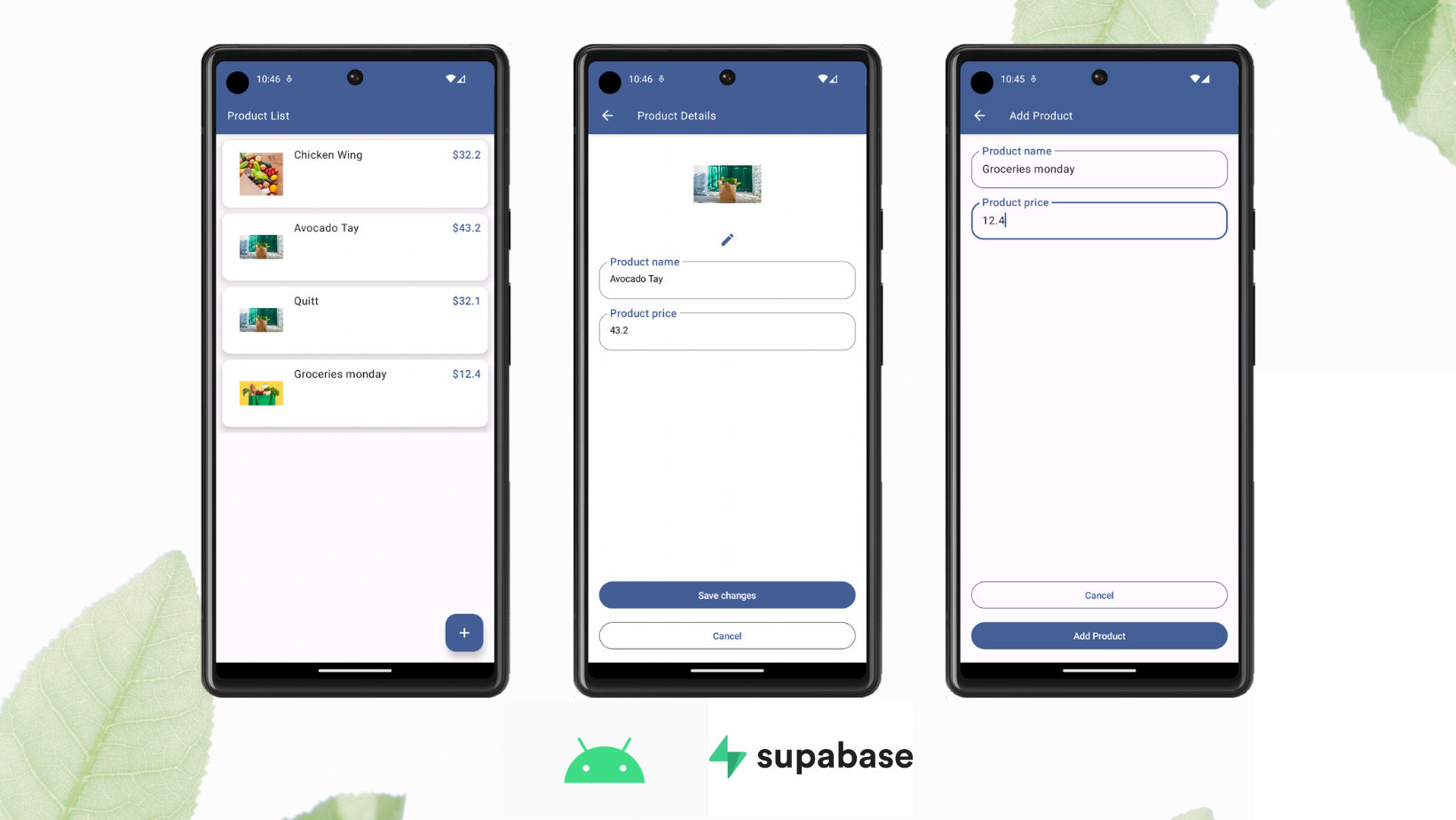<Admonition type="note">@@ -21,18 +20,25 @@ This tutorial demonstrates how to build a basic product management app. The app<KotlinProjectSetup />-## Building the app+### Create new Android project+Open Android Studio > New Project > Base Activity (Jetpack Compose)-<img width="720" alt="Screen Shot 2023-06-02 at 21 33 16" src="https://github.com/hieuwu/product-sample-supabase-kt/assets/43868345/288eef97-d8fe-422f-8bb3-1c8424bab08e"></img>+<img+ width="720"+ alt="Screen Shot 2023-06-02 at 21 33 16"+ src="https://github.com/hieuwu/product-sample-supabase-kt/assets/43868345/288eef97-d8fe-422f-8bb3-1c8424bab08e"+></img>### Set up API key and secret securely+API key and secret from any services are credential information, we should not want to expose these to others because some strangers will use it for bad purpose#### Create local environment secret-Create or edit `local.properties` file at top level (same level at build.gradle of the project).++Create or edit `local.properties` file at top level (same level at build.gradle of the project).> **Note**: This file should not be pushed directly to the repository, meaning that you should include this in `.gitignore` file@@ -44,7 +50,8 @@ SUPABASE_URL=YOUR_SUPABASE_URL```#### Read and set value to BuildConfig-In `build.gradle (app)`, create `Properties` object and read value from `local.properties` set value for `BuildConfig` by calling `buildConfigField` method++In `build.gradle (app)`, create `Properties` object and read value from `local.properties` set value for `BuildConfig` by calling `buildConfigField` method```kotlindefaultConfig {@@ -65,24 +72,32 @@ defaultConfig {```#### Use value from `BuildConfig`+Read value from `BuildConfig` (Remember to import the right class, it is one from your project). For example:+```kotlinval url = BuildConfig.SUPABASE_URLval apiKey = BuildConfig.API_KEY```### Set up Supabase dependencies-<img width="720" alt="Screen Shot 2023-06-05 at 21 39 24" src="https://github.com/hieuwu/product-sample-supabase-kt/assets/43868345/3f154fda-aa9e-4baa-81f2-5b744c7ad2fe"></img>++<img+ width="720"+ alt="Screen Shot 2023-06-05 at 21 39 24"+ src="https://github.com/hieuwu/product-sample-supabase-kt/assets/43868345/3f154fda-aa9e-4baa-81f2-5b744c7ad2fe"+></img>In build.gradle (app) file, add these dependencies then press Sync now. Replace the dependency version placeholders `$supabase_version` and `$ktor_version` with the latest versions as shown below.- <div style={{ display: 'flex', flexDirection: 'row', alignItems: 'center' }}>- <a href="https://github.com/supabase-community/supabase-kt/releases" style={{ marginRight: '8px' }}>- <img src="https://img.shields.io/github/release/supabase-community/supabase-kt?label=supabase-kt stable" alt="latest stable supabase-kt version"/>- </a>- <a href="https://github.com/supabase-community/supabase-kt/releases">- <img src="https://img.shields.io/github/v/release/ktorio/ktor.svg?label=ktor" alt="latest ktor version"/>- </a>- </div>+<div style={{ display: 'flex', flexDirection: 'row', alignItems: 'center' }}>+<a href="https://github.com/supabase-community/supabase-kt/releases" style={{ marginRight: '8px' }}>+<img src="https://img.shields.io/github/release/supabase-community/supabase-kt?label=supabase-kt stable" alt="latest stable supabase-kt version"/>+</a>+<a href="https://github.com/supabase-community/supabase-kt/releases">+<img src="https://img.shields.io/github/v/release/ktorio/ktor.svg?label=ktor" alt="latest ktor version"/>+</a>+</div>+```kotlin// Supabase setupimplementation "io.github.jan-tennert.supabase:postgrest-kt:$supabase_version"@@ -94,6 +109,7 @@ implementation "io.ktor:ktor-utils:$ktor_version"```Also in build.gradle (app) file, add plugin for serialization. The version of this plugin should be the same with Kotlin version+<a href="https://github.com/JetBrains/kotlin" style={{ marginRight: '8px' }}><img src="https://img.shields.io/maven-central/v/org.jetbrains.kotlin/kotlin-maven-plugin.svg?label=kotlin_version" alt="latest kotlin version"/></a>@@ -106,19 +122,25 @@ plugins {```### Set up Hilt for dependency injection+In build.gradle (app) file, add these+```kotlinimplementation "com.google.dagger:hilt-android:$hilt_version"annotationProcessor "com.google.dagger:hilt-compiler:$hilt_version"implementation("androidx.hilt:hilt-navigation-compose:1.0.0")```+Create new `ManageProductApplication.kt` class extending Application with `@HiltAndroidApp` annotation+```kotlin// ManageProductApplication.kt@HiltAndroidAppclass ManageProductApplication: Application()```+Open AndroidManifest.xml file, update name property of Application tag+```xml<application...@@ -127,15 +149,20 @@ Open AndroidManifest.xml file, update name property of Application tag</application>```+Add annotation for MainActivity+```kotlin@AndroidEntryPointclass MainActivity : ComponentActivity() {}```+### Provide Supabase instances with Hilt+You can create it by just calling the constructor. However to make the app more testable, these should be providedCreate SupabaseMdule.kt+```kotlin@InstallIn(SingletonComponent::class)@Module@@ -163,7 +190,7 @@ object SupabaseModule {fun provideSupabaseDatabase(client: SupabaseClient): Postgrest {return client.postgrest}-+@Provides@Singletonfun provideSupabaseGoTrue(client: SupabaseClient): GoTrue {@@ -181,7 +208,9 @@ object SupabaseModule {```### Create data transfer object to get data+Create `ProductDto.kt` class and use annotations to parse data from Supabase+```kotlin@Serializabledata class ProductDto(@@ -201,6 +230,7 @@ data class ProductDto(```Domain object `Product.kt`to provide to view+```kotlindata class Product(val id: String,@@ -211,10 +241,12 @@ data class Product(```### Implement repositories+Create ProductRepository interface and its implementation named ProductRepositoryImpl.This kind of class will hold every logic to interact with data sources from Supabase. Do the same with AuthenticationRepositoryCreate Product Repository+```kotlininterface ProductRepository {suspend fun createProduct(product: Product): Boolean@@ -314,6 +346,7 @@ class ProductRepositoryImpl @Inject constructor(```Create Authentication Repository+```kotlininterface AuthenticationRepository {suspend fun signIn(email: String, password: String): Boolean@@ -321,6 +354,7 @@ interface AuthenticationRepository {suspend fun signInWithGoogle(): Boolean}```+```kotlinclass AuthenticationRepositoryImpl @Inject constructor(private val goTrue: GoTrue@@ -361,15 +395,16 @@ class AuthenticationRepositoryImpl @Inject constructor(```### Implement screens+<Admonition type="note">- By the time this page is written, there might be some changes in the code to make it more simple. If you face any problem when implement, feel free to refer the example repository above+ By the time this page is written, there might be some changes in the code to make it more simple.+ If you face any problem when implement, feel free to refer the example repository above</Admonition>-Create ProductListViewModel-```kotlin+Create ProductListViewModel ```kotlin@HiltViewModelclass ProductListViewModel @Inject constructor(- private val productRepository: ProductRepository,+private val productRepository: ProductRepository,) : ViewModel() {private val _productList = MutableStateFlow<List<Product>?>(listOf())@@ -410,8 +445,10 @@ class ProductListViewModel @Inject constructor(image = this.image)}+}-```++````Create ProductListScreen.kt```kotlin@@ -528,9 +565,10 @@ private fun AddProductButton()}}-```+````Create ProductDetailsViewModel.kt+```kotlin@HiltViewModel@@ -538,7 +576,7 @@ class ProductDetailsViewModel @Inject constructor(private val productRepository: ProductRepository,savedStateHandle: SavedStateHandle,) : ViewModel() {-+private val _product = MutableStateFlow<Product?>(null)val product: Flow<Product?> = _product@@ -603,6 +641,7 @@ class ProductDetailsViewModel @Inject constructor(```Create ProductDetailsScreen.kt+```kotlin@OptIn(ExperimentalCoilApi::class)@SuppressLint("UnusedMaterialScaffoldPaddingParameter")@@ -774,6 +813,7 @@ private fun uriToByteArray(contentResolver: ContentResolver, uri: Uri): ByteArra```Create AddProductScreen+```kotlin@SuppressLint("UnusedMaterial3ScaffoldPaddingParameter")@OptIn(ExperimentalMaterial3Api::class)@@ -832,6 +872,7 @@ fun AddProductScreen(```Create AddProductViewModel.kt+```kotlin@HiltViewModelclass AddProductViewModel @Inject constructor(@@ -863,6 +904,7 @@ class AddProductViewModel @Inject constructor(```Create SignUpViewModel+```kotlin@HiltViewModelclass SignUpViewModel @Inject constructor(@@ -895,6 +937,7 @@ class SignUpViewModel @Inject constructor(```Create SignUpScreen.kt+```kotlin@Composablefun SignUpScreen(@@ -990,7 +1033,9 @@ fun SignUpScreen(}}```+Create SignInViewModel+```kotlin@HiltViewModelclass SignInViewModel @Inject constructor(@@ -1025,11 +1070,12 @@ class SignInViewModel @Inject constructor(authenticationRepository.signInWithGoogle()}}-+}```Create SignInScreen.kt+```kotlin@OptIn(ExperimentalMaterial3Api::class, ExperimentalComposeUiApi::class)@Composable@@ -1142,10 +1188,12 @@ fun SignInScreen(}}```-Create successful screen++Create successful screenImplement Sign In Success screenCreate new Empty Activity and in AndroidManifest.xml, add deep link, make sure `scheme` and `host` are the same with ones when set up GoTrue instance+```xml<?xml version="1.0" encoding="utf-8"?><manifest xmlns:android="http://schemas.android.com/apk/res/android"@@ -1243,8 +1291,6 @@ class DeepLinkHandlerActivity : ComponentActivity() {}```--export const Page = ({ children }) => <Layout meta={meta} children={children} />export default Page