
The Postgres development platform. Supabase gives you a dedicated Postgres database to build your web, mobile, and AI applications.
TypeScript aialternativeauthdatabasedenoembeddingsexamplefirebasenextjsoauth2pgvectorpostgispostgrespostgresqlpostgrestrealtimesupabasevectorswebsockets
chore: cleanup kotlin docs.
thorwebdevb99f950b8f40
diff --git a/apps/docs/components/MDX/kotlin_project_setup.mdx b/apps/docs/components/MDX/kotlin_project_setup.mdxindex c052565ede4..fbf2e6ebd09 100644--- a/apps/docs/components/MDX/kotlin_project_setup.mdx+++ b/apps/docs/components/MDX/kotlin_project_setup.mdx@@ -20,15 +20,15 @@ Now we are going to set up the database schema. You can just copy/paste the SQLscrollablesize="small"type="underlined"- defaultActiveId="dashboard"+ defaultActiveId="sql">-<TabPanel id="dashboard" label="Dashboard">+{/* <TabPanel id="dashboard" label="Dashboard">1. Go to the [SQL Editor](https://app.supabase.com/project/_/sql) page in the Dashboard.2. Click **Product Management**.3. Click **Run**.-</TabPanel>+</TabPanel> */}<TabPanel id="sql" label="SQL"><ProductManagementSQLTemplate />@@ -46,25 +46,8 @@ We just need to get the Project URL and `anon` key from the API settings.### Set up Google Authentication-From [Google Console](https://console.developers.google.com/apis/library), create a Project-In the project, create new credential--<img- width="750"- alt="Screenshot 2023-07-15 at 20 47 31"- src="https://github.com/hieuwu/product-sample-supabase-kt/assets/43868345/f57fc92c-9458-44b2-ba94-688ec61a6a24"-/>--Then go to Supabase dashboard, in Authentication tab, open Providers to enable Google. Turn on toggle then copy and paste Client ID and Secret from Google Cloud+From the [Google Console](https://console.developers.google.com/apis/library), create a new project and add OAuth2 credentials.-<img- width="750"- alt="Screenshot 2023-07-15 at 20 48 26"- src="https://github.com/hieuwu/product-sample-supabase-kt/assets/43868345/9b8adf4f-05a9-4ed3-a48c-e64cc7701225"-/>+-<img- width="750"- alt="Screenshot 2023-07-15 at 20 49 34"- src="https://github.com/hieuwu/product-sample-supabase-kt/assets/43868345/9dc29384-f7ba-4ace-97f1-2ca0a2ff299a"-/>+In your [Supabase Auth settings](https://app.supabase.com/project/_/auth/providers) enable Google as a provider and set the required credentials as outlined in the [auth docs](/docs/guides/auth/social-login/auth-google).diff --git a/apps/docs/pages/guides/getting-started/quickstarts/kotlin.mdx b/apps/docs/pages/guides/getting-started/quickstarts/kotlin.mdxindex 55592b402aa..91f5a535fa5 100644--- a/apps/docs/pages/guides/getting-started/quickstarts/kotlin.mdx+++ b/apps/docs/pages/guides/getting-started/quickstarts/kotlin.mdx@@ -4,7 +4,7 @@ import StepHikeCompact from '~/components/StepHikeCompact'export const meta = {title: 'Use Supabase with Android Kotlin',subtitle:- 'Learn how to create a Supabase project, add some sample data to your database, and query the data from a Android Kotlin app.',+ 'Learn how to create a Supabase project, add some sample data to your database, and query the data from an Android Kotlin app.',breadcrumb: 'Framework Quickstarts',}@@ -45,8 +45,7 @@ export const meta = {<StepHikeCompact.Step step={2}><StepHikeCompact.Details title="Create an Android app with Android Studio">- Setup environment for Android Development following official document.- Open Android Studio > New > New Android Project+ Open Android Studio > New > New Android Project.</StepHikeCompact.Details>@@ -55,16 +54,7 @@ export const meta = {<StepHikeCompact.Step step={3}><StepHikeCompact.Details title="Install the Supabase client library">- Setup Supabase libraries requires some others libraries from ktor, so make sure all dependencies are added.- Replace the dependency version placeholders `$supabase_version` and `$ktor_version` with the latest versions as shown below.- <div style={{ display: 'flex', flexDirection: 'row', alignItems: 'center' }}>- <a href="https://github.com/supabase-community/supabase-kt/releases" style={{ marginRight: '8px' }}>- <img src="https://img.shields.io/github/release/supabase-community/supabase-kt?label=supabase-kt stable" alt="latest stable supabase-kt version"/>- </a>- <a href="https://github.com/ktorio/ktor/releases">- <img src="https://img.shields.io/github/v/release/ktorio/ktor.svg?label=ktor" alt="latest ktor version"/>- </a>- </div>+ Import Supabase and all required dependencies. Replace the version placeholders `$supabase_version` and `$ktor_version` with the respective latest versions.</StepHikeCompact.Details>@@ -83,10 +73,7 @@ export const meta = {<StepHikeCompact.Step step={4}><StepHikeCompact.Details title="Install the serializable plugin">- Open `build.gradle` (app), add serialization plugin to use annotation for data parsing. Please note that the plugin version should be the same with Kotlin version in your app.- <a href="https://github.com/JetBrains/kotlin" style={{ marginRight: '8px' }}>- <img src="https://img.shields.io/maven-central/v/org.jetbrains.kotlin/kotlin-maven-plugin.svg?label=kotlin_version" alt="latest stable supabase-kt version"/>- </a>+ Open the `build.gradle` (app), add the serialization plugin to use annotation for data parsing. Please note that the plugin version should be the same as the Kotlin version in your app.</StepHikeCompact.Details><StepHikeCompact.Code>@@ -105,14 +92,12 @@ export const meta = {<StepHikeCompact.Step step={5}><StepHikeCompact.Details title="Initialize the Supabase client">- You can create a whenever you need to perform some API call.- However, it is recommended that we should provide this kind of instance by using dependency injection library like Hilt. So see the code below to provide them properly. This is better for testability and maintainability+ You can create a Supabase client whenever you need to perform an API call. That being said, it is recommended to use a dependency injection library like [Hilt](https://developer.android.com/training/dependency-injection/hilt-android#kts).</StepHikeCompact.Details><StepHikeCompact.Code>```kotlin- // Handy create instance when needval client = createSupabaseClient(supabaseUrl = "https://xyzcompany.supabase.co",supabaseKey = "public-anon-key"@@ -129,7 +114,7 @@ export const meta = {<StepHikeCompact.Step step={6}>- <StepHikeCompact.Details title="Create data transfer object">+ <StepHikeCompact.Details title="Create a data transfer object"></StepHikeCompact.Details><StepHikeCompact.Code>@@ -161,8 +146,8 @@ export const meta = {<StepHikeCompact.Step step={7}>- <StepHikeCompact.Details title="Create domain object">- This kind of object will be consumed by the view+ <StepHikeCompact.Details title="Create a domain object">+ This kind of object will be consumed by the view.</StepHikeCompact.Details><StepHikeCompact.Code>@@ -186,7 +171,7 @@ export const meta = {<StepHikeCompact.Step step={8}><StepHikeCompact.Details title="Query data from the app">- Usually, we will put the code of interacting with data source in repository. Create a repository:+ Create a repository to interact with the data source.</StepHikeCompact.Details><StepHikeCompact.Code>@@ -212,7 +197,7 @@ export const meta = {<StepHikeCompact.Step step={9}><StepHikeCompact.Details title="Create a module to provide repository">- For dependency injection, we will use Hilt. Learn more about [Dependency injection with Hilt](https://developer.android.com/training/dependency-injection/hilt-android).+ Use [Hilt](https://developer.android.com/training/dependency-injection/hilt-android) for dependency injection.</StepHikeCompact.Details><StepHikeCompact.Code>```kotlin@@ -229,7 +214,7 @@ export const meta = {<StepHikeCompact.Step step={10}><StepHikeCompact.Details title="Get data from ViewModel inside a coroutine scope">- To use the repository in a ViewModel, use the `@Inject` annotation.+ Add the `@Inject` annotation to use the repository in a ViewModel.</StepHikeCompact.Details><StepHikeCompact.Code>```kotlin@@ -269,7 +254,7 @@ export const meta = {</StepHikeCompact.Step><StepHikeCompact.Step step={11}>- <StepHikeCompact.Details title="Observe data in Composable">+ <StepHikeCompact.Details title="Observe data in a Composable"></StepHikeCompact.Details><StepHikeCompact.Code>```kotlindiff --git a/apps/docs/pages/guides/getting-started/tutorials/with-kotlin.mdx b/apps/docs/pages/guides/getting-started/tutorials/with-kotlin.mdxindex ecb16a0a42d..8f295c4233e 100644--- a/apps/docs/pages/guides/getting-started/tutorials/with-kotlin.mdx+++ b/apps/docs/pages/guides/getting-started/tutorials/with-kotlin.mdx@@ -1,17 +1,17 @@import Layout from '~/layouts/DefaultGuideLayout'export const meta = {- title: 'Build a Product Management App with Jetpack Compose in Android',+ title: 'Build a Product Management Android App with Jetpack Compose',description: 'Learn how to use Supabase in your Android Kotlin App.',}-This tutorial demonstrates how to build a basic product management app. The app demonstrates management operations, photo upload, account creation and authentication+This tutorial demonstrates how to build a basic product management app. The app demonstrates management operations, photo upload, account creation and authentication using:- [Supabase Database](/docs/guides/database) - a Postgres database for storing your user data and [Row Level Security](/docs/guides/auth#row-level-security) so data is protected and users can only access their own information.-- [Supabase Auth](/docs/guides/auth) - users log in through magic links sent to their email (without having to set up passwords).+- [Supabase Auth](/docs/guides/auth) - users log in through magic links sent to their email (without having to set up a password).- [Supabase Storage](/docs/guides/storage) - users can upload a profile photo.-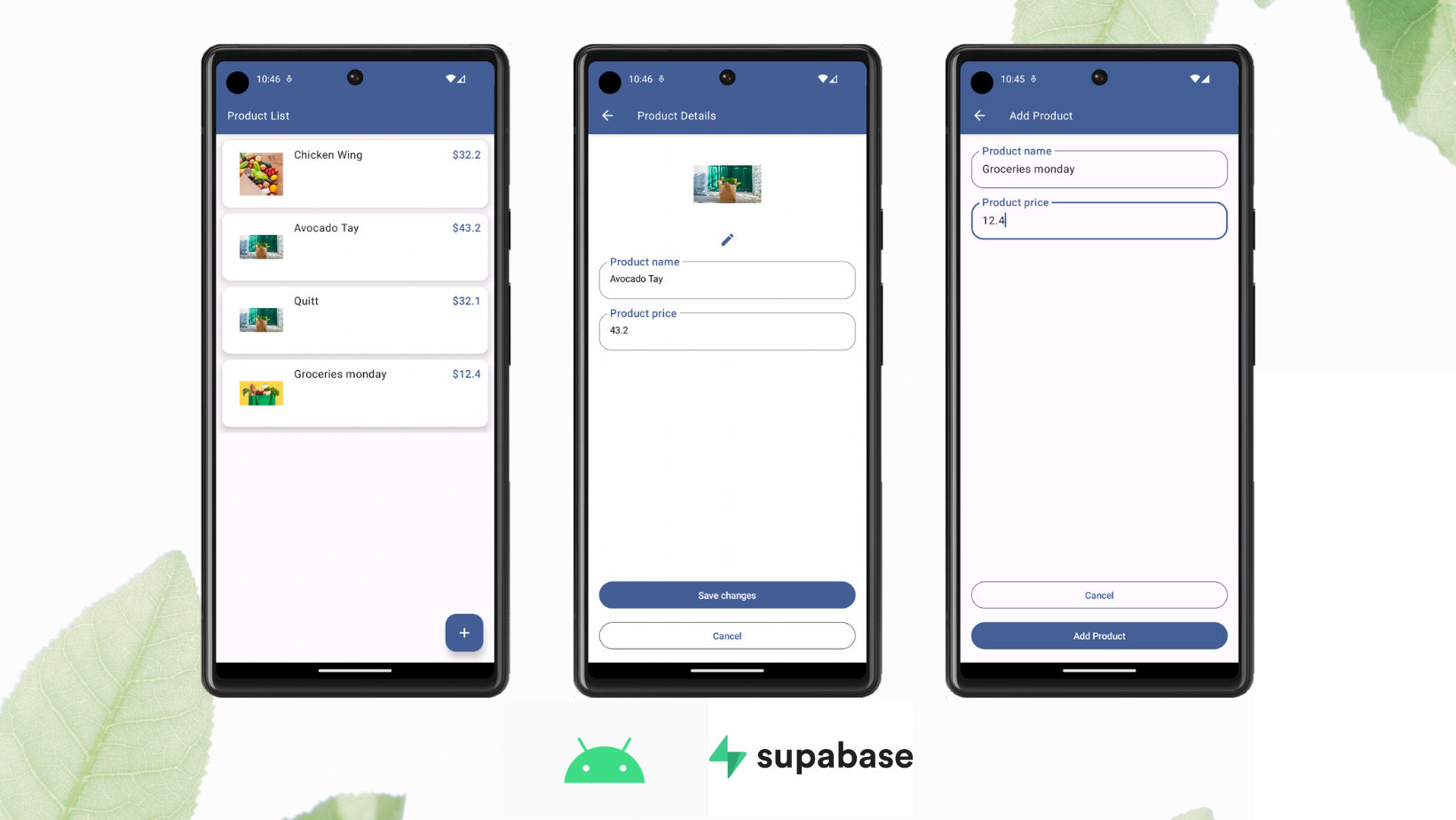+<Admonition type="note">If you get stuck while working through this guide, refer to the [full example on@@ -24,34 +24,26 @@ This tutorial demonstrates how to build a basic product management app. The app### Create new Android project-Open Android Studio > New Project > Base Activity (Jetpack Compose)+Open Android Studio > New Project > Base Activity (Jetpack Compose).-<img- width="720"- alt="Screen Shot 2023-06-02 at 21 33 16"- src="https://github.com/hieuwu/product-sample-supabase-kt/assets/43868345/288eef97-d8fe-422f-8bb3-1c8424bab08e"-></img>+### Set up API key and secret securely-API key and secret from any services are credential information, we should not want to expose these to others because some strangers will use it for bad purpose-#### Create local environment secret-Create or edit `local.properties` file at top level (same level at build.gradle of the project).+Create or edit the `local.properties` file at the root (same level as `build.gradle`) of your project.-> **Note**: This file should not be pushed directly to the repository, meaning that you should include this in `.gitignore` file+> **Note**: Do not commit this file to your source control, e.g. by adding it to your `.gitignore` file!```kotlin-API_KEY=YOUR_SUPABASE_API_KEY-SECRET=YOUR_SUPABASE_SECRET+SUPABASE_ANON_KEY=YOUR_SUPABASE_ANON_KEYSUPABASE_URL=YOUR_SUPABASE_URL-```#### Read and set value to BuildConfig-In `build.gradle (app)`, create `Properties` object and read value from `local.properties` set value for `BuildConfig` by calling `buildConfigField` method+In your `build.gradle` (app) file, create a `Properties` object and read the values from your `local.properties` file by calling the `buildConfigField` method:```kotlindefaultConfig {@@ -65,7 +57,7 @@ defaultConfig {// Set value partProperties properties = new Properties()properties.load(project.rootProject.file("local.properties").newDataInputStream())- buildConfigField("String", "API_KEY", "\"${properties.getProperty("API_KEY")}\"")+ buildConfigField("String", "SUPABASE_ANON_KEY", "\"${properties.getProperty("SUPABASE_ANON_KEY")}\"")buildConfigField("String", "SECRET", "\"${properties.getProperty("SECRET")}\"")buildConfigField("String", "SUPABASE_URL", "\"${properties.getProperty("SUPABASE_URL")}\"")}@@ -73,43 +65,20 @@ defaultConfig {#### Use value from `BuildConfig`-Read value from `BuildConfig` (Remember to import the right class, it is one from your project). For example:+Read the value from `BuildConfig`:```kotlinval url = BuildConfig.SUPABASE_URL-val apiKey = BuildConfig.API_KEY+val apiKey = BuildConfig.SUPABASE_ANON_KEY```### Set up Supabase dependencies-<img- width="720"- alt="Screen Shot 2023-06-05 at 21 39 24"- src="https://github.com/hieuwu/product-sample-supabase-kt/assets/43868345/3f154fda-aa9e-4baa-81f2-5b744c7ad2fe"-></img>--In build.gradle (app) file, add these dependencies then press Sync now. Replace the dependency version placeholders `$supabase_version` and `$ktor_version` with the latest versions as shown below.--<div style={{ display: 'flex', flexDirection: 'row', alignItems: 'center' }}>- <a- href="https://github.com/supabase-community/supabase-kt/releases"- style={{ marginRight: '8px' }}- >- <img- src="https://img.shields.io/github/release/supabase-community/supabase-kt?label=supabase-kt stable"- alt="latest stable supabase-kt version"- />- </a>- <a href="https://github.com/supabase-community/supabase-kt/releases">- <img- src="https://img.shields.io/github/v/release/ktorio/ktor.svg?label=ktor"- alt="latest ktor version"- />- </a>-</div>+++In the `build.gradle` (app) file, add these dependencies then press "Sync now". Replace the dependency version placeholders `$supabase_version` and `$ktor_version` with their respective latest versions.```kotlin-// Supabase setupimplementation "io.github.jan-tennert.supabase:postgrest-kt:$supabase_version"implementation "io.github.jan-tennert.supabase:storage-kt:$supabase_version"implementation "io.github.jan-tennert.supabase:gotrue-kt:$supabase_version"@@ -118,11 +87,8 @@ implementation "io.ktor:ktor-client-core:$ktor_version"implementation "io.ktor:ktor-utils:$ktor_version"```-Also in build.gradle (app) file, add plugin for serialization. The version of this plugin should be the same with Kotlin version+Also in the `build.gradle` (app) file, add the plugin for serialization. The version of this plugin should be the same as your Kotlin version.-<a href="https://github.com/JetBrains/kotlin" style={{ marginRight: '8px' }}>- <img src="https://img.shields.io/maven-central/v/org.jetbrains.kotlin/kotlin-maven-plugin.svg?label=kotlin_version" alt="latest kotlin version"/>-</a>```kotlinplugins {...@@ -133,7 +99,7 @@ plugins {### Set up Hilt for dependency injection-In build.gradle (app) file, add these+In the `build.gradle` (app) file, add the following:```kotlinimplementation "com.google.dagger:hilt-android:$hilt_version"@@ -141,7 +107,7 @@ annotationProcessor "com.google.dagger:hilt-compiler:$hilt_version"implementation("androidx.hilt:hilt-navigation-compose:1.0.0")```-Create new `ManageProductApplication.kt` class extending Application with `@HiltAndroidApp` annotation+Create a new `ManageProductApplication.kt` class extending Application with `@HiltAndroidApp` annotation:```kotlin// ManageProductApplication.kt@@ -149,7 +115,7 @@ Create new `ManageProductApplication.kt` class extending Application with `@Hiltclass ManageProductApplication: Application()```-Open AndroidManifest.xml file, update name property of Application tag+Open the `AndroidManifest.xml` file, update name property of Application tag:```xml<application@@ -160,7 +126,7 @@ Open AndroidManifest.xml file, update name property of Application tag```-Add annotation for MainActivity+Add annotation for the `MainActivity`:```kotlin@AndroidEntryPoint@@ -170,8 +136,7 @@ class MainActivity : ComponentActivity() {### Provide Supabase instances with Hilt-You can create it by just calling the constructor. However to make the app more testable, these should be provided-Create SupabaseMdule.kt+To make the app easier to test, create a `SupabaseMdule.kt` file as follows:```kotlin@InstallIn(SingletonComponent::class)@@ -183,7 +148,7 @@ object SupabaseModule {fun provideSupabaseClient(): SupabaseClient {return createSupabaseClient(supabaseUrl = BuildConfig.SUPABASE_URL,- supabaseKey = BuildConfig.API_KEY+ supabaseKey = BuildConfig.SUPABASE_ANON_KEY) {install(Postgrest)install(GoTrue) {@@ -217,9 +182,9 @@ object SupabaseModule {}```-### Create data transfer object to get data+### Create a data transfer object-Create `ProductDto.kt` class and use annotations to parse data from Supabase+Create a `ProductDto.kt` class and use annotations to parse data from Supabase:```kotlin@Serializable@@ -239,7 +204,7 @@ data class ProductDto()```-Domain object `Product.kt`to provide to view+Create a Domain object in `Product.kt` expose the data in your view:```kotlindata class Product(@@ -252,10 +217,9 @@ data class Product(### Implement repositories-Create ProductRepository interface and its implementation named ProductRepositoryImpl.-This kind of class will hold every logic to interact with data sources from Supabase. Do the same with AuthenticationRepository+Create a `ProductRepository` interface and its implementation named `ProductRepositoryImpl`. This holds the logic to interact with data sources from Supabase. Do the same with the `AuthenticationRepository`.-Create Product Repository+Create the Product Repository:```kotlininterface ProductRepository {@@ -355,7 +319,7 @@ class ProductRepositoryImpl @Inject constructor(}```-Create Authentication Repository+Create the Authentication Repository:```kotlininterface AuthenticationRepository {@@ -406,15 +370,9 @@ class AuthenticationRepositoryImpl @Inject constructor(### Implement screens-<Admonition type="note">- By the time this page is written, there might be some changes in the code to make it more simple.- If you face any problem when implement, feel free to refer the example repository above-</Admonition>--Create ProductListViewModel+Create a `ProductListViewModel`:```kotlin-@HiltViewModelclass ProductListViewModel @Inject constructor(private val productRepository: ProductRepository,@@ -463,7 +421,7 @@ private val productRepository: ProductRepository,```-Create ProductListScreen.kt+Create the `ProductListScreen.kt`:```kotlin@OptIn(ExperimentalMaterial3Api::class, ExperimentalMaterialApi::class)@@ -581,7 +539,7 @@ private fun AddProductButton(}```-Create ProductDetailsViewModel.kt+Create the `ProductDetailsViewModel.kt`:```kotlin@@ -654,7 +612,7 @@ class ProductDetailsViewModel @Inject constructor(}```-Create ProductDetailsScreen.kt+Create the `ProductDetailsScreen.kt`:```kotlin@OptIn(ExperimentalCoilApi::class)@@ -826,7 +784,7 @@ private fun uriToByteArray(contentResolver: ContentResolver, uri: Uri): ByteArra}```-Create AddProductScreen+Create a AddProductScreen:```kotlin@SuppressLint("UnusedMaterial3ScaffoldPaddingParameter")@@ -885,7 +843,7 @@ fun AddProductScreen(}```-Create AddProductViewModel.kt+Create the `AddProductViewModel.kt`:```kotlin@HiltViewModel@@ -917,7 +875,7 @@ class AddProductViewModel @Inject constructor(}```-Create SignUpViewModel+Create a `SignUpViewModel`:```kotlin@HiltViewModel@@ -950,7 +908,7 @@ class SignUpViewModel @Inject constructor(}```-Create SignUpScreen.kt+Create the `SignUpScreen.kt`:```kotlin@Composable@@ -1048,7 +1006,7 @@ fun SignUpScreen(}```-Create SignInViewModel+Create a `SignInViewModel`:```kotlin@HiltViewModel@@ -1088,7 +1046,7 @@ class SignInViewModel @Inject constructor(}```-Create SignInScreen.kt+Create the `SignInScreen.kt`:```kotlin@OptIn(ExperimentalMaterial3Api::class, ExperimentalComposeUiApi::class)@@ -1203,10 +1161,9 @@ fun SignInScreen(}```-Create successful screen-Implement Sign In Success screen+### Create the success screen-Create new Empty Activity and in AndroidManifest.xml, add deep link, make sure `scheme` and `host` are the same with ones when set up GoTrue instance+Implement a "Sign In" success screen. Create new "Empty Activity" and in `AndroidManifest.xml`, add a deep link, make sure `scheme` and `host` are the same as the ones set in the GoTrue instance.```xml<?xml version="1.0" encoding="utf-8"?>diff --git a/apps/docs/public/img/guides/kotlin/android-studio-new-project.png b/apps/docs/public/img/guides/kotlin/android-studio-new-project.pngnew file mode 100644index 00000000000..70581407182Binary files /dev/null and b/apps/docs/public/img/guides/kotlin/android-studio-new-project.png differdiff --git a/apps/docs/public/img/guides/kotlin/google-cloud-oauth-credentials-create.png b/apps/docs/public/img/guides/kotlin/google-cloud-oauth-credentials-create.pngnew file mode 100644index 00000000000..724d07fb63bBinary files /dev/null and b/apps/docs/public/img/guides/kotlin/google-cloud-oauth-credentials-create.png differdiff --git a/apps/docs/public/img/guides/kotlin/gradle-dependencies.png b/apps/docs/public/img/guides/kotlin/gradle-dependencies.pngnew file mode 100644index 00000000000..fdb4c035935Binary files /dev/null and b/apps/docs/public/img/guides/kotlin/gradle-dependencies.png differdiff --git a/apps/docs/public/img/guides/kotlin/manage-product-cover.png b/apps/docs/public/img/guides/kotlin/manage-product-cover.pngnew file mode 100644index 00000000000..5986b8bc9fcBinary files /dev/null and b/apps/docs/public/img/guides/kotlin/manage-product-cover.png differ