
Code at the speed of thought – Zed is a high-performance, multiplayer code editor from the creators of Atom and Tree-sitter.
docs: Improve edit prediction page (#43379)
Danilo Leal07b668641113
diff --git a/docs/src/ai/edit-prediction.md b/docs/src/ai/edit-prediction.mdindex fd073d558ea..feef6d36d29 100644--- a/docs/src/ai/edit-prediction.md+++ b/docs/src/ai/edit-prediction.md@@ -1,19 +1,30 @@# Edit Prediction-Edit Prediction is Zed's mechanism for predicting the code you want to write through AI.+Edit Prediction is Zed's LLM mechanism for predicting the code you want to write.Each keystroke sends a new request to the edit prediction provider, which returns individual or multi-line suggestions that can be quickly accepted by pressing `tab`.-The default provider is [Zeta, a proprietary open source and open dataset model](https://huggingface.co/zed-industries/zeta), which [requires being signed into Zed](../authentication.md#what-features-require-signing-in).-Alternatively, you can also use [other providers](#other-providers) like GitHub Copilot and Codestral.+The default provider is [Zeta, a proprietary open source and open dataset model](https://huggingface.co/zed-industries/zeta), but you can also use [other providers](#other-providers) like GitHub Copilot, Supermaven, and Codestral.## Configuring Zeta-Zed's Edit Prediction was initially introduced via a banner on the title bar.-Clicking on it would take you to a modal with a button ("Enable Edit Prediction") that sets `zed` as your `edit_prediction_provider`.+To use Zeta, the only thing you need to do is [to sign in](../authentication.md#what-features-require-signing-in).+After doing that, you should already see predictions as you type on your files.-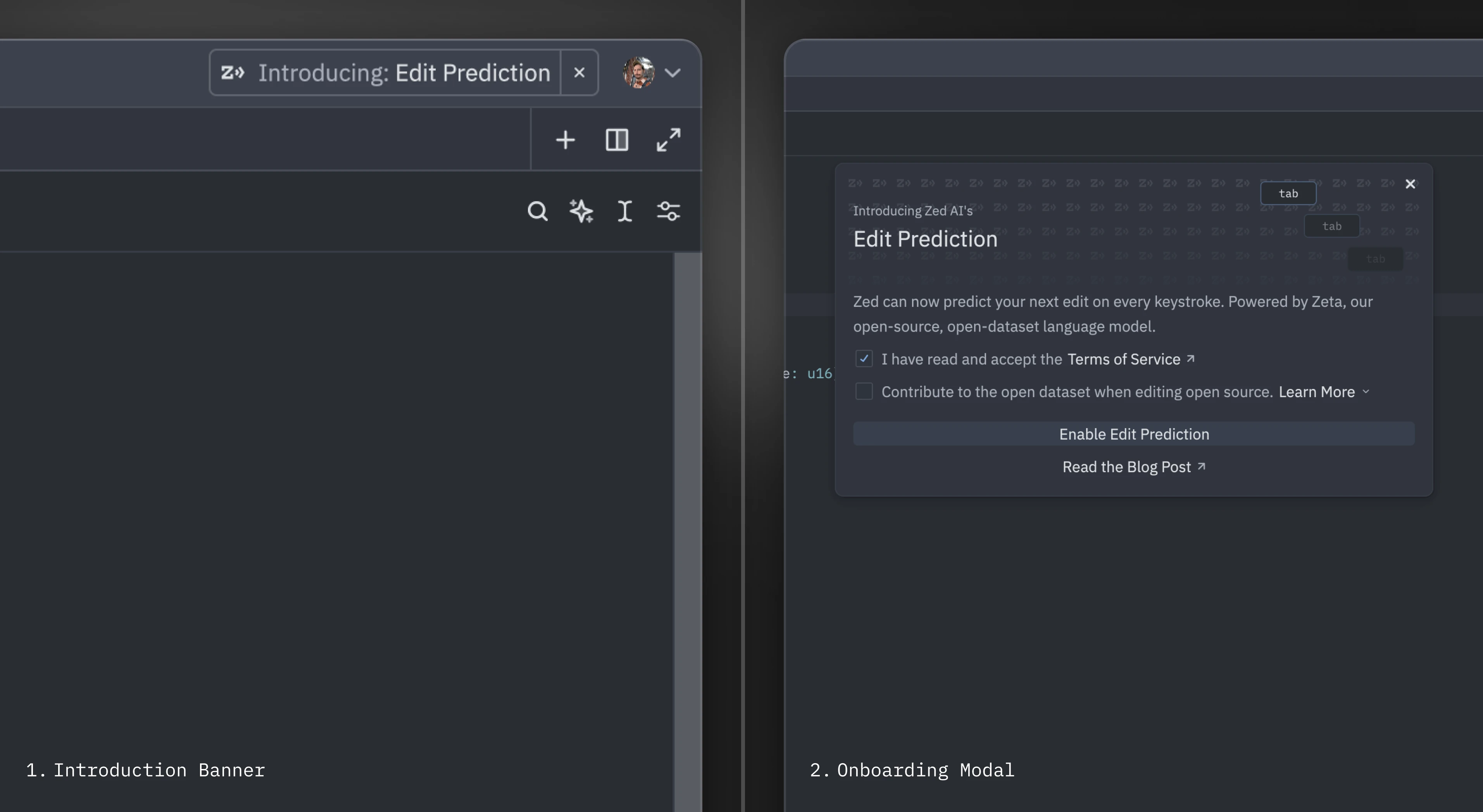+You can confirm that Zeta is properly configured either by verifying whether you have the following code in your `settings.json`:-But, if you haven't come across the banner, Zed's Edit Prediction is the default edit prediction provider and you should see it right away in your status bar.+```json [settings]+"features": {+ "edit_prediction_provider": "zed"+},+```++Or you can also look for a little Z icon in the right of your status bar at the bottom.++### Pricing and Plans++From just signing in, while in Zed's free plan, you get 2,000 Zeta-powered edit predictions per month.+But you can get _**unlimited edit predictions**_ by upgrading to [the Pro plan](../ai/plans-and-usage.md).+More information can be found in [Zed's pricing page](https://zed.dev/pricing).### Switching Modes {#switching-modes}@@ -34,6 +45,8 @@ Or directly via the UI through the status bar menu: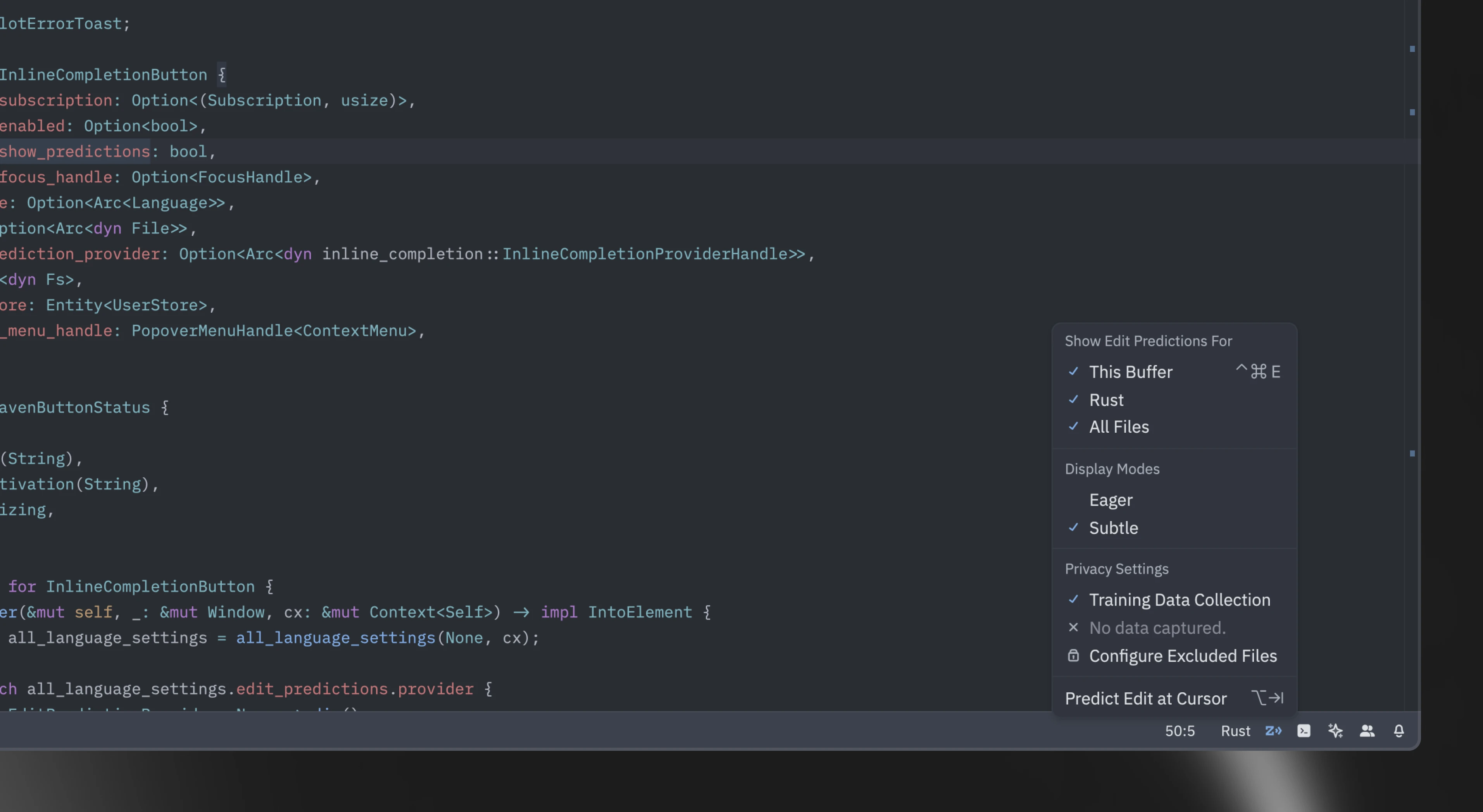+> Note that edit prediction modes work with any prediction provider.+### Conflict With Other `tab` Actions {#edit-predictions-conflict}By default, when `tab` would normally perform a different action, Zed requires a modifier key to accept predictions:@@ -47,8 +60,6 @@ On Linux, `alt-tab` is often used by the window manager for switching windows, s{#action editor::AcceptPartialEditPrediction} ({#kb editor::AcceptPartialEditPrediction}) can be used to accept the current edit prediction up to the next word boundary.-See the [Configuring GitHub Copilot](#github-copilot) and [Configuring Supermaven](#supermaven) sections below for configuration of other providers. Only text insertions at the current cursor are supported for these providers, whereas the Zeta model provides multiple predictions including deletions.-## Configuring Edit Prediction Keybindings {#edit-predictions-keybinding}By default, `tab` is used to accept edit predictions. You can use another keybinding by inserting this in your keymap:@@ -63,7 +74,8 @@ By default, `tab` is used to accept edit predictions. You can use another keybin}```-When there's a [conflict with the `tab` key](#edit-predictions-conflict), Zed uses a different context to accept keybindings (`edit_prediction_conflict`). If you want to use a different one, you can insert this in your keymap:+When there's a [conflict with the `tab` key](#edit-predictions-conflict), Zed uses a different key context to accept keybindings (`edit_prediction_conflict`).+If you want to use a different one, you can insert this in your keymap:```json [settings]{@@ -76,7 +88,8 @@ When there's a [conflict with the `tab` key](#edit-predictions-conflict), Zed usIf your keybinding contains a modifier (`ctrl` in the example above), it will also be used to preview the edit prediction and temporarily hide the language server completion menu.-You can also bind this action to keybind without a modifier. In that case, Zed will use the default modifier (`alt`) to preview the edit prediction.+You can also bind this action to keybind without a modifier.+In that case, Zed will use the default modifier (`alt`) to preview the edit prediction.```json [settings]{@@ -101,9 +114,26 @@ To maintain the use of the modifier key for accepting predictions when there is}```+### Keybinding Example: Always Use Tab++If you want to use `tab` to always accept edit predictions, you can use the following keybinding:++```json [keymap]+{+ "context": "Editor && edit_prediction_conflict && showing_completions",+ "bindings": {+ "tab": "editor::AcceptEditPrediction"+ }+}+```++This will make `tab` work to accept edit predictions _even when_ you're also seeing language server completions.+That means that you need to rely on `enter` for accepting the latter.+### Keybinding Example: Always Use Alt-Tab-The keybinding example below causes `alt-tab` to always be used instead of sometimes using `tab`. You might want this in order to have just one keybinding to use for accepting edit predictions, since the behavior of `tab` varies based on context.+The keybinding example below causes `alt-tab` to always be used instead of sometimes using `tab`.+You might want this in order to have just one (alternative) keybinding to use for accepting edit predictions, since the behavior of `tab` varies based on context.```json [keymap]{@@ -127,7 +157,7 @@ The keybinding example below causes `alt-tab` to always be used instead of somet},```-If `"vim_mode": true` is set within `settings.json`, then additional bindings are needed after the above to return `tab` to its original behavior:+If you are using [Vim mode](../vim.md), then additional bindings are needed after the above to return `tab` to its original behavior:```json [keymap]{@@ -146,7 +176,8 @@ If `"vim_mode": true` is set within `settings.json`, then additional bindings ar### Keybinding Example: Displaying Tab and Alt-Tab on Linux-While `tab` and `alt-tab` are supported on Linux, `alt-l` is displayed instead. If your window manager does not reserve `alt-tab`, and you would prefer to use `tab` and `alt-tab`, include these bindings in `keymap.json`:+While `tab` and `alt-tab` are supported on Linux, `alt-l` is displayed instead.+If your window manager does not reserve `alt-tab`, and you would prefer to use `tab` and `alt-tab`, include these bindings in `keymap.json`:```json [keymap]{