
Code at the speed of thought – Zed is a high-performance, multiplayer code editor from the creators of Atom and Tree-sitter.
Add Project Panel Documentation (#54054)
Dino662113b753af
diff --git a/docs/src/SUMMARY.md b/docs/src/SUMMARY.mdindex 59b0a5b1cef..68542f285ac 100644--- a/docs/src/SUMMARY.md+++ b/docs/src/SUMMARY.md@@ -38,6 +38,7 @@- [Finding & Navigating](./finding-navigating.md)- [Command Palette](./command-palette.md)- [Outline Panel](./outline-panel.md)+ - [Project Panel](./project-panel.md)- [Tab Switcher](./tab-switcher.md)- [Running & Testing](./running-testing.md)- [Terminal](./terminal.md)diff --git a/docs/src/finding-navigating.md b/docs/src/finding-navigating.mdindex af30b0ee715..c04ae577484 100644--- a/docs/src/finding-navigating.md+++ b/docs/src/finding-navigating.md@@ -13,6 +13,12 @@ The Command Palette ({#kb command_palette::Toggle}) is your gateway to almost ev[Learn more about the Command Palette →](./command-palette.md)+## Project Panel++The Project Panel ({#kb project_panel::ToggleFocus}) shows a tree view of your workspace's files and directories. Browse, create, rename, move, and delete files without leaving the editor. It also surfaces git status and diagnostics at a glance.++[Learn more about the Project Panel →](./project-panel.md)+## File FinderOpen any file in your project with {#kb file_finder::Toggle}. Type part of the filename or path to narrow results.@@ -57,3 +63,4 @@ Quickly switch between open tabs with {#kb tab_switcher::Toggle}. Tabs are sorte| Symbol in project | {#kb project_symbols::Toggle} || Outline Panel | {#kb outline_panel::ToggleFocus} || Tab Switcher | {#kb tab_switcher::Toggle} |+| Project Panel | {#kb project_panel::ToggleFocus} |diff --git a/docs/src/project-panel.md b/docs/src/project-panel.mdnew file mode 100644index 00000000000..5b2ba4db4fd--- /dev/null+++ b/docs/src/project-panel.md@@ -0,0 +1,184 @@+---+title: Project Panel - Zed+description: Navigate workspace files and directories with Zed's project panel. Create, rename, trash and delete file and directories.+---++# Project Panel++The project panel shows a tree view of your workspace's files and directories.+Toggle it with {#action project_panel::ToggleFocus} ({#kb+project_panel::ToggleFocus}), or click the **Project Panel** button in the+status bar.++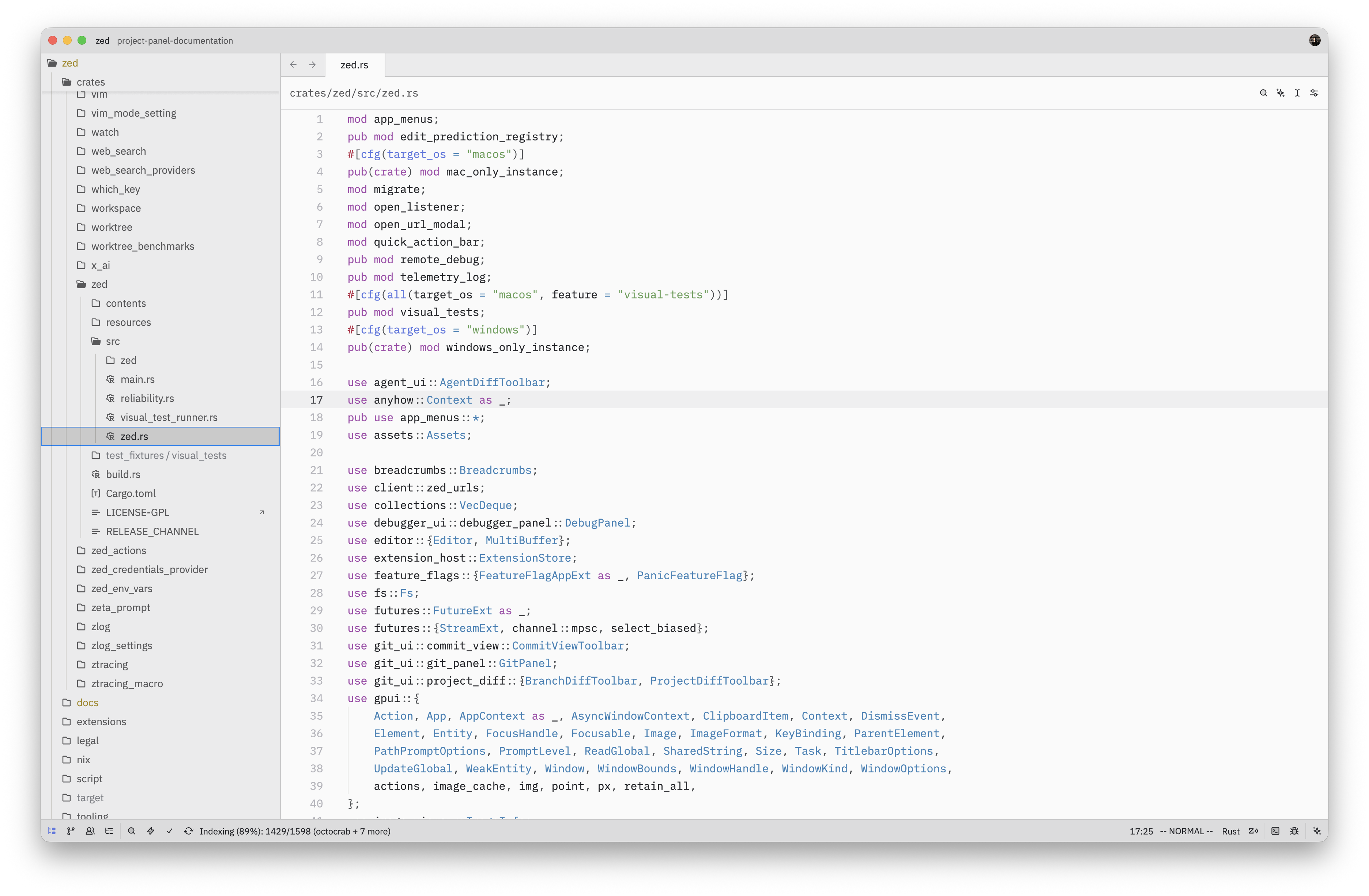++## Navigating++Use the arrow keys to move through entries. {#kb+project_panel::ExpandSelectedEntry} expands a directory and {#kb+project_panel::CollapseSelectedEntry} collapses it. {#kb+project_panel::CollapseAllEntries} collapses every directory at once. Press {#kb+project_panel::Open} or click to preview a selected file, without giving it a+permanent tab. Editing the file or double-clicking it promotes it to a permanent tab.++### Auto-reveal++By default, switching files in the editor will automatically highlight it in the+project panel and scroll it into view. This can be disabled with the+`project_panel.auto_reveal_entries` setting.++### Sticky Scroll++When `project_panel.sticky_scroll` is enabled (the default), ancestor directories pin themselves to the top+of the panel as you scroll, so you always know which directory you're on.++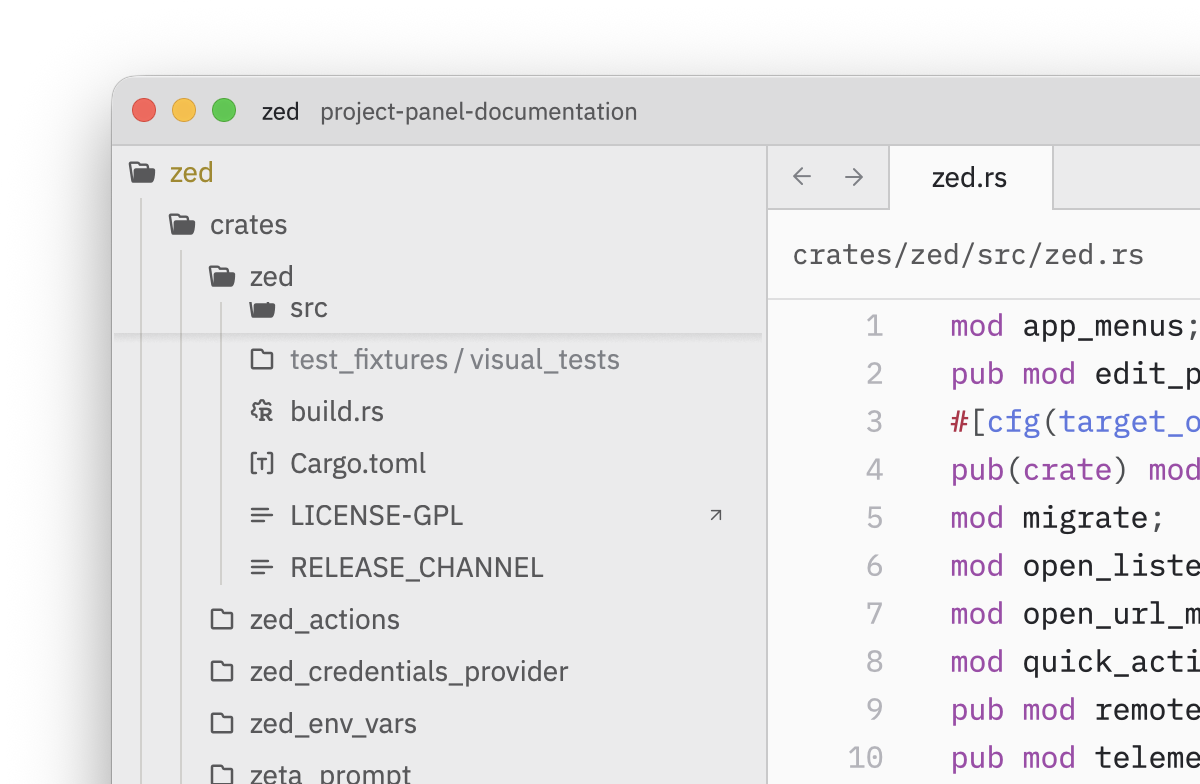++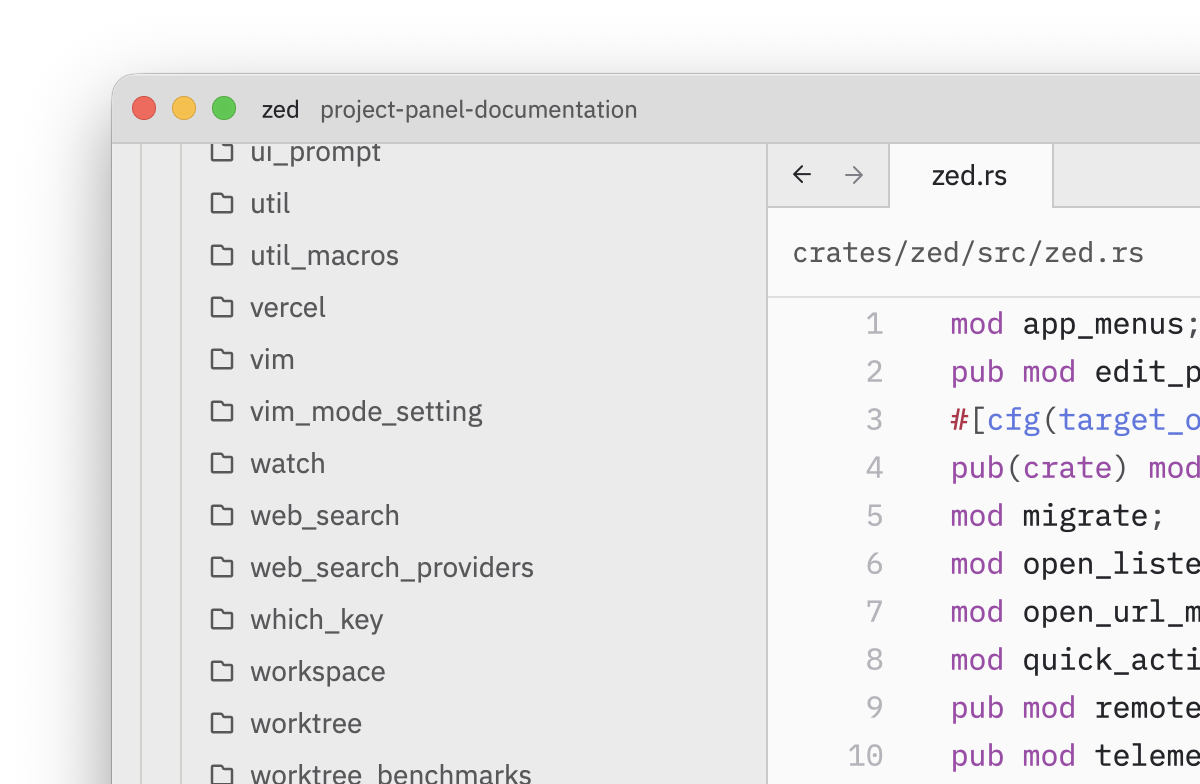++### Directory Folding++When `project_panel.auto_fold_dirs` is enabled (the default), chains of directories that each contain a+single child directory are collapsed into one row (for example,+`src/utils/helpers` instead of three separate levels). Right-click a folded+directory and choose **Unfold Directory** to expand the chain, or **Fold+Directory** to collapse it again.++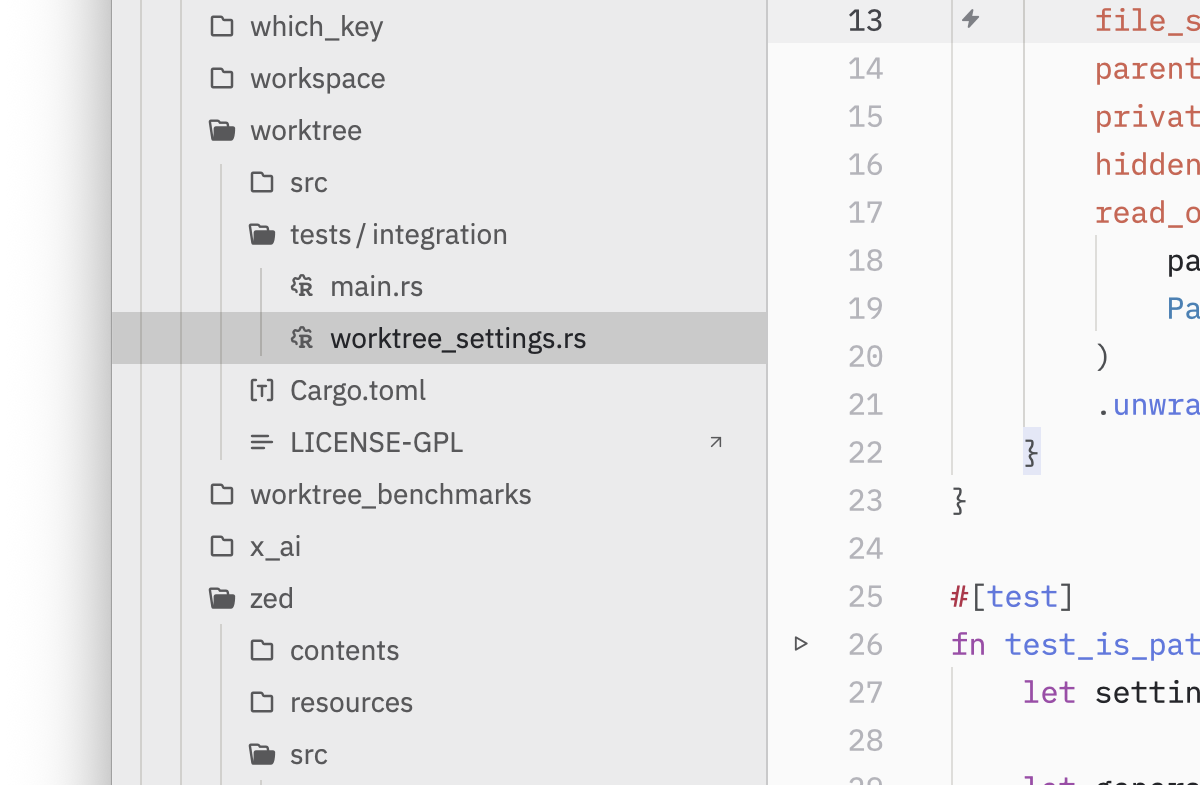++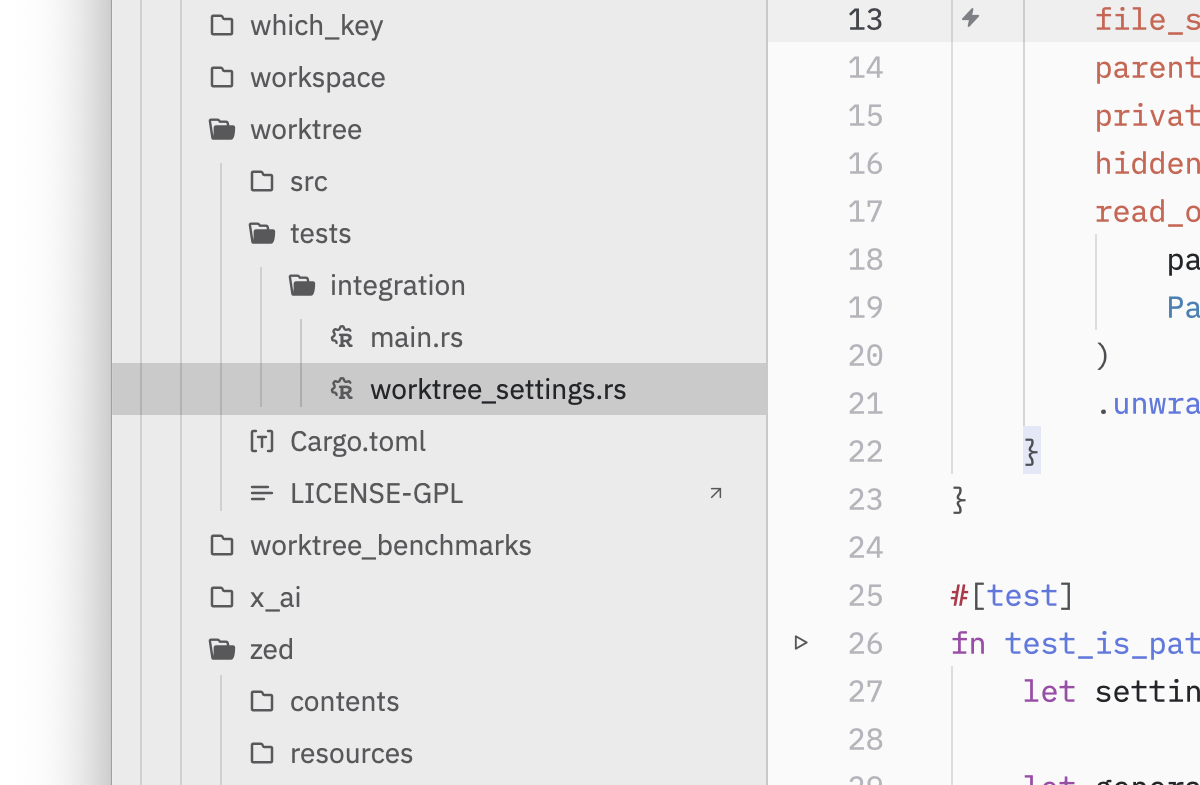++## Selecting Multiple Entries++Hold `shift` while pressing the up/down arrow keys to mark additional entries.+Most file operations, like cut, copy, trash, delete and drag, apply to the full+set of marked entries.++When exactly two files are marked, {#action project_panel::CompareMarkedFiles}+({#kb project_panel::CompareMarkedFiles}) opens a diff view comparing them.++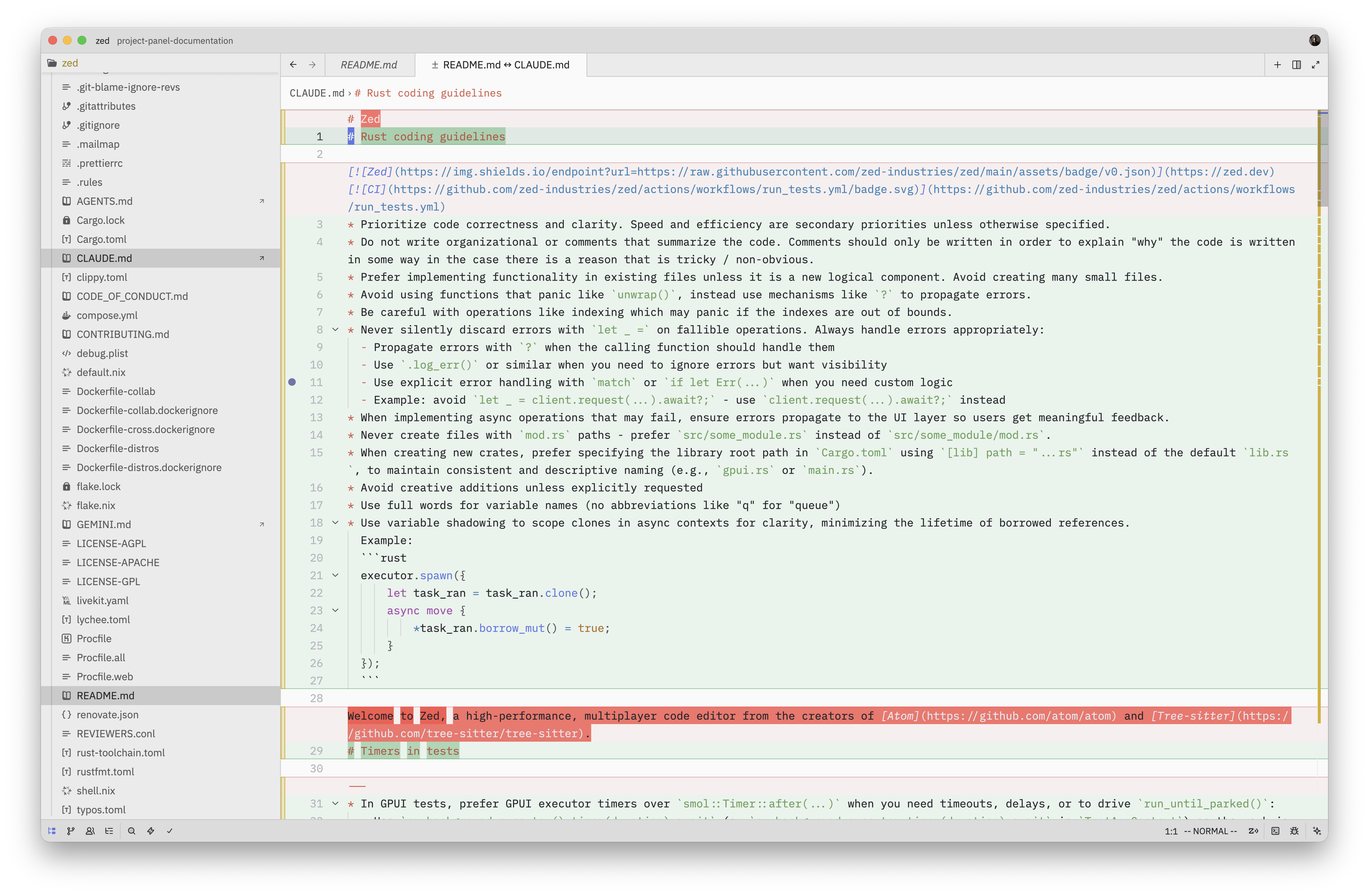++## File Operations++Right-click an entry to see the full list of available operations, or use the+keybindings below.++### Creating Files and Directories++- {#action project_panel::NewFile} ({#kb project_panel::NewFile}) creates a new+ file inside the selected directory.+- {#action project_panel::NewDirectory} ({#kb project_panel::NewDirectory})+ creates a new directory.++An inline editor appears so you can type the name. Press `enter` to+confirm or `escape` to cancel.++### Renaming++Press {#kb project_panel::Rename} to rename the selected entry. The filename+stem is pre-selected so you can type a new name without accidentally changing+the extension. Press `enter` to confirm or `escape` to+cancel.++### Cut, Copy, and Paste++- {#action project_panel::Cut} ({#kb project_panel::Cut}) marks entries for+ moving.+- {#action project_panel::Copy} ({#kb project_panel::Copy}) marks entries for+ copying.+- {#action project_panel::Paste} ({#kb project_panel::Paste}) places them in the+ selected directory.++When pasting would create a name conflict, Zed appends a "copy" suffix (e.g.,+`file copy.txt`, `file copy 2.txt`). If a single file is pasted with a generated+suffix, the rename editor opens automatically so you can adjust the name.++### Duplicate++{#action project_panel::Duplicate} ({#kb project_panel::Duplicate}) copies and+pastes the selected entries in one step.++### Trash and Delete++- {#action project_panel::Trash} ({#kb project_panel::Trash}) moves entries to+ the system trash.+- {#action project_panel::Delete} ({#kb project_panel::Delete}) permanently+ deletes entries.++Both actions show a confirmation prompt listing the affected files. If any of+the files have unsaved changes, the prompt warns you.++### Drag and Drop++Drag entries within the panel to move them. Hold `alt` while dropping to copy+instead of move. You can also drag files from your operating system's file+manager into the project panel to copy them into the project. Drag and drop can+be disabled with the `project_panel.drag_and_drop` setting.++## Git Integration++When `project_panel.git_status` is enabled (the default), file and directory names are tinted+to reflect their git status—modified, added, deleted, untracked, or conflicting.++Setting `project_panel.git_status_indicator` to `true` (disabled by default) adds a letter badge next+to each name: **M** (modified), **A** (added), **D** (deleted), **U**+(untracked) or **!** (conflict).++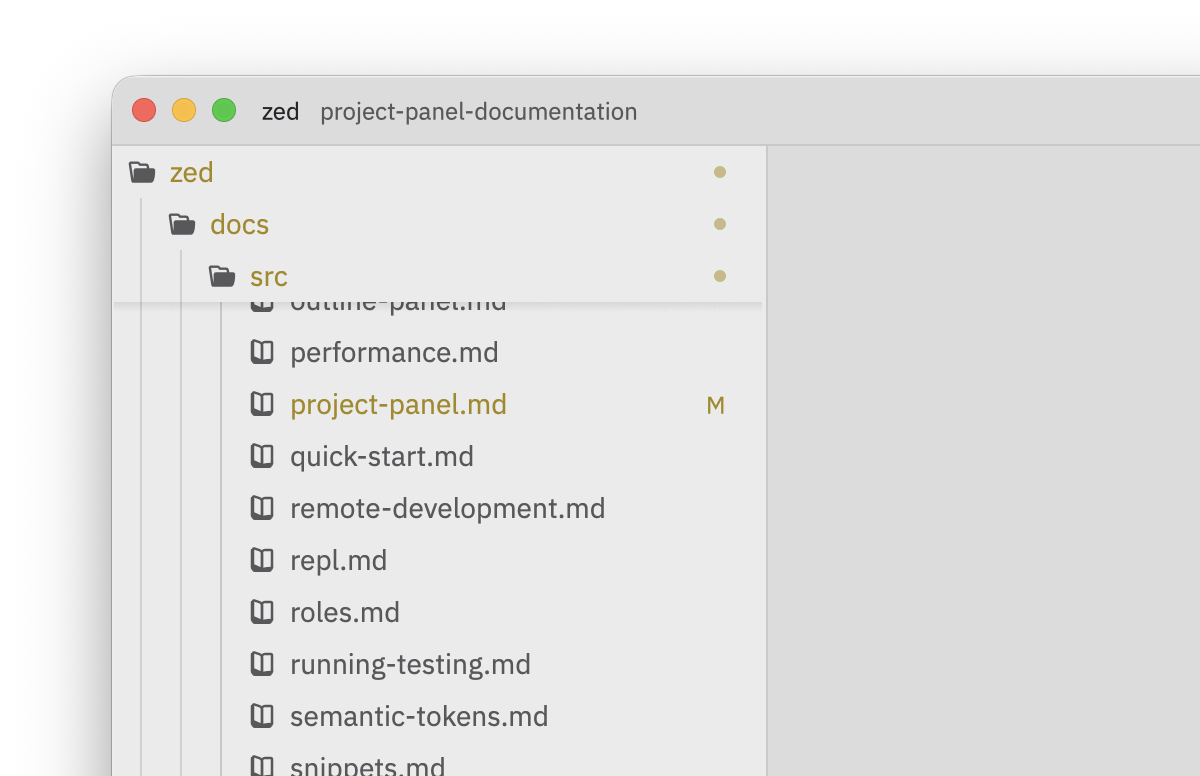++Use {#action project_panel::SelectNextGitEntry} and {#action+project_panel::SelectPrevGitEntry} to jump between tracked files with+uncommitted changes. The right-click menu also offers **Restore File** to+discard changes and **View File History** to browse a file's commit log.++## Diagnostics++The `project_panel.show_diagnostics` setting controls whether error and warning+indicators appear on file and folder icons. Set it to `"all"` to see both errors+and warnings, `"errors"` for errors only, or `"off"` to hide them. Diagnostics+propagate upward—if a file deep in a directory has an error, its ancestor+folders show an indicator too.++Enable `project_panel.diagnostic_badges` (disabled by default) to display numeric error and warning+counts next to each entry. Use {#action project_panel::SelectNextDiagnostic} and+{#action project_panel::SelectPrevDiagnostic} to navigate between files that+have diagnostics.++See also [Diagnostics & Quick Fixes](./diagnostics.md) for editor and tab diagnostic settings.++## Filtering and Sorting++### Hiding Files++- `project_panel.hide_gitignore` hides files matched by `.gitignore`. Toggle+ this with {#action project_panel::ToggleHideGitIgnore}.+- `project_panel.hide_hidden` hides dotfiles and other hidden entries. Toggle+ with {#action project_panel::ToggleHideHidden}.++### Sorting++The `project_panel.sort_mode` setting controls grouping:++- `"directories_first"` (default) — directories appear before files at each+ level.+- `"files_first"` — files appear before directories.+- `"mixed"` — directories and files are sorted together.++The `project_panel.sort_order` setting controls name comparison:++- `"default"` — case-insensitive natural sort (`file2` before `file10`).+- `"upper"` — uppercase names grouped first, then lowercase.+- `"lower"` — lowercase names grouped first, then uppercase.+- `"unicode"` — raw Unicode codepoint order with no case folding.++## Other Actions++- {#action project_panel::RevealInFileManager} ({#kb+ project_panel::RevealInFileManager}) reveals the selected entry in Finder /+ File Explorer.+- {#action project_panel::NewSearchInDirectory} ({#kb+ project_panel::NewSearchInDirectory}) opens a project search scoped to the+ selected directory.+- {#action project_panel::RemoveFromProject} removes a workspace root folder+ from the project.